
1. Introduction
This instruction manual provides comprehensive guidance for the ALLIMITY RC4518P universal remote control. Designed to replace your original remote, it offers full functionality for a wide range of compatible television models from brands such as ITT, HITACHI, GOGEN, and FINLUX. Please read this manual carefully to ensure proper setup and operation of your new remote control.
2. Product Overview
The ALLIMITY RC4518P remote control is a direct replacement unit, pre-programmed to work with various TV models. It features a standard layout with dedicated buttons for power, volume, channel, navigation, and popular streaming services.
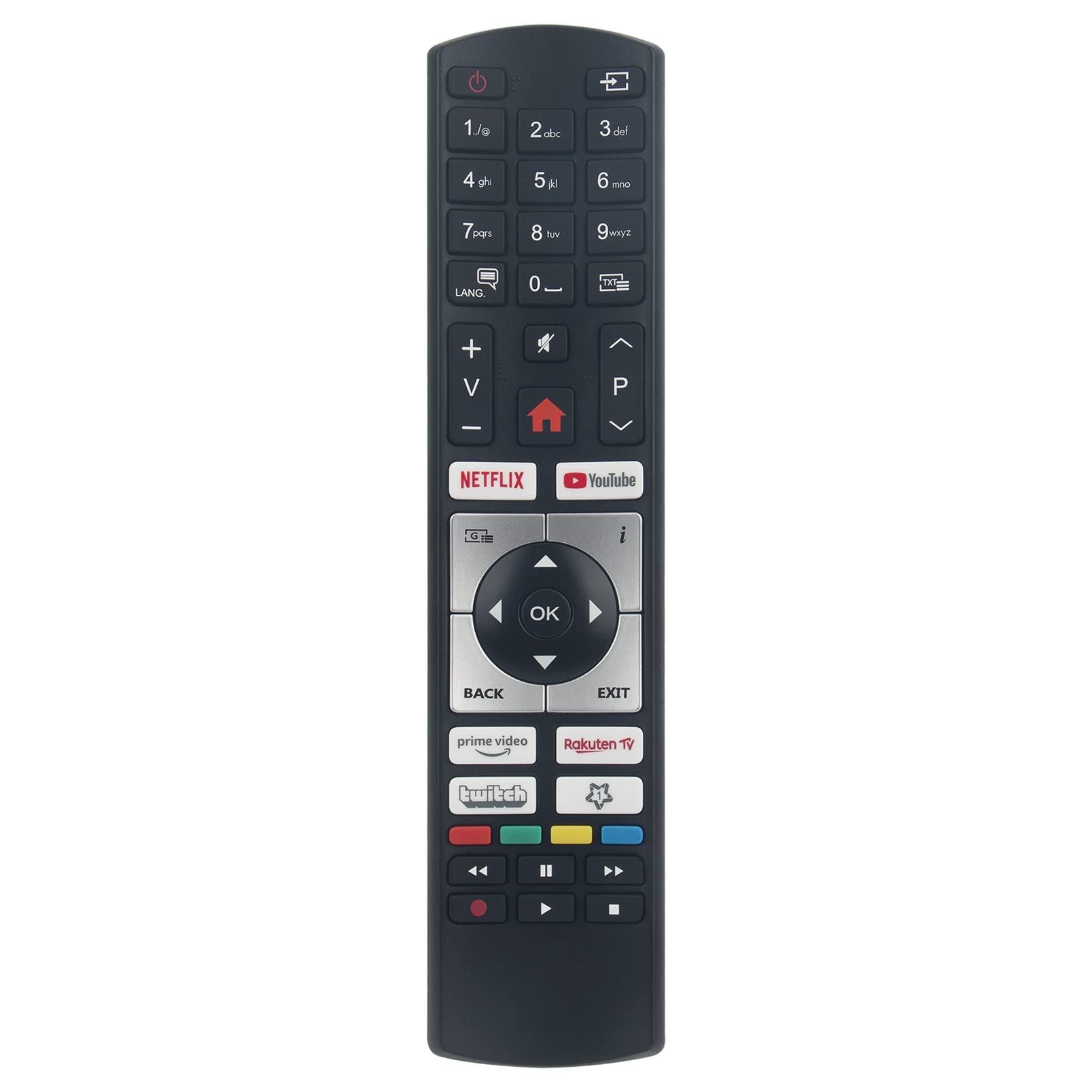
Figure 2.1: Front view of the ALLIMITY RC4518P remote control. This image displays the full button layout, including numerical keys, navigation pad, volume and channel controls, and dedicated buttons for Netflix, YouTube, Prime Video, Rakuten TV, and Twitch.

Figure 2.2: Angled view of the ALLIMITY RC4518P remote control, highlighting its ergonomic design and button placement.
3. Setup
The ALLIMITY RC4518P remote control is designed for immediate use with compatible TV models without requiring any complex programming. Follow these simple steps to begin using your remote:
- Install Batteries: Open the battery compartment cover on the back of the remote control. Insert two new AAA alkaline batteries, ensuring the positive (+) and negative (-) terminals match the indicators inside the compartment.
- Close Compartment: Securely close the battery compartment cover.
- Ready for Use: The remote control is now ready to operate your compatible television. No additional programming or pairing steps are required.
Note: Always use new alkaline batteries for optimal performance and to prevent leakage.
4. Operating Instructions
This section details the primary functions of the buttons on your ALLIMITY RC4518P remote control.
| Button | Function |
|---|---|
| Power (●) | Turns the television on or off. |
| 1-9, 0 | Numerical keys for direct channel selection. |
| Volume Up/Down (V+/V-) | Increases or decreases the television volume. |
| Channel Up/Down (P+/P-) | Changes to the next or previous channel. |
| Mute (🔇) | Mutes or unmutes the television audio. |
| Navigation Pad (Up, Down, Left, Right, OK) | Used to navigate menus and confirm selections. |
| BACK | Returns to the previous menu or screen. |
| EXIT | Exits the current menu or application. |
| Home (⌂) | Accesses the TV's main home screen or smart TV interface. |
| NETFLIX, YouTube, Prime Video, Rakuten TV, Twitch | Direct access buttons for popular streaming applications (functionality depends on TV model and internet connection). |
| Color Buttons (Red, Green, Yellow, Blue) | Perform specific functions within menus or applications, as indicated on the TV screen. |
| Media Control Buttons (Play, Pause, Stop, Rewind, Fast Forward, Record) | Controls media playback for compatible content. |
The remote operates using infrared (IR) technology. Ensure a clear line of sight between the remote control and the television's IR receiver for optimal performance.
5. Maintenance
Proper maintenance ensures the longevity and reliable operation of your remote control.
- Battery Replacement: Replace batteries when the remote's response becomes sluggish or it stops functioning. Always replace both batteries at the same time with new AAA alkaline batteries. Do not mix old and new batteries, or different types of batteries.
- Cleaning: To clean the remote, gently wipe its surface with a soft, dry cloth. For stubborn dirt, slightly dampen the cloth with water or a mild, non-abrasive cleaner. Do not use harsh chemicals or immerse the remote in liquid.
- Storage: Store the remote in a dry place, away from direct sunlight, extreme temperatures, and high humidity. If the remote will not be used for an extended period, remove the batteries to prevent leakage.
6. Troubleshooting
If you experience issues with your remote control, refer to the following troubleshooting steps:
| Problem | Possible Cause | Solution |
|---|---|---|
| Remote not responding. | Dead or incorrectly inserted batteries. | Replace batteries with new AAA alkaline batteries, ensuring correct polarity. |
| Remote has limited range or intermittent response. | Obstruction between remote and TV; low battery power; interference. | Ensure a clear line of sight to the TV's IR receiver. Replace batteries. Move away from potential sources of interference. |
| Specific buttons not working. | Button stuck or damaged; TV model incompatibility for advanced functions. | Check if the button is physically stuck. Some advanced functions (e.g., smart app buttons) may not be supported by all compatible TV models. |
| Remote does not control the TV at all. | TV model not compatible; remote malfunction. | Verify your TV model is listed as compatible. If issues persist after checking batteries and line of sight, the remote may be faulty. |
7. Specifications
| Feature | Detail |
|---|---|
| Model Number | RC4518P (QYSY-RC4518P-IHGF-QYSY) |
| Brand | ALLIMITY |
| Connectivity Technology | Infrared (IR) |
| Maximum Range | 10 meters |
| Battery Type | 2 x AAA Alkaline Batteries (not included) |
| Maximum Supported Devices | 10 (Universal functionality for specified models) |
| Compatible TV Brands | ITT, HITACHI, GOGEN, FINLUX |
| Partial List of Compatible Models | TVH24M606STWEB, TVF32M528STWEB, L22DP03EA, LCD263475N, 42FLSD850PU, 19FLD850VHUD, 32FLD850PU, 19FLD850VHUV1, 22FLD850VU, 22FLD841, 19FL850V, FIN22851DVD, FIN22851DVDIPOD, 22FLHY905LVD, 37FLHD850PU, 26FLD850PU, 22FL850VI, 22FLD850VRU, 46FLH850U, 19FLD850VHU, FIN19851DVD |
8. Warranty and Support
Information regarding product warranty and specific support contacts is not provided in the product details. For warranty claims or technical assistance, please refer to the retailer where the product was purchased or contact ALLIMITY customer service directly through their official channels, if available.
