
1. Introduction
This manual provides detailed instructions for the installation, operation, and maintenance of your VIMAR K40965 Wi-Fi Video Doorbell Kit. Please read this manual thoroughly before use to ensure proper functionality and safety.
The VIMAR K40965 Kit includes a Wi-Fi enabled video doorbell (model 40960) designed for call forwarding to the View Door mobile application. It features a camera with night vision, RGB LED lighting for the call button, an integrated SD card for recording, and an anti-tampering sensor. The kit also comes with a dedicated power supply (model 40103) for DIN rail installation.

Image: The VIMAR K40965 Kit showing the video doorbell unit and the DIN rail power supply.
2. Safety Information
- Electrical Safety: Installation should be performed by a qualified electrician or in accordance with local electrical codes. Ensure power is disconnected before any wiring work.
- Outdoor Use: The doorbell unit is designed for outdoor use. Ensure all connections are properly sealed to prevent water ingress.
- Power Supply: Use only the provided VIMAR 40103 power supply or a compatible 24V power source. Do not use battery power for this device.
- Tampering: The device includes an anti-tampering sensor. Avoid unauthorized disassembly or modification.
- Operating Temperature: Ensure the device is operated within its specified temperature range to prevent malfunction.
3. Package Contents
Verify that all items are present in your VIMAR K40965 Kit:
- 1 x VIMAR 40960 Wi-Fi Video Doorbell Unit
- 1 x VIMAR 40103 DIN Rail Power Supply
- 1 x SD Card (8GB)
- Mounting hardware (screws, anchors)
- Quick Start Guide (if included)
4. Setup
4.1. Physical Installation
- Choose Location: Select a suitable outdoor location for the doorbell, typically at eye level next to your door. Ensure good Wi-Fi signal strength at this location.
- Mount the Doorbell: Use the provided mounting hardware to securely attach the doorbell unit to the wall.
- Install Power Supply: Mount the VIMAR 40103 DIN rail power supply in your electrical panel or a suitable enclosure.
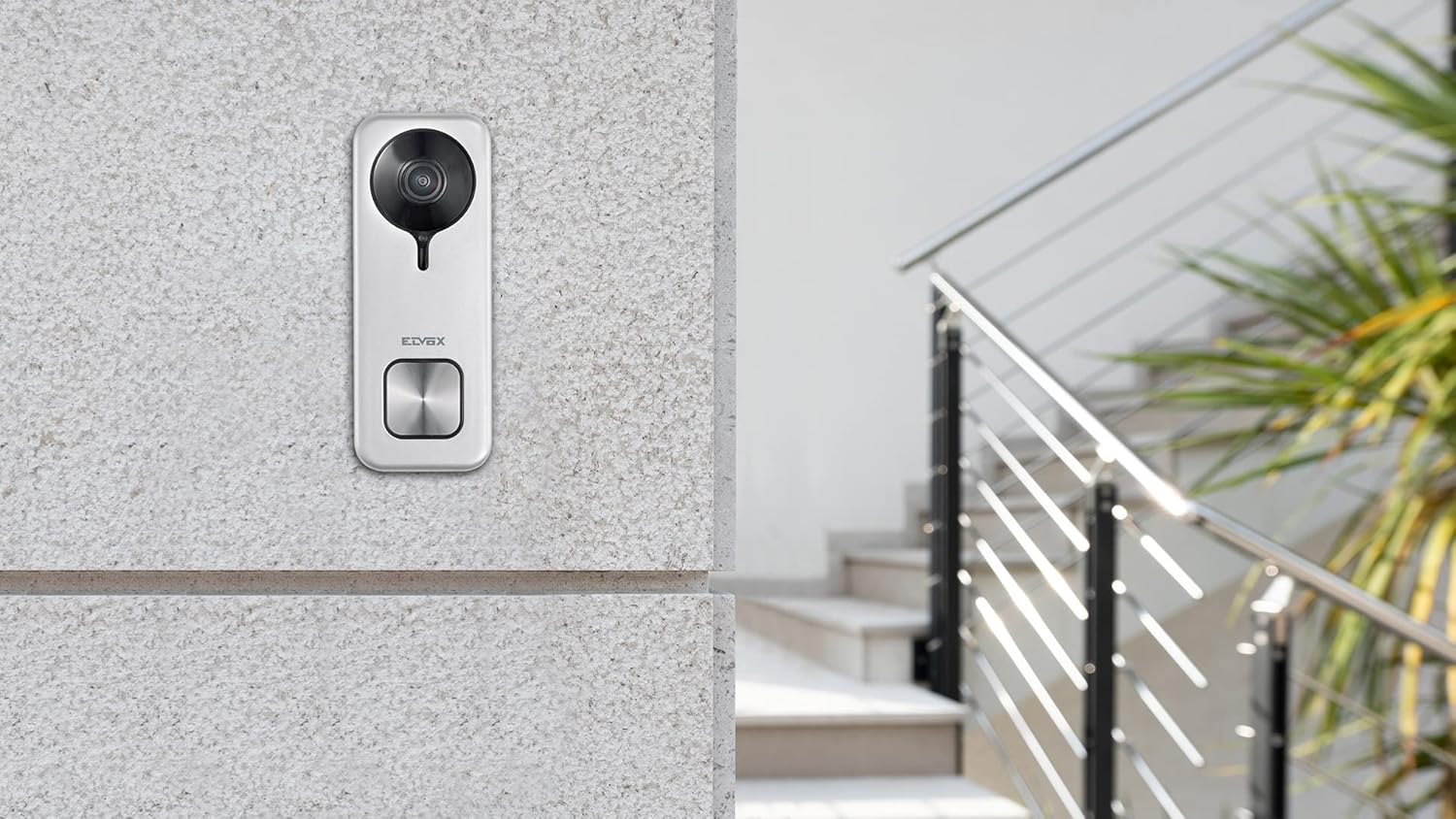
Image: The VIMAR K40965 doorbell unit installed on an exterior wall.
4.2. Wiring
Connect the doorbell unit to the 24V output of the VIMAR 40103 DIN rail power supply. Refer to the wiring diagram provided with the product for specific terminal connections. Ensure all connections are tight and insulated.
4.3. App and Wi-Fi Configuration
- Download App: Download the "View Door" mobile application from your smartphone's app store (iOS or Android).
- Create Account: Open the app and follow the on-screen instructions to create a new user account or log in if you already have one.
- Add Device: In the app, select the option to add a new device. Follow the pairing instructions, which typically involve scanning a QR code on the doorbell or entering a device ID.
- Connect to Wi-Fi: During the setup process, you will be prompted to connect the doorbell to your home Wi-Fi network. Ensure your Wi-Fi network is 2.4GHz compatible and has a strong signal.
- Test Functionality: After successful pairing, test the doorbell by pressing the call button and verifying that you receive a notification and live video feed on your smartphone.

Image: Icon indicating device registration and setup.
5. Operating Instructions
5.1. Receiving Calls
When a visitor presses the doorbell button, your smartphone will receive a notification via the View Door app. You can answer the call from anywhere with an internet connection.

Image: A user interacting with the View Door app on a smartphone from inside their home.
5.2. Two-Way Communication
Once you answer a call through the app, you can engage in two-way audio communication with your visitor. The doorbell's integrated microphone and speaker allow for clear conversation.
5.3. Door/Gate Release
The doorbell unit provides two commands for opening a gate or door lock. These commands can be activated directly from the View Door app during a call or live view.

Image: Graphic illustrating the ability to open an electric lock via the app.
5.4. Motion Detection
The doorbell features a motion detection sensor. When motion is detected within the camera's field of view, you will receive a notification on your smartphone. You can adjust motion sensitivity settings within the View Door app.

Image: Icon symbolizing motion detection functionality.
5.5. Night Vision
The integrated night vision functionality allows the doorbell camera to capture clear video footage even in low-light conditions or complete darkness.
5.6. Video Recording
The doorbell comes with an 8GB SD card for local storage of video recordings. Recordings can be triggered by doorbell presses or motion detection. You can access and manage these recordings through the View Door app.
5.7. Voice Assistant Integration
The VIMAR K40965 is compatible with Amazon Alexa. Follow the instructions in the View Door app or your Alexa app to link your doorbell for voice control and notifications.

Image: Icon indicating compatibility with smart speakers like Amazon Alexa.
6. Maintenance
- Cleaning: Periodically clean the camera lens and the doorbell surface with a soft, damp cloth. Do not use harsh chemicals or abrasive cleaners.
- Firmware Updates: Ensure your doorbell's firmware is up to date. Check the View Door app regularly for available updates.
- SD Card Management: Regularly review and manage recordings on the SD card to ensure sufficient storage space. Format the SD card periodically if issues arise.
7. Troubleshooting
7.1. No Wi-Fi Connection
- Ensure your Wi-Fi router is powered on and functioning correctly.
- Verify the doorbell is within range of your Wi-Fi network and has a strong signal. Consider using a Wi-Fi extender if necessary.
- Check that your Wi-Fi network is 2.4GHz. The doorbell may not support 5GHz networks.
- Restart your router and the doorbell unit.
7.2. App Not Responding or Delayed Notifications
- Ensure your smartphone has a stable internet connection (Wi-Fi or mobile data).
- Close and reopen the View Door app.
- Check for app updates in your phone's app store.
- Verify that app notifications are enabled in your phone's settings.
7.3. No Video or Audio
- Clean the camera lens to ensure it is free from dirt or obstructions.
- Check the power supply to the doorbell unit.
- Ensure your phone's volume is up and microphone permissions are granted to the View Door app.
7.4. Door/Gate Release Not Working
- Verify the wiring connections between the doorbell and the gate/door lock mechanism.
- Ensure the lock mechanism itself is functioning correctly.
- Check settings within the View Door app related to door/gate control.
8. Specifications
| Feature | Detail |
|---|---|
| Model Number | K40965 |
| Brand | VIMAR |
| Color | Grey |
| Material | Plastic |
| Mounting Type | Wall Mount |
| Video Resolution | 1440p (4 Mpx) |
| Viewing Angle | 160 degrees |
| Connectivity Technology | Wi-Fi (Wireless) |
| Power Source | External Power Supply (24 Volts, 3 Watts) |
| Included Components | Doorbell 40960, DIN Rail Power Supply 40103, 8GB SD Card |
| Special Features | Night Vision, Motion Detection, Anti-tampering Sensor, RGB LED Call Button |
| Compatible Devices | Smartphone, Amazon Alexa |
| Dimensions (L x W x H) | 5.2 x 2.45 x 13.3 cm |
| Weight | 450 grams |
| Operating App | View Door |

Image: Technical drawing showing the dimensions of the doorbell unit in millimeters.
9. Warranty and Support
VIMAR products are covered by a manufacturer's warranty. For specific warranty terms and conditions, please refer to the documentation included with your product or visit the official VIMAR website.
For additional support, tutorials, and frequently asked questions, please visit faidate.vimar.com.


