
1. Introduction
This instruction manual provides essential information for the installation, operation, and maintenance of your Corel PaintShop Pro 2023 Ultimate PC Key Card software. It covers key features, system requirements, and troubleshooting tips to help you maximize your photo editing and graphic design experience.
2. Minimum System Requirements
- Operating System: Windows 11, Windows 10 (recommended version 1903 or later with latest service pack, 64-bit editions). For virtualization: Microsoft Windows Server 2012 R2, Windows Server 2016, Windows Server 2019.
- Processor: Intel Celeron G series or AMD Phenom II and above (Intel i5 or AMD Ryzen series and above recommended for Artificial Intelligence feature support).
- RAM: 4GB RAM (8GB recommended for AI feature support).
- Hard Disk Space: 3GB required (4GB recommended).
- Display Resolution: 1366 x 768 (1920 x 1080 @100 DPI recommended). Up to 250 DPI supported with appropriate resolution display.
- Video Adapter: DirectX 11 or higher compatible video adapter with latest driver (DirectX 12 compatible discrete VGA card recommended for GPU acceleration).
- Internet Connection: Required to install and authenticate PaintShop Pro 2023, online features, and tutorial videos.
- Note: The native 32-bit version of Windows is no longer supported. For support with 32-bit drivers, use earlier versions of PaintShop Pro.
3. Installation Guide (PC Key Card)
- Locate Your Key Card: Open your product packaging and locate the PC Key Card. This card contains your unique serial number(s) and instructions for downloading the software.
- Internet Connection: Ensure your computer has an active internet connection.
- Download Software: Follow the instructions on your key card to visit the official Corel download page for PaintShop Pro 2023 Ultimate. Download the installer file to your computer.
- Run Installer: Locate the downloaded installer file (usually in your 'Downloads' folder) and double-click it to begin the installation process.
- Follow On-Screen Prompts: Adhere to all on-screen instructions. You will be prompted to accept the license agreement, choose an installation location, and enter your serial number(s) from the key card.
- Install Creative Suite Components: PaintShop Pro 2023 Ultimate includes additional creative suite components (e.g., MultiCam Capture 2.0 Lite, Painter Essentials 8, PhotoMirage Express, ParticleShop). These may require separate installation steps as indicated during the main installation or on your key card. Follow the provided instructions for each component.
- Complete Installation: Once all components are installed, restart your computer if prompted.
- Launch Software: Locate the Corel PaintShop Pro 2023 Ultimate icon on your desktop or in your Start menu and launch the application.
For any installation issues, refer to the Troubleshooting section or contact Corel Support.
4. Key Features and Components
4.1. Comprehensive Photo Editing Tools
PaintShop Pro 2023 Ultimate offers a full suite of editing tools to correct, adjust, and enhance your photos. This includes features for object removal, background changes, and advanced image manipulation.

Image: Edit photos like a pro with a comprehensive toolset.
4.2. AI-Powered Enhancements
Leverage Artificial Intelligence for time-saving solutions and one-click fixes to make every photo look its best. AI features include AI Background Replacement, AI Portrait Mode, AI Style Transfer, AI Denoise, and AI Upsampling.

Image: Enhance photos with AI for optimal results.

Image: Edit RAW files using AfterShot Lab for advanced capabilities.
Video: Official Corel video highlighting new features in PaintShop Pro 2023, including AI enhancements and RAW file editing.
4.3. Graphic Design Capabilities
Create stunning graphics and designs with intuitive text, brushes, textures, patterns, drawing, and painting tools. The enhanced Frame Tool allows for creative layouts and designs.

Image: Create graphics and designs with intuitive tools.

Image: Add effects for impact with hundreds of creative filters.
4.4. Ultimate Creative Suite Components
The Ultimate edition includes a bonus collection of creative software to expand your capabilities:
- MultiCam Capture 2.0 Lite: For video capture and screen recording.
- Painter Essentials 8: For photo painting.
- PhotoMirage Express: For photo animation.
- Highlight Reel: A smart movie creator.
- Sea-to-Sky Workspace: Specialized workspace for underwater and drone photos.
- 50 Free Modern Fonts: Expand your text design options.
- Corel Creative Collection: Additional creative assets.
- Amazon Exclusive ParticleShop + 5 Brush Starter Pack: A plug-in for enhancing photos, illustrations, and paintings.
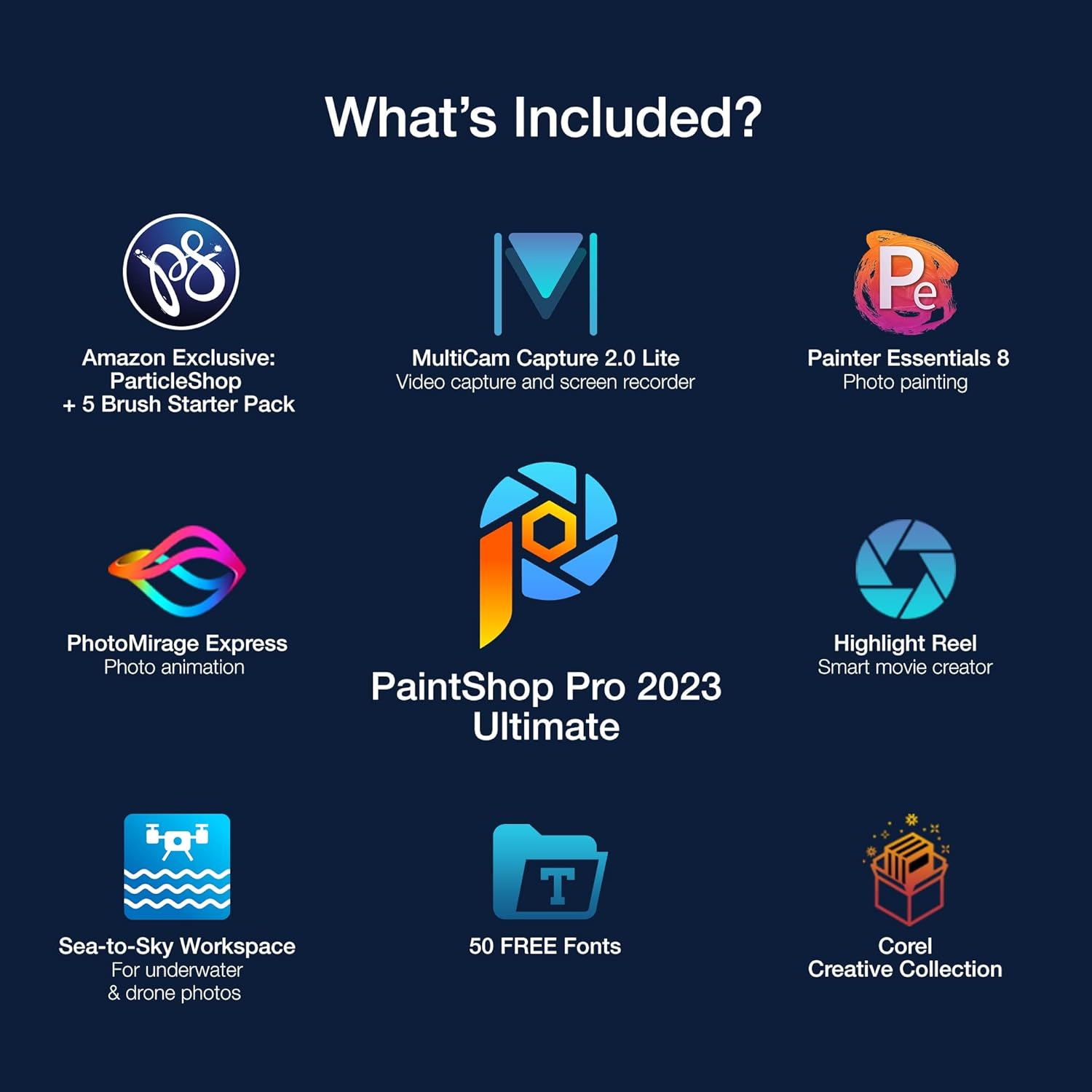
Image: Overview of software included in Corel PaintShop Pro 2023 Ultimate.
Video: Official Corel video introducing PaintShop Pro and its capabilities.
4.5. Customizable Workspaces and Compatibility
Choose from multiple customizable workspaces to edit photos efficiently. The software offers extensive file compatibility, supports 64-bit third-party plug-ins, and is compatible with graphics tablets and stylus input.

Image: Choose from multiple workspaces to suit your needs.

Image: Compatibility and support for various devices and plugins.
5. Operating Instructions
5.1. Navigating the Interface
Upon launching PaintShop Pro 2023 Ultimate, you will typically see a Welcome screen or your last active workspace. The interface is divided into several key areas:
- Menu Bar: At the top, providing access to all software functions (File, Edit, View, Image, Adjust, Effects, Layers, Objects, Selections, Window, Help, etc.).
- Toolbars: Customizable bars with quick access to frequently used tools and commands.
- Tool Palette: Located on the left by default, containing various editing and drawing tools.
- Learning Center/Palettes: On the right, offering context-sensitive help, layers, materials, and other adjustable settings.
- Image Window: The central area where your images are displayed and edited.
You can switch between 'Manage' and 'Edit' tabs at the top to organize your files or perform detailed editing.
Video: Official Corel video providing a complete workspace tour of PaintShop Pro.
5.2. Working with Images
- Opening Files: Use File > Open or drag and drop images into the workspace.
- RAW File Editing: When opening RAW files, you will be prompted to use AfterShot Lab for advanced, non-destructive editing.
- Layers and Masks: Utilize layers for complex compositions and masks for precise control over visibility and effects.
- Applying Effects: Explore the 'Effects' menu or the 'Instant Effects' palette for various filters and artistic transformations.
- Saving Your Work: Use File > Save As to save your project. For layered files, save in PSP format to preserve all layers and masks.
5.3. Using Templates
PaintShop Pro 2023 Ultimate includes built-in templates for various projects like collages, greeting cards, social media images, web banners, brochures, and business cards.
- Accessing Templates: Go to File > New From Template to browse available options.
- Customizing Templates: Templates are often built with layers and masks, allowing you to easily replace images, modify text, and change colors to personalize your design.

Image: Built-in templates for easy creation of various designs.
6. Troubleshooting
- Installation Issues: If you encounter difficulties during installation (e.g., missing .dll files, serial number not accepted), ensure your system meets the minimum requirements and that your internet connection is stable. Try temporarily disabling antivirus software during installation.
- Software Not Launching: Verify that all system requirements are met. Try running the software as an administrator. Reinstalling the software might resolve corrupted files.
- Performance Problems: If the software runs slowly, ensure your computer meets the recommended system requirements, especially for RAM and processor (8GB RAM and Intel i5/AMD Ryzen for AI features). Close other demanding applications. Update your graphics card drivers.
- Feature Not Working: Consult the in-application Learning Center or the official Corel support resources for specific feature guidance. Ensure your software is updated to the latest version.
For persistent issues, refer to the Corel Support website or contact their technical support.
7. Product Specifications
| Product Dimensions | 5.25 x 1.25 x 7.5 inches |
| Item Weight | 2.08 ounces |
| Item Model Number | PSP2023ULMLAZMBAM |
| ASIN | B0B5T2J8TG |
| Manufacturer | Corel |
| First Available Date | August 3, 2022 |
| Supported Languages | English, French, German, Italian, Spanish, Dutch, Traditional Chinese, and Japanese |
8. Support and Warranty
For technical assistance, product updates, or to access additional resources, please visit the official Corel Support website:
Corel Official Store on Amazon
Information regarding product warranty and licensing can typically be found within the software's End User License Agreement (EULA) or on the Corel support pages. Please consult these resources for detailed warranty terms and conditions.


