
ClokoWe GC003
CLOKOWE Mini WiFi Projector GC003 User Manual
Model: GC003
Brand: ClokoWe
1. Introduction
Thank you for choosing the CLOKOWE Mini WiFi Projector GC003. This manual provides essential information for setting up, operating, maintaining, and troubleshooting your projector to ensure optimal performance and longevity. Please read this manual thoroughly before using the product.

Image 1.1: The CLOKOWE Mini WiFi Projector GC003, showcasing its compact design, included remote control, and a smartphone demonstrating wireless connectivity.
2. Package Contents
Please check the package carefully to ensure all items are present and in good condition:
- 1 x CLOKOWE 1080P Projector (Model: GC003)
- 1 x Lens Cover
- 1 x 100-inch Projector Screen
- 1 x Power Cable
- 1 x AV Cable
- 1 x HDMI Cable
- 1 x User Manual (this document)
- 1 x Cleaning Kits
- 1 x Adjustable Screw (1/4 inches)
- 1 x Remote Control (Batteries not included)
3. Product Overview
Familiarize yourself with the projector's various ports and controls.

Image 3.1: Rear view of the CLOKOWE Mini WiFi Projector GC003, highlighting its USB1, USB2, HDMI, AV, and Audio ports for versatile connectivity.
3.1. Ports and Connections
- USB1 / USB2: For connecting USB flash drives or other USB devices.
- HDMI: For connecting devices like laptops, game consoles, TV sticks, or DVD players.
- AV: For connecting older devices using the included AV cable.
- Audio Out: For connecting external speakers or headphones.
- Power Input: For connecting the power cable.
3.2. Controls
- Power Button: Turns the projector on/off.
- Focus Ring: Adjusts the clarity of the projected image.
- Keystone Correction Dial: Manually corrects trapezoidal distortion of the image.
- Remote Control: Provides full control over projector functions, including navigation, volume, input selection, and settings.
4. Setup
4.1. Initial Setup
- Place the projector on a stable, flat surface or mount it using the 1/4-inch screw hole on the bottom.
- Connect the power cable to the projector and then to a power outlet.
- Press the power button on the projector or remote control to turn it on.
4.2. Placement and Screen Size
The projector supports a projection size from 30 to 230 inches, with an optimal projection distance between 2.9 and 18.3 feet (approximately 0.9 to 5.6 meters). For best eye protection and projection quality, a distance of 6 to 10 feet is recommended.
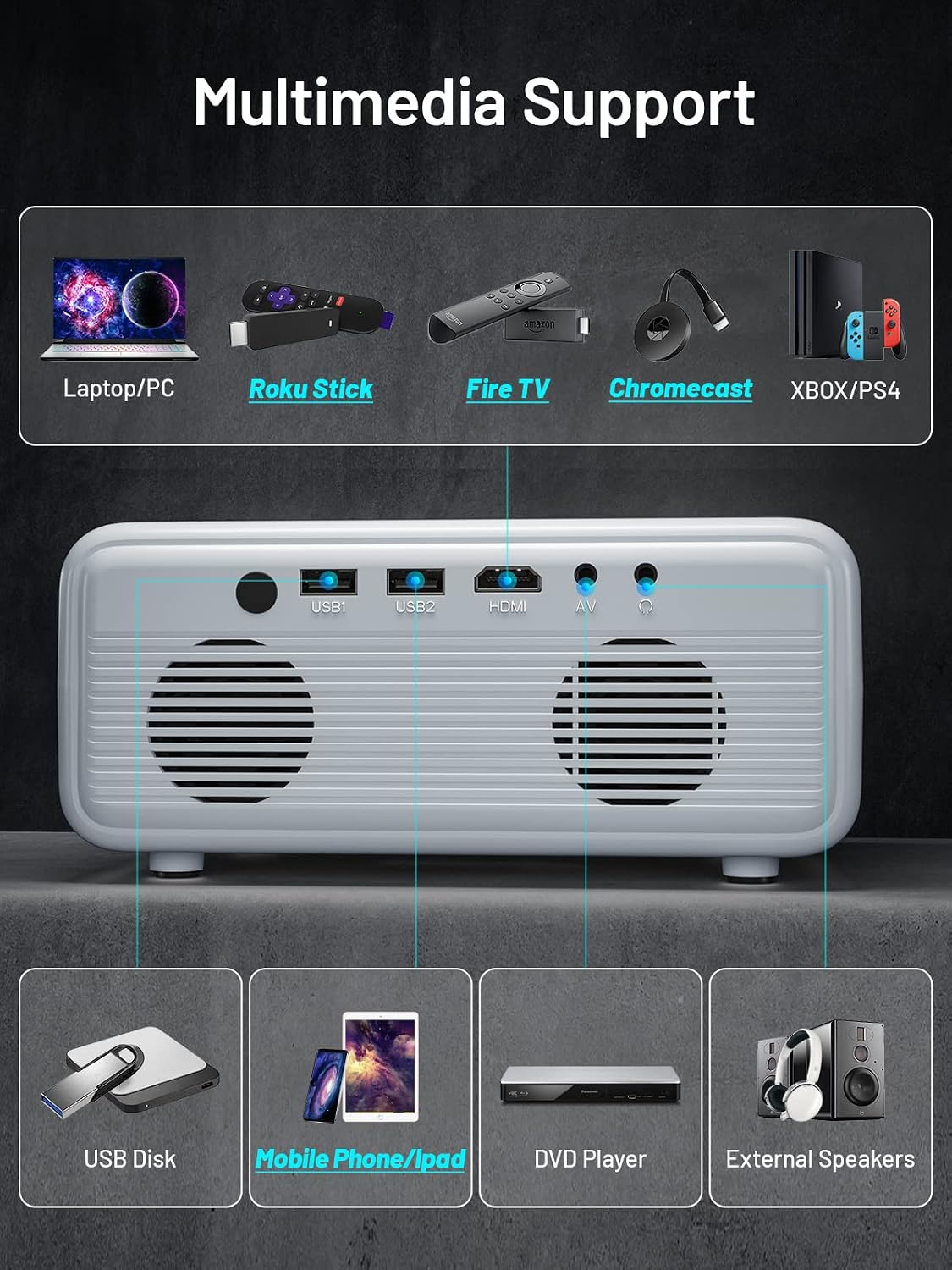
Image 4.1: Illustration of the CLOKOWE Mini WiFi Projector GC003's projection capabilities, demonstrating screen sizes from 30 inches at 2.9 feet to 230 inches at 18.3 feet.
4.3. Focus and Keystone Correction
After positioning the projector, adjust the image for clarity and shape.

Image 4.2: Visual guide for adjusting focus and performing manual ±15° keystone correction on the projector.
- Focus: Rotate the focus ring on the projector lens until the image appears sharp and clear.
- Keystone Correction: If the projected image appears trapezoidal (wider at the top or bottom), use the keystone correction dial to adjust it into a rectangular shape. Note that significant keystone correction may slightly affect image focus at the edges.
5. Operating Instructions
5.1. Power On/Off
- To power on, press the power button on the projector or the remote control.
- To power off, press the power button again. The projector will enter standby mode.
5.2. Wireless Connection (Screen Mirroring)
The CLOKOWE GC003 supports wireless screen mirroring for iOS, Android, and Windows 10 devices.

Image 5.1: Comparison of wired projection via USB Lightning cable and wireless projection for iOS, Android, and Windows devices.
- Ensure your projector and smart device are connected to the same Wi-Fi network.
- Select the 'Screen Mirroring' or 'Wireless Display' option on the projector's main menu.
- On your smart device, enable screen mirroring (e.g., 'Screen Mirroring' for iOS, 'Smart View'/'Cast' for Android, 'Connect' for Windows).
- Select the projector's name from the list of available devices to establish the connection.
5.3. Wired Connection
Connect various devices using the available ports.
- HDMI: Connect your laptop, game console (PS4/XBOX), Fire TV Stick, Roku Stick, or Chromecast using an HDMI cable. Select the HDMI input source on the projector.
- USB: Insert a USB flash drive to play media files directly. Select the USB input source.
- AV: Use the included AV cable to connect older devices like DVD players. Select the AV input source.
- iOS Wired Connection: Connect your iPhone directly using an original USB Lightning cable. No additional adapter is needed.
5.4. Audio Output
The projector features a built-in HiFi stereo speaker for immersive sound. For enhanced audio, you can connect external speakers or headphones via the Audio Out port.

Image 5.2: The CLOKOWE Mini WiFi Projector GC003, highlighting its integrated HiFi stereo speaker for clear audio output.
5.5. Zoom Function
The projector supports a 50% to 100% zoom function, allowing you to adjust the image size without moving the projector.

Image 5.3: Illustration of the projector's 50% to 100% zoom function, allowing flexible image sizing.
- Navigate to the projector's menu settings using the remote control.
- Locate the 'Zoom' or 'Image Scale' option.
- Adjust the percentage to enlarge or reduce the screen size as desired.
6. Maintenance
6.1. Cleaning
- Lens: Use the provided cleaning kits or a soft, lint-free cloth specifically designed for optical lenses. Gently wipe the lens to remove dust or smudges. Avoid harsh chemicals.
- Projector Body: Wipe the exterior with a soft, dry cloth. Do not use liquid cleaners directly on the projector.
- Vents: Regularly check and clean the ventilation openings to prevent dust buildup, which can affect cooling performance. Use a soft brush or compressed air.
6.2. Storage
- When not in use, cover the lens with the lens cap to protect it from dust and scratches.
- Store the projector in a cool, dry place away from direct sunlight and extreme temperatures.
- If storing for an extended period, disconnect the power cable.
7. Troubleshooting
If you encounter issues with your projector, refer to the following common problems and solutions:
| Problem | Possible Cause | Solution |
|---|---|---|
| No image / No signal | Incorrect input source selected; Loose cable connection; Source device not powered on. | Ensure the correct input source (HDMI, USB, AV, Wireless) is selected. Check all cable connections. Power on the source device. |
| Blurry image | Out of focus; Incorrect projection distance; Excessive keystone correction. | Adjust the focus ring on the lens. Ensure the projector is within the recommended projection distance. Minimize keystone correction if possible. |
| No sound | Volume too low; Muted; External audio device not connected properly. | Increase the volume using the remote. Check if the projector or source device is muted. Ensure external speakers are connected correctly. |
| Fan noise is loud | Normal operation; Blocked vents; High ambient temperature. | A certain level of fan noise is normal for cooling. Ensure vents are not blocked. Operate in a well-ventilated area. |
| Wireless connection issues | Not on same Wi-Fi network; Network interference; Device compatibility. | Ensure both projector and device are on the same 2.4GHz Wi-Fi network. Try restarting both devices and your router. Some apps or content may not support screen mirroring due to copyright. |
8. Specifications
| Feature | Specification |
|---|---|
| Brand | ClokoWe |
| Model Number | GC003 |
| Display Resolution | Native 1920 x 1080P |
| Connectivity Technology | USB, HDMI, AV, Wireless (WiFi) |
| Special Features | USB Connectivity, Wireless, Built-in Speaker, Keystone Correction, Zoom Function |
| Recommended Uses | Movies, Home Theater, Gaming, Outdoor Movies |
| Item Weight | 3.85 pounds (approx. 1.75 kg) |
| Product Dimensions | 7.5 x 6.3 x 3.3 inches (approx. 19 x 16 x 8.4 cm) |
| Visible Screen Diagonal | 100 inches / 254 cm (included screen) |
| Projection Size | 30 - 230 inches |
| Projection Distance | 2.9 - 18.3 feet |
9. Warranty and Support
CLOKOWE provides 7 years of factory support for this product. We are committed to customer satisfaction. For any questions, technical assistance, or support needs, please do not hesitate to contact us. Our support team is available 24/7/365 to assist you.
Ask a question about this manual
Ask about setup, troubleshooting, compatibility, parts, safety, or missing instructions. Manuals+ will review the question and use this page’s manual context to help answer it.