1. Introduction
Thank you for choosing the Kensington Slim N17 2.0 Keyed Laptop Lock. This security solution is specifically designed for ultra-thin and 2-in-1 laptops featuring a wedge-shaped security slot. Its slim profile ensures that it does not obstruct valuable ports, allowing full functionality of your device while providing robust security. The lock also allows your laptop to lie flat and stable on any surface.
This manual provides detailed instructions for the proper installation, operation, and maintenance of your new laptop lock. Please read it thoroughly before use to ensure optimal performance and security.
2. Package Contents
- Kensington Slim N17 2.0 Keyed Laptop Lock unit
- Keys (2)
3. Setup and Installation
Follow these steps to securely attach the Kensington Slim N17 2.0 Keyed Laptop Lock to your device:
- Identify the Security Slot: Locate the wedge-shaped security slot on your laptop. This slot is typically found on the side or back edge of the device.
- Insert the Lock Head: Insert the lock head into the security slot. Ensure it is fully seated within the slot.
- Rotate the Lock: Once inserted, rotate the lock head 90 degrees to engage the internal locking mechanism. You should feel it click into place.
- Secure the Cable: Loop the carbon steel cable around a sturdy, immovable object such as a table leg, desk anchor, or other fixed structure.
- Lock the Mechanism: Insert one of the provided keys into the lock cylinder and turn it clockwise to secure the lock. Remove the key.
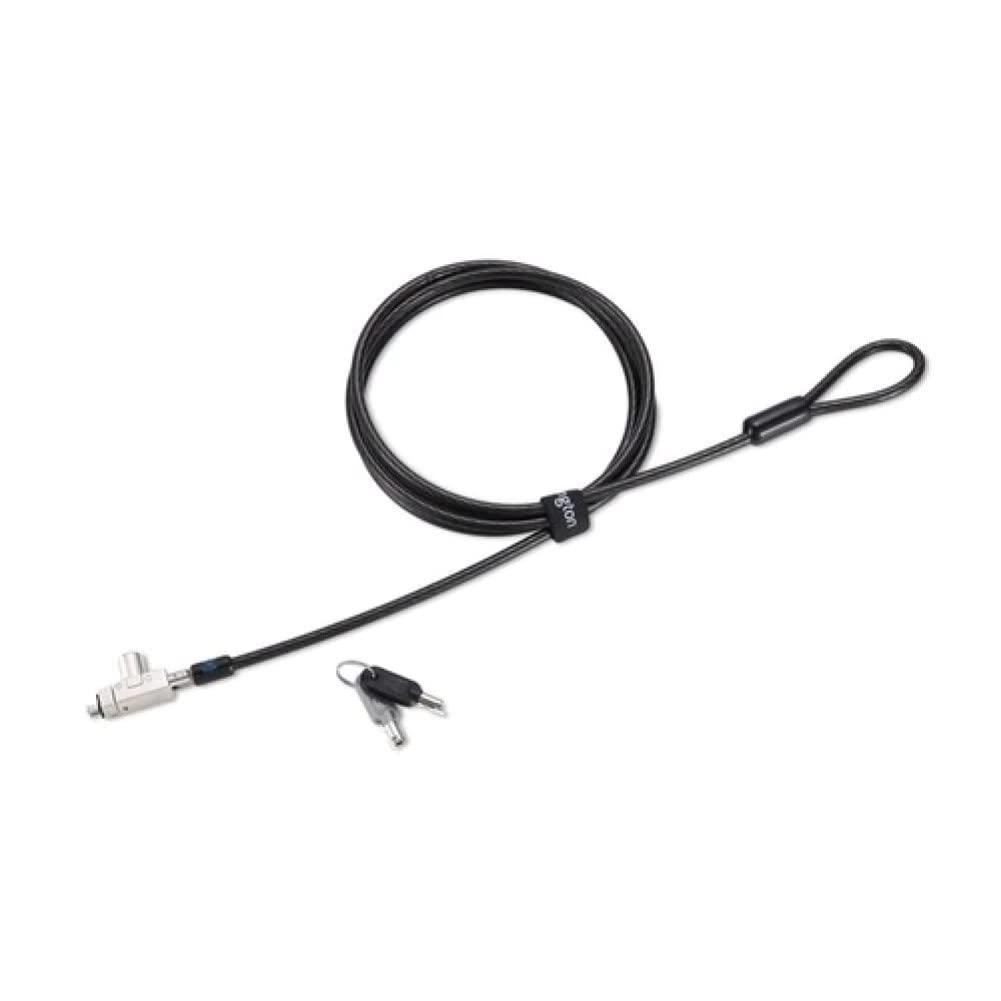
Image 1: The Kensington Slim N17 2.0 Keyed Laptop Lock in use, demonstrating its attachment to a laptop and the carbon steel cable securing it to a desk. Note the slim profile that allows full port access.
The omnidirectional pivoting head and rotating anchor of the cable allow for flexible positioning, preventing awkward angles and making key insertion easy.
4. Operation
4.1. Locking Your Laptop
- Ensure the lock head is properly engaged in the laptop's security slot and the cable is secured to an immovable object.
- Insert the key into the lock cylinder.
- Turn the key clockwise until the lock mechanism is fully engaged.
- Remove the key. Your laptop is now secured.
4.2. Unlocking Your Laptop
- Insert the correct key into the lock cylinder.
- Turn the key counter-clockwise to disengage the lock mechanism.
- Remove the key.
- Rotate the lock head 90 degrees to disengage it from the security slot, then pull the lock head out of the slot.
5. Key Management
The Kensington Slim N17 2.0 lock utilizes a 5mm keying system, which is standard across Kensington's latest locks. This simplifies key management if you use multiple Kensington security products.
5.1. Register & Retrieve™
Kensington offers a free online key registration program called Register & Retrieve™. We highly recommend registering your keys immediately after purchase. This service allows for quick, secure, and free key replacement if your keys are ever lost or stolen. Visit the Kensington website for more details and to register your product.
6. Maintenance
The Kensington Slim N17 2.0 Keyed Laptop Lock is designed for durability and requires minimal maintenance. To ensure its longevity and proper function:
- Keep the lock mechanism clean and free from dust and debris.
- Avoid exposing the lock to extreme temperatures or harsh chemicals.
- Periodically check the cable for any signs of wear or damage. If damage is observed, discontinue use and replace the lock.
7. Troubleshooting
7.1. Lock Head Does Not Insert or Engage
- Ensure your laptop has a wedge-shaped security slot. This lock is not compatible with standard T-bar slots.
- Check for any obstructions in the security slot.
- Ensure the lock head is aligned correctly before insertion and rotation.
7.2. Key Does Not Turn
- Ensure you are using the correct key provided with the lock.
- Check if the key is fully inserted into the cylinder.
- Apply gentle pressure while turning. Do not force the key.
- If the lock mechanism feels stiff, a small amount of graphite lubricant (not oil-based) can be applied to the key and inserted into the cylinder.
8. Specifications
| Model Number | K60502WW |
| Product Dimensions | 6 x 6 x 1 inches (15.24 x 15.24 x 2.54 cm) |
| Item Weight | 7.2 ounces (204 grams) |
| Cable Material | Carbon Steel |
| Cable Length | 6 feet (1.8 meters) |
| Keying System | 5mm |
| Compatibility | Laptops with wedge-shaped security slots (e.g., Dell) |
9. Warranty and Support
9.1. Warranty Information
The Kensington Slim N17 2.0 Keyed Laptop Lock is backed by a Five-Year Limited Warranty. This warranty covers defects in material and workmanship under normal use. For full warranty terms and conditions, please refer to the official Kensington website or contact customer support.
9.2. Customer Support
For technical assistance, product inquiries, or warranty claims, please visit the official Kensington support website or contact their customer service department. Contact information can typically be found on the Kensington website:


