
1. Introduction
Thank you for purchasing the KAGO 4K HDMI Splitter 1 in 10 Out, Model 4K1010. This device is designed to distribute a single HDMI source signal to ten HDMI displays simultaneously. It supports high-resolution video up to 4K@30Hz, 3D visual effects, and various digital audio formats, ensuring a high-quality audio and video experience across multiple screens. This manual provides detailed instructions for setup, operation, and troubleshooting to help you maximize the performance of your HDMI splitter.
2. Safety Information
- Ensure the power adapter matches the voltage requirements of your region.
- Do not expose the device to water, moisture, or extreme temperatures.
- Avoid placing the device near heat sources or in direct sunlight.
- Do not attempt to open or repair the device yourself. Refer all servicing to qualified personnel.
- Disconnect power during lightning storms or when unused for long periods.
- Use only the provided power adapter.
3. Package Contents
Please verify that all items are present in your package:
- KAGO 4K HDMI Splitter 1 in 10 Out (Model: 4K1010)
- Power Adapter (DC 12V/2A)
- User Manual
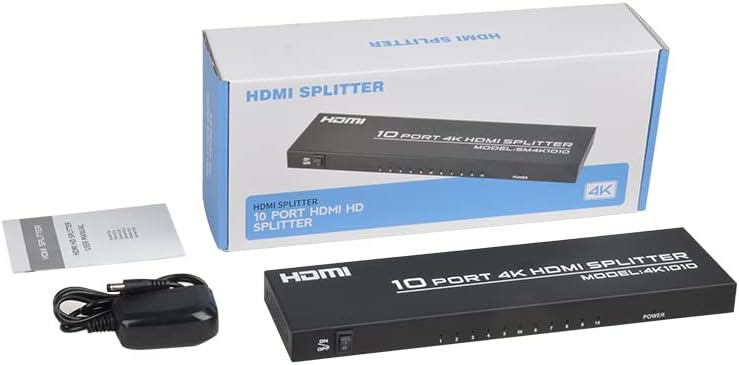
Image: The KAGO 4K HDMI Splitter, its power adapter, and the instruction manual are shown alongside the product packaging.
4. Product Overview
The KAGO 4K HDMI Splitter 1 in 10 Out features a robust design with clear labeling for easy connection and operation.
Front Panel:
- ON/OFF Switch: Power control for the device.
- Output Indicators (1-10): LEDs that illuminate when an HDMI output is connected and active.
- Power Indicator: LED that illuminates when the device is powered on.
Rear Panel:
- HDMI IN: Port for connecting your single HDMI source device.
- HDMI OUT 1-10: Ten ports for connecting your HDMI display devices.
- DC 5V: Power input port for the included power adapter.

Image: Top view showing the power switch and ten output indicator LEDs. Bottom view showing the HDMI input, ten HDMI output ports, and the DC power input.
5. Setup Instructions
Follow these steps to set up your KAGO 4K HDMI Splitter:
- Connect HDMI Source: Connect an HDMI cable from your source device (e.g., PC, laptop, game console, Blu-ray player) to the HDMI IN port on the splitter.
- Connect HDMI Displays: Connect HDMI cables from your display devices (e.g., HDTVs, monitors, projectors) to the HDMI OUT 1-10 ports on the splitter. You can connect up to ten displays.
- Connect Power: Plug the included DC 12V/2A power adapter into the DC 5V port on the splitter, then plug the adapter into a power outlet.
- Power On: Flip the ON/OFF switch on the front panel to the 'ON' position. The power indicator and active output indicators will light up.
- Verify Connection: Ensure all connected displays are receiving the signal from your source device.
This device is designed for plug-and-play operation, requiring no additional drivers or software installation.

Image: A visual representation of connecting an HDMI source to the splitter's input and ten HDMI displays to its outputs.
6. Operating Instructions
The KAGO 4K HDMI Splitter operates automatically once connected and powered on. It duplicates the single HDMI input signal to all connected HDMI outputs.
- Simultaneous Display: All ten connected displays will show the exact same audio and video content from the single HDMI source.
- Resolution Support: The splitter supports resolutions up to 4K (3840x2160) at 30Hz, as well as 1080P, 1080i, 720p, 576p, 576i, 480P, and 480i. It also supports 3D images.
- Audio Synchronization: The device ensures audio and video are synchronized, supporting various digital audio formats including DTS-HD, Dolby-trueHD, LPCM 7.1, DTS, Dolby-AC3, and DSD.
- Compatibility: Compatible with a wide range of HDMI-integrated devices and operating systems, including Windows, MS-DOS, Linux, Android, and Mac OS.

Image: A visual example of ten monitors simultaneously displaying the same content, illustrating the splitter's core function.

Image: Demonstrates support for 4K high-definition and 3D visual effects.

Image: Illustrates the audio and video synchronization capabilities, including Dolby TrueHD 5.1/7.1.
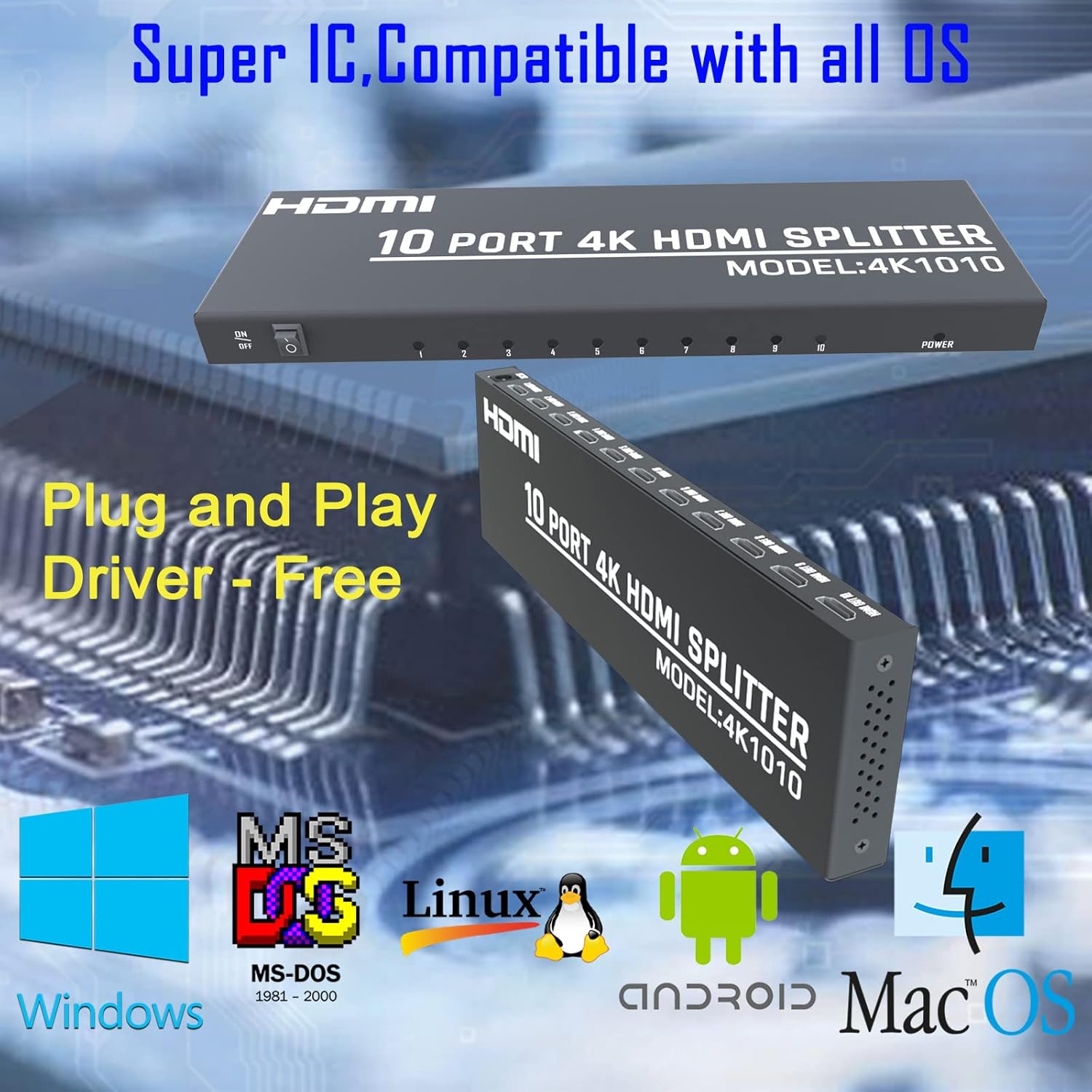
Image: Highlights the splitter's compatibility with various operating systems and its plug-and-play functionality.
7. Troubleshooting
If you encounter issues with your KAGO 4K HDMI Splitter, please refer to the following common solutions:
| Problem | Possible Cause | Solution |
|---|---|---|
| No signal on display(s) | Loose HDMI cables, incorrect input selection on TV, power issue. | Check all HDMI cable connections. Ensure the TV input is set to the correct HDMI port. Verify the splitter is powered on and the power indicator is lit. Try a different HDMI cable. |
| Flickering or distorted image | Poor quality/lengthy HDMI cables, resolution incompatibility. | Use high-quality HDMI cables (19+1AWG26 standard recommended). Ensure cable lengths are within recommended limits (input 1-10M, output 1-15M). Try a lower resolution on the source device. |
| No audio | Audio settings on source/display, faulty HDMI cable. | Check audio settings on your source device and display. Ensure the HDMI cable supports audio transmission. Try a different HDMI cable. |
| Only some outputs work | Faulty output port, issue with specific display/cable. | Test the non-working output with a known good display and cable. Ensure the output indicator LED for that port is lit. |
8. Specifications
| Feature | Detail |
|---|---|
| Model Number | 4K1010 |
| Product Dimensions | 11.1 x 3.1 x 1 inches |
| Item Weight | 1.48 pounds |
| Connector Type | HDMI |
| Supported Resolutions | Up to 4K (3840x2160@30Hz), 1080P, 1080i, 720p, 576p, 576i, 480P, 480i |
| 3D Support | Yes |
| Digital Audio Formats | DTS-HD/Dolby-trueHD/LPCM7.1/DTS/Dolby-AC3/DSD |
| Bandwidth | 10.2 Gbps |
| Power Adapter | Input: AC (50HZ, 60HZ) 100V-240V; Output: DC12V/2A |
| Recommended HDMI Cable Length | Input: 1-10M (16ft); Output: 1-15M (48ft) |
| Manufacturer | Siying |
9. Maintenance
To ensure the longevity and optimal performance of your KAGO 4K HDMI Splitter, follow these maintenance guidelines:
- Cleaning: Use a soft, dry cloth to clean the exterior of the device. Do not use liquid cleaners or aerosols.
- Ventilation: Ensure the device has adequate ventilation. Do not block the ventilation holes. The design promotes efficient heat dissipation to prevent overheating during extended use.

Image: A visual representation of the splitter's heat dissipation design, indicating it remains cool during operation.
10. Warranty and Support
KAGO products are designed for reliability and performance. For warranty information or technical support, please refer to the contact details provided with your purchase or visit the official KAGO website. Please retain your proof of purchase for any warranty claims.