
1. Introduction
This manual provides essential information for the proper setup, operation, and maintenance of your DOYO G30 Gaming Steering Wheel. Please read this manual thoroughly before using the product to ensure optimal performance and safety. Keep this manual for future reference.
2. Product Features
- Multi-Platform Compatibility: Compatible with PC, Xbox ONE, Xbox Series X/S, Xbox 360, PS4, PS3, Nintendo Switch, Android, and Xinput systems.
- 1080-Degree Rotation: Adjustable steering angle from 270 degrees to 1080 degrees for realistic driving simulation.
- 6+1 Speed H-Gear Shifter: Features a six-speed 'H' pattern gearbox with push-down reverse for fast and smooth shifting.
- 3-Pedal Unit: Integrated throttle, brake, and separate clutch systems for an enhanced gaming experience.
- Realistic Gaming Experience: Vibration and force feedback simulate a realistic driving experience with precise steering and progressive dynamic pedaling.
- Ergonomic Design: Rubber steering wheel rim provides a comfortable grip.
- Easy Installation: Equipped with a unique fastening clip and suction cups for stable mounting on desks or flat surfaces.
3. Package Contents
The DOYO G30 Racing Wheel package includes the following components:
- DOYO G30 Steering Wheel Unit
- 3-Pedal Unit (Throttle, Brake, Clutch)
- 6+1 Speed H-Gear Shifter
- Mounting Clamps
- USB Connection Cables

Figure 1: Complete DOYO G30 Racing Wheel system including the steering wheel, pedal unit, and shifter.
4. Setup & Installation
4.1 Mounting the Steering Wheel
The steering wheel unit can be securely mounted to a desk or table using the integrated clamps and suction cups.
- Place the steering wheel unit on the edge of your desired surface.
- Tighten the two knobs on the top of the steering wheel unit to secure the clamps underneath the surface.
- Ensure the suction cups on the base of the unit are pressed firmly against the surface for additional stability.

Figure 2: Illustration of the innovative design clamps for securing the steering wheel to a tabletop, showing compatibility with thicknesses from 0.32 to 1.89 inches.
4.2 Connecting Components
All peripheral components (pedals, shifter) connect directly to the main steering wheel unit. The steering wheel then connects to your gaming console or PC.
- Open the cable compartment on the back of the steering wheel unit.
- Connect the pedal unit's USB cable to the port labeled 'C: Foot pedal'.
- Connect the H-Gear Shifter's USB cable to the port labeled 'A: Gear lever'.
- Close the cable compartment.
- Connect the main USB cable from the steering wheel unit to an available USB port on your gaming console or PC.
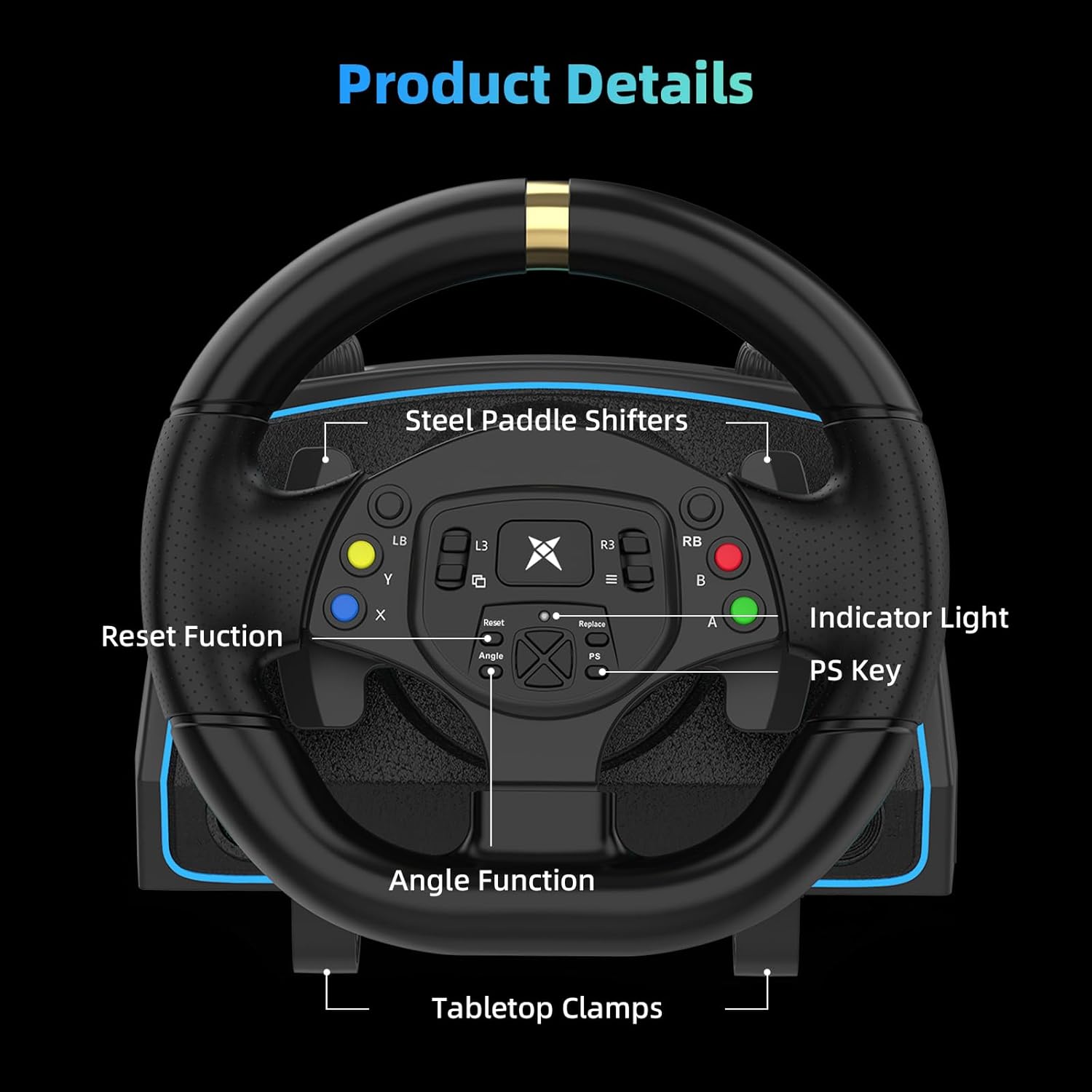
Figure 3: Detailed view of the DOYO G30 Racing Wheel's control panel and connection ports, including indicator light, PS key, reset function, angle function, and tabletop clamps.
4.3 Platform-Specific Connection Tutorials
Refer to the following videos for detailed connection instructions for specific platforms:
4.3.1 Nintendo Switch Connection
Video 1: Tutorial demonstrating how to connect the DOYO G30 Racing Wheel to a Nintendo Switch console. This video covers placing the steering wheel, tightening the knobs, enabling 'Pro Controller Wired Communication' in Switch settings, and connecting the USB cable from the steering wheel to the Switch dock.
4.3.2 Xbox One, Xbox Series X/S Connection
Video 2: Tutorial demonstrating how to connect the DOYO G30 Racing Wheel to Xbox One and Xbox Series X/S consoles. This video shows removing batteries from the original Xbox controller, connecting the original controller to the steering wheel via a Type-C cable, and then connecting the steering wheel's USB cable to the Xbox console.
4.3.3 PS4 Connection
Video 3: Tutorial demonstrating how to connect the DOYO G30 Racing Wheel to a PS4 console. This video guides users through disconnecting the original DUALSHOCK 4 controller, connecting the original controller to the steering wheel via a Type-C cable, and then connecting the steering wheel's USB cable to the PS4 console. It also highlights checking the controller's indicator light.
4.3.4 PC (Euro Truck Simulator 2) H-Gear Setup
Video 4: Tutorial on setting up the H-Gear shifter for Euro Truck Simulator 2 on PC. This video details how to configure in-game controls, including setting steering, acceleration, brake, and clutch axes, and assigning shifter positions for a realistic truck driving experience.
5. Operating Instructions
5.1 Steering Wheel Operation
The steering wheel offers a 1080-degree rotation range, adjustable between 270 and 1080 degrees, suitable for various racing and simulation games. It features integrated buttons and paddle shifters for quick access to in-game functions.
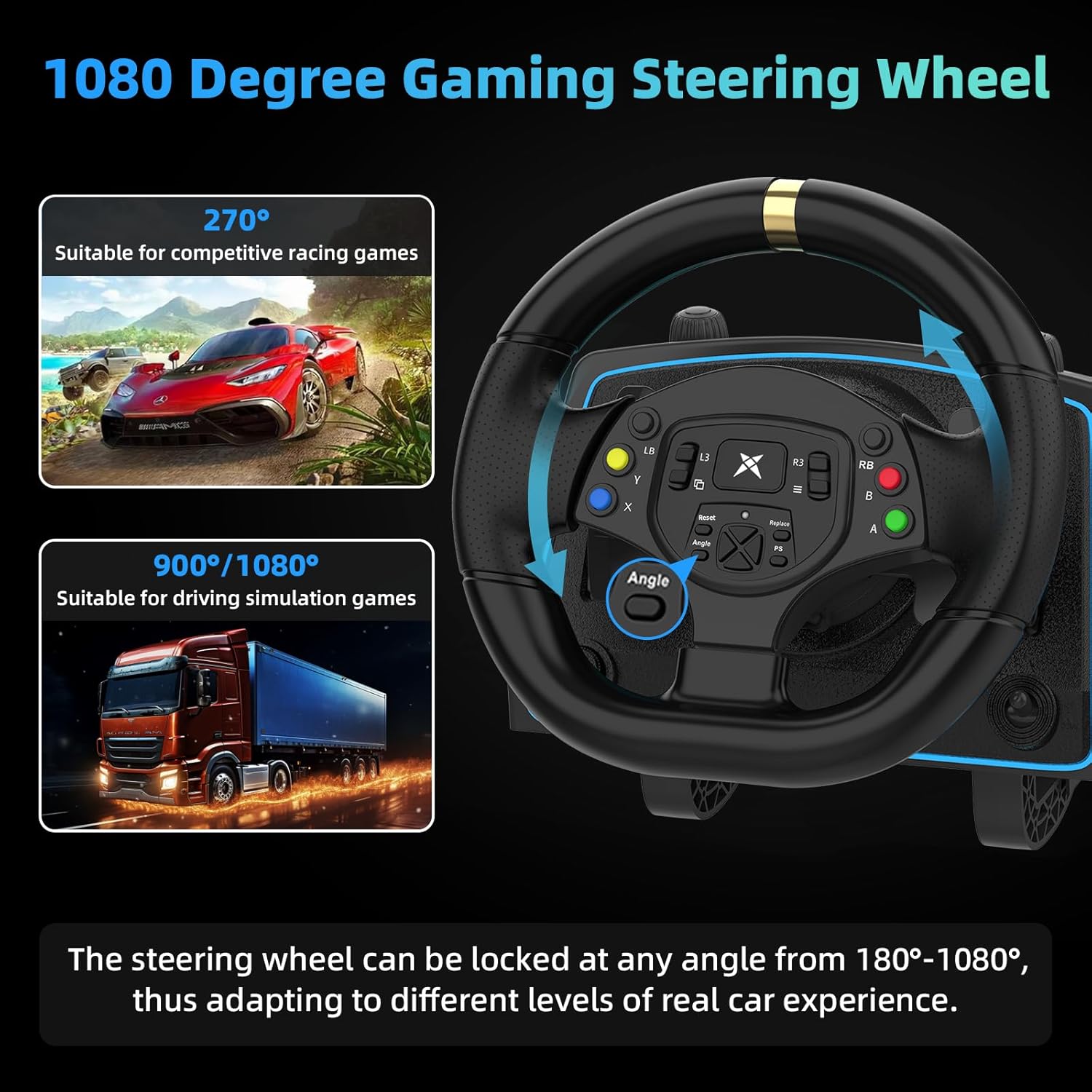
Figure 4: The DOYO G30 Racing Wheel demonstrating its 1080-degree rotation capability, suitable for both competitive racing (270°) and driving simulation games (900°/1080°).
5.2 Pedal Unit Operation
The 3-pedal unit provides realistic throttle, brake, and clutch control. The strength and force of the pedals can be adjusted for personalized feel.

Figure 5: The responsive and adjustable floor pedals of the DOYO G30 Racing Wheel, featuring separate brake, accelerator, and clutch pedals.
5.3 H-Gear Shifter Operation
The 6+1 speed H-Gear Shifter allows for precise manual gear changes, enhancing the immersion of driving simulation games.
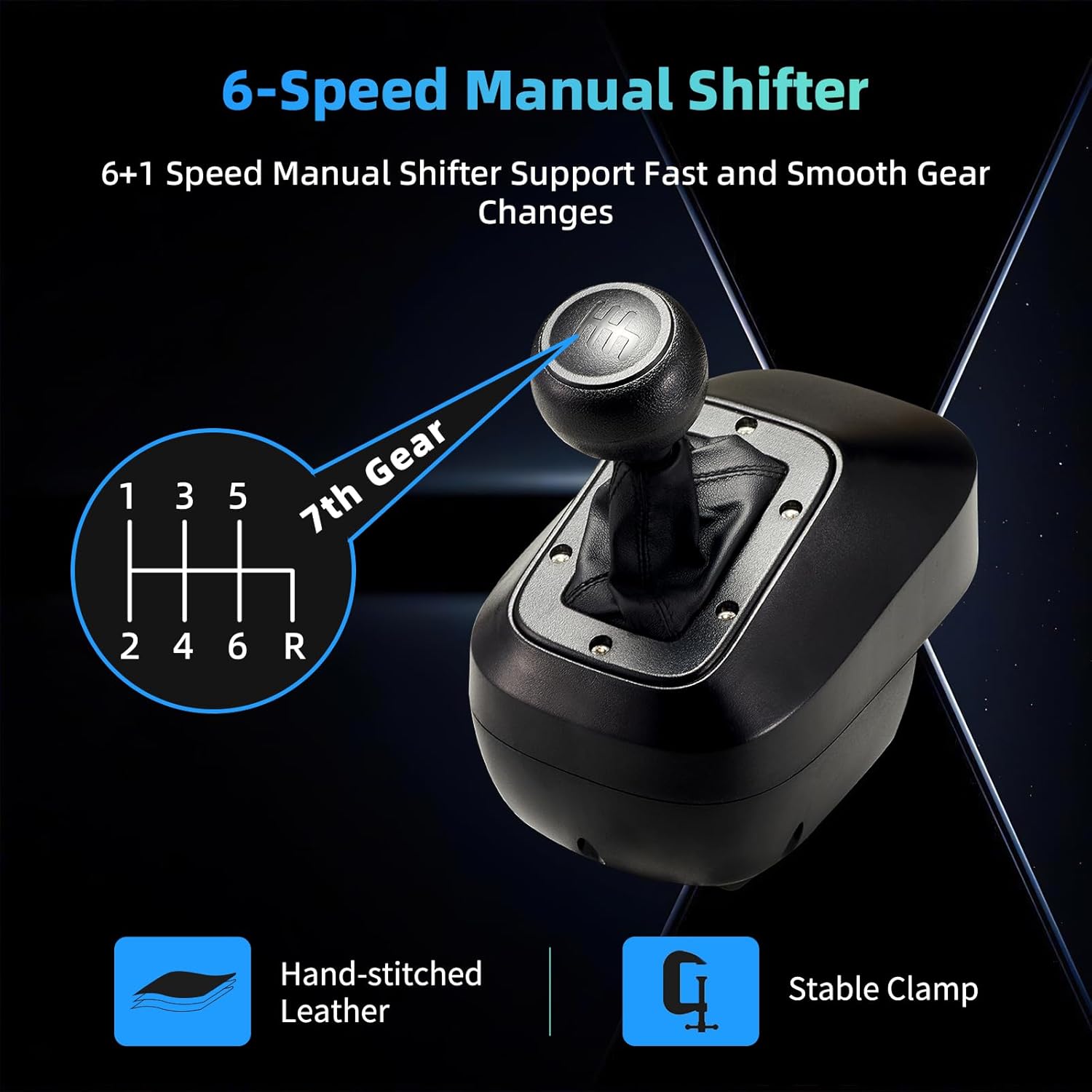
Figure 6: The 6+1 speed manual shifter of the DOYO G30 Racing Wheel, designed for fast and smooth gear changes, featuring hand-stitched leather and a stable clamp.
6. Maintenance & Care
To ensure the longevity and optimal performance of your DOYO G30 Racing Wheel, follow these maintenance guidelines:
- Keep the device clean by wiping it with a soft, dry cloth. Avoid using abrasive cleaners or solvents.
- Store the steering wheel in a cool, dry place away from direct sunlight and extreme temperatures.
- Avoid excessive force or sudden impacts on the steering wheel, pedals, or shifter.
- Regularly check all cable connections to ensure they are secure.
- When not in use, the USB cable at the back can be stored in the storage box on the steering wheel unit.
7. Troubleshooting
If you encounter any issues with your DOYO G30 Racing Wheel, please refer to the following common troubleshooting steps:
- Device Not Recognized: Ensure all cables are securely connected. For consoles, verify that the original controller is connected to the steering wheel unit as per the setup instructions. Check console/PC settings for controller recognition.
- No Force Feedback/Vibration: Verify that force feedback is enabled in your game's control settings. Ensure all connections are firm.
- Incorrect Steering Angle: Adjust the steering angle setting on the steering wheel unit or within your game's control options.
- Pedals/Shifter Not Responding: Check the USB connections for the pedal unit and shifter to the main steering wheel unit. Ensure they are plugged into the correct ports.
- Buttons Not Working: Confirm that the buttons are correctly mapped within your game's control settings.
If the problem persists after trying these steps, please contact customer support.
8. Specifications
| Feature | Detail |
|---|---|
| Model | G30 |
| Rotation Angle | 270° to 1080° (Adjustable) |
| Shifter | 6+1 Speed H-Gear |
| Pedals | 3-Pedal Unit (Throttle, Brake, Clutch) |
| Connectivity | USB (Wired) |
| Compatibility | PC, Xbox ONE, Xbox Series X/S, Xbox 360, PS4, PS3, Nintendo Switch, Android |
| Item Weight | 10.63 pounds |
| Package Dimensions | 14.5 x 12.5 x 12.25 inches |
9. Customer Service & Support
DOYO is committed to providing high-quality products and customer satisfaction. If you have any questions, concerns, or require assistance with your G30 Racing Wheel, please do not hesitate to contact our customer service team.
We are confident in the quality of our racing wheels. If for any reason you are not completely satisfied, contact us by email, and we will provide a satisfactory answer within 24 hours.


