
Introduction
Thank you for choosing the LORERAN BT-24 Wireless Keyboard and Mouse Combo. This manual provides essential instructions for setting up, operating, maintaining, and troubleshooting your new device. Please read this manual thoroughly before use to ensure optimal performance and longevity of your product.
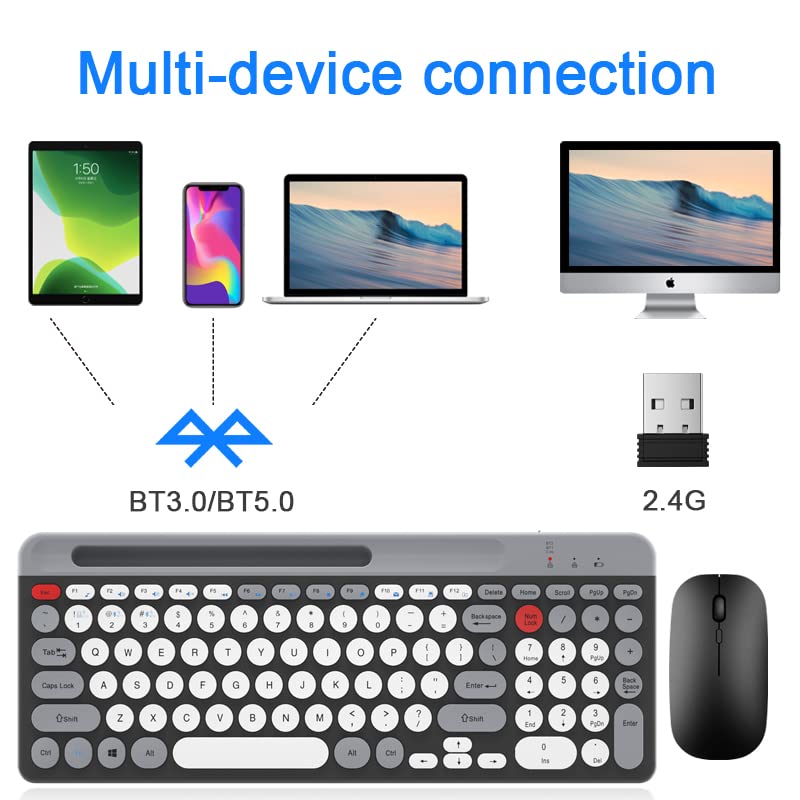
Image: LORERAN BT-24 Wireless Keyboard and Mouse Combo, showcasing the full-size keyboard and ergonomic mouse.
Package Contents
- 1 x LORERAN Wireless Keyboard
- 1 x LORERAN Wireless Mouse
- 1 x 2.4G USB Receiver (often stored in the mouse or keyboard battery compartment)
- 1 x Type-C Charging Cable
- 1 x User Manual (this document)
Setup Instructions
1. Charging the Devices
The keyboard and mouse are equipped with built-in rechargeable batteries. Before first use, it is recommended to fully charge both devices.
- Connect the provided Type-C charging cable to the charging port on the keyboard and mouse.
- Connect the other end of the cable to a USB power source (e.g., computer USB port, USB wall adapter).
- A full charge typically takes approximately 3 hours. The keyboard can operate continuously for up to 300 hours on a full charge.

Image: Illustration of the keyboard and mouse being charged via Type-C cables.
2. Connecting to Devices (Dual Mode: 2.4G Wireless & Bluetooth)
The combo supports connection via a 2.4G USB receiver or Bluetooth (BT1 and BT2 channels), allowing connection to up to three devices simultaneously.
2.1. 2.4G Wireless Connection
- Locate the 2.4G USB receiver. It is often stored in a compartment on the mouse or keyboard.
- Plug the 2.4G USB receiver into an available USB port on your computer or laptop.
- Turn on the keyboard and mouse.
- On the keyboard, press the Fn + 1 keys to select the 2.4G mode.
- The keyboard and mouse should automatically connect to your device.

Image: The LORERAN keyboard and mouse shown alongside the 2.4G USB receiver.
2.2. Bluetooth Connection (BT1 / BT2)
The combo supports Bluetooth 5.0 + 3.0 technology.
- Turn on the keyboard and mouse.
- On the keyboard, press Fn + 2 for Bluetooth Channel 1, or Fn + 3 for Bluetooth Channel 2. The indicator light will flash, indicating pairing mode.
- On your device (Mac, PC, Laptop, Tablet, Phone), enable Bluetooth and search for new devices.
- Select "LORERAN Keyboard" and "LORERAN Mouse" from the list of available devices to pair.
- Once paired, the indicator light on the keyboard will stop flashing.

Image: Diagram illustrating multi-device connectivity options (phone, tablet, laptop, desktop) via Bluetooth (BT3.0/BT5.0) and 2.4G wireless.
Operating Instructions
1. Switching Between Connected Devices
To switch between your connected devices, simply press the corresponding function key on the keyboard:
- Fn + 1: Switch to 2.4G Wireless mode.
- Fn + 2: Switch to Bluetooth Channel 1.
- Fn + 3: Switch to Bluetooth Channel 2.
2. Keyboard Features
- Circular Keys: The keyboard features uniquely designed circular keys for a comfortable typing experience.
- Low-Noise Switches: Keys are designed for quiet operation with satisfactory tactile feedback.
- Numeric Keypad: A standard numeric keypad is included for improved workflow.
- Media Hotkeys: Utilize the F1-F12 keys with the Fn key for quick access to media controls and other functions. (Refer to the image below for specific functions).
- Volume Knob: A dedicated volume knob allows for convenient adjustment of audio levels by rotating it.

Image: Close-up of the LORERAN keyboard showing the layout of function keys (F1-F12) and their associated media controls.
3. Mouse Features
- DPI Adjustment: An exclusive button on the mouse allows you to adjust the DPI (Dots Per Inch) sensitivity. Cycle through 800, 1200, and 1600 DPI settings for precise cursor control.
- Silent Clicks: The mouse buttons are designed for quiet operation, minimizing noise during use.

Image: The LORERAN mouse highlighting its whisper-quiet click and adjustable DPI settings (800, 1200, 1600).
4. Automatic Sleep Mode
To conserve battery life, both the keyboard and mouse will automatically enter sleep mode if not used for over 30 minutes. To wake them up, simply press any key on the keyboard or click any button on the mouse.
Maintenance
- Cleaning: Use a soft, dry cloth to gently wipe the surfaces of the keyboard and mouse. For dust accumulation between keys, a can of compressed air can be used. Avoid using harsh chemicals or abrasive materials.
- Charging: Recharge the devices when the battery indicator light shows low power or when performance degrades. Regular charging helps maintain battery health.
- Storage: When not in use for extended periods, store the keyboard and mouse in a cool, dry place.
Troubleshooting
- Device not connecting:
- Ensure both keyboard and mouse are powered on.
- Check battery levels and recharge if necessary.
- For 2.4G connection, ensure the USB receiver is securely plugged into a working USB port and Fn + 1 is selected.
- For Bluetooth connection, ensure Bluetooth is enabled on your device and you have selected Fn + 2 or Fn + 3 on the keyboard. Try re-pairing the devices.
- Try connecting to a different USB port or a different device to rule out port or device specific issues.
- Lag or intermittent connection:
- Ensure there are no strong interference sources nearby (e.g., other wireless devices, large metal objects).
- Move the keyboard and mouse closer to the receiver or Bluetooth-enabled device.
- Recharge the devices.
- Mouse cursor not moving or erratic:
- Check the mouse battery level.
- Ensure the optical sensor on the bottom of the mouse is clean and unobstructed.
- Try using the mouse on a different surface.
- Adjust the DPI setting using the DPI button on the mouse.
- Keyboard keys not responding:
- Check keyboard battery level.
- Ensure the correct connection mode (2.4G, BT1, BT2) is selected.
- Restart your computer or device.
Specifications
| Brand | LORERAN |
| Model | BT-24 |
| Connectivity Technology | Bluetooth (5.0 + 3.0), 2.4G Wireless |
| Compatible Devices | Mac OS/iOS 10.12+, Windows 8/10+, Android 4.3+ (Laptop, PC, Tablet, Phone) |
| Special Features | Ergonomic, Rechargeable, Multi-device support, Quiet operation |
| Keyboard Battery Capacity | 500mAh (approximate, based on 300 hours usage) |
| Mouse DPI Settings | 800-1200-1600 DPI |
| Movement Detection | Optical |
| Item Weight | 739 g |
| Color | White (as per product listing, though images show black/grey) |
Note: Specifications are subject to change without prior notice.
Warranty and Support
For warranty information or technical support, please refer to the documentation included with your purchase or contact LORERAN customer service through the retailer where the product was purchased. Please retain your proof of purchase for warranty claims.
For further assistance, you may visit the LORERAN brand page on Amazon: LORERAN Brand Store