
1. Introduction
This manual provides detailed instructions for the installation, operation, and maintenance of your TP-Link EAP653 Wireless Access Point. The EAP653 is an Ultra-Slim Omada True Wi-Fi 6 AX3000 access point designed for high-performance wireless networking, supporting features like Mesh, Seamless Roaming, WPA3, and MU-MIMO. It is powered via PoE+ for flexible deployment.

Figure 1: TP-Link EAP653 Wireless Access Point (Top View)
2. Package Contents
Verify that all items are included in your package. If any item is missing or damaged, please contact your retailer or TP-Link support.
- EAP653 Wireless Access Point
- Ceiling/Wall Mounting Kits
- Installation Guide
Note: The DC power adapter is NOT included in the package. The EAP653 supports standard 802.3at PoE+ and 48V/0.5A Passive PoE (Suggested TP-Link Model: TL-PoE4824G) for power.
3. Setup and Installation
The EAP653 is designed for flexible deployment, supporting both Power over Ethernet (PoE+) and mesh networking for effortless installation.
3.1 Physical Installation
The EAP653 can be mounted on a ceiling or wall using the provided mounting kits. Its ultra-slim design ensures a discreet installation.

Figure 2: EAP653 Rear View and Dimensions
The device dimensions are approximately 6.3 x 6.3 x 1.32 inches (160 x 160 x 33.5 mm) and it weighs 14.1 ounces (400 grams).
3.2 Powering the Device
The EAP653 can be powered using:
- Standard 802.3at PoE+ (Power over Ethernet Plus)
- 48V/0.5A Passive PoE (e.g., using TP-Link Model: TL-PoE4824G)
- 12V/1.5A DC power supply (adapter not included)
For PoE+ or Passive PoE, simply connect an Ethernet cable from a compatible PoE switch or injector to the EAP653's Ethernet port. This provides both power and data connectivity.

Figure 3: PoE+ Deployment Example
3.3 Network Integration
The EAP653 can operate in standalone mode or be integrated into the Omada Software Defined Networking (SDN) platform. Omada SDN allows for centralized management of network devices including access points, switches, and gateways.

Figure 4: Omada Structured Wiring Network Overview
4. Operating the Access Point
The EAP653 provides high-speed Wi-Fi 6 connectivity and advanced features for optimal network performance.
4.1 Wi-Fi 6 Performance
Equipped with the latest Wi-Fi 6 technology, including 1024-QAM, HE60, and Long OFDM Symbol, the EAP653 delivers dual-band Wi-Fi speeds up to 2976 Mbps.

Figure 5: AX3000 Wi-Fi 6 Speed Comparison
4.2 Advanced Wireless Technologies
The EAP653 supports various advanced wireless features to enhance network efficiency and user experience:
- Mesh WiFi: Extends Wi-Fi coverage seamlessly by connecting multiple access points.
- Seamless Roaming: Allows devices to automatically switch between access points as you move, ensuring an uninterrupted connection. (Requires Omada SDN controllers)
- WPA3: Provides enhanced security for your wireless network.
- Band Steering: Automatically directs dual-band devices to the faster 5GHz band.
- Load Balancing: Distributes client connections across multiple access points to optimize performance.
- Airtime Fairness: Ensures that slower devices do not monopolize airtime, improving overall network efficiency.
- Beamforming: Focuses Wi-Fi signals towards connected devices for stronger, more reliable connections.

Figure 6: Seamless Roaming in Action
4.3 Omada SDN Integration and Management
The Omada Software Defined Networking (SDN) platform provides a unified management interface for your entire network. You can control your EAP653 and other Omada devices through:
- Omada Hardware Controller
- Omada Software Controller
- Omada Cloud-based Controller (Contact TP-Link for details)
Remote Cloud access and the Omada app enable centralized cloud management from anywhere, anytime. For device compatibility with SDN firmware, refer to the TP-Link website.
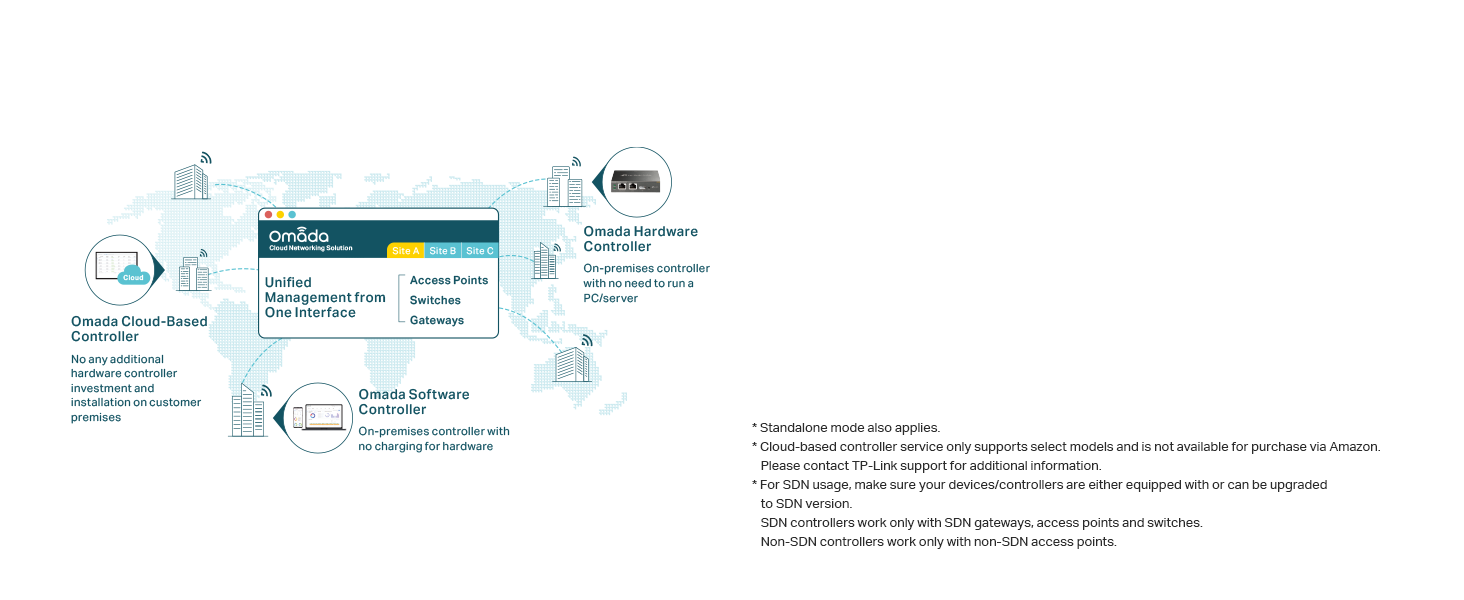
Figure 7: Omada SDN Unified Management
5. Maintenance
To ensure optimal performance and longevity of your TP-Link EAP653, consider the following maintenance practices:
- Firmware Updates: Regularly check the TP-Link official website for the latest firmware updates. Updating firmware can improve performance, add new features, and fix security vulnerabilities.
- Physical Inspection: Periodically inspect the device and its connections for any signs of damage or loose cables. Ensure proper ventilation around the access point.
- Environmental Conditions: Operate the device within its specified environmental conditions (temperature, humidity) to prevent overheating or damage.
- Cleaning: Gently clean the exterior of the device with a soft, dry cloth. Avoid using liquid cleaners or aerosols.
6. Troubleshooting
If you encounter issues with your EAP653, try the following troubleshooting steps:
6.1 No Power/LED Off
- Ensure the Ethernet cable is securely connected to both the EAP653 and the PoE+ switch/injector.
- Verify that the PoE+ switch/injector is powered on and functioning correctly.
- If using a DC adapter (not included), ensure it is the correct voltage (12V/1.5A) and properly connected.
6.2 No Internet Access
- Check the connection between the EAP653 and your router/gateway.
- Verify that your router/gateway has internet connectivity.
- Ensure the EAP653's network settings (IP address, DNS) are correctly configured, especially if operating in standalone mode.
6.3 Poor Wi-Fi Performance
- Signal Strength: Ensure the EAP653 is centrally located and free from obstructions.
- Interference: Reduce interference from other electronic devices or neighboring Wi-Fi networks by changing Wi-Fi channels.
- Client Devices: Ensure your client devices support Wi-Fi 6 (802.11ax) to fully utilize the EAP653's capabilities.
- Firmware: Update the EAP653 firmware to the latest version.
6.4 Cannot Access Omada Controller
- Ensure the Omada Controller (hardware, software, or cloud) is running and accessible on the network.
- Verify network connectivity between the EAP653 and the controller.
- Check firewall settings on the controller host if using a software controller.
For further assistance, refer to the TP-Link support website or contact their technical support.
7. Specifications
| Feature | Detail |
|---|---|
| Model Name | TP-Link EAP653 |
| Product Dimensions | 6.3 x 6.3 x 1.32 inches (160 x 160 x 33.5 mm) |
| Item Weight | 14.1 ounces (400 g) |
| Wireless Standard | 802.11ax (Wi-Fi 6) |
| Frequency Band Class | Dual-Band (2.4 GHz & 5 GHz) |
| Max Wireless Speed | Up to 2976 Mbps (AX3000) |
| Connectivity Technology | Ethernet (PoE+) |
| Power Supply | 802.3at PoE+, 48V/0.5A Passive PoE, 12V/1.5A DC (adapter not included) |
| Special Features | Access Point Mode, WPS, Mesh WiFi, Seamless Roaming, WPA3, Band Steering, Load Balancing, Airtime Fairness, Beamforming |
| Manufacturer | TP-Link |
8. Warranty and Support
8.1 Warranty Information
The TP-Link EAP653 is backed by an industry-leading 5-year warranty. This warranty covers defects in materials and workmanship under normal use.
8.2 Technical Support
Free technical support is available from 6am to 6pm PST, Monday to Friday. For support, please visit the official TP-Link website or contact their customer service directly.
8.3 Legal Disclaimer
Maximum wireless transmission rates are the physical rates derived from IEEE Standard 802.11 specifications. Range and coverage specifications are based upon test results under normal usage conditions. Actual wireless transmission rate and wireless coverage are not guaranteed and will vary as a result of 1) environmental factors, including building materials, physical objects and obstacles, 2) network conditions, including local interference, volume and density of traffic, product location, network complexity, and network overhead and 3) client limitations, including rated performance, location, connection quality, and client condition. Actual network speed may be limited by the rate of the product's Ethernet WAN or LAN port, the rate supported by the network cable, Internet service provider factors and other environmental conditions.


