
1. Introduction
This manual provides essential information for setting up, operating, maintaining, and troubleshooting your MSI Modern AM242TP All-in-One (AIO) Desktop. Please read this manual thoroughly before using your device to ensure proper functionality and longevity.
2. What's in the Box
Verify that all items are present in the packaging:
- MSI Modern AM242TP AIO Desktop
- Power Cord
- Power Adapter
- Keyboard (may be included depending on region/bundle)
- Mouse (may be included depending on region/bundle)
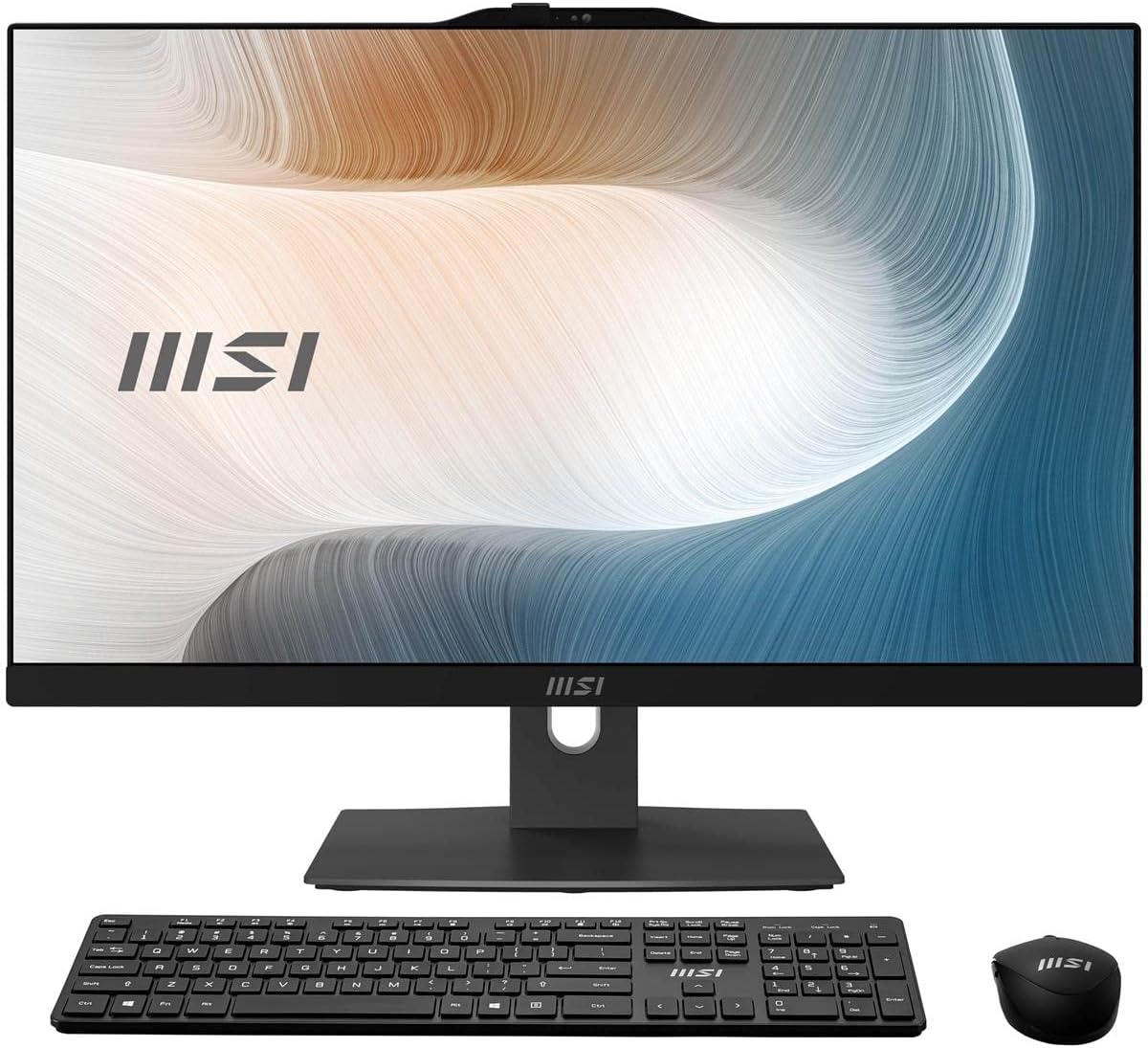
Figure 2.1: MSI Modern AM242TP AIO Desktop with keyboard and mouse. This image shows the complete package contents, including the desktop unit, a wired keyboard, and a wired mouse.
3. Product Overview
3.1 Front View

Figure 3.1: Front view of the MSI Modern AM242TP AIO Desktop. This image highlights the 23.8-inch Full HD touchscreen display and the integrated webcam located at the top center of the screen bezel.
- 23.8" FHD Touchscreen Display: Main interface for interaction.
- Integrated FHD Webcam: Located at the top bezel for video conferencing.
- Microphone Array: Integrated for audio input.
3.2 Rear View and Ports

Figure 3.2: Rear view of the MSI Modern AM242TP AIO Desktop. This image displays the various ports and the stand attachment point on the back of the unit.
- Power Input: Connects the power adapter.
- HDMI-out: For connecting an external display.
- HDMI-in: Allows the AIO to function as a monitor for another device.
- USB 3.2 Gen 2 Type-A Ports: High-speed data transfer.
- USB 2.0 Type-A Ports: For connecting peripherals like keyboard and mouse.
- RJ45 LAN Port: For wired network connection.
- Audio Jacks: Headphone and microphone.
3.3 Side View and Additional Ports

Figure 3.3: Side view of the MSI Modern AM242TP AIO Desktop. This image shows additional ports located on the side of the display panel, including USB ports and the power button.
- USB 3.2 Gen 2 Type-C Port: Versatile port for data and display.
- USB 3.2 Gen 2 Type-A Port: Additional high-speed USB port.
- SD Card Reader: For memory cards.
- Power Button: To turn the device on/off.
4. Setup
4.1 Unpacking and Placement
- Carefully remove the AIO Desktop and all accessories from the packaging.
- Place the AIO Desktop on a stable, flat surface. Ensure adequate ventilation around the unit.
4.2 Connecting Peripherals
- Connect the keyboard and mouse to the available USB ports on the rear or side of the AIO Desktop.
- If using a wired network connection, connect an Ethernet cable to the RJ45 LAN port on the rear.
4.3 Power Connection
- Connect the power adapter to the power input port on the rear of the AIO Desktop.
- Plug the power cord into the power adapter, then into a grounded electrical outlet.
4.4 Initial Power On
- Press the power button located on the side of the AIO Desktop.
- Follow the on-screen instructions to complete the Windows 11 Home Plus initial setup, including language, region, network connection, and user account creation.
5. Operating
5.1 Basic Operation
- Power On/Off: Press the power button once to turn on. To shut down, use the Windows Start menu. A short press when on will put the system to sleep.
- Touchscreen: Interact with the display using touch gestures as you would with a tablet or smartphone.
- Keyboard and Mouse: Use for traditional input and navigation.
5.2 Connectivity
- Wi-Fi 6 (802.11ax): Connect to wireless networks for internet access. Manage Wi-Fi settings through Windows.
- Bluetooth 5.1: Pair with Bluetooth-enabled devices such as headphones, speakers, or mobile phones.
- FHD Webcam: Utilize for video calls and online meetings. Ensure privacy settings are configured correctly in Windows.
5.3 Using HDMI-in
The HDMI-in port allows you to use your AIO Desktop as a standalone monitor for another device (e.g., a game console, another PC). Connect the external device to the HDMI-in port and switch the display input mode on the AIO (refer to MSI's specific hotkeys or OSD menu for input switching).
6. Maintenance
6.1 Cleaning
- Screen: Use a soft, lint-free cloth specifically designed for electronics. Dampen slightly with water or a screen cleaner if necessary. Avoid harsh chemicals.
- Chassis: Wipe with a soft, dry cloth. Use compressed air to clear dust from vents periodically.
- Peripherals: Clean keyboard keys and mouse surfaces with a soft cloth.
6.2 Software Updates
- Regularly check for and install Windows updates to ensure system stability and security.
- Visit the official MSI website for driver and firmware updates specific to your model.
6.3 Storage Management
- Periodically clear unnecessary files and applications to maintain optimal performance of the 512GB M.2 NVMe SSD.
- Consider external storage for large files or backups.
7. Troubleshooting
This section addresses common issues you might encounter. For more complex problems, contact MSI support.
- No Power:
- Ensure the power cord and adapter are securely connected to both the AIO and the electrical outlet.
- Test the outlet with another device to confirm it is functional.
- No Display:
- Verify the AIO is powered on.
- If using HDMI-in, ensure the correct input source is selected.
- No Internet Connection (Wi-Fi):
- Check if Wi-Fi is enabled in Windows settings.
- Restart your router/modem.
- Ensure you are connecting to the correct network and entering the password accurately.
- Peripherals Not Responding:
- Ensure USB devices are securely plugged into the correct ports.
- Try connecting the peripheral to a different USB port.
- For Bluetooth devices, ensure they are paired correctly and charged.
8. Specifications
Key technical specifications for the MSI Modern AM242TP AIO Desktop (Model: MAM242TP12M053):
| Feature | Specification |
|---|---|
| Model Number | MAM242TP12M053 |
| Display | 23.8" FHD (1920x1080) IPS-Grade, LED, Matte Touchscreen |
| Processor | Intel Core i7-1260P (4 Performance Cores + 8 Efficient Cores / 16 Threads, 18MB Cache, up to 4.7 GHz) |
| RAM | 16GB DDR4 3200 MHz (2 x 8GB SO-DIMM) |
| Storage | 512GB M.2 NVMe SSD |
| Graphics | Integrated Intel Iris Xe Graphics |
| Wireless Connectivity | Wi-Fi 6 (802.11ax) 2.4Gbps Dual Band, Bluetooth 5.1 |
| Operating System | Windows 11 Home Plus |
| Webcam | FHD Webcam |
| Ports (Rear) | HDMI-out, HDMI-in, 2x USB 3.2 Gen 2 Type-A, 2x USB 2.0 Type-A, RJ45 LAN, Audio Jacks |
| Ports (Side) | 1x USB 3.2 Gen 2 Type-C, 1x USB 3.2 Gen 2 Type-A, SD Card Reader, Power Button |
| Dimensions (LxWxH) | Approximately 21.31 x 21.06 inches (without stand depth) |
| Weight | Approximately 19.8 pounds |
9. Warranty Information
MSI provides a limited warranty for its products. The specific terms and duration of your warranty may vary by region and product. Please refer to the warranty card included with your product or visit the official MSI website for detailed warranty information and registration.
For warranty claims or service, retain your proof of purchase.
10. Support
For technical assistance, driver downloads, FAQs, or further support, please visit the official MSI support website:
You may also find helpful resources and community forums on the MSI website.


