
1. Introduction
The ZHNN Carplay AI Box is a versatile device designed to convert your car's wired CarPlay system into a wireless Android 11.0 multimedia experience. It supports wireless CarPlay and wireless Android Auto, allowing seamless integration with your smartphone. This manual provides essential information for setup, operation, and maintenance.
2. Safety Information
- Ensure the device is securely placed and does not obstruct driving visibility or controls.
- Do not attempt to disassemble or modify the device.
- Avoid exposing the device to extreme temperatures, direct sunlight for prolonged periods, or moisture.
- Always prioritize safe driving. Do not operate the device in a way that causes distraction.
3. Package Contents
- ZHNN Carplay AI Box
- USB-C to USB-C Cable
- USB-A to USB-C Cable
- User Manual
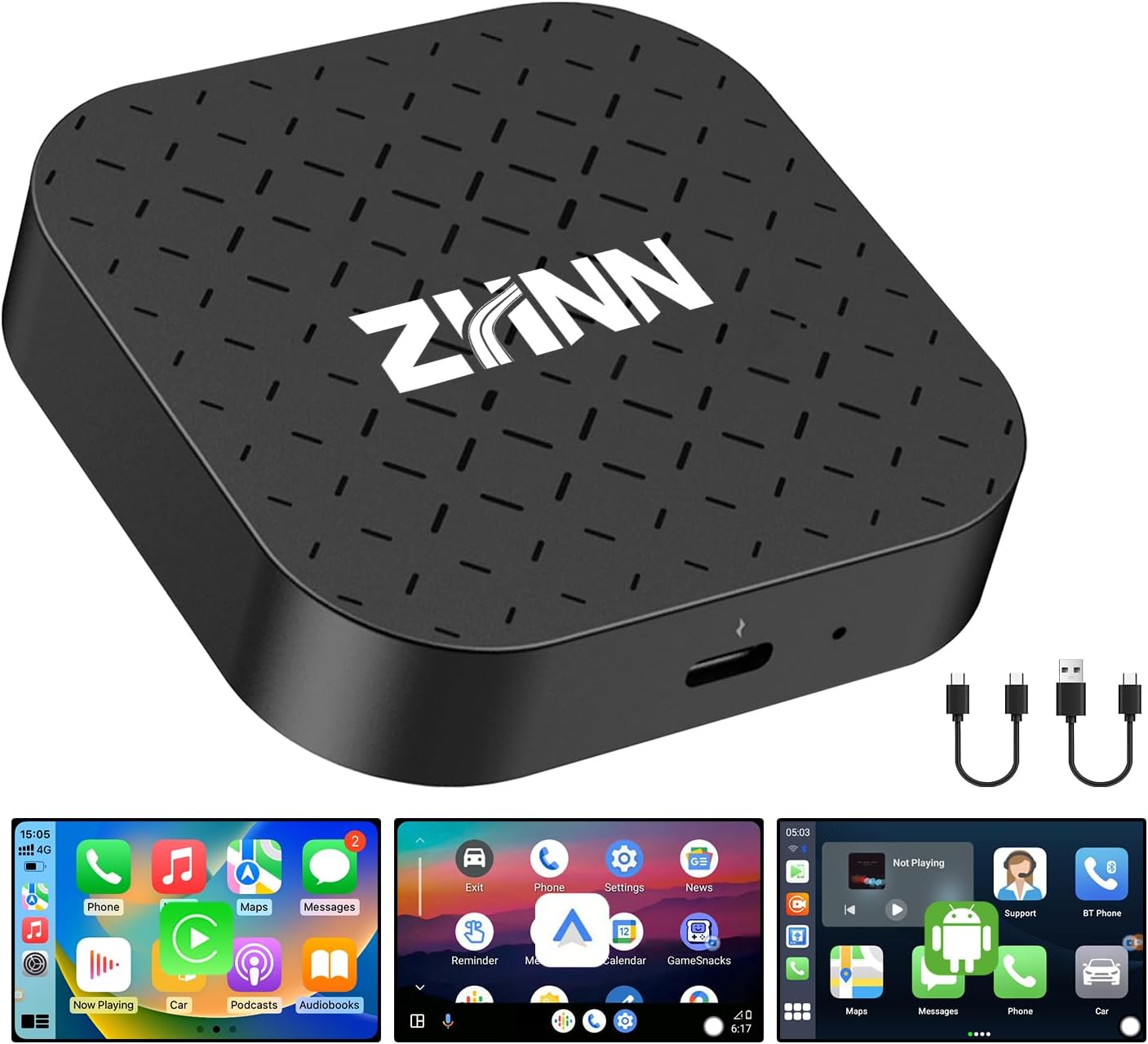
Image: The ZHNN Carplay AI Box, a compact black square device, is shown alongside two USB cables (USB-C to USB-C and USB-A to USB-C) and a user manual, illustrating the complete package contents.
4. Product Overview
The ZHNN Carplay AI Box features an Android 11.0 system, 2GB RAM, and 16GB ROM, supporting dual-band Wi-Fi (2.4G & 5G) and Bluetooth 5.0. It is designed to provide a full Android experience on your car's display.

Image: A visual representation of the ZHNN Carplay AI Box highlighting its key features: Android 11.0, Wi-Fi, Bluetooth 4.2BLE + 5.0 BLE, 2GB RAM + 16GB ROM, and TF Card support. The image also shows a car's infotainment screen displaying the Android system, Wireless Carplay, and Wireless Android Auto icons.
5. Setup
- Connect the AI Box: Plug the ZHNN Carplay AI Box into your car's USB/Type-C port using the appropriate cable provided. The device will power on, indicated by small LED lights.
- Access the AI Box Interface: On your car's infotainment screen, select the CarPlay or Android Auto option. The AI Box interface should appear, typically showing an "Intelligent Interconnection System" loading screen.
- Pair Your Phone via Bluetooth:
- On your smartphone, go to Settings > Bluetooth.
- Ensure Bluetooth is enabled.
- Scan for available devices and select "Tbox-MINI Basic" (or similar name).
- Confirm the pairing request on your phone and allow contacts/favorites sync if prompted.
- Connect to Wi-Fi (Optional for Streaming): To use streaming apps like Netflix or YouTube, you will need to connect the AI Box to a Wi-Fi hotspot. This can be your phone's personal hotspot or an in-car Wi-Fi connection. Go to the AI Box settings on your car screen to configure Wi-Fi.
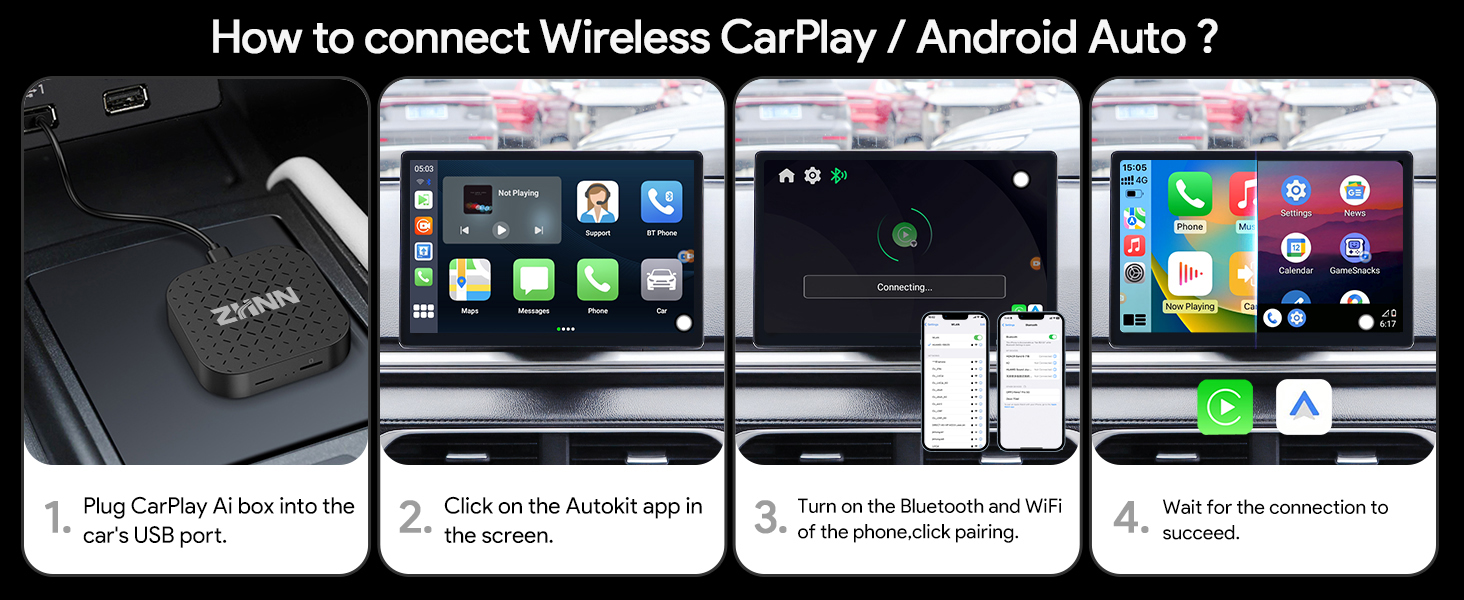
Image: A four-step visual guide demonstrating how to connect the ZHNN Carplay AI Box. It shows plugging the box into the car's USB port, clicking the Autokit app on the screen, turning on Bluetooth and Wi-Fi for phone pairing, and finally, waiting for a successful connection.
Video: An official product video demonstrating the unboxing and initial setup process of the ZHNN Carplay AI Box, including connecting it to a car's USB port and pairing a smartphone via Bluetooth to enable wireless CarPlay functionality.
6. Operating Instructions
6.1 Navigating the Android Interface
Once connected, your car's screen will display the Android 11.0 interface. You can navigate using the touchscreen or your car's existing controls (knob, steering wheel buttons).
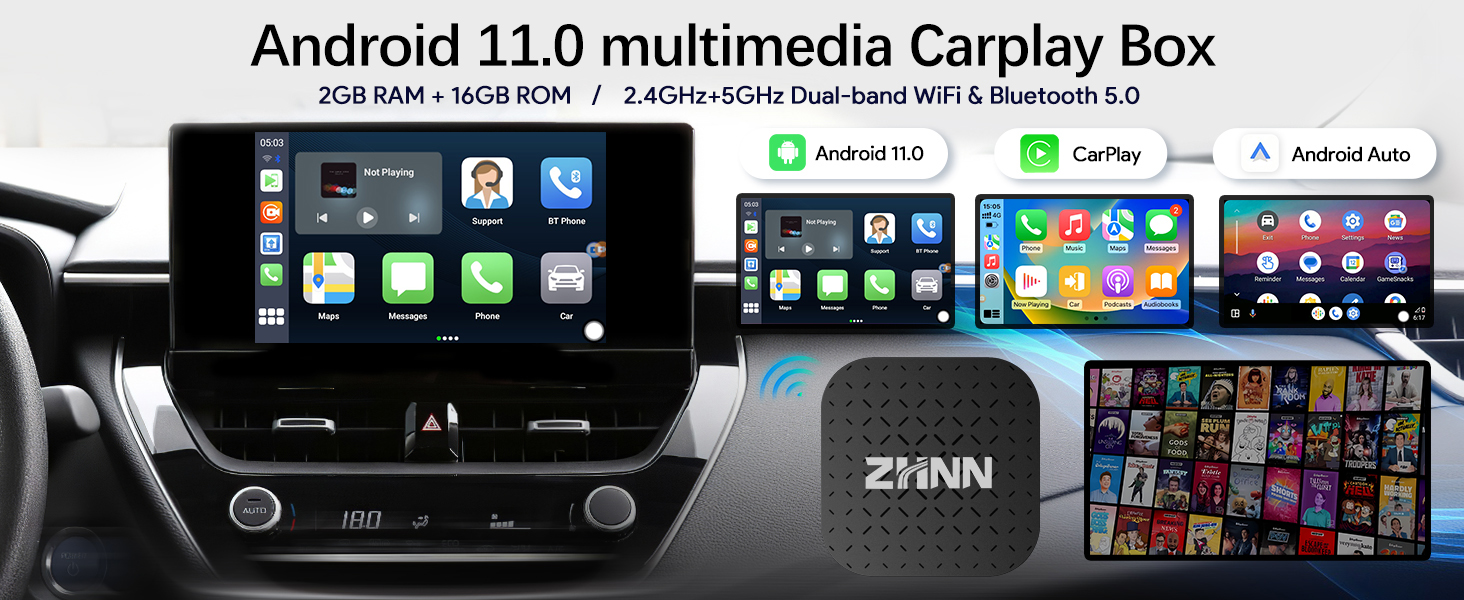
Image: The Android 11 multimedia Carplay Box interface displayed on a car's screen, showing various app icons like BT Phone, Car, BT Music, Settings, Autokit, Gallery, Play Store, and YouTube, along with media playback controls.
6.2 Accessing Apps
- Pre-installed Apps: The device comes with essential apps like YouTube, Play Store, and others.
- Downloading Apps: Use the Google Play Store to download additional Android applications. A Wi-Fi hotspot connection is required for this.
- Streaming Apps: Enjoy Netflix, TikTok, Disney+, and other video apps by connecting to a Wi-Fi hotspot.

Image: A car's infotainment screen displaying various streaming video applications such as Netflix, TikTok, and Disney+, indicating the multimedia capabilities of the Carplay AI Box.
6.3 Switching Between Interfaces
The AI Box allows you to seamlessly switch between the full Android 11.0 interface and your car's native wired CarPlay/Android Auto interface. Look for an "Autokit" or "Car" icon on the Android interface to return to the classic CarPlay/Android Auto view.
6.4 Using Original Car Controls
The ZHNN Carplay AI Box retains compatibility with your car's original control methods, including voice control (Siri), steering wheel controls, knob control, and touch control (if your car has a touchscreen).

Image: A collage of four images showing different control methods within a car's interior: Siri Voice Control, Touch Screen, Steering Wheel Control, and OEM Knob Control, all compatible with the Carplay AI Box.
7. Maintenance
- Keep the device clean by wiping it with a soft, dry cloth.
- Avoid placing heavy objects on the device.
- Store the device in a cool, dry place when not in use for extended periods.
8. Troubleshooting
- Device Not Powering On: Ensure the USB cable is securely connected to both the AI Box and the car's USB port. Check if the car's USB port is active.
- No Display on Car Screen: Verify that your car's infotainment system is set to CarPlay or Android Auto mode. Try restarting both the car and the AI Box.
- Bluetooth Pairing Issues: Ensure Bluetooth is enabled on your phone and the AI Box is discoverable. Forget previous pairings and try again.
- Streaming Apps Not Working: Confirm the AI Box is connected to a stable Wi-Fi hotspot with internet access. Check your hotspot data plan.
- Lag or Slow Performance: Close unused applications on the AI Box. Ensure a strong Wi-Fi signal if streaming.
9. Specifications
| Feature | Detail |
|---|---|
| Product Dimensions | 3.14 x 3.3 x 0.4 inches |
| Item Weight | 13.4 ounces |
| Item Model Number | 42cb5601-4443-4678-9a79-564db318311a |
| Wireless Communication Technologies | Bluetooth, Wi-Fi |
| Connectivity Technologies | Bluetooth, USB, Wi-Fi |
| Special Features | Wireless CarPlay/Android Auto |
| Scanner Resolution | 1080p |
| Form Factor | Carplay AI Box |
| Color | Black |
| Supported Internet Services | Video App |
| Controller Type | Android, iOS |
9.1 Compatibility
The ZHNN Carplay AI Box is designed for cars equipped with OEM Wired CarPlay. It supports iPhones with iOS 10 and above for Wireless CarPlay, and Android phones with Android 11.0 and above for Wireless Android Auto.
Note: This AI Box is not compatible with BMW cars or Samsung phones.

Image: A graphic illustrating the compatibility of the Carplay AI Box with 98% of factory wired CarPlay cars with touchscreens. It lists various compatible car brands (e.g., Porsche, Subaru, Ford, Lexus, Nissan, Chevrolet, Land Rover, Jaguar, Jeep, Honda, Peugeot, DS, Benz, Volvo) and specifies support for iPhones with iOS 10+ and Android phones with Android 11.0+.
10. Warranty and Support
For any questions or support regarding your ZHNN Carplay AI Box, please contact the seller via Amazon message. Specific warranty details may be provided with your purchase documentation.