
1. Introduction
The OOWOLF Monitor Light Bar is designed to provide precise and comfortable lighting for your workspace, reducing eye strain and enhancing visual clarity. Featuring a high Color Rendering Index (CRI ≥90), it aims to restore true natural light colors, improving accuracy and efficiency during prolonged use. The light bar incorporates a 60° angle illumination design to prevent glare on your screen and includes a blue-light filtering function to protect your eyes. It offers three color temperature modes and stepless dimming with a memory function for personalized lighting.
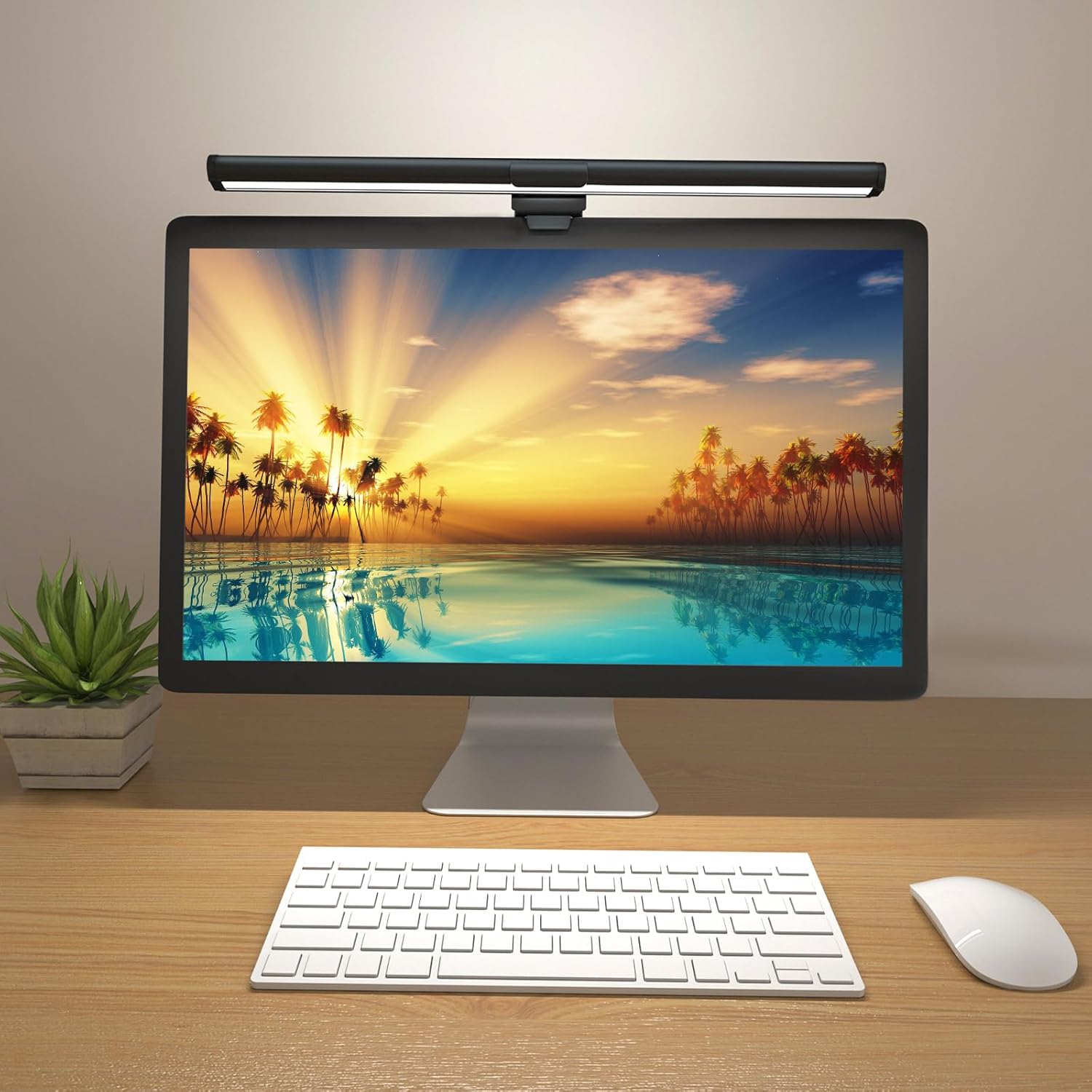
Figure 1: OOWOLF Monitor Light Bar in use, providing illumination to the desk area without screen glare.
2. What's in the Box
Upon unboxing your OOWOLF Monitor Light Bar, please ensure all the following components are present:
- Monitor Light Bar
- User Manual

Figure 2: Included components: Monitor Light Bar, mounting clip, and USB cable.
3. Setup Instructions
- Attach the Mounting Clip: Securely attach the weighted mounting clip to the center of the monitor light bar. Ensure the USB-C port on the light bar aligns with the opening on the clip for cable connection.
- Position on Monitor: Place the assembled light bar on top of your computer monitor. The weighted clip should rest on the back of the monitor, and the front lip of the clip should gently secure the light bar to the top edge of the screen. The light bar is suitable for monitors with a thickness between 0.19 to 1.57 inches (0.5 to 4 cm) and is compatible with curved screens.
- Connect Power: Plug the provided USB-A to USB-C cable into the USB-C port on the light bar. Connect the USB-A end of the cable to a 5V/1.5A power supply (e.g., a computer USB port, USB wall adapter). Note: Insufficient power supply may cause the light to flicker or only the front light to operate.
Video 1: Official OOWOLF Monitor Lamp demonstration, showing unboxing, assembly, and placement on a monitor.
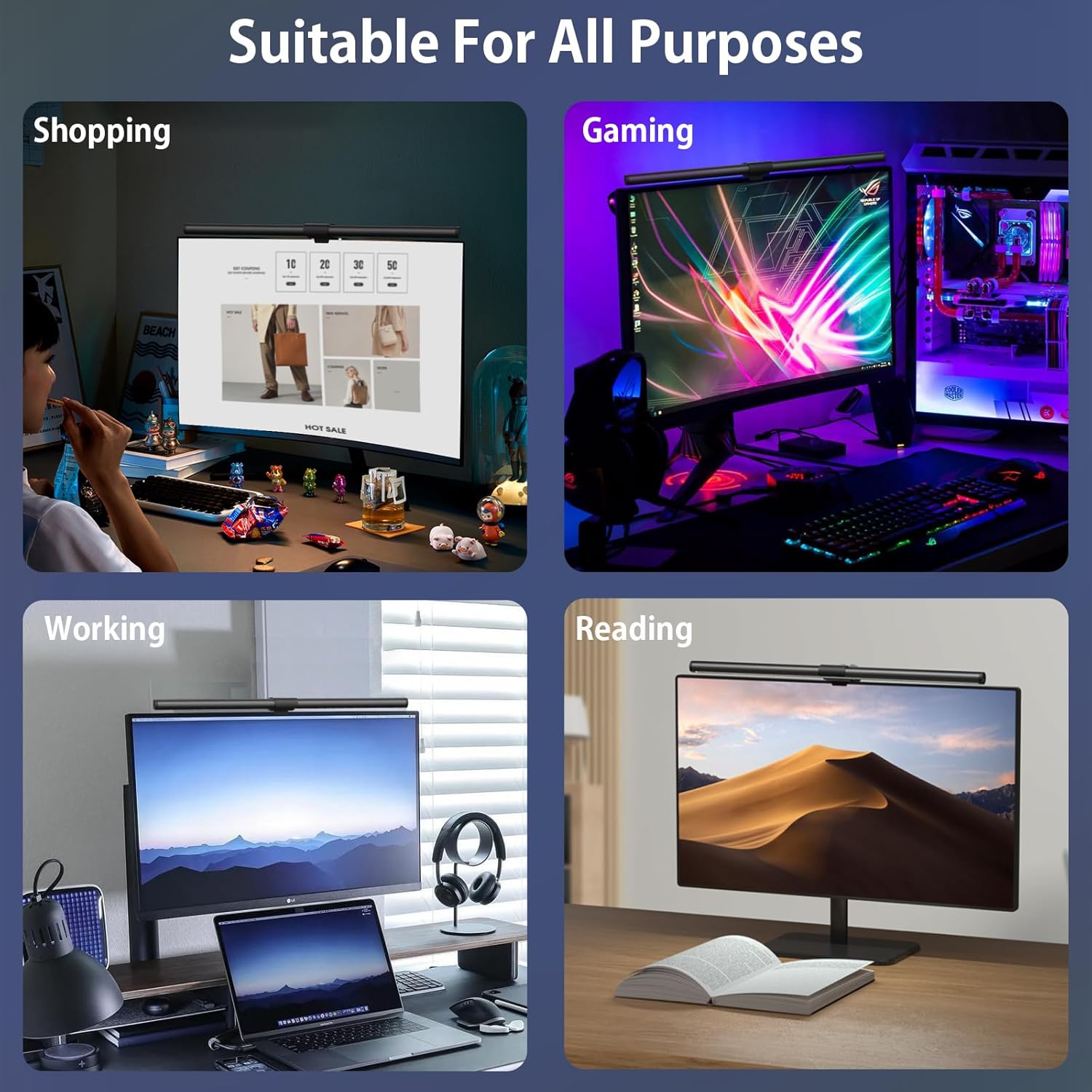
Figure 3: The monitor light bar is suitable for various activities such as shopping, gaming, working, and reading.
4. Operating Instructions
The OOWOLF Monitor Light Bar features intuitive touch controls located on the sides of the bar for adjusting brightness and color temperature.
- Power On/Off: Lightly touch either side of the light bar to turn it on or off.
- Adjust Brightness: Press and hold either side of the light bar to adjust the brightness. The light bar supports stepless dimming, allowing you to set a comfortable brightness level for your environment. The device includes a dimming memory function, retaining your last brightness setting.
- Change Color Temperature: Lightly tap either side of the light bar to cycle through the three available color temperatures: White Light (Cool White), Natural Light, and Warm Light. The device includes a light color memory function, retaining your last color temperature setting.
- Back Ambient Light: The light bar also features a back ambient light. This can be controlled independently or in conjunction with the front light, providing additional ambient illumination to reduce contrast and eye fatigue.

Figure 4: Adjusting color temperature and brightness levels using the touch controls.
5. Features
- High Color Rendering Index (CRI ≥90): The light bar provides precise lighting with a high CRI, ensuring excellent color accuracy and reducing visual fatigue by closely restoring natural light colors.
- Eye-Caring Design: A 60° angle illumination design directs light onto your desk without causing glare on the screen, enhancing overall eye comfort during work or entertainment.
- Blue-Light Filter Function: Emits warm light that neutralizes blue-ray to a significant extent, reducing potential damage to the macula and helping to prevent myopia. This feature is ideal for students, designers, and office workers.
- 3-Color Temperature Modes: Easily switch between White Light (Cool Light), Natural Light, and Warm Light to suit different tasks and preferences.
- Stepless Dimming with Memory Function: Adjust brightness seamlessly to any desired level. The light bar remembers your last brightness and color temperature settings.
- Back Ambient Light: Provides additional indirect lighting to reduce eye fatigue caused by high contrast between the screen and dark surroundings.
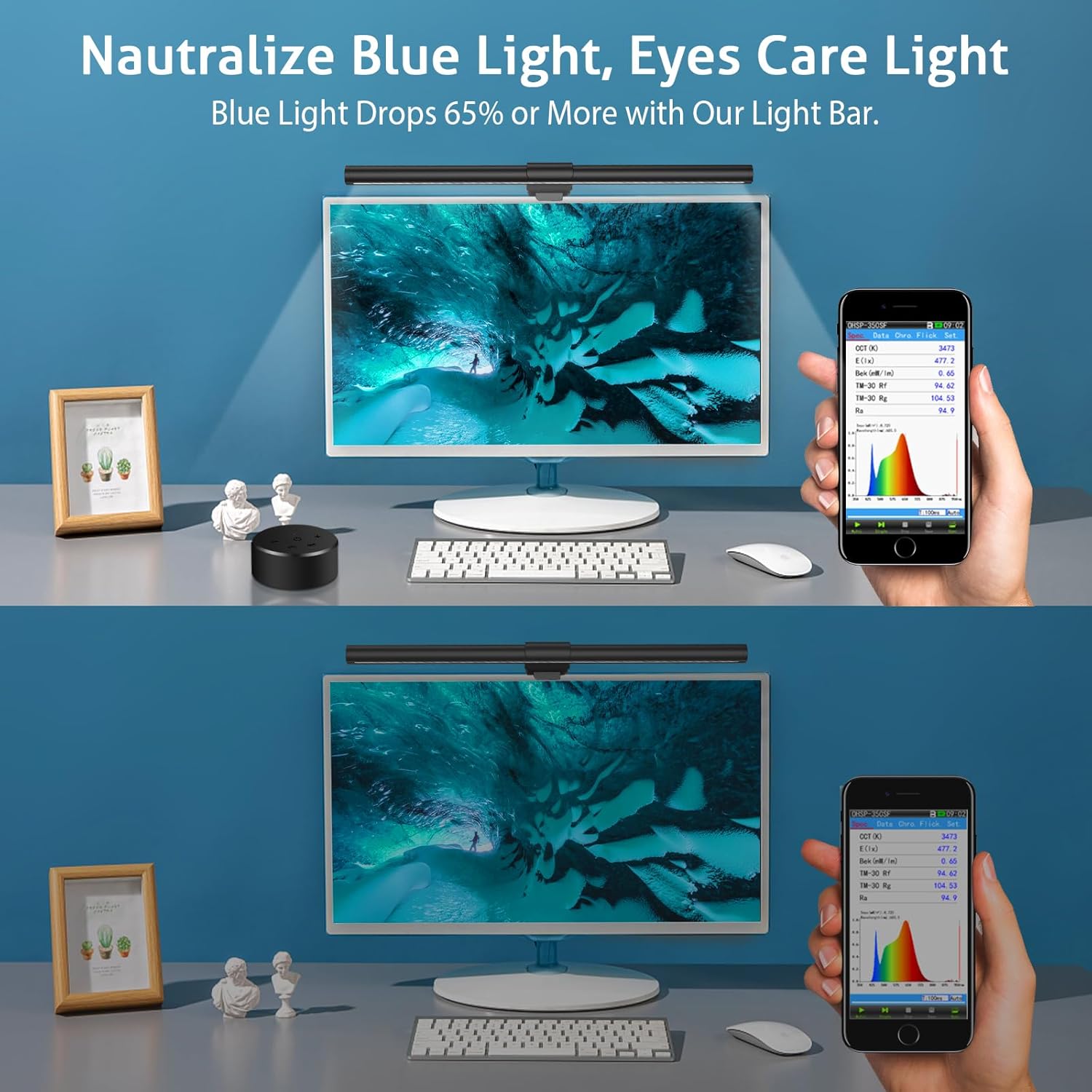
Figure 5: The blue light filter function helps reduce blue light exposure from the screen.
6. Maintenance
To ensure the longevity and optimal performance of your OOWOLF Monitor Light Bar, follow these maintenance guidelines:
- Cleaning: Gently wipe the light bar and mounting clip with a soft, dry cloth. Avoid using abrasive cleaners or solvents that could damage the finish.
- Storage: If storing the device for an extended period, disconnect it from the power source and store it in a cool, dry place.
- Cable Care: Avoid bending or twisting the USB cable excessively to prevent internal damage.
7. Troubleshooting
- Light Flickers or Only Front Light Works: This often indicates insufficient power supply. Ensure you are using a 5V/1.5A power source. Try connecting to a different USB port or a dedicated USB wall adapter.
- Light Does Not Turn On: Check if the USB cable is securely connected to both the light bar and the power source. Verify that the power source is active.
- Touch Controls Unresponsive: Ensure your fingers are clean and dry when operating the touch controls. If the issue persists, disconnect the power for a few seconds and then reconnect it to reset the device.
- Glare on Screen: Adjust the angle of the light bar to ensure the light is directed onto your desk and not reflecting off your screen. The 60° angle illumination design is intended to prevent this.
8. Specifications
| Feature | Specification |
|---|---|
| Model Name | OOWOLF Monitor Light Bar |
| Item Model Number | TL03 |
| Product Dimensions | 0.79"D x 16.14"W x 0.79"H (2 x 41 x 2 cm) |
| Item Weight | 2.31 pounds (1.05 kg) |
| Material | ABS + Aluminum Alloy |
| Power Source | Corded Electric (USB-C Powered) |
| Voltage | 5 Volts |
| Wattage | 5 watts |
| Brightness | Up to 500 Lumens |
| Light Color Modes | Warm White, Natural White, Cool White (3400K-4550K-6700K) |
| Color Rendering Index (CRI) | ≥90 (CRI ≥95 for painting light) |
| Control Method | Touch Control |
| Special Features | Back Ambient Light Design, Filter Blue Light, Glare-Free, Flicker-Free, Stepless Dimming, Light Color Memory, Strong Eye-Caring System |
| Compatible Monitor Thickness | 0.19 to 1.57 inches (0.5 to 4 cm) |
| Service Life | >35,000 hours |
9. Warranty and Support
The OOWOLF Monitor Light Bar typically comes with a 1-year warranty from the date of purchase, covering manufacturing defects. For any product inquiries, technical support, or warranty claims, please contact OOWOLF customer service through the retailer where the product was purchased or visit the official OOWOLF website for contact information.
Please retain your proof of purchase for warranty validation.
