1. Introduction
This user manual provides comprehensive instructions for the EONON GA2196K 10.1-inch Android 10 Car Stereo Navigation System. Please read this manual thoroughly before installation and operation to ensure proper use and to maximize the product's features. Keep this manual for future reference.
2. Product Features
- Wireless CarPlay & Android Auto: Seamlessly integrate your smartphone for navigation, calls, and music. Supports both wireless and wired connections.
- MirrorLink Functionality: Display your smartphone's screen directly on the unit using the built-in Carbitlink app. Supports both wireless and wired connections.
- High Performance & Storage: Equipped with an 8-core processor, 8GB RAM, and 128GB ROM for fast, smooth operation and ample space for applications and data.
- 10.1-inch QLED Touchscreen: Features a 1280*720P ultra-high-definition QLED display with quantum dot technology for vivid colors, sharp images, and wide viewing angles.
- Customizable User Interface (UI): Personalize your home screen and UI to match your preferences.
- Integrated WiFi & 4G Module: Connect to the internet via WiFi hotspot from your smartphone or by inserting a 4G SIM card directly into the unit (SIM card compatibility may vary by region and frequency band).
- Bluetooth 5.0: Offers faster data transfer speeds, wider communication range, and enhanced anti-interference capabilities for hands-free calling and music streaming from apps like Spotify and Apple Music.
- Digital Sound Field Processing (DSP): Adjust in-car sound with a full digital processing chip and 56-bit precision for realistic sound from various angles.
3. Setup and Installation
3.1 Package Contents
Before installation, verify that all components are present:
- Main Unit (EONON GA2196K)
- Power Cable
- GPS Antenna
- 4G Antenna
- USB Cables (6PIN and 4PIN)
- AV Cables
- Backup Camera Input Cable
- SIM Card Case
- External Microphone
- Mounting Screws (x8)
- 10A Fuse
- User Manual
- Warranty Card
- Display Disassembly Procedure
3.2 Physical Installation
The EONON GA2196K is designed for dashboard mounting. Ensure your vehicle's console panel size and shape are compatible. The panel size is 252mm (top) x 147mm (height) x 241mm (bottom). The installation size is 178mm (width) x 80mm (depth) x 100mm (height).
The screen angle can be adjusted by approximately 35mm between the LCD panel and the main unit. The panel can be adjusted up by 60mm and down by 40mm in the vertical direction.
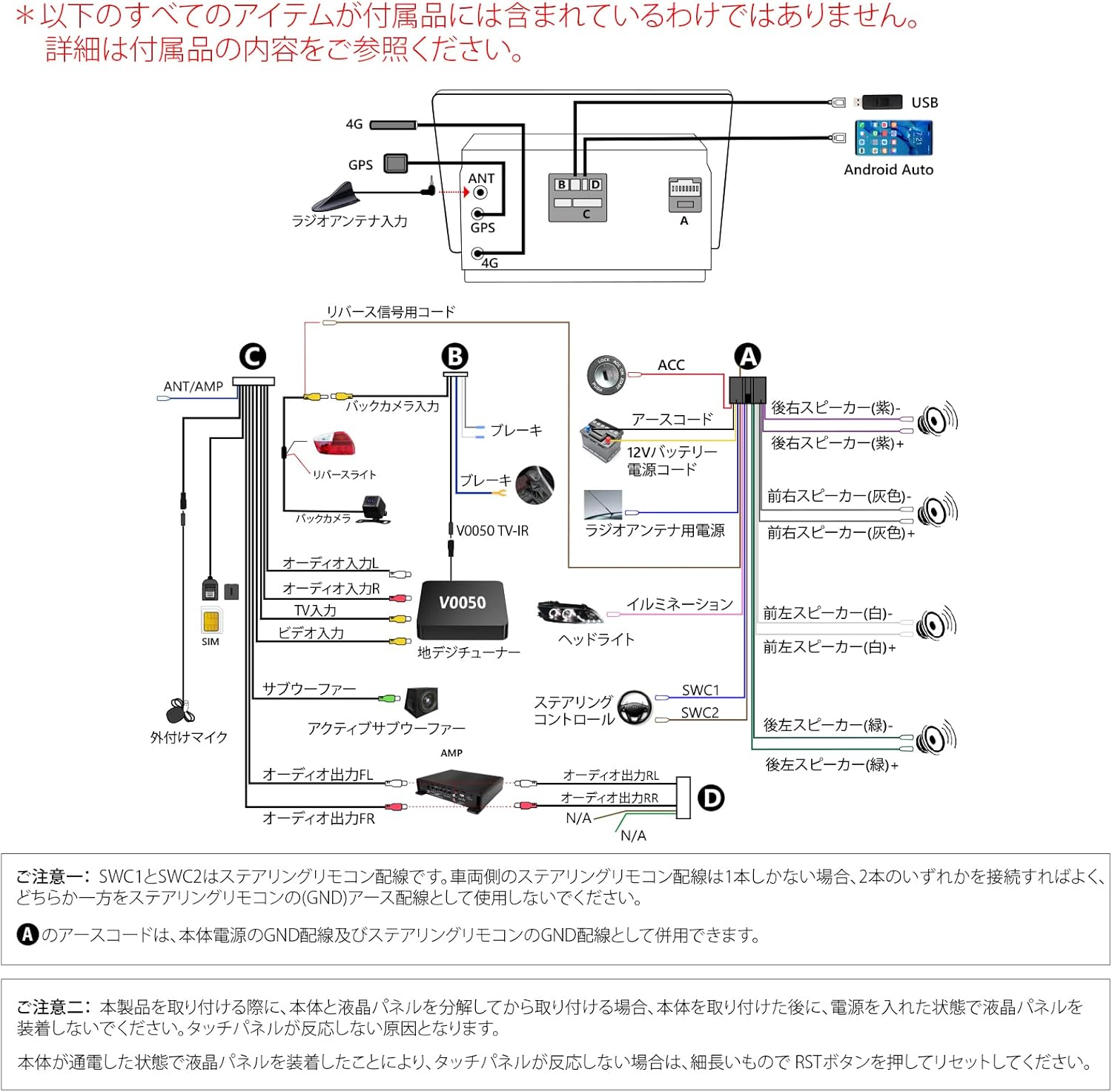
Image: Dimensions and adjustable screen positions of the EONON GA2196K.
3.3 Wiring Diagram
Refer to the following diagram for proper wiring connections. Incorrect wiring can cause damage to the unit or vehicle.

Image: Wiring diagram for the EONON GA2196K.
Important Wiring Notes:
- Steering Wheel Control (SWC1 & SWC2): These are steering remote control wires. If your vehicle has two steering remote control wires, connect one to SWC1 or SWC2. If only one, connect it to either SWC1 or SWC2. The other wire should be connected to the steering remote control's ground (GND) wire.
- ACC Wire: The ACC wire is used for the main unit's power supply and as the steering remote control's ground (GND) wire.
- Display Panel Installation: When installing the product, separate the main unit and the LCD panel. Install the main unit first, then connect the power, and finally attach the LCD panel. Do not install the LCD panel while the power is connected, as this may cause the touch panel to become unresponsive. If the touch panel is unresponsive after installation, press the RST button with a thin object to reset the unit.
4. Operating Instructions
4.1 Wireless CarPlay & Android Auto
Connect your iPhone (iPhone 5 or later) or Android smartphone (Android 6.0 or later, with the latest Android Auto app installed) wirelessly or via USB to access navigation, make calls, send messages, and play music through the unit's interface. For wireless Android Auto, your smartphone must support 5GHz Wi-Fi.

Image: Wireless CarPlay and Android Auto connectivity.
4.2 MirrorLink Function
Use the pre-installed "Carbitlink" app to mirror your smartphone's screen onto the car stereo. This allows you to view photos, listen to music, and watch videos directly from your phone. Both wireless and wired connections are supported.

Image: MirrorLink feature in action.
4.3 Navigation
Install map applications from the Google Play Store or use an Android map card (EONON G3048, sold separately) for online and offline navigation. Access up-to-date road information, 3D map displays, speed checker points, and speed control displays.
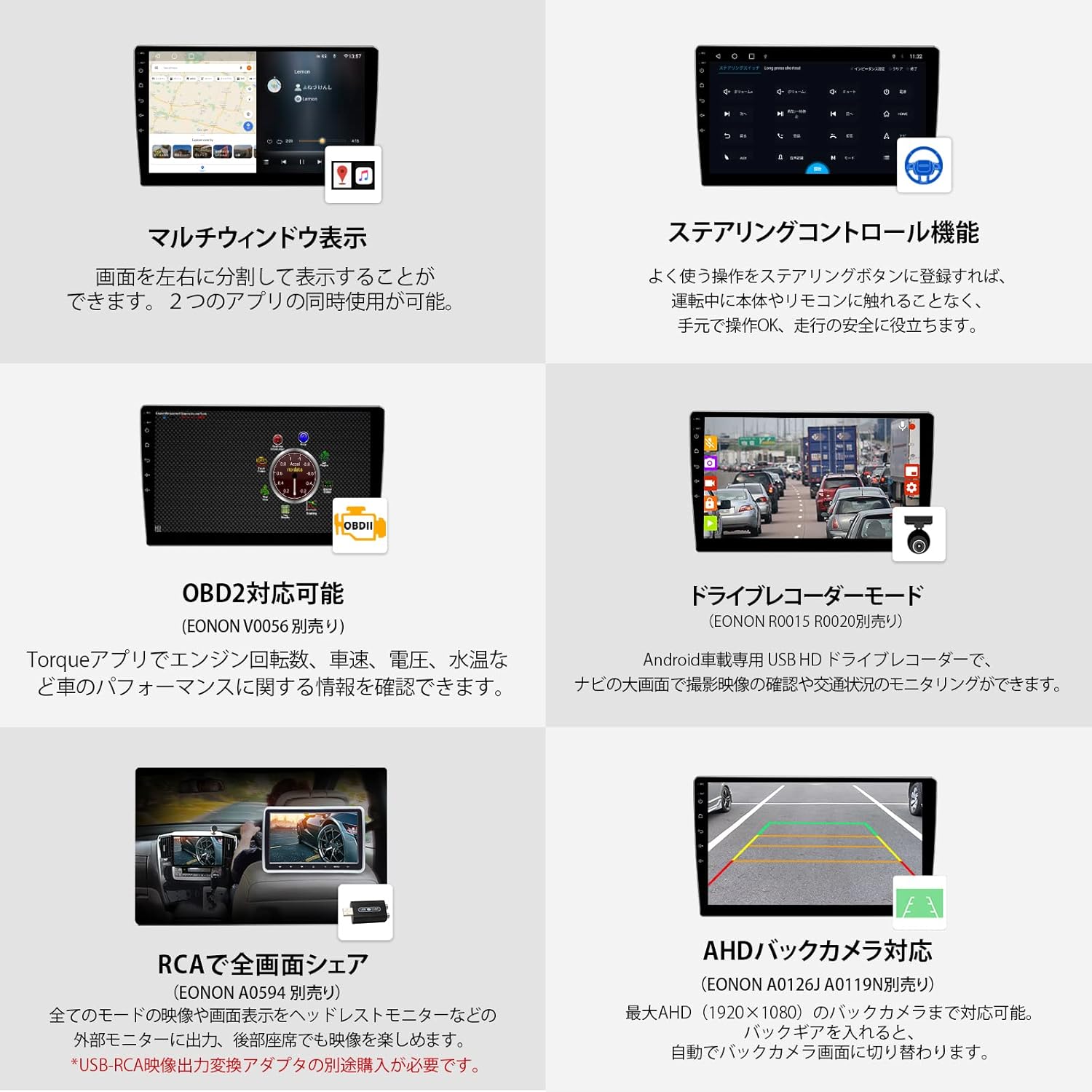
Image: Navigation features and map display.
4.4 Audio Settings
The built-in DSP (Digital Sound Field Processing) allows for precise sound adjustments. Utilize the 48-band graphic equalizer to fine-tune audio frequencies and select optimal sound field settings for an enhanced listening experience.

Image: Audio adjustment features including DSP and equalizer.
4.5 Multi-Window Display
The unit supports a multi-window display, allowing you to run and view two applications simultaneously on the screen. For example, you can have navigation open on one side and a media player on the other.
4.6 Steering Wheel Control
Register your vehicle's steering wheel controls with the unit to operate functions like volume, track changes, and calls without taking your hands off the wheel, enhancing driving safety.
4.7 OBD2 Compatibility
With an optional EONON O056 OBD2 scanner (sold separately), you can connect via Bluetooth to monitor various vehicle performance data such as engine RPM, speed, voltage, and water temperature using compatible apps like Torque.
4.8 Drive Recorder Mode
Connect a compatible USB HD drive recorder (EONON R0015 or R0020, sold separately) to record driving footage. View recordings and monitor traffic conditions directly on the large screen.
4.9 AHD Backup Camera Support
The unit supports AHD backup cameras (EONON A0126J or A0119J, sold separately) with resolutions up to 1920x1080. When shifting into reverse, the display automatically switches to the backup camera view.
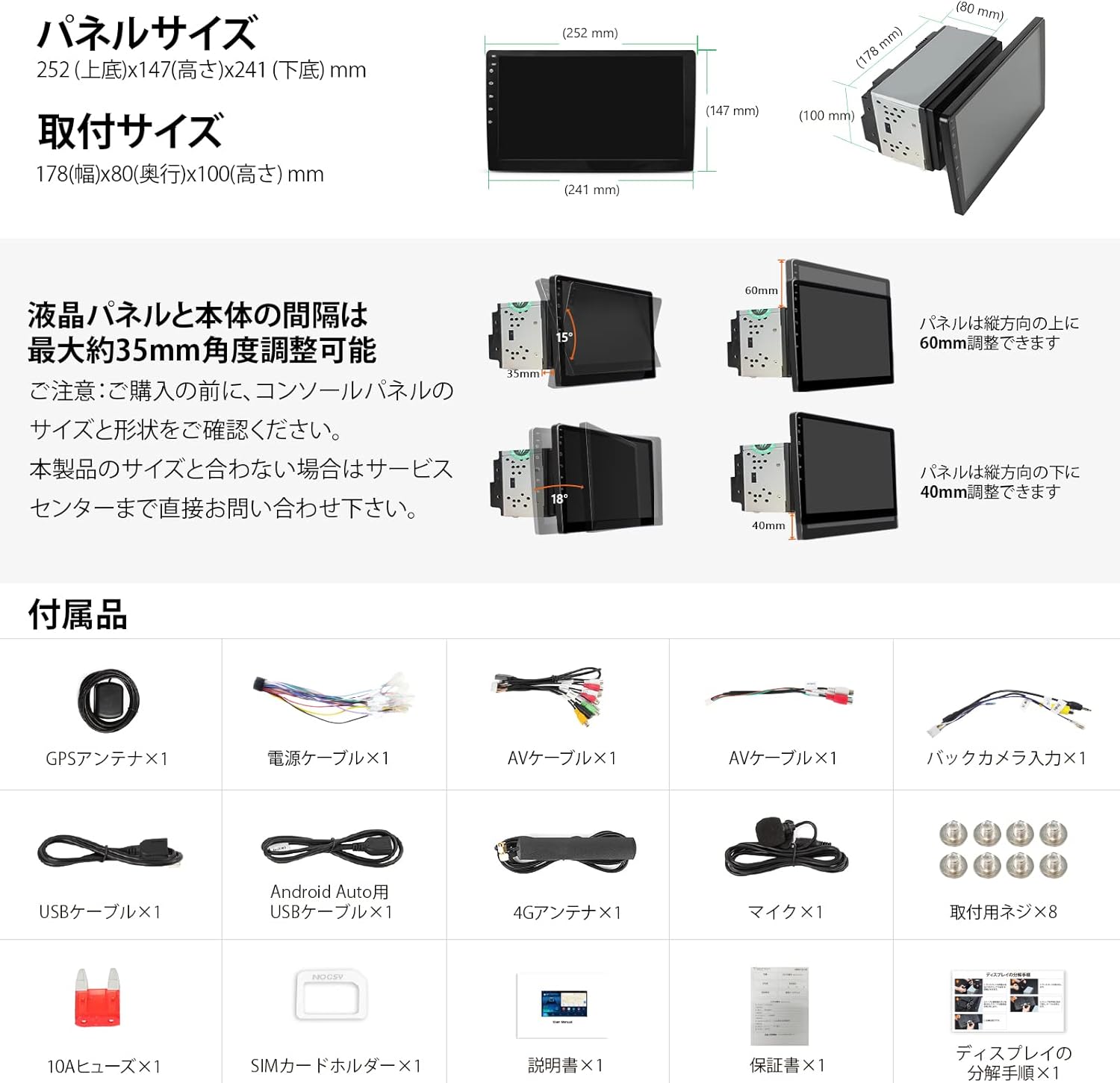
Image: Various operational features including multi-window, steering control, OBD2, DVR, and backup camera.
5. Maintenance
- Screen Cleaning: Use a soft, lint-free cloth to gently wipe the QLED touchscreen. Avoid abrasive cleaners or solvents.
- Software Updates: Periodically check for and install software updates to ensure optimal performance and access to new features. Updates can typically be found on the EONON official website or through the unit's system settings.
- General Care: Keep the unit free from dust and moisture. Avoid exposing it to extreme temperatures.
6. Troubleshooting
- Touch Panel Unresponsive: If the touch panel does not respond after installation or during use, locate the RST (Reset) button (usually a small pinhole) and press it gently with a thin object (e.g., a paperclip). The unit will restart, and functionality should be restored.
- No Power: Check all power connections according to the wiring diagram. Ensure the vehicle's ignition is on and the fuse is not blown.
- No Sound: Verify speaker connections. Check volume levels and audio settings (DSP, equalizer). Ensure the correct audio source is selected.
- GPS Signal Loss/Inaccuracy: Ensure the GPS antenna is properly installed and has a clear view of the sky. Avoid obstructions.
- Hands-Free Call Noise: If callers report noise during hands-free calls, check the external microphone's placement and ensure it is not obstructed. Adjust microphone sensitivity in settings if available.
- Apps Crashing/Slow Performance: Close unnecessary background applications. Clear app caches or reinstall problematic apps. If issues persist, perform a factory reset (note: this will erase all user data).
7. Specifications
| Feature | Specification |
|---|---|
| Screen Size | 10.1 inches |
| Display Type | QLED LCD |
| Resolution | 1280*720P |
| Processor | 8-core |
| RAM | 8GB |
| Internal Storage (ROM) | 128GB |
| Operating System | Android 10 |
| Connectivity | Bluetooth 5.0, Wi-Fi, 4G (SIM card support), USB |
| Tuner Type | AM/FM |
| Map Type | Street (supports various navigation apps) |
| Mounting Type | Dashboard Mount |
| Compatible Vehicle Type | Passenger Car |
| Product Dimensions | 34.4 x 21.8 x 20.8 cm |
| Product Weight | 8 g (main unit only, accessories not included) |
8. Warranty and Support
8.1 Warranty Coverage
The warranty period for products purchased from our store is one year from the date of arrival. Please note that backup cameras, smartphone accessories, and parts have a warranty period of six months. This warranty covers product defects under normal use.
Exclusions:
- Damage caused by human factors such as drops or impacts due to carelessness.
- Malfunctions resulting from incorrect operation not in accordance with the instruction manual.
- Damage from connecting to an incompatible voltage power source.
- Malfunctions caused by disassembly, repair, or modification of the product.
- LCD monitor with 3 or fewer dead pixels.
- Damage to consumables and accessories (e.g., antennas, remote controls).
- Indirect damages caused by product malfunction.
- Products with removed or damaged warranty seals.
- Products beyond the warranty period.
- Damage caused by natural disasters or accidents.
The warranty applies only to the product itself. We do not compensate for costs incurred during installation/removal, vehicle replacement costs, or any third-party damages resulting from resale or other factors. We are not responsible for damages, malfunctions, or incorrect wiring during the installation process. When entrusting installation to a professional, please confirm the work process, content, and product characteristics with the installer at your own discretion.
8.2 Warranty Claim Procedure
- Contact our customer support with details of the suspected malfunction, your purchase history (order number, date), and the serial number affixed to the product or its packaging.
- Our customer support team will verify the reported issue with our technical department. If no immediate solution is found, a return number will be provided. Please write this return number on the shipping slip (e.g., in the item name field) and return the main unit along with all accessories to us. Please remove any items not originally included with our product before returning. If a disc or other item cannot be removed from the unit, please inform us in advance.
- Defective products must be returned within 7 days of receiving the return number.
8.3 Specific Response Details
- Within 14 days of product arrival: If a defect is reported and confirmed, we will cover round-trip shipping costs and provide a replacement. If the product is not returned within 7 days of receiving the return number, the warranty terms for items beyond 14 days will apply.
- 15 days to 1 year after product arrival (or 6 months for specific items): If a defect is reported and confirmed, the customer is responsible for round-trip shipping costs, and we will provide a replacement.
Please Note:
- If the product is not returned to us, no exchange will be provided.
- We do not bear any costs related to the installation or removal of the product.
- Once the return process is complete, please provide us with the tracking number of the shipment.
- Refunds are generally not accepted.
- If the shipping address for the replacement product differs from the original purchase address, please inform us.


