
Welcome to Your VTech Genio Kids Laptop
The VTech Genio is an educational laptop designed for children aged 5 to 12 years. It provides a safe and engaging platform for learning, creativity, and developing essential computer skills. This manual will guide you through the setup, operation, and maintenance of your new device, ensuring a positive and educational experience.
Setup Guide
Unboxing and Initial Charge
Carefully remove the VTech Genio laptop and its accessories from the packaging. Before first use, ensure the device is fully charged. Connect the included power adapter to the laptop and a power outlet. The charging indicator will show the charging status.

The VTech Genio Kids Laptop is shown in its closed state, with the wired mouse neatly integrated into the design, ready for storage or transport.
Powering On and Initial Configuration
Press and hold the power button to turn on the laptop. Follow the on-screen prompts to select your preferred language and set up initial user profiles. It is recommended to configure parental controls during this stage, including approved websites and screen time limits, as guided by the system. The laptop features an AZERTY keyboard and a wired mouse for navigation.

This image shows the VTech Genio Kids Laptop in its open position, displaying its screen and keyboard. A child is visible in the background, demonstrating the product in use.
Operating Your VTech Genio
Basic Navigation
Use the wired mouse to navigate the graphical user interface on the 5-inch color screen. The AZERTY keyboard allows for typing, interacting with applications, and performing various functions.
Activities and Applications
The VTech Genio comes pre-loaded with over 50 activities and applications designed for educational engagement. These include:
- A word processing software for homework, creative writing, and document creation.
- 20 revision sheets covering various subjects such as mathematics, French, science, and history.
- Educational games that promote learning through play.
- Practical applications like a clock, calculator, and reminder functions to aid daily organization.
Additional content, including more games and learning activities, can be downloaded from the secure VTech Explora Park. Please note that some additional content may require purchase.
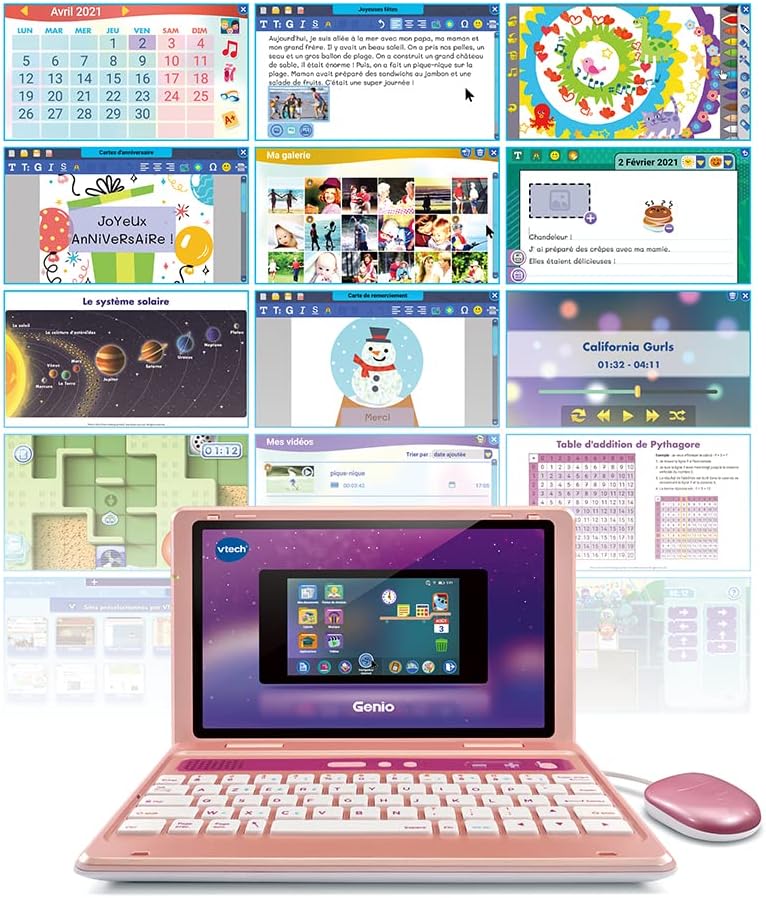
A collage of screenshots from the VTech Genio Kids Laptop, illustrating the diverse range of educational activities, games, and utility applications available on the device.
Internet Browser and Parental Controls
The integrated internet browser operates with a whitelist system, ensuring that children can only access websites approved by VTech and their parents. Enhanced parental controls allow for scheduled shutdowns and limits on game time, promoting healthy screen habits. The device also includes informative videos to raise awareness about personal data, screen time management, and safe internet use.
Storage
The VTech Genio has 8GB of internal memory. Documents and creations can be saved internally or on a microSD card (not included) for expanded storage and later printing.
Maintenance and Care
To ensure the longevity and optimal performance of your VTech Genio, follow these maintenance guidelines:
- Cleaning: Keep the laptop clean by wiping it with a soft, dry cloth. Avoid using abrasive cleaners, solvents, or excessive moisture, as these can damage the device.
- Screen Protection: Protect the screen from scratches and impacts. Avoid placing heavy objects on the laptop or using sharp objects near the screen.
- Storage: Store the device in a cool, dry place away from direct sunlight, extreme temperatures, and high humidity.
- Battery Care: The device contains a rechargeable Lithium-ion battery. Do not attempt to replace the battery yourself. Follow proper charging procedures as outlined in the setup guide.
- MicroSD Slot: Ensure the microSD card slot cover is properly closed when not in use to prevent dust and debris from entering the device.
Troubleshooting Common Issues
Device Not Turning On
- Ensure the battery is fully charged. Connect the power adapter and wait a few minutes before attempting to power on again.
- If the issue persists, perform a soft reset by holding the power button for 10-15 seconds.
Screen Not Responding
- If the screen is unresponsive, try restarting the device.
- Ensure the screen is clean and free of debris or obstructions.
Applications Not Loading or Crashing
- Check for available system updates and install them if prompted.
- Ensure sufficient internal storage space is available. Delete unnecessary files or install a microSD card to expand storage.
Internet Connection Issues
- Verify that the Wi-Fi connection is active and correctly configured in the device settings.
- Check parental control settings to ensure internet access is not restricted or limited.
Product Specifications
| Feature | Detail |
|---|---|
| Model Number | 541055 |
| Brand | VTech |
| Recommended Age | 5 - 12 years |
| Screen Size | 5 inches (12.5 cm diagonal) |
| Keyboard Layout | AZERTY |
| Internal Memory | 8GB |
| Expandable Memory | Yes, via microSD card (not included) |
| Battery Type | Rechargeable Lithium-ion |
| Product Dimensions (L x W x H) | 26.2 x 6.2 x 17 cm |
| Product Weight | 850 grams |
| Main Material | Plastic |
| SAR Head | 0.148 W/kg |
| SAR Trunk | 0.265 W/kg |
| SAR Limbs | 0.735 W/Kg |
| Assembly Required | No |
| Spare Parts Availability | Unavailable |
Note: SAR (Specific Absorption Rate) values are provided for informational purposes.

This image displays two VTech Genio Kids Laptops side-by-side, showcasing the different color variations available for the product.
Warranty Information
VTech products typically come with a standard manufacturer's warranty. Please refer to the warranty card included in your product packaging or visit the official VTech website for detailed warranty terms and conditions specific to your region. Keep your proof of purchase for any warranty claims.
Important Safety Warning:
This product is not suitable for children under 36 months due to small parts that may present a choking hazard.
Customer Support
For technical assistance, product inquiries, or to download additional content and updates, please visit the official VTech website or contact their customer service department.
- Official VTech Website: www.vtech.com
- Explora Park (for content downloads): www.explorapark.com


