
1. Introduction
Thank you for choosing the Marvo KG880 Membrane Gaming Keyboard. This manual provides detailed instructions for setting up, operating, and maintaining your keyboard to ensure optimal performance and longevity. Please read this manual thoroughly before using the product.
The Marvo KG880 is designed for gaming enthusiasts, featuring a membrane key structure, anti-ghosting capabilities, dedicated multimedia controls, and vibrant backlighting for an enhanced gaming experience.
2. Package Contents
Please verify that all items are present in your package:
- Marvo KG880 Membrane Gaming Keyboard
- User Manual (this document)

Image: The Marvo KG880 Membrane Gaming Keyboard packaging, showing the keyboard box with product details.
3. Setup Instructions
- Unpack the Keyboard: Carefully remove the Marvo KG880 keyboard from its packaging.
- Connect to Computer: Locate an available USB port on your computer. Insert the USB connector of the Marvo KG880 keyboard into the USB port.

Image: Top-down view of the Marvo KG880 keyboard, illustrating its layout and USB connection point.
- Driver Installation: The Marvo KG880 is a plug-and-play device. Your operating system (Windows 10 or later recommended) should automatically detect and install the necessary drivers. No additional software installation is typically required.
- Placement: Place the keyboard on a stable, flat surface. The integrated wide edge palm rest is designed for comfort during extended use.
4. Operating Instructions
4.1 Basic Keyboard Functions
The Marvo KG880 functions as a standard QWERTY keyboard for typing and general computer use.
4.2 Backlight Control
The keyboard features backlit characters, ideal for low-light environments. Specific keys or key combinations control the backlight:
- Backlight On/Off: Press the Scroll Lock key to toggle the backlight on or off.
- Brightness Adjustment: Use Fn + Page Up to increase brightness and Fn + Page Down to decrease brightness.
- Backlight Modes: The keyboard may feature multiple backlight modes. Cycle through these modes using Fn + Scroll Lock or similar key combinations (refer to specific key legends if available).
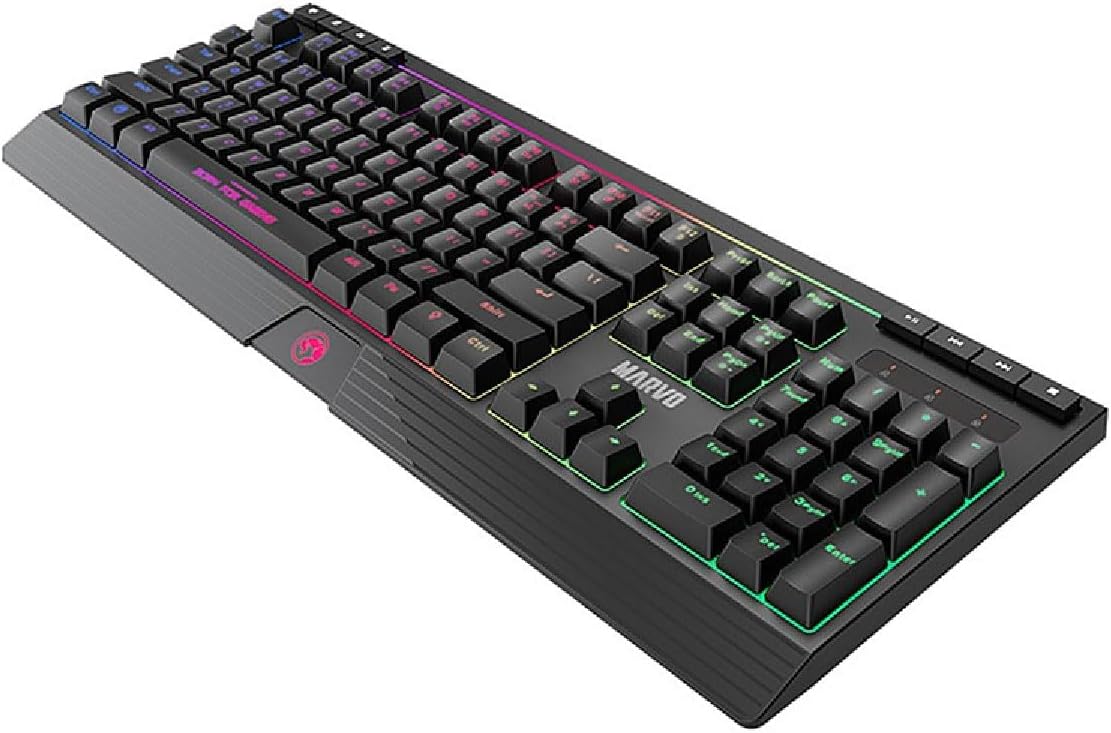
Image: Angled view of the Marvo KG880 keyboard, showcasing the vibrant backlighting on the keys.
4.3 Multimedia Controls
Dedicated multimedia keys are located at the top right of the keyboard for convenient control of media playback:
- Play/Pause: Controls media playback.
- Stop: Stops current media playback.
- Previous Track: Skips to the previous track.
- Next Track: Skips to the next track.
- Volume Up/Down/Mute: Adjusts audio volume or mutes sound.
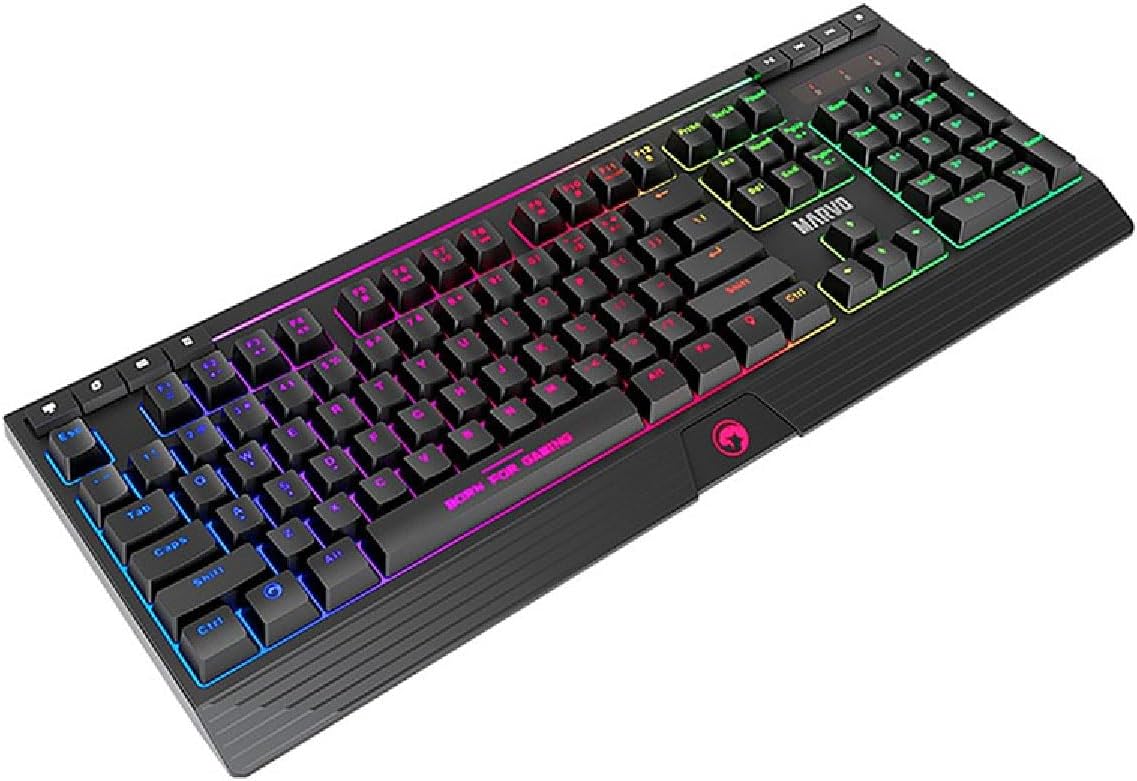
Image: Close-up view of the Marvo KG880 keyboard, highlighting the dedicated multimedia control keys.
4.4 Anti-Ghosting (19-Key Rollover)
The Marvo KG880 supports 19-key rollover anti-ghosting. This feature ensures that up to 19 keys pressed simultaneously will be registered accurately, which is crucial for complex gaming commands and fast-paced gameplay.
5. Maintenance
Proper maintenance will extend the life of your keyboard:
- Cleaning: Use a soft, dry cloth to wipe the surface of the keyboard. For stubborn dirt, a slightly damp cloth with mild soap can be used, ensuring no liquid enters the keyboard.
- Dust Removal: Use compressed air to remove dust and debris from between the keys.
- Avoid Liquids: Do not spill liquids on the keyboard. If a spill occurs, immediately disconnect the keyboard from your computer and allow it to dry completely before reconnecting.
- Storage: When not in use for extended periods, store the keyboard in a clean, dry environment.
6. Troubleshooting
| Problem | Possible Cause | Solution |
|---|---|---|
| Keyboard not responding | Loose USB connection, faulty USB port, driver issue. |
|
| Backlight not working | Backlight turned off, brightness set to minimum. |
|
| Keys not registering correctly (ghosting) | Exceeding 19-key rollover limit, software conflict. |
|
7. Specifications
- Model: KG880
- Keyboard Type: Membrane Gaming Keyboard
- Anti-Ghosting: 19-Key Rollover
- Backlight: Yes, with adjustable brightness and modes
- Multimedia Controls: Dedicated keys
- Palm Rest: Wide edge, integrated
- Connectivity: USB
- Operating System Compatibility: Windows 10 (and later versions)
- Dimensions: 44.6 x 17.7 x 2.4 cm (Length x Width x Height)
- Weight: 1.22 kg
- Material: Silicone (keycaps/membrane components)
- Color: Black
8. Warranty and Support
Marvo products are designed for reliability and performance. For warranty information and technical support, please refer to the warranty card included with your purchase or visit the official Marvo website. Keep your proof of purchase for warranty claims.
For further assistance, please contact Marvo customer support through their official channels.


