
FUJITSU FUTRO MU937
FUJITSU FUTRO MU937 Notebook User Manual
Comprehensive Guide for Setup, Operation, and Maintenance
1. Introduction
This user manual provides detailed instructions for the FUJITSU FUTRO MU937 lightweight notebook. It covers essential information for setting up, operating, maintaining, and troubleshooting your device. Please read this manual thoroughly to ensure proper use and to maximize the lifespan of your notebook.
The FUJITSU FUTRO MU937 is equipped with a 7th Generation Intel Celeron 3865U processor, 8GB of RAM, and a 256GB Solid State Drive (SSD) for fast performance. It features a 13.3-inch Full HD (1920x1080) display and comes pre-installed with Windows 10 Pro 64-bit and WPS Office for productivity.

Figure 1.1: Front view of the FUJITSU FUTRO MU937 notebook displaying the operating system interface.
2. Safety Information
To prevent injury, electric shock, fire, or damage to the product, please observe the following safety precautions:
- Do not expose the notebook to extreme temperatures, humidity, or direct sunlight.
- Avoid placing heavy objects on the notebook or applying excessive pressure to the screen.
- Keep liquids away from the device. In case of accidental spills, immediately power off the notebook and disconnect it from the power source.
- Do not attempt to disassemble or repair the notebook yourself. Refer all servicing to qualified personnel.
- Use only the power adapter supplied with the notebook or a compatible replacement.
- Ensure proper ventilation to prevent overheating. Do not block the ventilation openings.
3. Component Identification
Familiarize yourself with the various components and ports of your FUJITSU FUTRO MU937 notebook.
3.1. Side View and Ports
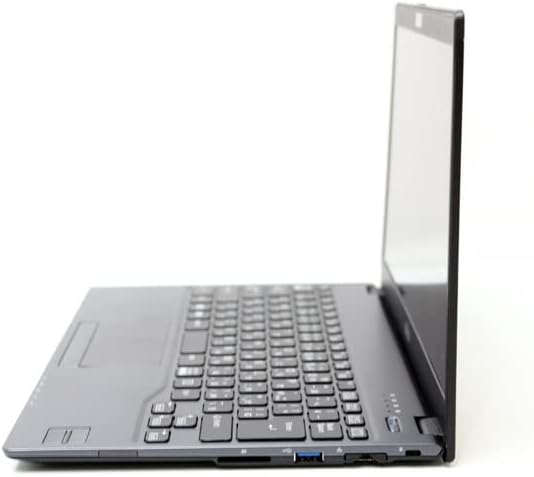
Figure 3.1: Left side view of the notebook, highlighting the USB 3.0 port, HDMI port, and SD card slot.
The side of the notebook features essential connectivity options including USB 3.0 ports for high-speed data transfer, an HDMI port for external display connections, and an SD card slot for memory expansion or data transfer from cameras and other devices.
3.2. Keyboard and Touchpad
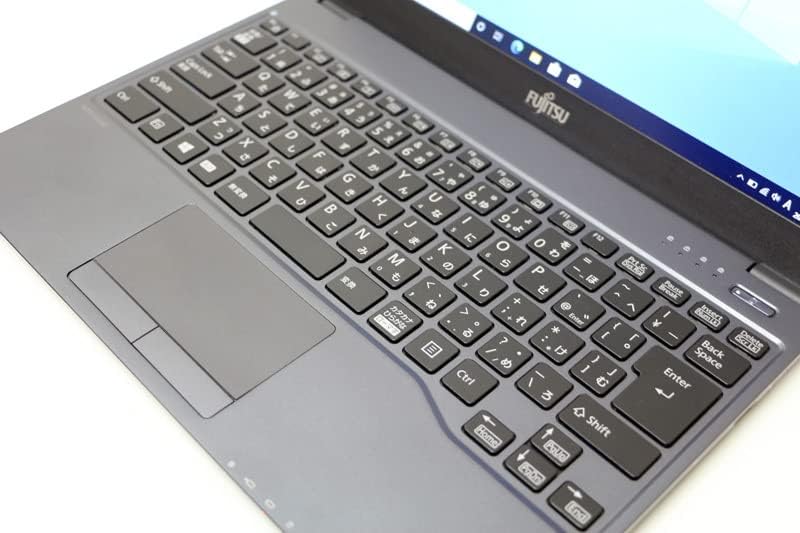
Figure 3.2: Detailed view of the notebook's keyboard layout and integrated touchpad.
The notebook features a standard QWERTY keyboard for comfortable typing and a multi-touch touchpad for precise cursor control. The touchpad supports various gestures for enhanced navigation within the operating system.
3.3. Top Cover
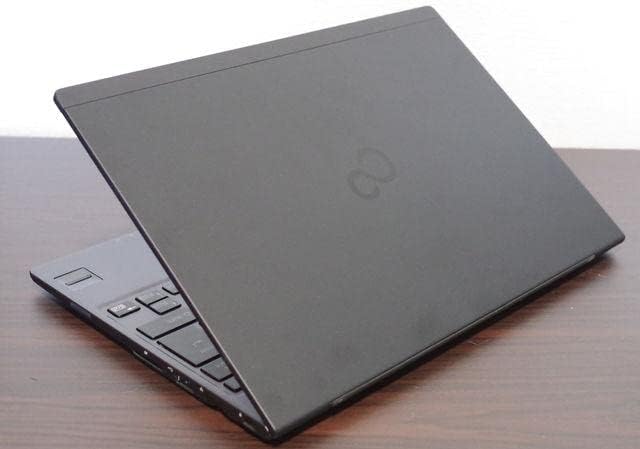
Figure 3.3: Top view of the FUJITSU FUTRO MU937 notebook when closed, showing the sleek design.
The top cover of the notebook features a minimalist design with the FUJITSU logo, emphasizing its lightweight and thin profile.
4. Initial Setup
Follow these steps to set up your FUJITSU FUTRO MU937 notebook for the first time:
- Connect Power: Plug the AC adapter into the notebook's power input port and then into a wall outlet.
- Power On: Open the lid and press the power button, usually located above the keyboard or on the side.
- Initial Windows Setup: The notebook comes with Windows 10 Pro 64-bit pre-installed. Follow the on-screen prompts to complete the initial Windows setup, including region, language, network connection, and user account creation.
- WPS Office Activation: Your notebook includes WPS Office. Refer to the provided WPS Office license card for activation instructions.

Figure 4.1: WPS Office 2 Standard Edition license card with serial number and activation instructions.
The WPS Office license card contains the serial number required for activation. Follow the instructions on the card or visit the Kingsoft support website for detailed steps on downloading and activating WPS Office.
- Connect Peripherals: Connect any external devices such as an external webcam (if applicable), mouse, or external storage devices to the available USB ports.
5. Basic Operation
5.1. Power Management
- Power On: Press the power button.
- Shut Down: Click the Start button (Windows icon) > Power > Shut down.
- Restart: Click the Start button (Windows icon) > Power > Restart.
- Sleep: Click the Start button (Windows icon) > Power > Sleep, or close the lid.
5.2. Network Connectivity
- Wi-Fi: Click the Wi-Fi icon in the taskbar, select your desired network, enter the password, and click Connect.
- Bluetooth: To connect Bluetooth devices, go to Settings > Devices > Bluetooth & other devices, and turn Bluetooth on.
5.3. Using WPS Office
WPS Office provides word processing, spreadsheet, and presentation applications compatible with Microsoft Office formats. Launch WPS Office from the Start Menu or desktop shortcut to begin creating and editing documents.
6. Maintenance and Care
- Cleaning: Use a soft, lint-free cloth to clean the screen and exterior. For stubborn marks, slightly dampen the cloth with water or a screen cleaner. Avoid harsh chemicals.
- Battery Care: To prolong battery life, avoid fully discharging the battery frequently. Store the notebook in a cool, dry place if not used for extended periods.
- Software Updates: Regularly check for and install Windows updates and driver updates to ensure optimal performance and security. Go to Settings > Update & Security > Windows Update.
- Data Backup: Periodically back up your important data to an external drive or cloud storage to prevent data loss.
7. Troubleshooting
This section addresses common issues you might encounter with your notebook.
| Problem | Possible Cause | Solution |
|---|---|---|
| Notebook does not power on. | Battery is drained or AC adapter is not connected properly. | Ensure the AC adapter is securely connected to both the notebook and a working power outlet. Allow the battery to charge for a few minutes before attempting to power on again. |
| Wi-Fi connection issues. | Incorrect Wi-Fi password, router issues, or Wi-Fi adapter disabled. | Verify the Wi-Fi password. Restart your router and modem. Check if the Wi-Fi adapter is enabled in Windows settings. |
| WPS Office applications are not launching. | Software corruption or incomplete installation/activation. | Ensure WPS Office is properly activated using the provided license card. Try repairing or reinstalling WPS Office from the official Kingsoft website if necessary. |
| Slow performance. | Too many applications running, low disk space, or outdated drivers. | Close unnecessary applications. Free up disk space. Update Windows and device drivers. |
8. Technical Specifications
| Feature | Specification |
|---|---|
| Brand | FUJITSU |
| Model Name | FUTRO MU937 |
| Product Model Number | FMVC07007 |
| Screen Size | 13.3 inches |
| Display Resolution | 1920x1080 pixels (Full HD) |
| CPU Brand | Intel |
| CPU Type | Celeron 3865U |
| CPU Speed | 1.8 GHz |
| RAM Size | 8 GB (DDR4 SDRAM) |
| Hard Disk Size | 256 GB |
| Hard Disk Type | SSD (Solid State Drive) |
| Graphics Coprocessor | Intel HD Graphics 610 |
| Operating System | Windows 10 Pro |
| Connectivity | Wireless LAN, Bluetooth, USB 3.0, HDMI, SD Card Slot |
9. Warranty Information
This product is covered by a standard manufacturer's warranty. For specific details regarding warranty duration, coverage, and terms, please refer to the warranty card included with your purchase or visit the official FUJITSU support website. Keep your proof of purchase for warranty claims.
10. Customer Support
If you encounter issues not covered in this manual or require further assistance, please contact customer support:
- Online Support: Visit the official FUJITSU support website for FAQs, drivers, and troubleshooting guides.
- Technical Assistance: For direct technical support, refer to the contact information provided on the FUJITSU support website or your product documentation.
When contacting support, please have your product model number (FUTRO MU937 / FMVC07007) and serial number ready.
Related documentsFUTRO MU937


Ask a question about this manual
Ask about setup, troubleshooting, compatibility, parts, safety, or missing instructions. Manuals+ will review the question and use this page’s manual context to help answer it.