
1. Installation and Setup
The Merkury Innovations Smart Light Bulb is designed for easy installation without the need for a separate hub. Follow these steps to set up your bulb:
- Screw in the Bulb: Carefully screw the smart light bulb into any standard E26 light socket.
- Download the App: Download the "Geeni" app from your smartphone's app store (available on iOS and Android).
- Connect to Wi-Fi: Ensure your smartphone is connected to a 2.4 GHz Wi-Fi network. The smart bulb requires a 2.4 GHz connection for initial setup and operation. If your router broadcasts both 2.4 GHz and 5 GHz, ensure you select the 2.4 GHz option.
- Pair the Bulb: Open the Geeni app, create an account or log in, and follow the on-screen instructions to add a new device. The bulb should blink to indicate it's in pairing mode.

Figure 1: Merkury Innovations Smart Wi-Fi LED Bulbs in packaging.

Figure 2: Key features of the Merkury Innovations Smart Light Bulb.
Video 1: Official video demonstrating the unboxing and initial setup process for the Merkury Innovations Smart Light Bulb, including connecting to the Geeni app.
2. Operating Instructions
Voice Control
Once connected, you can control your smart light bulb using voice commands through Amazon Alexa or Google Home Assistant. Simply link your Geeni account to your preferred voice assistant.

Figure 3: Voice control functionality with an Amazon Alexa device.
App Control
The Geeni app provides comprehensive control over your smart light bulb:
- Brightness Adjustment: Easily dim or brighten the light from 1% to 100% to set the perfect ambiance.
- Color Changing: Choose from millions of colors to match your mood or decor.
- Scheduling: Set schedules for your lights to turn on or off automatically at specific times, enhancing convenience and security.
- Group Control: Control multiple bulbs individually or group them together to manage lighting in entire rooms or areas with a single command.

Figure 4: Smartphone app interface showing the color selection wheel.
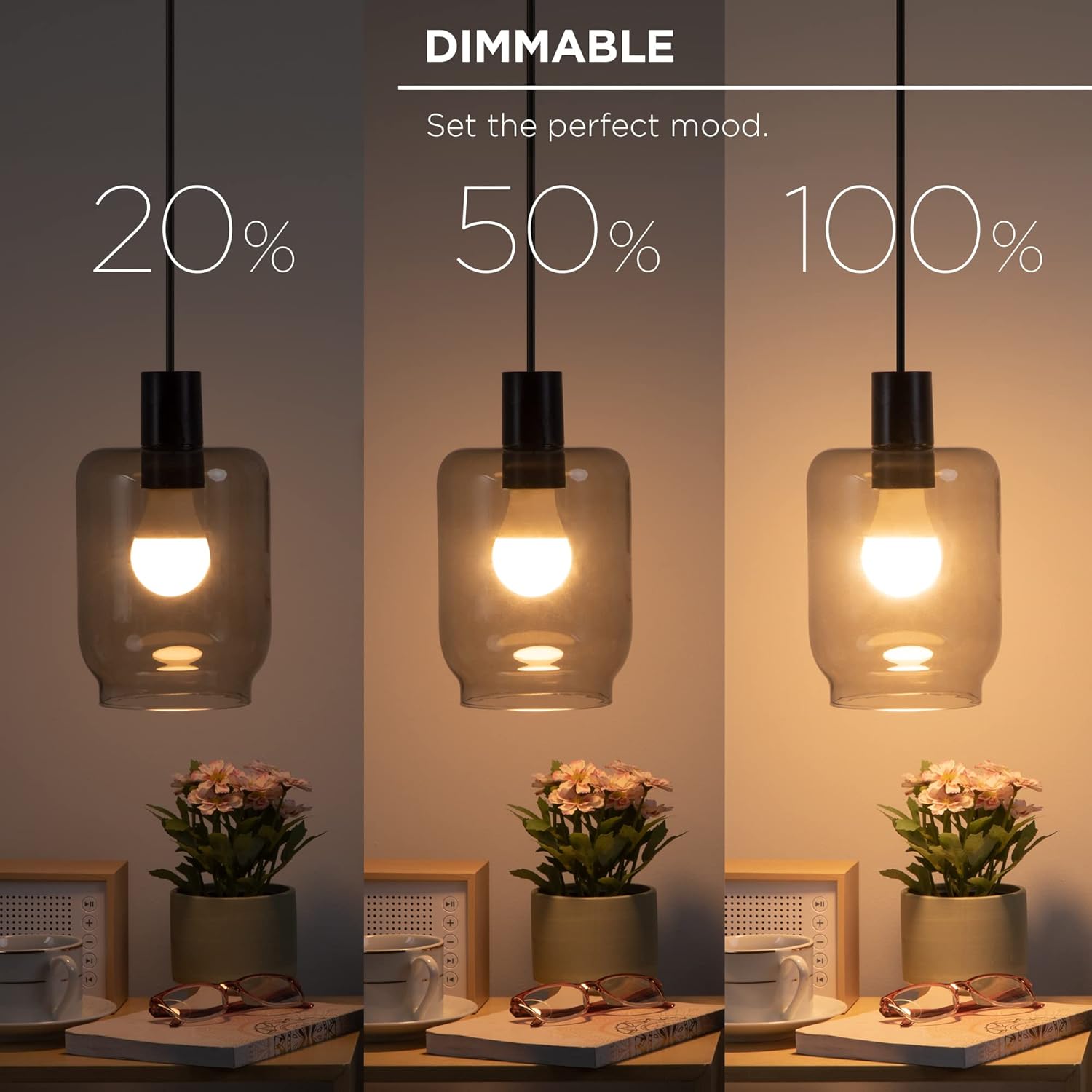
Figure 5: Demonstration of the dimmable feature.

Figure 6: Various pre-set mood and scene options available in the app.

Figure 7: Smartphone app displaying the group control feature.
3. Maintenance
To ensure the longevity and optimal performance of your smart light bulb, follow these simple maintenance guidelines:
- Cleaning: Ensure the bulb is off and cool before cleaning. Wipe the bulb with a soft, dry cloth. Do not use liquid cleaners or abrasive materials.
- Safety: Do not attempt to disassemble or modify the bulb. This can void the warranty and pose a safety risk.
- Energy Efficiency: This 11-watt LED bulb is equivalent to a traditional 75-watt incandescent bulb, with an estimated energy cost of $1.20 per year (based on 3 hours/day usage).
4. Troubleshooting
If you encounter issues with your Merkury Innovations Smart Light Bulb, refer to the following common troubleshooting tips:
- Bulb Not Connecting: Ensure your Wi-Fi network is 2.4 GHz. These bulbs are not compatible with 5 GHz networks. Try restarting your router and the Geeni app.
- Bulb Not Responding: If the bulb becomes unresponsive, try turning the light switch off and on a few times to reset it. Ensure the physical light switch remains in the 'ON' position for app control.
- Loss of Power: If there's a power outage, the bulbs may lose connection to the Geeni app or voice assistants. You may need to re-pair them or restart your router once power is restored.
- Voice Control Issues: Verify that your Geeni account is correctly linked to your Amazon Alexa or Google Home Assistant account. Check your voice assistant's app for any device errors.
5. Specifications
| Feature | Specification |
|---|---|
| Brand | Merkury Innovations |
| Model Number | MI-BW210-999WW |
| Light Type | LED |
| Special Feature | Dimmable |
| Wattage | 11 Watts (75W Incandescent Equivalent) |
| Bulb Shape Size | A21 |
| Bulb Base | E26 |
| Brightness | 1050 Lumens |
| Light Color | Multicolor |
| Voltage | 120 Volts |
| Connectivity Technology | Wi-Fi (2.4 GHz) |
| Indoor/Outdoor Usage | Indoor |
| Controller Type | Voice Control |
| Item Weight | 7.1 ounces |
| Product Dimensions | 4.13"W x 5.91"H |
6. Warranty and Support
For detailed warranty information, please refer to the product packaging or the official Merkury Innovations website. For technical support and further assistance, please visit the support section within the Geeni app or the Merkury Innovations support website.


