Introduction
This manual provides detailed instructions for the setup, operation, maintenance, and troubleshooting of your LENVII D2200 Desktop Barcode Scanner. Please read this manual carefully before using the device to ensure proper functionality and to maximize its lifespan.
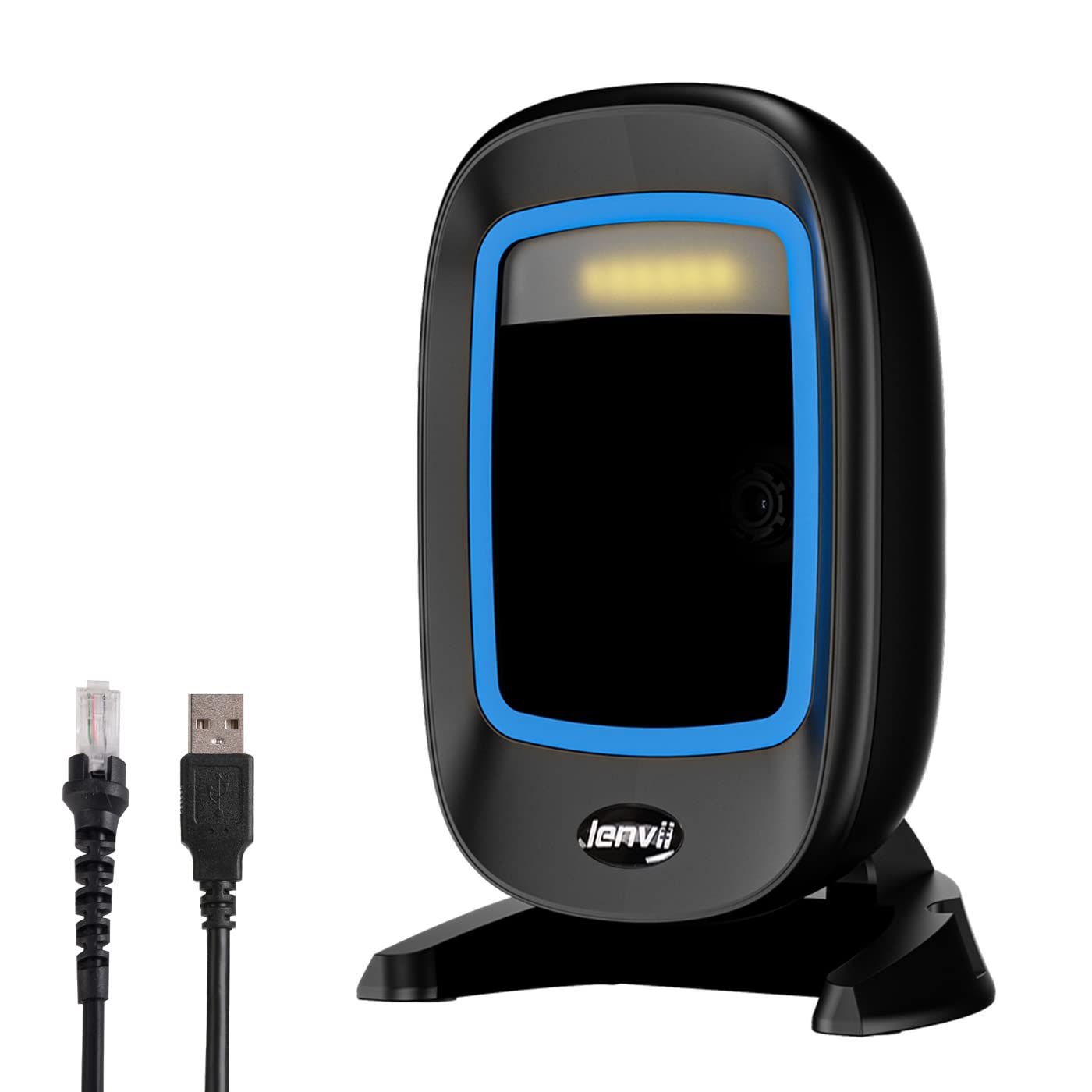
Figure 1: LENVII D2200 Desktop Barcode Scanner. This image shows the compact design of the scanner, suitable for various retail and office environments.
Setup Instructions
1. Unpacking
Carefully remove the LENVII D2200 barcode scanner from its packaging. Ensure all components are present and undamaged.
2. Connecting the Scanner (Plug and Play)
The LENVII D2200 scanner is designed for plug-and-play operation, requiring no additional drivers or software installation.
- Locate the USB cable attached to the scanner.
- Connect the USB cable to an available USB port on your computer or POS system.
- The scanner will automatically be recognized by your operating system (Windows XP/7/8/10, Mac OS, Linux, etc.).
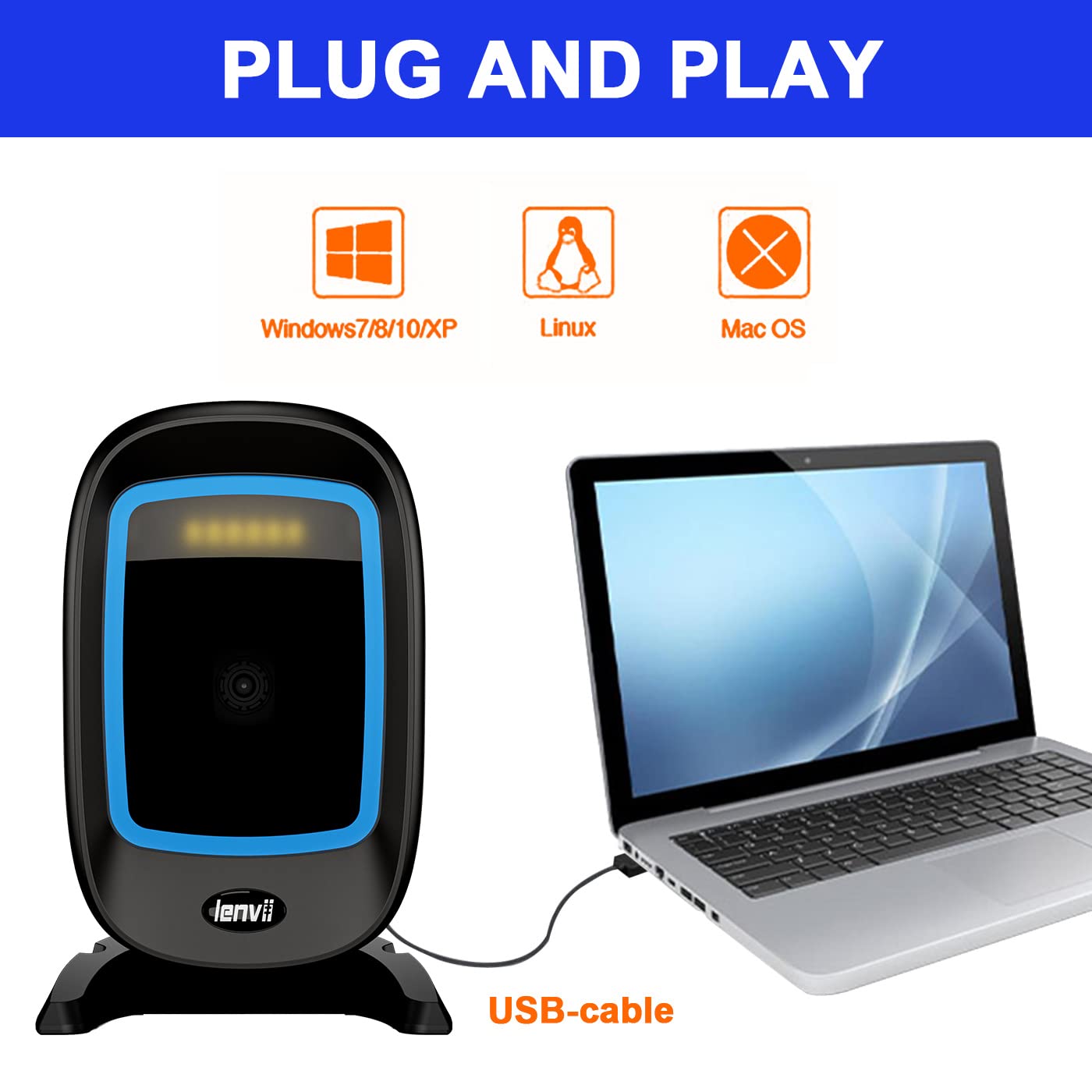
Figure 2: Plug and Play setup. The image illustrates connecting the scanner to a laptop via USB cable, highlighting its compatibility with various operating systems.
Operating Instructions
1. Hands-Free Automatic Scanning
The D2200 is a desktop scanner designed for hands-free operation. Simply place the item with the barcode in front of the scanner's window, and it will automatically detect and read the barcode.
2. Supported Barcode Types
The scanner supports a wide range of 1D and 2D barcodes, including those on labels, paper, and digital screens (mobile phones, computer monitors).
- 1D Barcodes: UPC/EAN, UPC-A, UPC-E, Code39, ISBN, Interleaved 2 of 5, Code93, Code 128, Codabar, Industry25, Matrix25, Matrix 2 of 5, etc.
- 2D Barcodes: PDF417, QR Code, Data Matrix, Micro QR, Aztec, etc.

Figure 3: Supported Barcode Types. This image displays various 1D and 2D barcode symbologies that the LENVII D2200 scanner can decode.
3. Reading Mode Switching
The scanner features a button on the top to switch between reading modes. This allows you to optimize scanning for specific barcode types.
- Press the top button once to switch between modes.
- One-dimensional + Two-dimensional mode: Indicated by a blue light. This is the default mode for scanning both 1D and 2D barcodes.
- Read only one dimension mode: Indicated by a red light. This mode is optimized for scanning only 1D barcodes.

Figure 4: Reading Mode Switching. The diagram illustrates the button on top of the scanner used to toggle between scanning modes for 1D and 2D barcodes.
4. Scanning Digital Barcodes
The advanced CCD optical imaging technology allows the scanner to easily capture barcodes displayed on mobile phone screens and computer monitors, even if they are blurred, damaged, distorted, colorful, or reflective.
5. Application Scenarios
The LENVII D2200 is suitable for various environments requiring efficient barcode scanning.
- Supermarkets
- Shopping Malls
- Specialty Stores
- Bookstores
- Convenience Stores
- Retail Shops
- Libraries
- Drugstores
- Catering Services

Figure 5: Application Scenarios. This image demonstrates the scanner's versatility in different retail and service settings.
Maintenance
1. Cleaning the Scanner
To ensure optimal scanning performance, keep the scan window clean.
- Use a soft, lint-free cloth slightly dampened with water or a mild cleaning solution.
- Gently wipe the scan window. Avoid abrasive materials or harsh chemicals.
- Ensure the scanner is disconnected from its power source before cleaning.
2. Handling and Storage
The scanner is designed to be durable, withstanding drops from 1.5 meters. However, proper handling and storage are recommended.
- Store the scanner in a cool, dry place away from direct sunlight and extreme temperatures.
- Avoid exposing the device to excessive moisture or dust.
Troubleshooting
| Problem | Possible Cause | Solution |
|---|---|---|
| Scanner does not power on or respond. | USB cable not properly connected or faulty USB port. | Ensure the USB cable is securely connected to both the scanner and the computer. Try a different USB port. |
| Scanner does not read barcodes. |
|
|
| Scanned data is incorrect or incomplete. |
|
|
Specifications
| Feature | Detail |
|---|---|
| Model | D2200 |
| Image (Pixels) | 640 pixels (H) * 480 pixels (V) |
| Light Source | Aiming: 617 nm LED; Illumination: 6500K LED |
| Code Reading System (2D) | QR Code, Data Matrix, PDF417, Aztec, etc. |
| Code Reading System (1D) | UPC / EAN / JAN, UPC-A & UPC-E, EAN-8 & EAN-13, JAN-8 & JAN-13, ISBN / ISSN, Code 39 (with full ASCII), Codabar (NW7), Code 128 & EAN 128, Code 93, Interleaved 2 of 5 (ITF), Addendum 2 of 5, IATA Code, MSI / Plessy, China Postal Code, Code 32 (Italian Pharmacode), RSS14, RSS Limited, RSS Expanded |
| Scanning Speed | Up to 2000 times / second |
| Scanning Distance | 0-200mm @ UPC / EAN 13mil PCS = 90%; 0-150mm @ QR 20mil PCS = 100% |
| Scanning Angle | 60° left and right / 60° front and back / 360° |
| Field of View | 48° horizontally, 30° vertical |
| Reading Accuracy | ≥ 5mil |
| Printing Contrast | ≥25% |
| Connectivity | USB Cable |
| Compatible Devices | POS, iOS, Android, Windows, Mac OS, Linux, Raspberry Pi |
| Dimensions (LxWxH) | 5.5 x 8 x 16 Centimeters (2.2 x 3.15 x 6.3 inches) |
| Weight | 240 g (0.53 lbs) |
| Cable Length | 1.8 meters (5.9 feet) |
| Drop Resistance | Withstands 1.5M drop |

Figure 6: Specification Size. This image provides a visual representation of the scanner's dimensions.

Figure 7: Appearance Details. This image points out key features like the fill-in light, scan window, indicator light/button, and data transmission port.

Figure 8: Adjustable Angle. This diagram illustrates the scanner's flexibility with its adjustable tilt angles.
Support and Contact Information
For technical support, warranty inquiries, or further assistance, please contact LENVII customer service:
- Email: lenvii@lenvii.net
- Manufacturer: LENVII
Please have your model number (D2200) ready when contacting support.


