
VoltEdge CX40
VoltEdge CX40 Camo Blue Controller User Manual
Model: CX40 | Brand: VoltEdge
Introduction
This manual provides detailed instructions for the setup, operation, maintenance, and troubleshooting of your VoltEdge CX40 Camo Blue Controller. Please read this manual thoroughly before using the product to ensure optimal performance and longevity.

Figure 1: Front view of the VoltEdge CX40 Camo Blue Controller.
Product Features
- Dual Vibration: Experience immersive feedback with built-in dual vibration motors.
- Turbo Function: Enhance your gameplay with programmable turbo functionality.
- 2-Meter Cable: Provides ample reach for comfortable gaming sessions.
- Ergonomic Design: Engineered for comfort during extended periods of use.
- Multi-Platform Compatibility: Compatible with PlayStation 4 (PS4), PlayStation 3 (PS3), and PC.
Setup
Connecting to PS4/PS3:
- Ensure your console is powered on.
- Connect the USB cable of the VoltEdge CX40 controller to an available USB port on your PS4 or PS3 console.
- The controller will automatically be recognized and configured. The indicator light on the controller will illuminate once connected.
Connecting to PC:
- Ensure your PC is powered on.
- Connect the USB cable of the VoltEdge CX40 controller to an available USB port on your PC.
- The operating system will typically install the necessary drivers automatically. This may take a few moments.
- Once drivers are installed, the controller will be ready for use with compatible PC games.

Figure 2: VoltEdge CX40 Controller in its retail packaging, showing the included cable.
Operating Instructions
Basic Controls:
The VoltEdge CX40 controller features standard button layouts for intuitive gameplay.
- Analog Sticks: Use for movement and camera control.
- D-Pad: For precise directional input.
- Action Buttons (X, O, Triangle, Square / A, B, X, Y): Perform in-game actions.
- Shoulder Buttons (L1, R1) and Triggers (L2, R2): For various in-game functions like aiming, shooting, or menu navigation.
- SHARE Button: (PS4/PS3) For sharing gameplay content.
- OPTIONS Button: (PS4/PS3) For accessing in-game menus or pause functions.
- P4 Button: (PS4/PS3) Functions as the PlayStation button.
Turbo Function Activation:
- Press and hold the TURBO button (if present, or a designated button for turbo activation, typically indicated in the manual or on the controller itself).
- While holding the TURBO button, press the action button you wish to apply turbo to (e.g., X, Square, R1).
- Release both buttons. The selected action button will now rapidly repeat its input when held down.
Turbo Function Deactivation:
- Press and hold the TURBO button.
- While holding the TURBO button, press the action button that currently has turbo activated.
- Release both buttons. The turbo function for that specific button will be deactivated.
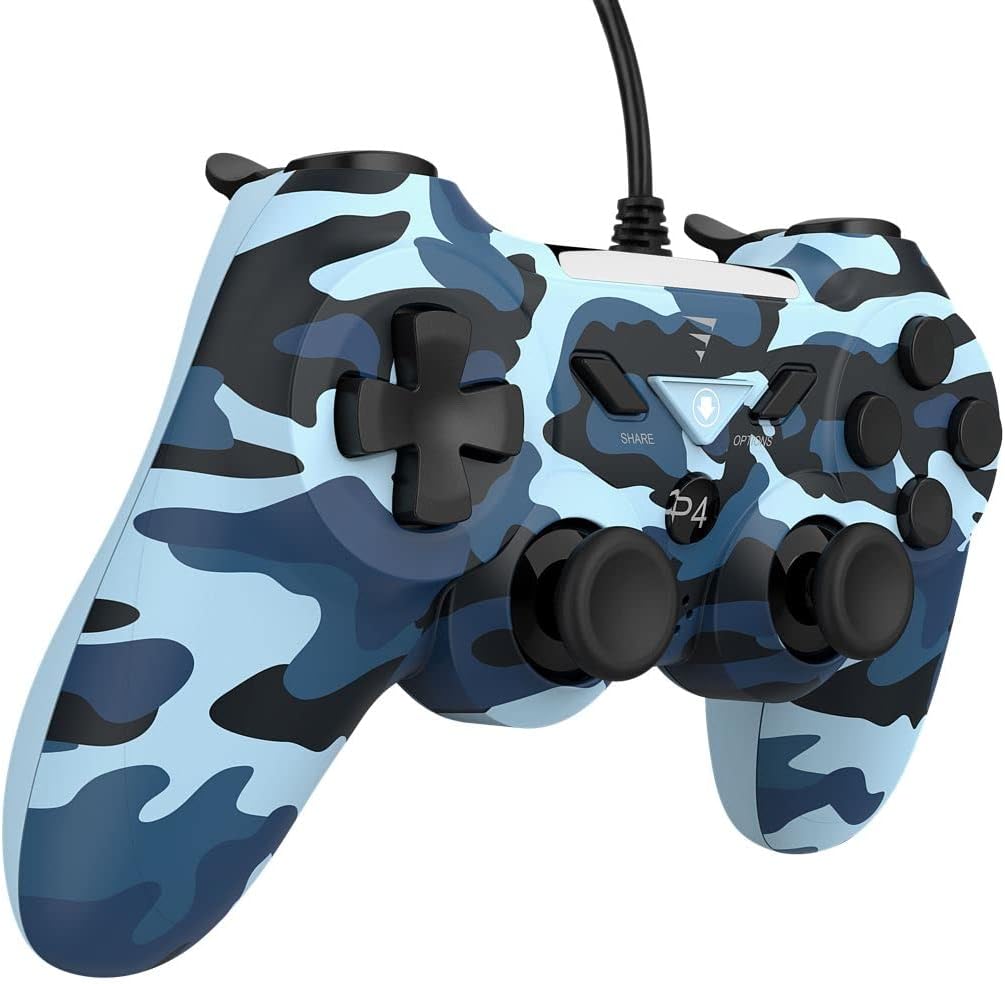
Figure 3: Side view of the VoltEdge CX40 Controller, highlighting its ergonomic shape.
Maintenance
- Cleaning: Use a soft, dry cloth to wipe the surface of the controller. For stubborn dirt, slightly dampen the cloth with water. Do not use harsh chemicals or abrasive cleaners.
- Storage: Store the controller in a cool, dry place away from direct sunlight and extreme temperatures.
- Cable Care: Avoid bending or twisting the cable excessively. Do not pull the controller by its cable.
- Liquid Contact: Keep the controller away from liquids. If liquid enters the controller, disconnect it immediately and allow it to dry completely before attempting to use it again.
Troubleshooting
| Problem | Possible Cause | Solution |
|---|---|---|
| Controller not recognized by console/PC. | Loose USB connection, faulty USB port, driver issue (PC). |
|
| Vibration not working. | Game does not support vibration, vibration setting disabled, internal fault. |
|
| Buttons or analog sticks unresponsive. | Dirt/debris under buttons, physical damage, software glitch. |
|

Figure 4: Bottom view of the VoltEdge CX40 Controller, showing the grip texture.
Specifications
- Model: VoltEdge CX40 Camo Blue
- Compatibility: PlayStation 4 (PS4), PlayStation 3 (PS3), PC
- Connectivity: Wired USB
- Cable Length: 2 meters
- Features: Dual Vibration, Turbo Function
- Dimensions (Package): Approximately 17 x 14.5 x 6.2 cm
- Weight (Package): Approximately 400 g
- ASIN: B0B4PRL244
Warranty and Support
VoltEdge products are designed for durability and performance. For information regarding warranty coverage and terms, please refer to the warranty card included with your product or visit the official VoltEdge website.
For technical support, troubleshooting assistance beyond this manual, or inquiries about replacement parts, please contact VoltEdge customer support through their official channels. Contact information can typically be found on the product packaging or the official VoltEdge website.
Online Resources: For the latest drivers, firmware updates, and additional support resources, please visit the official VoltEdge support page.
Ask a question about this manual
Ask about setup, troubleshooting, compatibility, parts, safety, or missing instructions. Manuals+ will review the question and use this page’s manual context to help answer it.