
1. Introduction
The Martin Jerry Smart Life Zigbee Hub and Gateway is a central control unit designed to connect and manage your Zigbee smart home devices. It enables seamless integration with popular smart assistants like Amazon Alexa and Google Home, and is powered by the SmartLife and Tuya applications. This hub facilitates communication between various Zigbee-enabled devices, creating a unified and responsive smart home ecosystem.
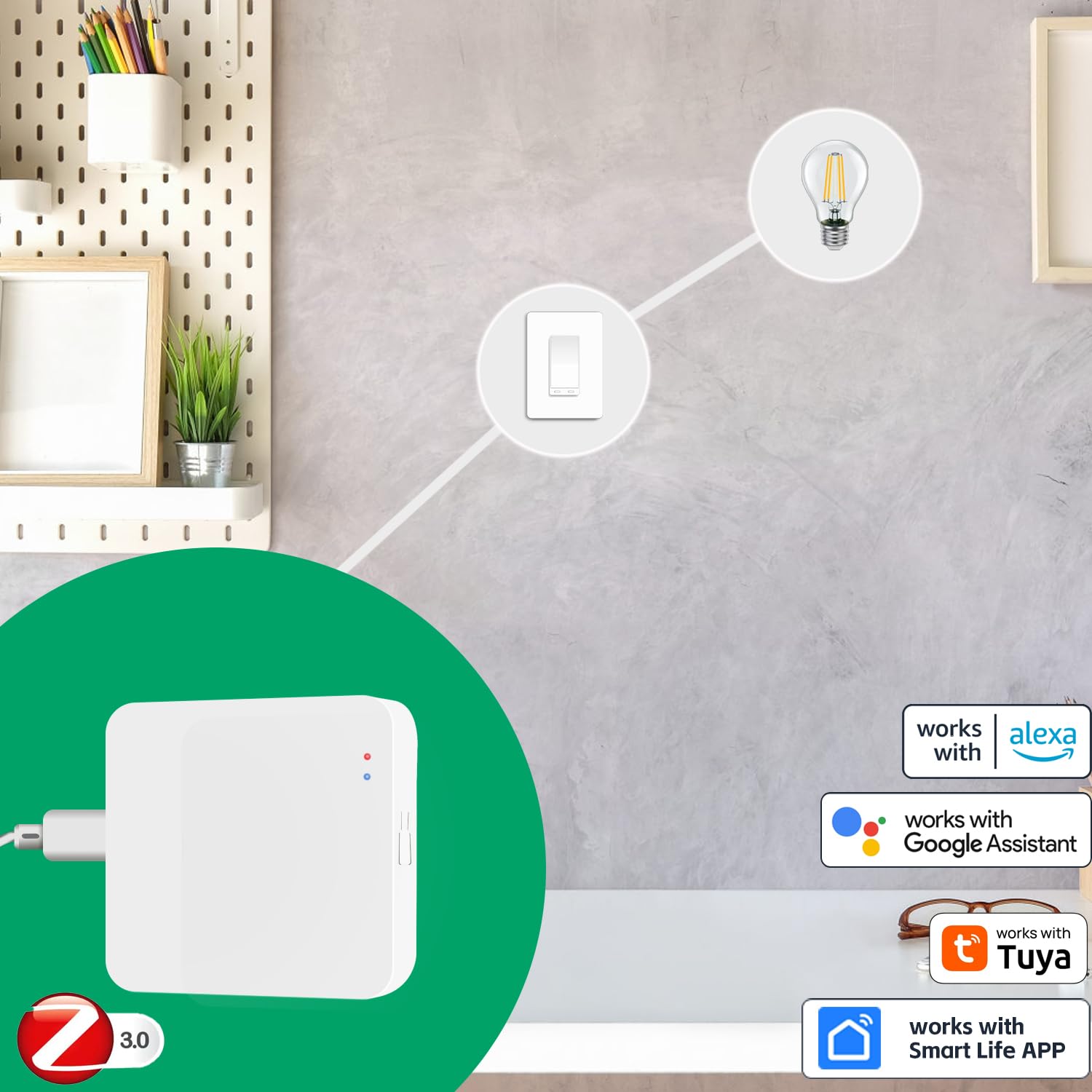
Figure 1: Martin Jerry Zigbee Hub integrated into a smart home environment, highlighting its compatibility with various platforms.
2. Safety Information
- Do not expose the device to moisture or extreme temperatures.
- Use only the specified power input (5VDC, 1A) with a compatible Type-C cable (not included).
- Keep out of reach of children.
- Do not attempt to disassemble or repair the device yourself. Contact support if needed.
3. Package Contents
- 1 x Martin Jerry Smart Life Zigbee Hub and Gateway (Model: ZBHUB)
- Note: A Type-C cable for power is required but not included in the package.
4. Product Overview
The Zigbee Hub features indicator lights and a reset button for easy operation and status monitoring.

Figure 2: Front view of the Zigbee Hub with labeled indicators and reset button.
- Red LED (Wi-Fi): Indicates Wi-Fi connection status. Flashes during pairing.
- Blue LED (Zigbee+BLE): Indicates Zigbee and Bluetooth Low Energy status.
- Reset Button: Used to reset the device to factory settings or initiate pairing mode.
5. Setup
Follow these steps to set up your Martin Jerry Zigbee Hub:
- Power On: Connect the Zigbee Hub to a 5VDC, 1A power source using a Type-C cable.
- Wi-Fi LED Flashing: Ensure the red Wi-Fi LED is flashing. If it is not flashing, press and hold the reset button for several seconds until it begins to flash. This indicates the device is in pairing mode.
- Install Smart Life App: Download and install the "Smart Life" app on your Android or iOS device from your respective app store.
- Add Device in App: Open the Smart Life app. The app should automatically discover the Zigbee Gateway Hub. Tap the "Add" button when prompted.
- Enter Wi-Fi Information: Select your correct Wi-Fi network (SSID) and enter the Wi-Fi password. Tap "Next" to proceed.
- Connection Confirmation: The Zigbee Gateway Hub will automatically connect to your Wi-Fi router. Once successfully added, tap "Done" in the app.
Video 1: Step-by-step guide on setting up the Martin Jerry Zigbee Hub and connecting it to your Wi-Fi network via the Smart Life app.
6. Operating Instructions
Once your Zigbee Hub is set up, you can begin connecting and controlling your smart devices.
6.1. Connecting Zigbee Devices
The hub supports connecting up to 128 sub-devices. Refer to the specific Zigbee device's manual for its pairing instructions, then use the Smart Life app to add new devices under the Zigbee Gateway Hub.

Figure 3: The Zigbee Hub's capability to connect to various smart sensors and devices.
6.2. App Control
Manage all your connected Zigbee devices directly from the Smart Life app. You can turn devices on/off, set schedules, create scenes, and monitor device status from anywhere.

Figure 4: Example of app control interface for managing smart devices.
6.3. Voice Control
Integrate your Zigbee Hub with Amazon Alexa or Google Home for convenient voice control of your smart devices. Follow the instructions within the Smart Life app to link your account with Alexa or Google Assistant.

Figure 5: Voice control functionality with Amazon Alexa and Google Assistant.
7. Maintenance
- Keep the hub in a dry, well-ventilated area.
- Clean the device with a soft, dry cloth. Do not use liquid cleaners.
- Ensure the power supply is stable to prevent interruptions in service.
8. Troubleshooting
| Problem | Possible Cause | Solution |
|---|---|---|
| Red Wi-Fi LED not flashing during setup. | Device not in pairing mode. | Press and hold the reset button for several seconds until the red LED starts flashing. |
| Hub cannot connect to Wi-Fi. | Incorrect Wi-Fi password or network issues. | Double-check your Wi-Fi password. Ensure your router is 2.4GHz compatible. Move the hub closer to the router. |
| Zigbee devices not connecting to the hub. | Device not in pairing mode or too far from hub. | Ensure the Zigbee device is in pairing mode. Move the device closer to the hub. Check the device's manual for specific pairing steps. |
| Voice control not working. | Account not linked or incorrect commands. | Ensure your Smart Life account is correctly linked to Alexa/Google Home. Use the exact commands specified in the Smart Life app or Alexa/Google Home app. |
9. Specifications
| Feature | Detail |
|---|---|
| Model Number | ZBHUB |
| Input | 5VDC, 1A |
| Connectivity | Zigbee, Wi-Fi (2.4GHz) |
| App Compatibility | Smart Life App (Android & iOS), Tuya App |
| Voice Assistant Compatibility | Amazon Alexa, Google Home |
| Max Sub-Devices | Up to 128 |
| Dimensions | 5.87 x 3.94 x 1.57 inches |
| Weight | 2.4 ounces |
| Manufacturer | Martin Jerry |
10. Warranty and Support
Martin Jerry offers a 90-Day 100% refund policy and a 1-year quality warranty for its smart home products purchased on Amazon. For technical assistance or any inquiries, please contact Martin Jerry customer support. Messages are typically replied to within 24 hours.