
Introduction
This manual provides essential information for setting up, operating, maintaining, and troubleshooting your HP 15 Laptop. Please read this guide thoroughly to ensure proper use and to maximize the performance and longevity of your device.
Getting Started: Setup
1. Unboxing Your Laptop
Carefully remove the laptop and all accessories from the packaging. Ensure all components are present: the HP 15 Laptop, AC power adapter, and any included documentation.
2. Connecting to Power
Connect the AC power adapter to the laptop's power port and then plug it into a wall outlet. It is recommended to fully charge the battery before the first use.
3. Initial Boot and Windows Setup
Press the power button located on the keyboard deck. The laptop will power on, and you will be guided through the Windows 11 Home setup process. Follow the on-screen instructions to configure your language, region, network, and user account.
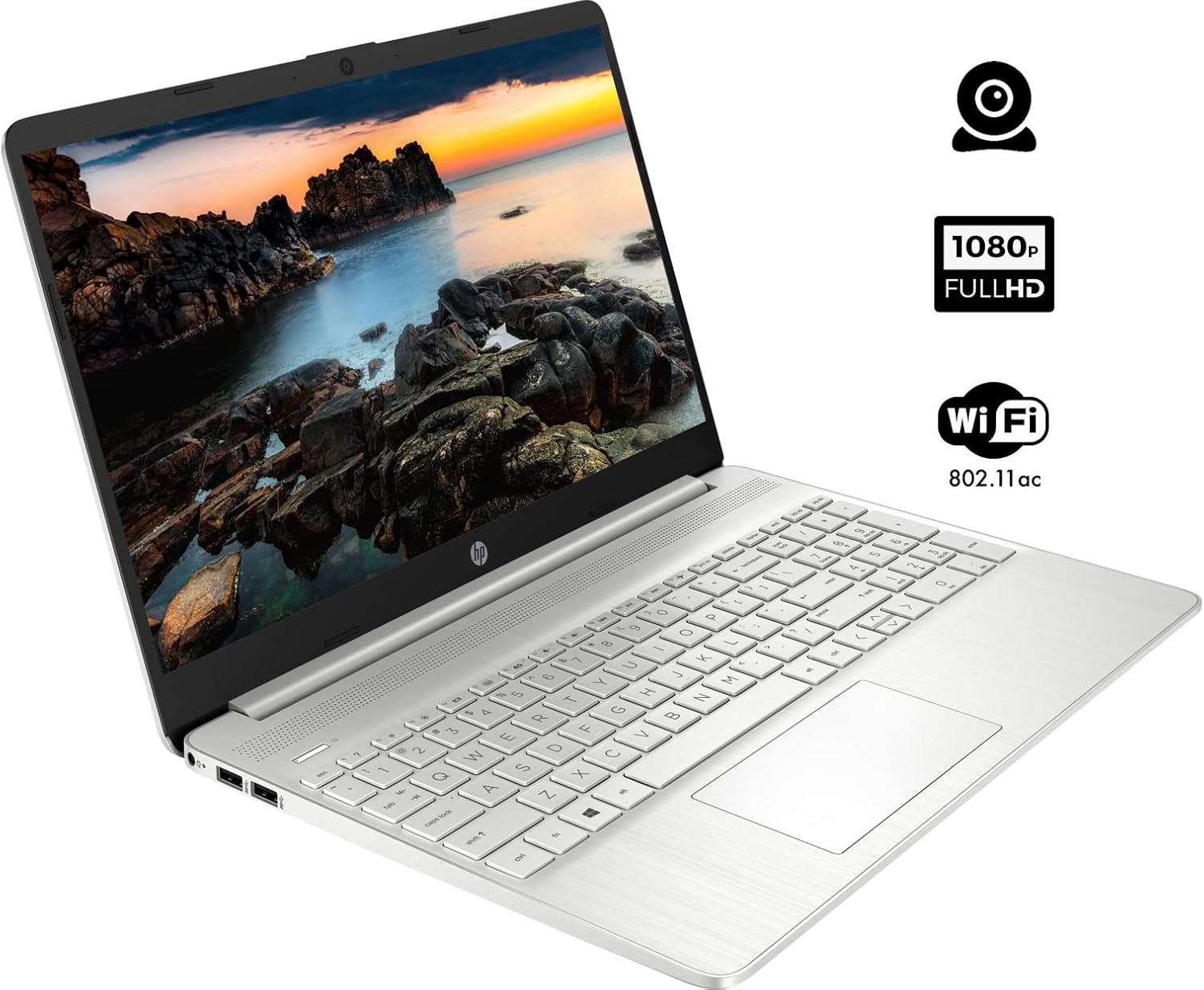
The HP 15 Laptop, ready for initial setup. Ensure the power adapter is connected before first use.
Operating Your Laptop
1. Power On/Off
- Power On: Press the power button.
- Power Off: Click the Windows Start button, then select Power > Shut down. Avoid forced shutdowns by holding the power button unless necessary.
2. Keyboard and Touchpad Usage
- Keyboard: Use the integrated keyboard for typing. Function keys (F1-F12) often have secondary actions (e.g., volume, brightness) accessible by pressing the Fn key simultaneously.
- Touchpad: The touchpad functions as a mouse. Tap to click, use two fingers to scroll, and pinch to zoom.
3. Connecting Peripherals
Your HP 15 Laptop features various ports for connecting external devices:
- USB Type-A Ports: For connecting standard USB devices like mice, keyboards, or external drives.
- USB Type-C Port: A versatile port for data transfer.
- HDMI Port: Connect to external displays or projectors.
- Headphone/Microphone Combo Jack: For audio output to headphones or input from a microphone.
- SD Card Reader: Insert an SD card for data transfer.

This diagram illustrates the various ports available on your HP 15 Laptop, including USB-C, USB-A, HDMI, audio jack, SD card reader, and the power input.
4. Connecting to Wi-Fi
To connect to a wireless network:
- Click the Wi-Fi icon in the taskbar.
- Select your desired network from the list.
- Enter the network password if prompted, then click Connect.
5. Connecting Bluetooth Devices
To pair a Bluetooth device:
- Go to Settings > Bluetooth & devices.
- Ensure Bluetooth is turned On.
- Select Add device and follow the on-screen instructions to pair your device.

The HP 15 Laptop features an integrated webcam for video calls and supports Wi-Fi 802.11ac for wireless internet connectivity.
Maintenance
1. Cleaning Your Laptop
- Screen: Use a soft, lint-free cloth lightly dampened with water or a screen cleaner. Avoid harsh chemicals.
- Keyboard and Chassis: Use a soft cloth to wipe surfaces. Compressed air can remove dust from between keys.
2. Software Updates
Regularly update your operating system and drivers to ensure optimal performance and security. Windows Update typically handles this automatically, but you can manually check via Settings > Windows Update.
3. Battery Care
- Avoid completely discharging the battery frequently.
- If storing the laptop for an extended period, charge the battery to about 50% and store it in a cool, dry place.
Troubleshooting
This section addresses common issues you might encounter.
No Power
- Ensure the AC adapter is securely connected to both the laptop and a working power outlet.
- Check if the power outlet is functional by plugging in another device.
- If the battery is completely drained, allow it to charge for a few minutes before attempting to power on.
Display Issues
- If the screen is blank, try adjusting the brightness using the function keys (e.g., F2/F3).
- Connect an external monitor via the HDMI port to check if the issue is with the laptop's display or graphics output.
- Ensure graphics drivers are up to date.
Wi-Fi Connectivity Problems
- Verify that Wi-Fi is enabled in Windows settings.
- Restart your router and modem.
- Ensure you are within range of the Wi-Fi network.
- Check for updated network drivers.
Slow Performance
- Close unnecessary applications running in the background.
- Ensure your operating system and drivers are updated.
- Check for sufficient free space on your storage drive.
- Run a scan for malware or viruses.
Specifications
Below are the technical specifications for the HP 15 Laptop (Model 15):
| Feature | Detail |
|---|---|
| Standing Screen Display Size | 15.6 Inches |
| Screen Resolution | 1920 x 1080 pixels (FHD) |
| Processor | AMD Ryzen 5 5500U (6 Cores, 12 Threads, up to 4.0 GHz) |
| RAM | 12 GB DDR4 |
| Hard Drive | 1 TB PCIe NVMe M.2 SSD |
| Graphics Coprocessor | AMD Radeon Integrated Graphics |
| Operating System | Windows 11 Home |
| USB 3.0 Ports | 3 (2x Type-A, 1x Type-C) |
| HDMI Port | 1 (HDMI 1.4b) |
| Connectivity | Wi-Fi 802.11ac, Bluetooth |
| Webcam | Integrated Webcam with microphone |
| Item Weight | 3.74 pounds |
| Product Dimensions | 14.11 x 9.53 x 0.7 inches |
| Color | Silver |

The HP 15 Laptop in its closed state, highlighting its sleek silver design and the HP branding.
Warranty Information
Your HP 15 Laptop comes with a standard manufacturer's warranty. For detailed information regarding warranty terms, conditions, and duration, please refer to the warranty card included with your product or visit the official HP support website.
Support
For further assistance, technical support, or to download updated drivers and software, please visit the official HP support website. You can also find FAQs and community forums there for additional help.
HP Support Website: support.hp.com


