
1. Introduction
The Nedis WCAM120BK is a wired USB webcam designed for high-quality video communication. It features 4K Ultra HD resolution at 30 frames per second, ensuring clear and detailed images. The integrated noise-canceling dual microphones provide clear audio by filtering out ambient noise. With its wide-angle lens and intelligent autofocus, the webcam is suitable for various environments, from individual calls to group meetings. The universal stand allows for flexible mounting on monitors, desks, or tripods.
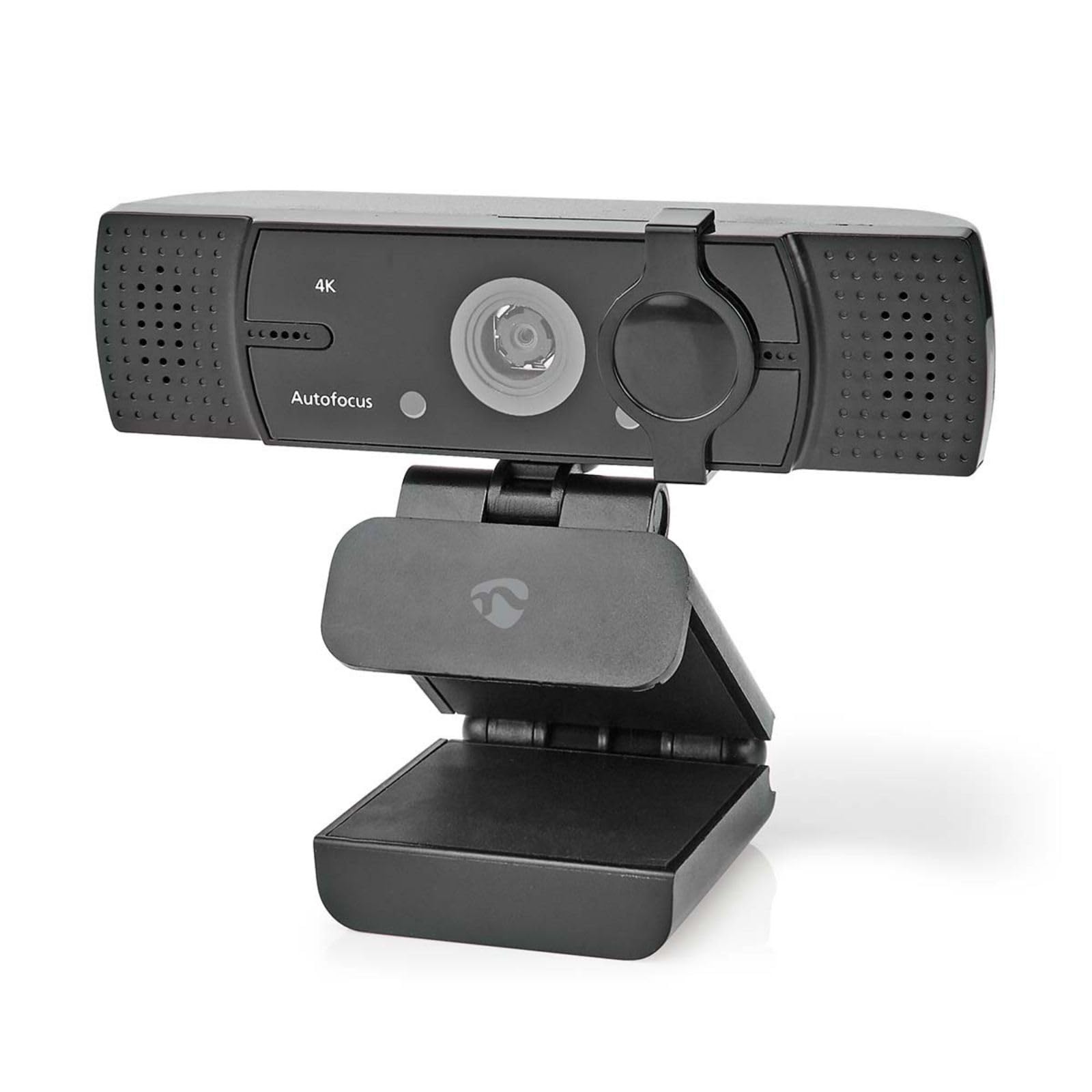
Image 1.1: Nedis WCAM120BK Webcam showcasing Auto Focus, Wide Angle Lens, Privacy Cover, Mounting Clip, and USB Plug & Play features.
2. Setup
The Nedis WCAM120BK webcam offers plug-and-play functionality, requiring no additional driver installation for most operating systems.
2.1 Connecting the Webcam
- Position the Webcam: Place the webcam on top of your monitor, on your desk, or attach it to a tripod using the 1/4" connection. The universal stand is adjustable to secure the webcam in place.
- Connect to Computer: Insert the USB connector of the webcam into an available USB port on your desktop computer or laptop.
- System Recognition: Your operating system (Windows, macOS, Linux, Android) will automatically detect and install the necessary drivers. This process may take a few moments.
- Ready for Use: Once recognized, the webcam is ready for use with your preferred video conferencing or recording software.
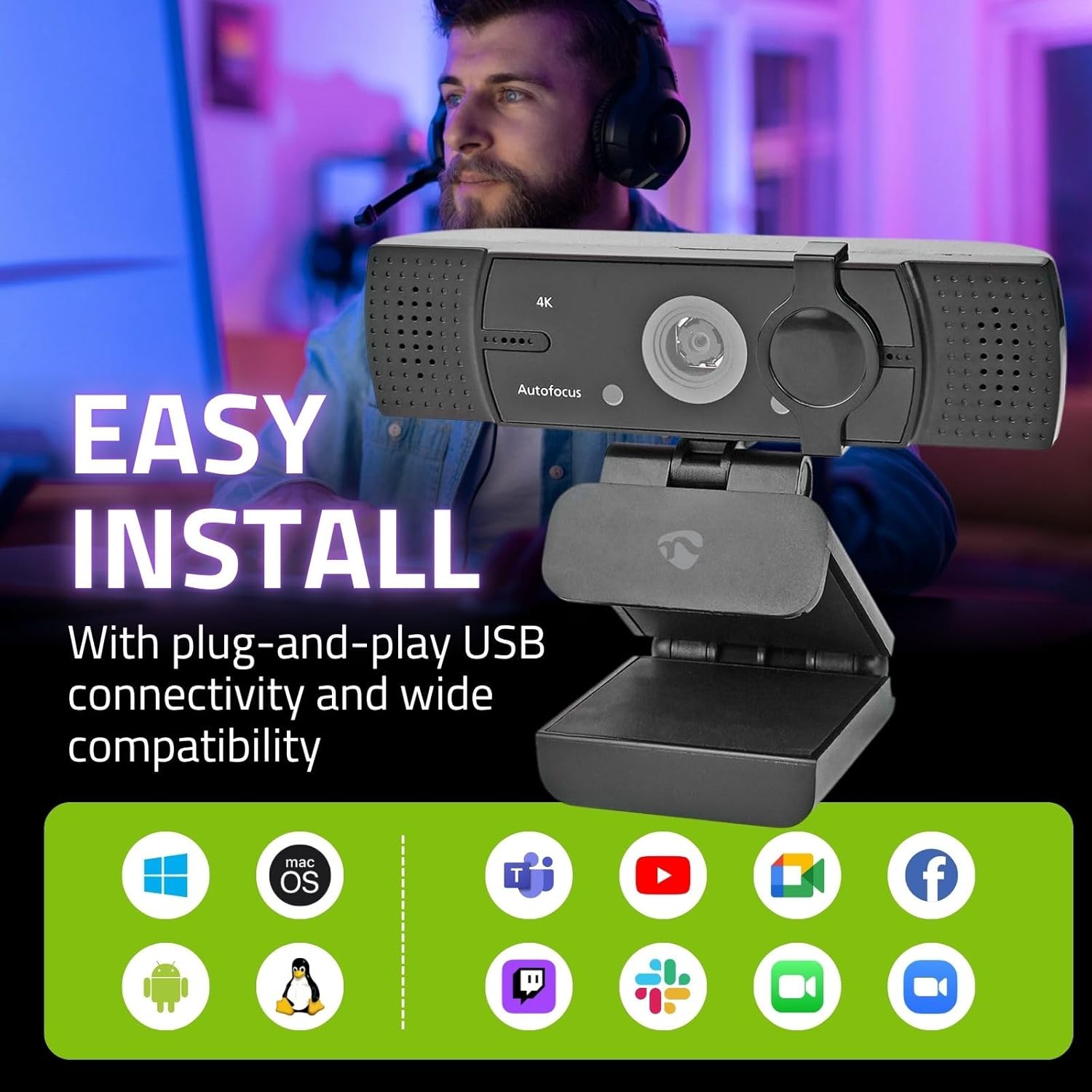
Image 2.1: The webcam is shown mounted on a monitor, illustrating its easy plug-and-play USB connectivity and wide compatibility with various operating systems and applications.
3. Operating the Webcam
The WCAM120BK is designed for intuitive operation with various applications.
3.1 Video Calls and Recording
- Software Compatibility: The webcam is compatible with common video conferencing software such as Zoom, Microsoft Teams, Skype, Google Meet, and other applications that support USB webcams.
- Selecting the Webcam: In your chosen application's settings, ensure that the Nedis WCAM120BK is selected as the primary video and audio input device.
- LED Indicator: A built-in LED indicator will illuminate when the webcam is actively in use, providing a visual cue for privacy.
3.2 Key Features
- 4K Ultra HD Resolution: Experience clear, pixel-free video at 3840 x 2160p resolution and 30 frames per second.
- Autofocus: The intelligent autofocus system automatically adjusts to keep you sharp and clear, even if you move during a call.
- Noise-Canceling Dual Microphones: Integrated stereo microphones capture your voice clearly while actively filtering out background noise for improved audio quality.
- Wide-Angle Lens: The wide-angle lens ensures a broad field of view, suitable for individual use or capturing multiple participants in a room.
- Privacy Cover: A physical privacy cover is included to block the camera lens when not in use, ensuring your privacy and peace of mind.

Image 3.1: Comparison illustrating the superior clarity of 4K Ultra HD video at 30 frames per second compared to standard definition.

Image 3.2: The webcam's noise-canceling dual microphones are designed to deliver clear audio by focusing on your voice and reducing background noise.

Image 3.3: This image demonstrates the intelligent autofocus feature, which automatically adjusts to maintain clear focus on the user.

Image 3.4: The webcam features a privacy cover, providing a physical barrier for the lens when the camera is not in use, ensuring user privacy.
4. Maintenance
Proper maintenance ensures the longevity and optimal performance of your webcam.
- Cleaning the Lens: Gently wipe the camera lens with a soft, lint-free cloth. For stubborn smudges, use a specialized lens cleaning solution applied to the cloth, not directly to the lens.
- Cleaning the Body: Use a dry or slightly damp soft cloth to clean the body of the webcam. Avoid abrasive cleaners or solvents.
- Storage: When not in use, especially for extended periods, store the webcam in a clean, dry place. Utilize the privacy cover to protect the lens from dust and scratches.
- Cable Care: Avoid bending or twisting the USB cable excessively to prevent internal damage.
5. Troubleshooting
If you encounter issues with your Nedis WCAM120BK webcam, refer to the following common troubleshooting steps.
- Webcam Not Detected:
- Ensure the USB cable is securely connected to both the webcam and your computer.
- Try connecting the webcam to a different USB port on your computer.
- Restart your computer.
- Check your operating system's device manager (Windows) or system information (macOS) to see if the webcam is listed.
- No Video Output:
- Verify that the privacy cover is open and not obstructing the lens.
- Ensure the webcam is selected as the video input device in your application's settings.
- Check if other applications are currently using the webcam, which might prevent your desired application from accessing it.
- No Audio Input (Microphone):
- Confirm that the Nedis WCAM120BK microphone is selected as the audio input device in your application's settings and your operating system's sound settings.
- Check microphone privacy settings in your operating system to ensure applications have permission to access the microphone.
- Ensure the microphone is not muted within your application.
- Poor Video Quality:
- Ensure adequate lighting in your environment.
- Clean the webcam lens as described in the Maintenance section.
- Check your application's video settings to ensure the highest possible resolution is selected.
- A stable internet connection is crucial for good video quality during online calls.
6. Specifications
| Feature | Specification |
|---|---|
| Model | WCAM120BK |
| Brand | Nedis |
| Color | Black |
| Connectivity Technology | USB |
| Video Resolution | 4K Ultra HD (3840 x 2160p) at 30fps |
| Effective Still Resolution | 8.3 Megapixels |
| Special Features | Autofocus, Low Light Correction, Privacy Cover |
| Aperture | 1.8 f |
| Microphone | Integrated Noise-Canceling Dual Stereo Microphones |
| Mounting Type | Universal Stand (Monitor/Desk), 1/4" Tripod Connection |
| Compatible Devices | Computers, Laptops (Windows, macOS, Linux, Android) |
| Dimensions (L x W x H) | 10.6 x 5.7 x 5.8 cm |
| Weight | 130 Grams |
| Included Components | Webcam, Quick Guide |
7. Warranty and Support
For warranty information and technical support, please refer to the documentation included with your product or visit the official Nedis website. Keep your proof of purchase for warranty claims.


