
ZZB ZB10
ZZB ZB10 10-inch Android Tablet User Manual
Model: ZB10
Introduction
Welcome to the user manual for your new ZZB ZB10 10-inch Android Tablet. This guide provides comprehensive instructions to help you set up, operate, maintain, and troubleshoot your device. The ZZB ZB10 is a powerful and versatile tablet designed for various uses, from entertainment to productivity, featuring a 10.1-inch IPS display, Android 14, and robust performance capabilities.

Image: Front and back view of the ZZB ZB10 10-inch Android Tablet, showcasing its sleek design and display.
Getting Started: Initial Setup
- Charging the Tablet: Before first use, fully charge your tablet. Connect the included Type-C cable to the tablet's charging port and the other end to a compatible USB power adapter (not included). The battery indicator on the screen will show charging status.
- Powering On/Off:
- To power on, press and hold the Power button until the screen lights up.
- To power off, press and hold the Power button until a power menu appears, then select "Power off".
- To restart, select "Restart" from the power menu.
- Initial Configuration: Upon first power-on, follow the on-screen prompts to set up your tablet. This includes selecting your language, connecting to a Wi-Fi network, signing in with your Google account, and setting up screen lock options.
- Inserting a MicroSD Card (Optional): The tablet supports up to 1TB expandable storage. Locate the microSD card slot, gently insert the card until it clicks into place. You may need to format the card via tablet settings for optimal performance.

Image: The rear view of the ZZB ZB10 tablet, highlighting the camera and regulatory information, which includes the model number ZB10.
Operating Your Tablet
Basic Navigation
- Touch Gestures: Tap to select, swipe to scroll, pinch to zoom.
- Home Screen: Access your apps, widgets, and notifications.
- Notification Panel: Swipe down from the top of the screen to access quick settings and notifications.
- App Drawer: Swipe up from the bottom of the screen to view all installed applications.
Connectivity
- Wi-Fi: Connect to wireless networks via Settings > Network & internet > Wi-Fi. The tablet supports WiFi-6 for faster and more stable connections.
- Bluetooth: Pair with Bluetooth devices like headphones or speakers via Settings > Connected devices > Bluetooth.
Using Applications
The ZZB ZB10 comes with Google Mobile Service (GMS) certification and pre-installed Google Play Store, allowing access to millions of apps.
- Downloading Apps: Open the Google Play Store app, search for desired applications, and tap "Install".
- Managing Apps: Go to Settings > Apps to manage permissions, storage, and uninstall applications.

Image: The tablet display showcasing diverse functionalities such as remote conferencing, recording, gaming, listening to music, and general app usage.
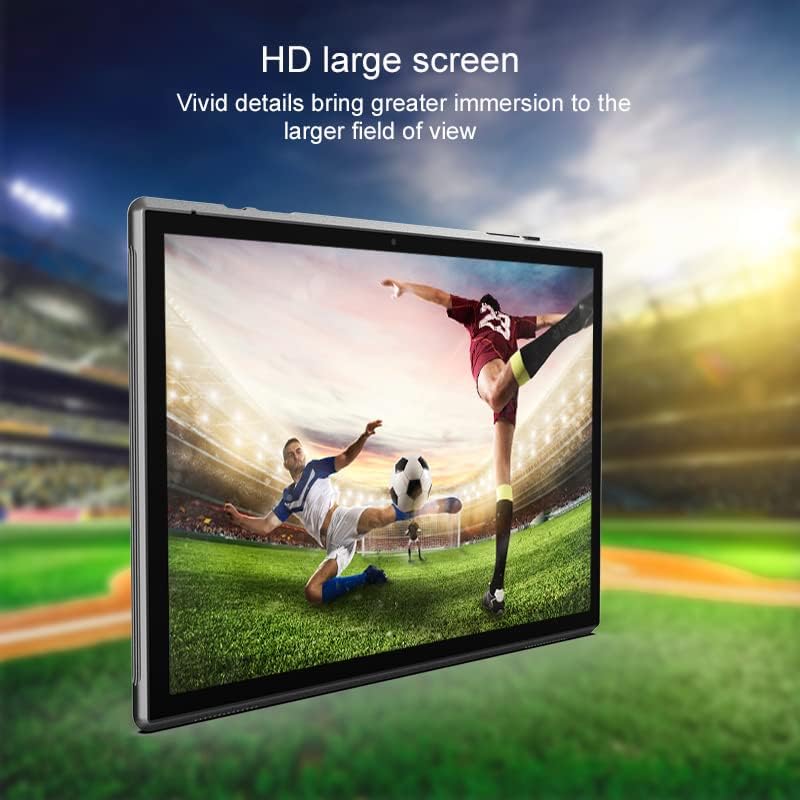
Image: A visual representation of the tablet's compatibility with a wide range of applications, including popular social media and communication tools.
Display and Camera Features
The ZZB ZB10 features a 10.1-inch 1280x800 IPS display, offering clear visuals for all your content. It also includes dual cameras for photography and video calls.
- IPS Display: Enjoy wide viewing angles and vibrant colors. The tablet includes a "reading mode" to reduce eye strain during extended reading sessions.
- Dual Cameras: Equipped with an 8-megapixel rear camera for capturing photos and a 2-megapixel front camera ideal for video chatting and selfies.

Image: The tablet displaying a serene beach scene, illustrating its eye protection technology and 10.1-inch IPS screen with 1280x800 resolution.

Image: Two ZZB ZB10 tablets, one showing the front display and the other highlighting the rear camera module, emphasizing the dual camera setup.
Maintenance and Care
- Cleaning: Use a soft, lint-free cloth to clean the screen and body. Avoid abrasive cleaners or solvents.
- Battery Care: To prolong battery life, avoid extreme temperatures. Do not let the battery fully drain frequently.
- Software Updates: Regularly check for and install system updates to ensure optimal performance and security. Go to Settings > System > System update.
- Storage Management: Periodically clear unnecessary files and uninstall unused apps to free up storage space.
- Protection: Consider using a protective case and screen protector to guard against drops and scratches.

Image: A screen protector kit for the ZZB ZB10 tablet, indicating the availability of accessories for device protection.
Troubleshooting Common Issues
| Problem | Solution |
|---|---|
| Tablet won't turn on | Ensure the battery is charged. Connect to a power source and wait a few minutes before attempting to power on again. If unresponsive, press and hold the power button for 10-15 seconds to force a restart. |
| Apps are slow or crashing | Close background apps. Clear app cache (Settings > Apps > [App Name] > Storage & cache > Clear cache). Ensure sufficient storage space. Restart the tablet. |
| Wi-Fi connection issues | Toggle Wi-Fi off and on. Restart your Wi-Fi router. Forget the network and reconnect (Settings > Network & internet > Wi-Fi > [Network Name] > Forget). |
| Screen is unresponsive | Restart the tablet by holding the power button. If the issue persists, perform a factory reset (backup data first). |
| Battery drains quickly | Reduce screen brightness. Close unused apps. Disable Wi-Fi/Bluetooth when not in use. Check battery usage in Settings > Battery to identify power-hungry apps. |
Technical Specifications
| Feature | Detail |
|---|---|
| Brand | ZZB |
| Model Name | ZB10 |
| Operating System | Android 14 |
| Screen Size | 10.1 Inches |
| Max Screen Resolution | 1280*800 IPS |
| RAM | 6GB (including 4GB extended memory) |
| Internal Storage (ROM) | 32GB |
| Expandable Storage | Up to 1TB via microSD card |
| Rear Camera Resolution | 8 MP |
| Front Camera Resolution | 2 MP |
| Wireless Type | 802.11ax (WiFi-6) |
| Battery Capacity | 6000mAh |
| Average Battery Life | Up to 12 Hours |
| Item Weight | 1 pounds |
| Product Dimensions | 10 x 7 x 1 inches |

Image: A visual summary of the tablet's core specifications, including its Android 14 operating system, memory, camera, and display size.
Image: An illustration emphasizing the tablet's 6000mAh battery capacity, indicating long-lasting power.
What's in the Box
The standard package for your ZZB ZB10 tablet includes:
- ZZB ZB10 10-inch Android Tablet
- Type-C Cable
- User Manual (this document)
Warranty and Support
For warranty information, technical support, or service inquiries, please refer to the contact details provided on the product packaging or the official ZZB website. Keep your purchase receipt as proof of purchase for warranty claims.
For further assistance, please visit the manufacturer's support page or contact their customer service directly.
Ask a question about this manual
Ask about setup, troubleshooting, compatibility, parts, safety, or missing instructions. Manuals+ will review the question and use this page’s manual context to help answer it.