1. Introduction
This manual provides detailed instructions for the setup, operation, maintenance, and troubleshooting of your LIONWEI USB C Docking Station (Model LIDK1002). Please read this manual thoroughly to ensure proper usage and optimal performance of the device.
2. Product Overview
The LIONWEI USB C Docking Station is a versatile 15-in-1 hub designed to expand the connectivity of your laptop. It features multiple ports for video output, data transfer, network access, audio, and power delivery.
Key Features:
- Video Output: 1x 4K HDMI, 2x DisplayPort (DP) for triple monitor support.
- High-Speed Data Transfer: 1x USB A 3.1 (10Gbps), 3x USB A 3.0 (5Gbps), 1x USB C (10Gbps).
- Additional USB Ports: 2x USB 2.0 for peripherals.
- Network Connectivity: 1x RJ45 Gigabit Ethernet port.
- Memory Card Slots: SD and TF card slots (up to 480Mbps, simultaneous operation).
- Audio: 1x 3.5mm Audio/Mic Jack.
- Power Delivery: 1x 100W PD 3.0 USB C port for laptop charging (up to 87W output).
- Host Connection: 1x USB C Host port to connect to your laptop.

Figure 1: LIONWEI 15-in-1 Docking Station Port Layout
3. Package Contents
Please verify that all items are present in your package:
- LIONWEI USB C Docking Station (Model LIDK1002)
- USB-C to USB-C Cable (3.2 ft)
- Instruction Manual

Figure 2: What's in the Box
4. Setup Instructions
Follow these steps to set up your LIONWEI USB C Docking Station:
- Connect to Laptop: Connect the included USB-C to USB-C cable from the 'Host' port on the docking station to a full-function USB-C or Thunderbolt port on your laptop. Ensure your laptop's USB-C port supports video output and power delivery for full functionality.
- Connect Power Adapter (Optional but Recommended): If your laptop requires charging via the docking station, connect your laptop's original USB-C power adapter to the 'PD Charging' port on the docking station. The docking station supports up to 100W input and provides up to 87W output to your laptop.
- Connect External Monitors:
- For HDMI displays, connect an HDMI cable from the docking station's HDMI port to your monitor.
- For DisplayPort displays, connect a DisplayPort cable from the docking station's DP ports to your monitors.
The docking station supports up to three external monitors simultaneously. Refer to the 'Operating Instructions' section for specific display configurations for Windows and macOS.

Figure 3: Triple Display Setup Example
- Connect Peripherals: Connect your USB devices (keyboard, mouse, external hard drives, etc.) to the available USB-A or USB-C data ports on the docking station.
- Connect Ethernet: For a stable wired network connection, connect an Ethernet cable from your router/modem to the RJ45 Gigabit Ethernet port on the docking station.
- Connect Audio Devices: Plug your headphones or speakers into the 3.5mm Audio/Mic Jack.
- Insert Memory Cards: If needed, insert SD or TF cards into the corresponding slots.
The docking station is plug-and-play and generally does not require driver installation.
5. Operating Instructions
Display Configuration:
The docking station supports various display modes (Extended, Mirror) depending on your operating system and laptop capabilities.
- Windows OS: Supports Extended and Mirror modes across multiple displays. You can achieve up to three external displays with resolutions up to 4K@60Hz (DP1.4 source). The resolution will be limited by the lowest resolution monitor connected.
- macOS: Supports up to three external monitors at 4K@60Hz in SST (Single Stream Transport) mode. This means all external monitors will display the same extended desktop, or mirror the laptop display. Due to macOS limitations, true independent extended displays (A+B+C+D) are not typically supported through a single MST hub.

Figure 4: Windows Display Configurations

Figure 5: macOS Display Configurations
Data Transfer:
Utilize the USB 3.1 and USB C data ports for high-speed file transfers up to 10Gbps. The USB 3.0 ports offer speeds up to 5Gbps. SD and TF card slots support data transfer up to 480Mbps and can operate simultaneously.

Figure 6: High-Speed Data Transfer
Power Delivery:
When a compatible power adapter is connected to the PD Charging port, the docking station can deliver up to 87W of power to charge your connected laptop. Ensure your laptop supports the PD protocol for this feature to function.
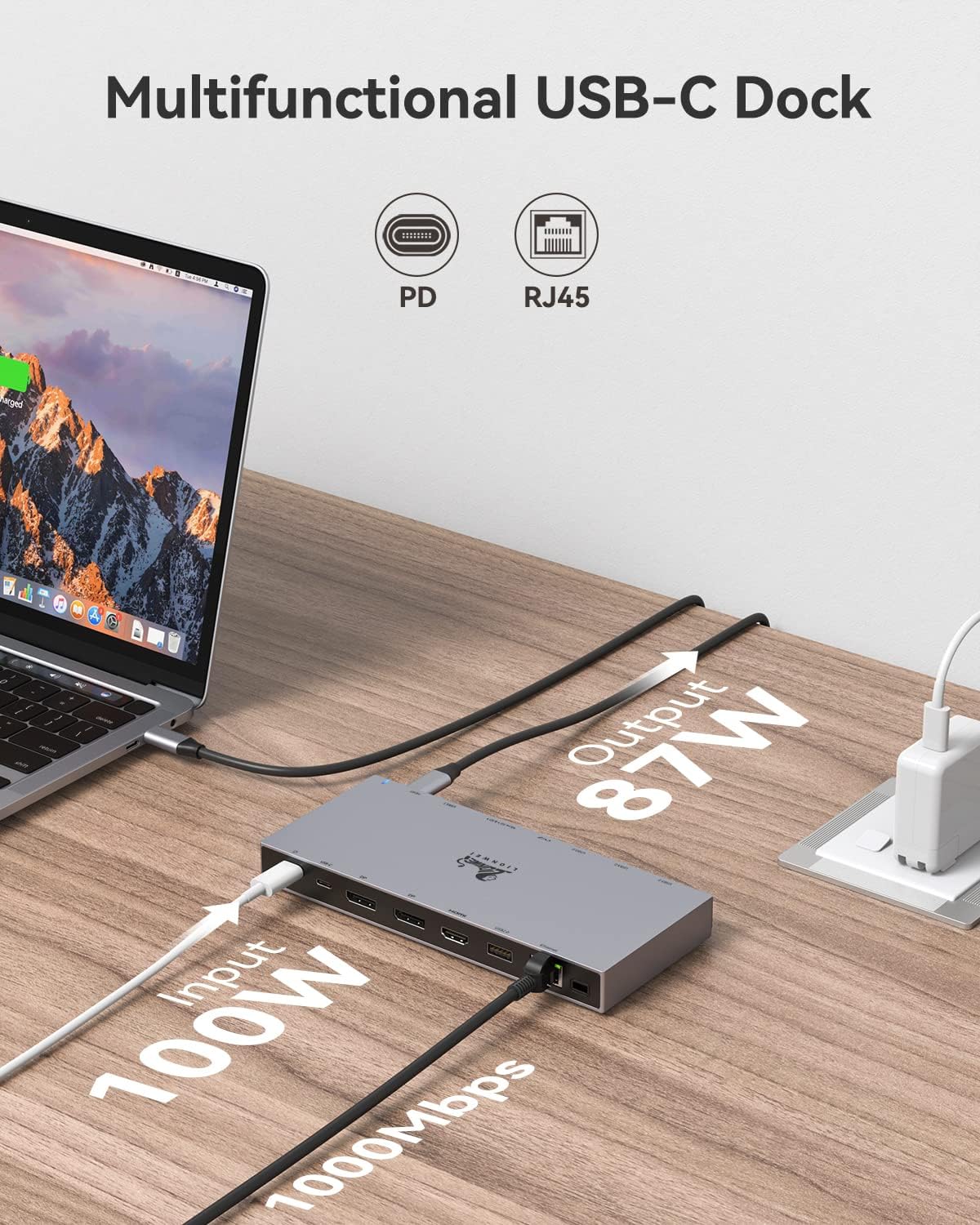
Figure 7: Power Delivery and Ethernet Connection
6. Maintenance
To ensure the longevity and optimal performance of your docking station:
- Keep the device clean and free from dust. Use a soft, dry cloth for cleaning.
- Avoid exposing the device to extreme temperatures, humidity, or direct sunlight.
- Do not drop or subject the device to strong impacts.
- Disconnect all cables when the device is not in use for extended periods.
7. Troubleshooting
If you encounter issues with your LIONWEI USB C Docking Station, please refer to the following common problems and solutions:
| Problem | Possible Cause / Solution |
|---|---|
| No display or flickering on external monitors. |
|
| Laptop is not charging or charging slowly. |
|
| USB devices are not recognized or data transfer is slow. |
|
| Ethernet connection is unstable or not working. |
|
| Audio jack not working. |
|
8. Specifications
| Feature | Detail |
|---|---|
| Model Number | LIDK1002 |
| Product Dimensions | 1.18 x 0.79 x 0.39 inches |
| Item Weight | 5.3 ounces |
| Host Connection | USB-C (requires full-function USB-C or Thunderbolt port) |
| Video Output | 1x HDMI (4K@60Hz), 2x DisplayPort (4K@60Hz) |
| USB Data Ports | 1x USB A 3.1 (10Gbps), 3x USB A 3.0 (5Gbps), 2x USB 2.0, 1x USB C (10Gbps) |
| Ethernet | RJ45 Gigabit Ethernet (10/100/1000Mbps) |
| Card Reader | SD/TF (up to 480Mbps, simultaneous operation) |
| Audio | 3.5mm Audio/Mic Jack |
| Power Delivery | USB C PD 3.0 (100W input, up to 87W output to laptop) |
| Compatibility | Laptops with Thunderbolt or full-function USB C Port (e.g., MacBook, Dell, HP, Lenovo) |
| Special Features | Triple Display, 10Gbps Data Transfer, 100W PD Charging, Driver-free |
| Date First Available | August 15, 2022 |
| Manufacturer | LIONWEI |
9. Warranty and Support
LIONWEI provides an 18-month warranty for this product from the date of purchase. This warranty covers manufacturing defects and ensures the product meets its specified performance. For any technical assistance, troubleshooting, or warranty claims, please contact LIONWEI customer support. We offer 24-hour online service to address your inquiries.
For support, please visit the official LIONWEI website or contact their customer service channels provided with your purchase documentation.


