
1. Introduction
This manual provides essential information for the safe and efficient use of your HUAWEI PixLab B5 Multifunction Laser Printer. Please read it thoroughly before operating the device and keep it for future reference.
The HUAWEI PixLab B5 is a versatile 3-in-1 device, offering high-speed printing, copying, and scanning functionalities. It features automatic duplex printing, a user-friendly one-step toner replacement system, and multiple connectivity options including USB, Wi-Fi, and LAN.
2. Safety Information
Always follow basic safety precautions when using this product to reduce the risk of fire, electric shock, and injury to persons.
- Do not place the printer on an unstable cart, stand, or table.
- Do not block or cover the slots and openings in the printer.
- Use only the power cord and power source indicated in this manual.
- Do not attempt to service the printer yourself. Refer all servicing to qualified service personnel.
- Keep the printer away from water and moisture.
- Ensure proper ventilation around the printer.
3. Package Contents
Verify that all items are included in the package:
- HUAWEI PixLab B5 Multifunction Laser Printer
- Power Cable
- USB Cable
- HUAWEI F-1500BZ Toner Cartridge
- HUAWEI X-15000BZ Drum Unit
- User Manual (this document)
4. Product Overview
Familiarize yourself with the main components of your HUAWEI PixLab B5 printer.

Figure 4.1: Front view of the HUAWEI PixLab B5 printer, showing the HUAWEI logo on the front panel.

Figure 4.2: Top-down view of the HUAWEI PixLab B5 printer, illustrating a document exiting the output tray after printing.
5. Setup
5.1 Unpacking
- Carefully remove the printer from its packaging.
- Remove all protective tapes and packing materials from the exterior and interior of the printer.
5.2 Toner and Drum Unit Installation
The HUAWEI PixLab B5 features an innovative drawer-type toner cartridge for easy replacement.
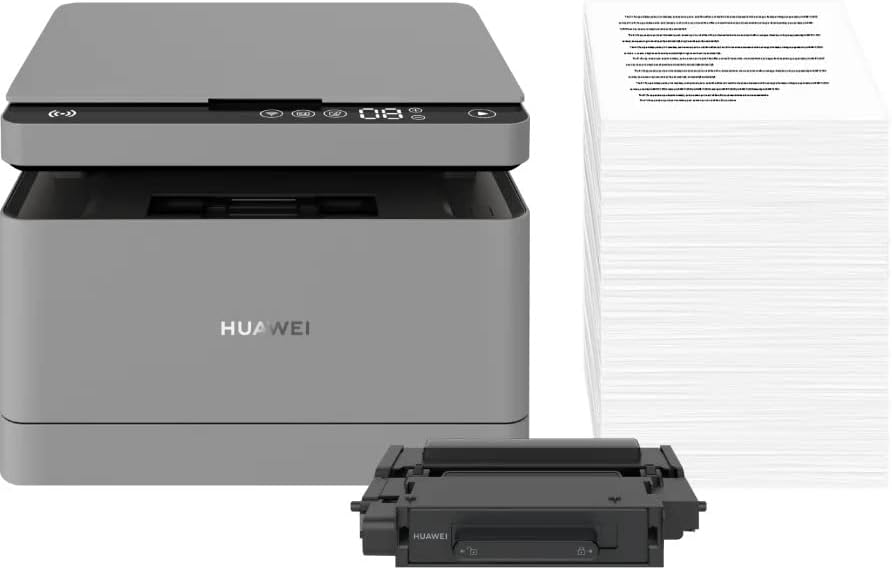
Figure 5.1: The HUAWEI PixLab B5 printer shown alongside a replacement toner cartridge and a stack of paper, highlighting the separate components.

Figure 5.2: A diagram illustrating the toner cartridge detached from the drum unit, demonstrating the modular design for replacement.
- Open the front cover of the printer.
- Gently pull out the toner cartridge drawer.
- Insert the HUAWEI F-1500BZ toner cartridge into the HUAWEI X-15000BZ drum unit until it clicks into place.
- Slide the assembled toner and drum unit back into the printer until it is securely seated.
- Close the front cover.
5.3 Paper Loading
- Open the paper tray.
- Adjust the paper guides to the correct paper size (e.g., A4).
- Load paper into the tray, ensuring it is not overfilled (maximum capacity: 150 sheets).
- Close the paper tray.
5.4 Power Connection
- Connect the power cable to the printer's power port.
- Plug the other end of the power cable into a grounded electrical outlet.
- Press the power button to turn on the printer.
5.5 Software Installation and Connectivity
The HUAWEI PixLab B5 supports multiple connection methods for seamless integration with various devices.
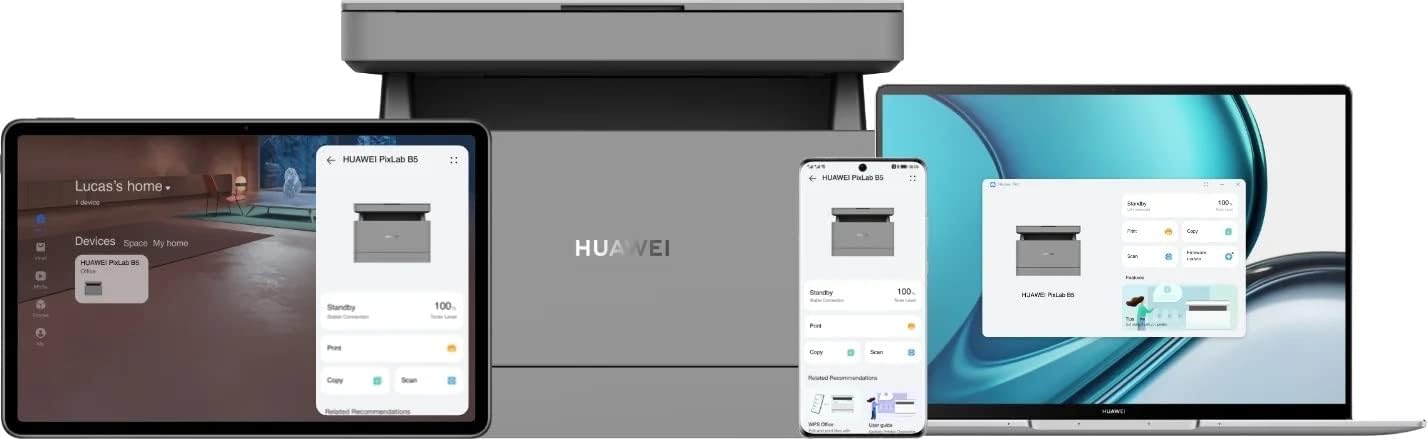
Figure 5.3: The HUAWEI PixLab B5 printer demonstrating its versatile connectivity by being linked to a tablet, a smartphone, and a laptop, all displaying the printer's interface.

Figure 5.4: An illustrative image depicting various devices such as a tablet, smartphone, and laptop connected to the printer, emphasizing multi-device compatibility.


Figure 5.5: Icons representing various connectivity options: USB, LAN, Wi-Fi, and Printer Hotspot.
- USB Connection: Connect the printer to your computer using the provided USB cable. The necessary drivers should install automatically.
- LAN Connection: Connect an Ethernet cable from your router or network switch to the LAN port on the printer.
- Wi-Fi Connection:
- Download and install the HUAWEI AI Life app on your smartphone or tablet.
- Follow the in-app instructions to connect your printer to your Wi-Fi network.
- For PC/laptop, ensure your device is on the same Wi-Fi network as the printer and add the printer through your operating system's printer settings.
- NFC Connection: For compatible devices, tap your device to the NFC tag on the printer to establish a quick connection.
6. Operating Instructions
6.1 Printing
The HUAWEI PixLab B5 offers high-speed monochrome printing at up to 30 pages per minute.

Figure 6.1: An image highlighting the printer's capability of printing 30 pages per minute for single-sided documents.
- Open the document you wish to print on your connected device.
- Select the print option (usually File > Print).
- Choose the HUAWEI PixLab B5 from the list of available printers.
- Adjust print settings as needed:
- Duplex Printing: The printer supports automatic double-sided printing. Select this option in your print settings to save paper.
- Quality: The printer uses Q14 grayscale for clear and layered black and white prints.
- Click 'Print'.
6.2 Copying
The printer can make up to 100 copies in a single series.

Figure 6.2: A person placing a smart card on the scanner bed of the HUAWEI PixLab B5, demonstrating the Smart Card Copy function.

Figure 6.3: An image showing a user placing a card on the scanner glass, indicating the process for copying or scanning small items like ID cards.
- Place the document face down on the scanner glass or face up in the automatic document feeder (if available).
- On the printer's control panel, select the 'Copy' function.
- Adjust settings such as number of copies, darkness, or paper size.
- Smart Card Copy: This feature automatically corrects the position and orientation of cards for perfect copies, even if not perfectly aligned.
- Press the 'Start' button to begin copying.
6.3 Scanning
The HUAWEI PixLab B5 functions as a photo and sheet-fed scanner.
- Place the document on the scanner glass or in the document feeder.
- On your connected computer or mobile device, open the scanning software (e.g., HUAWEI AI Life app or your operating system's scanning utility).
- Select the HUAWEI PixLab B5 as your scanner.
- Choose scan settings such as resolution, color mode (monochrome), and destination folder.
- Initiate the scan.
6.4 Remote Printing
The HUAWEI AI Life app allows for flexible remote printing.

Figure 6.4: The HUAWEI PixLab B5 printer positioned on a desk next to a computer monitor, which displays the printer's software interface, indicating remote management capabilities.
- Ensure your HUAWEI PixLab B5 is connected to the internet via Wi-Fi or LAN.
- Open the HUAWEI AI Life app on your smartphone or tablet.
- Select your PixLab B5 printer from the device list.
- You can now send print jobs to your printer remotely, even when you are away from your office.
7. Maintenance
7.1 Toner Cartridge Replacement
The HUAWEI PixLab B5 uses separate toner and drum units, allowing for independent replacement and cost savings.

Figure 7.1: An image displaying the maximum page yield for the drum cartridge (15,000 pages) and the toner cartridge (1,500 pages).
- When the toner low indicator appears, prepare a new HUAWEI F-1500BZ toner cartridge.
- Open the front cover of the printer.
- Pull out the toner cartridge drawer.
- Remove the empty toner cartridge from the drum unit.
- Unpack the new toner cartridge and insert it into the drum unit until it clicks.
- Slide the assembled unit back into the printer and close the front cover.
7.2 Drum Unit Replacement
The HUAWEI X-15000BZ drum unit has a yield of up to 15,000 pages.
- When the drum unit needs replacement, open the front cover of the printer.
- Pull out the toner cartridge drawer, which contains the drum unit.
- Remove the toner cartridge from the old drum unit.
- Insert the toner cartridge into the new HUAWEI X-15000BZ drum unit.
- Slide the new assembled unit back into the printer and close the front cover.
7.3 Cleaning
- Turn off the printer and unplug the power cord.
- Use a soft, lint-free cloth dampened with water to wipe the exterior of the printer.
- For the scanner glass, use a glass cleaner applied to a cloth (not directly to the glass) to clean any smudges or dust.
- Do not use abrasive cleaners or solvents.
8. Troubleshooting
This section addresses common issues you might encounter with your HUAWEI PixLab B5 printer.
8.1 Printer Not Responding
- Check if the printer is powered on and the power cable is securely connected.
- Verify the USB, LAN, or Wi-Fi connection. For Wi-Fi, ensure the printer is connected to the correct network.
- Restart both the printer and your connected device.
- Ensure printer drivers are correctly installed and updated.
8.2 Print Quality Issues
- Check the toner level and replace the toner cartridge if it is low.
- Ensure the drum unit is not worn out (check its page yield).
- Clean the printer's internal components as per the maintenance section.
- Use recommended paper types and ensure paper is loaded correctly.
8.3 Paper Jams
- Turn off the printer and unplug it.
- Carefully open all covers and remove any jammed paper, pulling in the direction of the paper path.
- Ensure no small pieces of paper remain inside.
- Close all covers, plug in, and power on the printer.
9. Specifications
| Feature | Specification |
|---|---|
| Brand | HUAWEI |
| Model Name | HUPIXLABB5 |
| Product Type | Copy, Scan, Print |
| Printing Technology | Laser |
| Printer Output | Monochrome |
| Max Monochrome Print Speed | 30 Pages per minute |
| Max Print Resolution | 600 x 600 DPI |
| Duplex Printing | Yes (Automatic) |
| Scanner Type | Photo, Sheet-fed |
| Max Copies per Series | 100 |
| Connectivity Technology | Ethernet, NFC, USB, Wi-Fi |
| Total USB Ports | 1 |
| Compatible Devices | Desktop Computer, Laptop, Smartphone, Tablet |
| Operating System Support | OS X 10.9 Mavericks, Windows 10 |
| Max Media Size | A4 |
| Sheet Size | 210×297 mm |
| Max Sheet Feeding Capacity | 150 |
| Memory Capacity | 512 MB |
| Power Consumption | 410 Watt |
| Power (Operating) | 240 Watts |
| Item Weight | 12.3 Kilograms |
| Product Dimensions | 10D x 20W x 10H Centimeters |
| Color | Black |
| Special Features | Versatile connectivity (USB, LAN, Wi-Fi), Stable Wi-Fi, High print quality (Q14 grayscale), Remote printing (AI Life app), Print history erase for privacy. |
10. Warranty and Support
For warranty information and technical support, please refer to the official HUAWEI website or contact your local HUAWEI customer service center. Keep your purchase receipt as proof of purchase.
Information regarding spare parts availability and guaranteed software updates is not available at this time.


