
Introduction
This manual provides comprehensive instructions for the setup, operation, maintenance, and troubleshooting of your ALLIMITY Voice Control Remote. This remote is designed to be compatible with various Amazon 2/4 Series TVs, Amazon TV QLED Series, and Panasonic W70 Series models. Please read this manual carefully to ensure proper use and to maximize your remote's functionality.
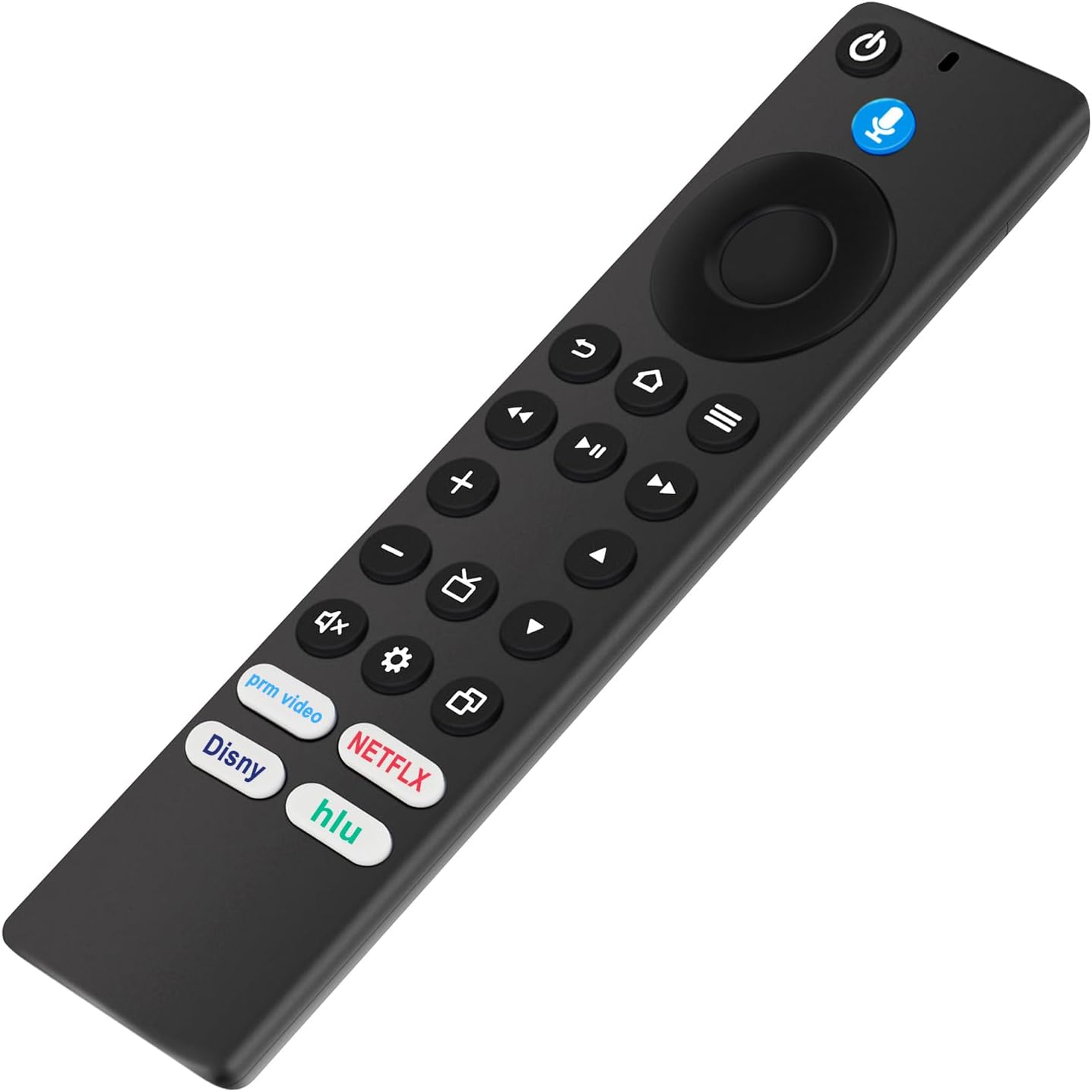
Image: Angled view of the ALLIMITY Voice Control Remote, showcasing its ergonomic design.
Setup
1. Battery Installation
- Locate the battery compartment on the back of the remote control.
- Slide the battery cover downwards to open it.
- Insert two (2) AAA batteries, ensuring the positive (+) and negative (-) terminals align correctly with the markings inside the compartment.
- Replace the battery cover by sliding it upwards until it clicks into place.
Note: AAA batteries are required and not included with the remote.
2. Pairing Instructions
To pair your ALLIMITY Voice Control Remote with your compatible TV:
- Ensure your TV is powered on.
- Point the remote towards your TV.
- Press and hold the Home button (
 ) on the remote for approximately 30 seconds.
- Release the Home button.
- Wait for approximately 60 seconds. The remote will enter pairing mode automatically.
- Your TV should display a message indicating that the remote has successfully paired.
Important: If pairing fails, ensure there are no obstructions between the remote and the TV, and that the batteries are correctly installed and charged. Repeat the pairing process if necessary.
Operating the Remote
Image: Front view of the ALLIMITY Voice Control Remote, highlighting all functional buttons.
Button Functions
- Power Button (): Turns the TV on or off.
- Voice Control Button (): Activates voice commands for searching, launching content, or controlling TV functions. Press and hold to speak your command.
- Navigation Ring & Select Button: Use the ring to navigate menus and the center button to select items.
- Back Button (): Returns to the previous screen or menu.
- Home Button (): Returns to the main home screen of your TV interface.
- Menu Button (): Opens context-sensitive menus or options.
- Playback Controls (Rewind, Play/Pause, Fast Forward): Control media playback.
- Volume Up/Down (VOL +/-): Adjusts the TV volume.
- Mute Button (): Mutes or unmutes the TV audio.
- Channel Up/Down (CH +/-): Changes TV channels.
- Settings Button (): Accesses TV settings.
- Input/Source Button (): Switches between different input sources (HDMI, AV, etc.).
Shortcut App Keys
The remote features dedicated shortcut buttons for quick access to popular streaming services:
- Prime Video
- Netflix
- Disney+
- Hulu
Pressing these buttons will directly launch the respective application on your TV, provided the app is installed and you are logged in.
Maintenance
Battery Replacement
When the remote's performance degrades or it becomes unresponsive, it is likely time to replace the batteries. Follow the battery installation steps outlined in the 'Setup' section.
Caution: Do not mix old and new batteries, or different types of batteries. Remove batteries if the remote will not be used for an extended period to prevent leakage.
Cleaning
To clean your remote control:
- Ensure the remote is off (if applicable) and remove the batteries.
- Wipe the surface with a soft, dry, lint-free cloth.
- For stubborn dirt, slightly dampen the cloth with water or a mild, non-abrasive cleaner.
- Avoid getting moisture into any openings.
Storage
Store the remote in a cool, dry place away from direct sunlight and extreme temperatures when not in use for prolonged periods.
Troubleshooting
| Problem | Possible Cause | Solution |
|---|---|---|
| Remote not responding | Dead or incorrectly installed batteries. Remote not paired. Obstruction between remote and TV. | Replace batteries, ensuring correct polarity. Re-pair the remote following the 'Pairing Instructions'. Remove any objects blocking the signal path. |
| Voice control not working | Microphone blocked. Remote not paired correctly. TV's voice assistant not enabled. | Ensure the microphone on the remote is clear. Re-pair the remote. Check your TV's settings to ensure the voice assistant is active. |
| Buttons have a small lag | Interference. Low battery power. | Ensure no other devices are causing interference. Replace batteries. Try re-pairing the remote. |
| Excessive battery drain | Faulty batteries. Constant signal transmission. | Use high-quality, fresh batteries. If the issue persists, contact ALLIMITY customer support. |
Specifications
- Model Number: CV-AMZ-4TH-TV-PNDH-D60922-SH
- Product Dimensions: 6.5 x 1.38 x 0.72 inches
- Item Weight: 1.76 ounces
- Batteries Required: 2 x AAA (not included)
- Compatible Devices: Amazon 2/4 Series TV, Amazon TV QLED Series (e.g., 4K65M600A, 4K43M600A, 4K43N400A, 4K75M600A, 4K50N400A, 4K50M600A, 4K55M600A, 4K55N400A, HD32N200A, HD40N200A, QL43F601A, QL50F601A, QL55F601A, QL65F601A, QL75F601A), Panasonic W70 Series (e.g., 43W70BP)
- Special Feature: Ergonomic design, Voice Control, Dedicated App Shortcut Keys
Warranty and Support
For warranty information or technical support, please refer to the documentation provided at the time of purchase or contact ALLIMITY customer service directly. You may also visit the official ALLIMITY website for further assistance.
Manufacturer: ALLIMITY
