1. Introduction
Thank you for choosing the Baseus Lite Series 6-Port Type-C Hub Docking Station. This device expands the connectivity of your USB-C enabled laptop, tablet, or smartphone, providing multiple ports for various peripherals and external displays. This manual provides detailed instructions for setup, operation, and troubleshooting to ensure optimal performance.
2. Package Contents
- Baseus Lite Series 6-Port Type-C Hub Docking Station
- User Manual
3. Product Overview
The Baseus Lite Series 6-Port Type-C Hub is designed for versatile connectivity, featuring multiple ports for data transfer, video output, and memory card access.

Image: Detailed view of the Baseus Lite Series 6-Port Type-C Hub, highlighting its various ports including TF/SD card slots, USB 3.0 ports, Type-C data port, HDMI port, indicator, and screen-save button.
Port Descriptions:
- HDMI Port: Supports 4K resolution at 30Hz for connecting to external displays.
- USB 3.0 Ports (x2): Provides high-speed data transfer up to 5Gbps, backward compatible with USB 2.0. Suitable for connecting flash drives, external hard drives, mice, and keyboards.
- Type-C (Data) Port: Supports data transfer up to 5Gbps.
- SD/TF Card Slots: Allows direct access to SD and TF (Micro SD) memory cards, supporting data transfer speeds up to 60MB/s.
- Screen-Save Button: A dedicated button to quickly turn off the connected display for privacy or power saving.
- Indicator Light: Illuminates to indicate operational status.
4. Setup Instructions
Follow these steps to set up your Baseus Type-C Hub:
- Connect to Host Device: Plug the integrated USB-C cable of the hub into a compatible USB-C port on your laptop, tablet, or smartphone. Ensure the USB-C port on your host device supports data transfer and video output (DisplayPort Alternate Mode).
- Power Connection (Optional): For stable operation with multiple power-hungry devices or external hard drives, connect a power adapter (not included) to the hub's dedicated power input port (if available and required by your specific model, though this model primarily draws power from the host).
- Connect Peripherals: Connect your desired devices to the corresponding ports on the hub:
- For external displays, use an HDMI cable to connect to the hub's HDMI port.
- For USB devices (e.g., mouse, keyboard, flash drive), plug them into the USB 3.0 ports.
- Insert SD or TF cards into their respective slots.

Image: The Baseus Lite Series 6-Port Type-C Hub connected to a laptop, demonstrating a typical setup for expanding connectivity.
5. Operating Instructions
5.1 HDMI Video Output
Connect an HDMI cable from the hub to your monitor or TV. The hub supports resolutions up to 4K (3840x2160) at 30Hz. Ensure your display and host device support the desired resolution and refresh rate. Your operating system should automatically detect the external display.
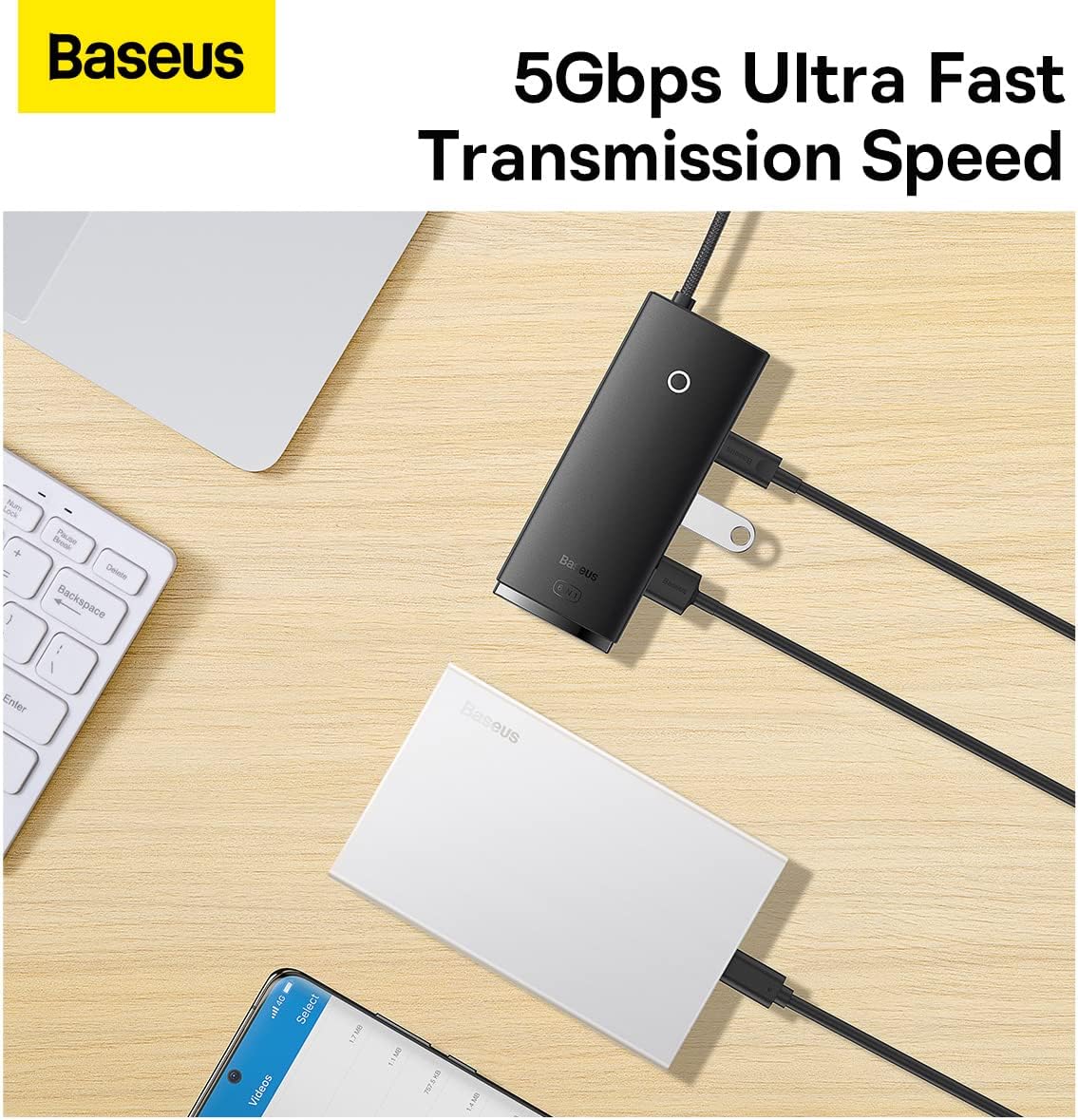
Image: A laptop connected to an external monitor, showcasing the 4K ultra-clear quality output capability of the Baseus Type-C Hub.
5.2 USB 3.0 Data Transfer
Plug your USB devices into the two USB 3.0 ports. These ports offer data transfer speeds of up to 5Gbps, ideal for transferring large files quickly. They are also compatible with older USB 2.0 devices.

Image: The Baseus Type-C Hub with various USB devices, such as a flash drive and an external hard drive, connected to its USB 3.0 ports, demonstrating 5Gbps ultra-fast transmission speed.
5.3 Type-C Data Port
The dedicated Type-C data port also supports data transfer speeds up to 5Gbps, allowing you to connect additional USB-C peripherals.
5.4 SD/TF Card Access
Insert your SD or TF (Micro SD) card into the corresponding slot. The card will appear as a removable drive on your computer, allowing you to read and write data at speeds up to 60MB/s.
5.5 Screen-Save Button
When an external display is connected via HDMI, press the screen-save button on the hub to instantly turn off the external display. Press it again to turn the display back on. This feature is useful for privacy or to conserve power.
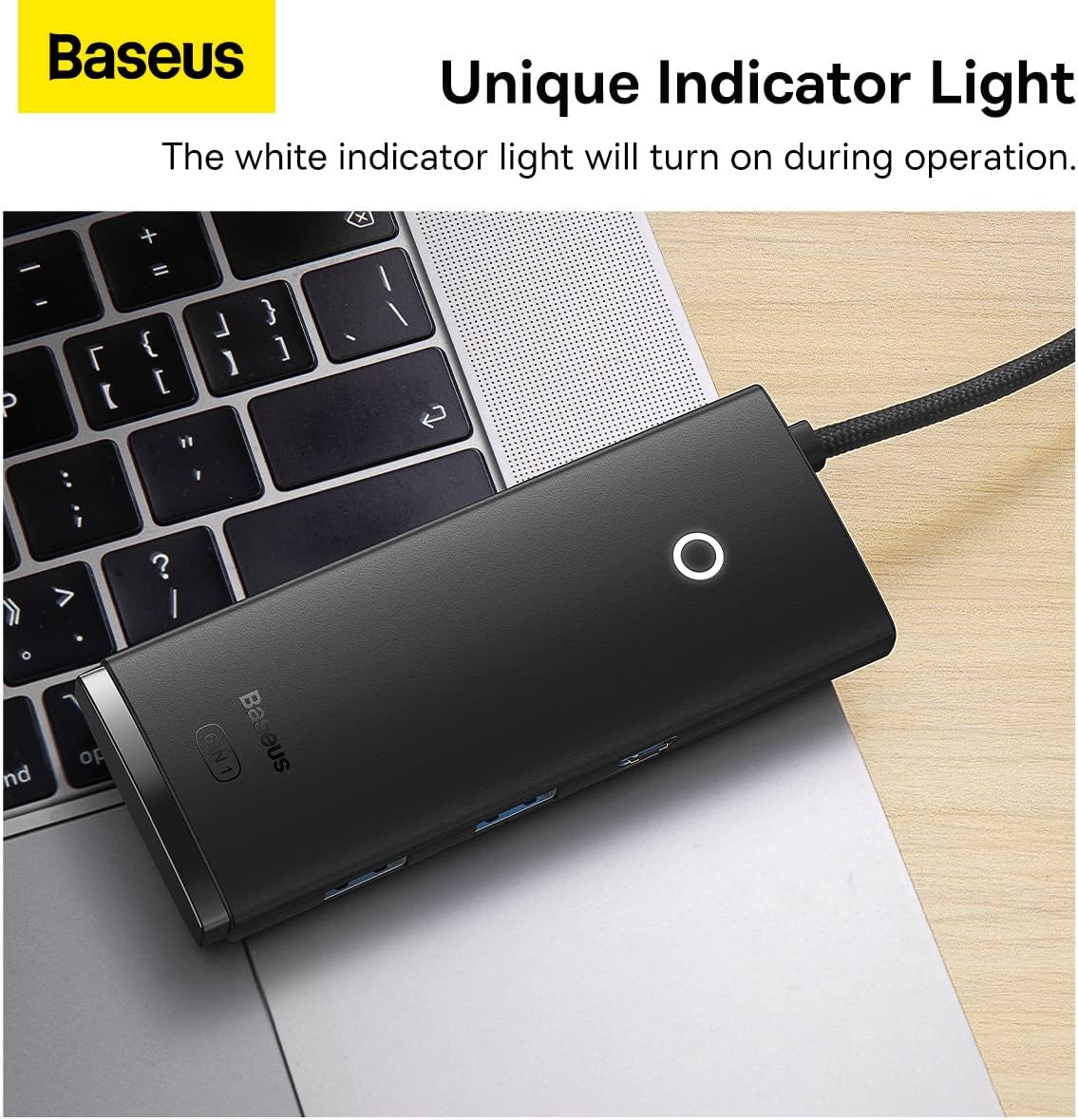
Image: A hand pressing the screen-save button on the Baseus Type-C Hub, demonstrating the privacy protection feature by turning off the connected monitor.
5.6 Indicator Light
The white indicator light on the hub will illuminate when the device is properly connected and operational, providing a visual confirmation of its status.

Image: A close-up view of the Baseus Type-C Hub showing its unique indicator light illuminated, signifying active operation.
6. Compatibility
The Baseus Lite Series 6-Port Type-C Hub is designed for plug-and-play functionality across various operating systems:
- Windows
- Apple OS (macOS)
- Linux
- Windows Vista

Image: A graphic displaying logos for Windows, Windows Vista, Apple OS, and Linux, indicating the multi-system plug-and-play compatibility of the hub.
7. Troubleshooting
- No Display Output:
- Ensure your host device's USB-C port supports DisplayPort Alternate Mode (video output).
- Check the HDMI cable connection between the hub and the monitor.
- Try a different HDMI cable or monitor.
- Ensure the monitor input source is set correctly.
- USB Devices Not Detected:
- Reconnect the hub to your host device.
- Try connecting the USB device directly to your host device to confirm it's working.
- If using a high-power USB device (e.g., external hard drive), ensure sufficient power is supplied to the hub (though this model primarily draws power from the host, some host devices may have limited power output).
- Slow Data Transfer Speed:
- Ensure your USB device is USB 3.0 compatible for optimal speeds.
- Verify that your host device's USB-C port supports USB 3.0 speeds.
- SD/TF Card Not Reading:
- Ensure the card is fully inserted into the correct slot.
- Try a different card to rule out card issues.
- Check if the card is locked (physical switch on some SD cards).
8. Specifications
| Feature | Description |
|---|---|
| Model | Lite Series 6-Port Type-C Hub |
| Input Interface | USB Type-C |
| Output Ports | 1x HDMI, 2x USB 3.0, 1x Type-C (Data), 1x SD Card Slot, 1x TF Card Slot |
| HDMI Resolution | Up to 4K@30Hz |
| USB 3.0 Data Transfer Rate | Up to 5Gbps |
| Type-C Data Transfer Rate | Up to 5Gbps |
| SD/TF Card Transfer Rate | Up to 60MB/s |
| Input Voltage | 5V/2A |
| Output Voltage | 5V/0.9A |
| Operating Systems | Windows, Apple OS, Linux, Vista |
| Material | Acrylonitrile Butadiene Styrene (ABS) |
| Dimensions | Approximately 4 x 13 x 19 cm |
| Weight | Approximately 90 g |
9. Maintenance
- Keep the hub away from water, fire, and corrosive liquids.
- Avoid dropping or subjecting the hub to strong impacts.
- Do not attempt to disassemble or repair the device yourself.
- Clean the device with a soft, dry cloth.
10. Safety Information
- Use the device within its specified operating temperature range.
- Ensure proper ventilation when using the device for extended periods.
- Disconnect the hub from your host device when not in use.
11. Warranty and Support
This product comes with a standard manufacturer's warranty. For warranty claims or technical support, please refer to the contact information provided on the product packaging or visit the official Baseus website. Please retain your proof of purchase for warranty purposes.


