
1. Introduction
This manual provides essential information for the safe and efficient use of your Coocaa 55Y72 55-inch 4K Ultra HD Smart IPS Google LED TV. Please read these instructions thoroughly before operating your television and retain them for future reference.

Image: Front view of the Coocaa 55Y72 TV displaying the Google TV home screen with various streaming app icons.
2. Setup
2.1 What's in the Box
Upon unpacking, verify that all components are present:
- 1 x Coocaa 55Y72 LED TV
- 1 x Remote Control
- 1 x Power Cord
- 1 x Quick Start Guide
- 1 x Warranty Card
- 2 x AAA Batteries (for remote control)
- 1 x Set of Base Stands
- 4 x Screws (for base stands)
2.2 Physical Installation
The Coocaa 55Y72 TV supports table mounting. Ensure the TV is placed on a stable, level surface.
- Attach Base Stands: Carefully place the TV screen-down on a soft, clean surface. Align the base stands with the mounting holes on the bottom of the TV. Secure them using the provided screws.
- Positioning: Place the TV in your desired location, ensuring adequate ventilation around the unit.

Image: Diagram illustrating the dimensions of the Coocaa 55Y72 TV, including width, height, and depth with stands.
2.3 Connecting Peripherals
Your TV offers multiple connectivity options:
- HDMI Ports (3): Connect set-top boxes, Blu-ray players, gaming consoles, or other HDMI-enabled devices.
- USB Ports (2): Connect hard drives, USB flash drives, or other USB devices for media playback.
- Ethernet (LAN) Port: For wired internet connection.
- Digital Audio Output: For connecting to external audio systems.
- AV Input: For connecting older devices using composite video and stereo audio cables.

Image: Side view of the Coocaa 55Y72 TV with a detailed diagram of its input and output ports, including USB, Digital Audio, AV, HDMI, and LAN.
2.4 Power Connection
Connect the power cord to the TV's power input and then plug it into a standard electrical outlet. The TV will enter standby mode.
3. Operating Instructions
3.1 Initial Setup and Google TV
Upon first power-on, the TV will guide you through the initial setup process, including network connection (Wi-Fi or Ethernet), Google account login, and channel scanning. The Coocaa 55Y72 runs on Google TV, offering a personalized home screen experience.
- Personalized Homescreen: Content recommendations are tailored to your viewing habits.
- Google Assistant: Use voice commands via the remote control for search, control, and information.
- Built-in Chromecast: Cast content from compatible mobile devices directly to your TV.
- Display Mirroring: Mirror your compatible device's screen to the TV.
- Google Duo: Supported for video calls (external camera may be required).
- Swaiot Home: Integrate with smart home devices.
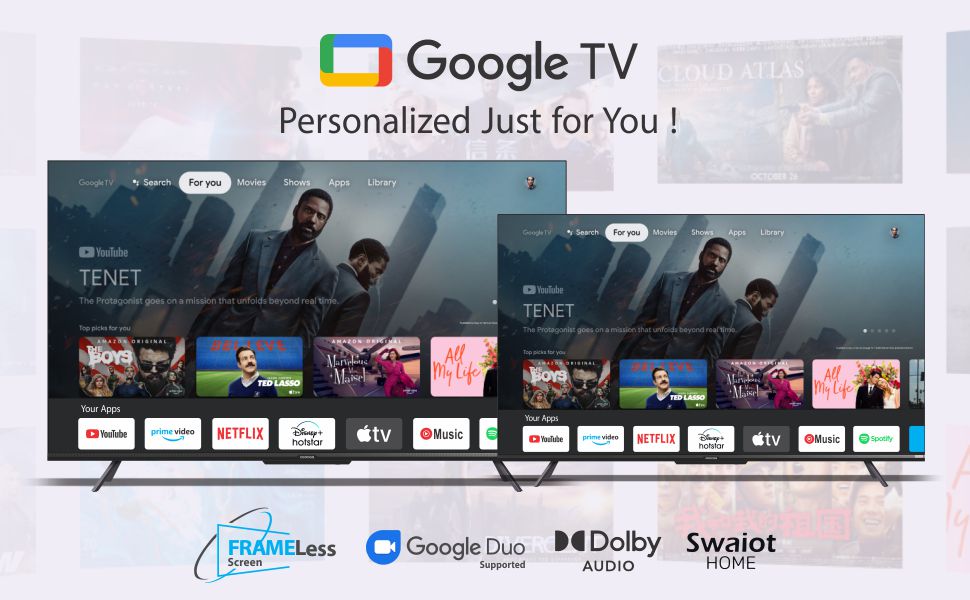
Image: The Google TV interface on the Coocaa TV, showcasing personalized content recommendations and various streaming applications.
3.2 Remote Control
The included remote control uses both IR and Bluetooth technology for versatile operation. It features dedicated buttons for popular streaming services and a one-click Google Assistant button.

Image: The Coocaa TV remote control, featuring a circular navigation pad, volume and channel buttons, and dedicated buttons for Netflix, Prime Video, YouTube, and Google Play.
3.3 Accessing Applications
The Google TV platform provides access to a vast catalog of applications. Popular pre-installed apps include YouTube, Prime Video, Netflix, Hotstar, Zee5, and Sony LIV. More applications can be downloaded from the Google Play Store.

Image: The Coocaa TV screen displaying a selection of available applications, including Netflix, YouTube, Prime Video, Apple TV, HBO Max, Rakuten Viki, YouTube Music, and Spotify.
4. Display and Audio Features
4.1 Display Technology
The Coocaa 55Y72 features a 55-inch Frameless Series 4K Ultra HD IPS LED panel, providing a resolution of 3840 x 2160 pixels. Key display features include:
- 4K HDR: Supports HDR10 for enhanced contrast and color.
- Refresh Rate: 60 Hertz for smooth motion.
- Viewing Angle: 178 degrees wide viewing angle.
- Chameleon Extreme 2.0 Picture Engine: Optimizes image quality.
- Ultra Bright Screen: Ensures clear visibility even in well-lit rooms.
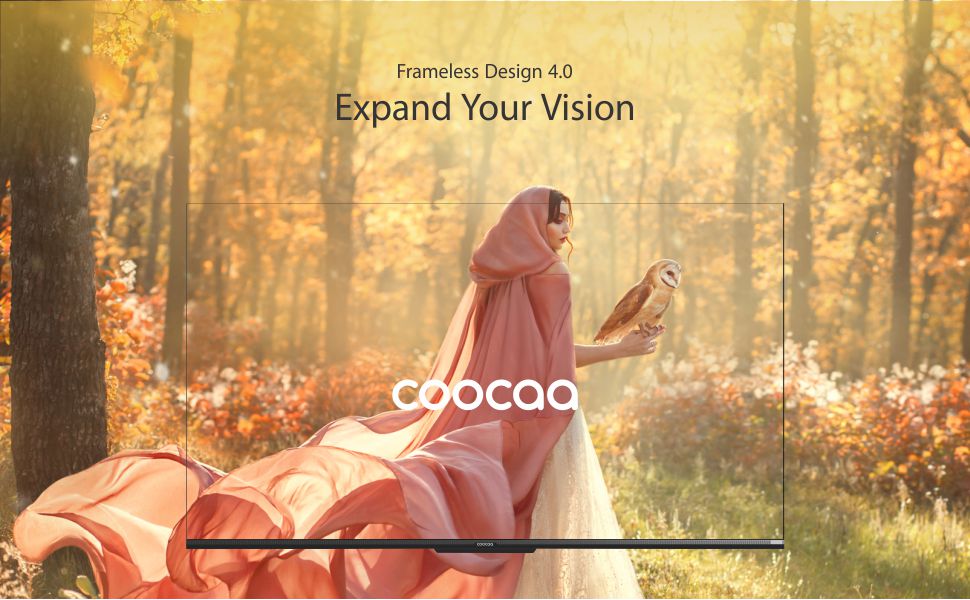
Image: A visual representation of the Coocaa TV's Frameless Design 4.0, emphasizing the expansive screen area.
4.2 Audio System
Experience immersive sound with the TV's integrated audio system:
- Output: 30 Watts total audio output.
- Dolby Audio: Enhanced sound quality and clarity.
- DTS TruSurround: Provides a virtual surround sound experience.
Image: Graphic highlighting the Dolby Audio and DTS TruSurround sound technologies integrated into the Coocaa TV.
5. Maintenance
5.1 Cleaning the Screen
To clean the screen, gently wipe it with a soft, lint-free cloth. For stubborn marks, slightly dampen the cloth with water or a specialized screen cleaner. Avoid using harsh chemicals, abrasives, or direct spraying of liquids onto the screen.
5.2 Cleaning the TV Body
Wipe the exterior of the TV with a soft, dry cloth. Do not use solvents or alcohol-based cleaners.
5.3 Remote Control Care
Keep the remote control dry and clean. Replace batteries (2 x AAA) when necessary. The remote features an antibacterial coating for hygiene.

Image: A child holding the Coocaa TV remote control, illustrating the 'Healthier Smart Life' concept with an antibacterial remote.
6. Troubleshooting
If you encounter issues with your Coocaa 55Y72 TV, refer to the following common solutions:
- No Power: Ensure the power cord is securely connected to both the TV and the power outlet. Check if the outlet is functioning.
- No Picture/Sound: Verify that the correct input source is selected. Check all cable connections (HDMI, AV).
- Remote Not Responding: Replace the AAA batteries in the remote control. Ensure there are no obstructions between the remote and the TV's IR sensor.
- Network Connectivity Issues: For Wi-Fi, ensure the router is on and within range. For Ethernet, check the cable connection. Try restarting your router and the TV.
- Picture Quality Issues: Adjust picture settings (brightness, contrast, sharpness) in the TV menu. Ensure the content source is of high quality (e.g., 4K content for 4K resolution).
- Sound Distortion: Check audio settings. If using external speakers, ensure they are properly connected and configured.
For persistent issues, consult the full user manual available online or contact Coocaa customer support.
7. Specifications
| Feature | Specification |
|---|---|
| Brand | coocaa |
| Model | 55Y72 |
| Screen Size | 55 Inches (138 cm) |
| Display Technology | IPS LED |
| Resolution | 4K Ultra HD (3840 x 2160) |
| Refresh Rate | 60 Hz |
| Viewing Angle | 178 Degrees |
| HDR Support | HDR10 |
| Operating System | Google TV |
| RAM Memory | 2 GB |
| Storage Capacity | 16 GB |
| Audio Output | 30 Watts |
| Audio Technology | Dolby Audio, DTS TruSurround |
| HDMI Ports | 3 |
| USB Ports | 2 |
| Connectivity | Wi-Fi (Dual band), Ethernet, Bluetooth |
| Power Consumption (On-mode) | 150 Watts |
| Product Dimensions (LxWxH) | 122.5 x 23.3 x 77.6 cm |
| Item Weight | 10.2 kg |
8. Warranty and Support
8.1 Warranty Information
Your Coocaa 55Y72 TV comes with a 1 Year Warranty from the date of purchase. Please retain your purchase receipt as proof of warranty. The warranty covers manufacturing defects under normal use conditions. For detailed terms and conditions, refer to the warranty card included with your product.
8.2 Customer Support
For technical assistance, service requests, or any inquiries regarding your Coocaa TV, please contact the manufacturer:
Manufacturer: Radiant Appliances and Electronics Pvt Ltd
Address: Survey No.111,112, S-2 A1, Ecity, Fabcity, Maheshwaram Mandal, Raviryala Village, Ranga Reddy, Telengana-501141
Please visit the official Coocaa website or your retailer's support page for the most up-to-date contact information and support resources.