
EasySMX X20
EasySMX X20 Wireless PC Controller User Manual
Model: X20
Introduction
The EasySMX X20 Wireless PC Controller is designed to provide a versatile and responsive gaming experience across multiple platforms. Featuring Hall Effect joysticks and triggers, customizable buttons, and dynamic RGB lighting, this controller offers precision and comfort for extended gameplay sessions. This manual provides detailed instructions for setup, operation, maintenance, and troubleshooting.
Package Contents
- EasySMX X20 Wireless PC Controller
- USB Receiver (2.4G)
- USB-C Charging Cable
- User Manual
Controller Layout

Figure 1: Front view of the EasySMX X20 Wireless PC Controller with its USB receiver.
The EasySMX X20 controller features a standard layout with two analog sticks, a D-pad, ABXY action buttons, shoulder buttons (LB, RB), and triggers (LT, RT). It also includes dedicated function buttons and four programmable back buttons (M1, M2, M3, M4) for enhanced customization.
Setup and Connection
1. Charging the Controller
Before first use, fully charge the controller. Connect the included USB-C charging cable to the controller's charging port and the other end to a USB power source (e.g., PC, USB wall adapter). The charging time is approximately 2-3 hours for a full charge, providing 8-10 hours of playing time.

Figure 2: The controller connected via USB-C for charging, highlighting the 1000mAh battery capacity.
2. Connection Modes
The EasySMX X20 supports multiple connection methods:
- 2.4GHz Wireless (PC, Steam Deck, Smart TV, Tesla): Insert the USB receiver into an available USB port on your device. Press the controller's middle button to power it on. The controller will automatically connect to the receiver.
- Bluetooth (Android Tablet, iPhone/Android Phone, Steam Deck): Turn on Bluetooth on your device. Press and hold the controller's Bluetooth pairing button (refer to controller layout for exact location) until the indicator lights flash rapidly. Select "EasySMX X20" from your device's Bluetooth list to pair.
- Switch Mode (Nintendo Switch, Switch Lite, Switch OLED): Connect the controller to your Switch console via USB-C cable for initial pairing, or follow the Switch's "Change Grip/Order" menu to pair wirelessly.
- Wired (PC, Android TV, Steam Deck): Connect the controller directly to your device using the USB-C charging cable. The controller will be recognized automatically.
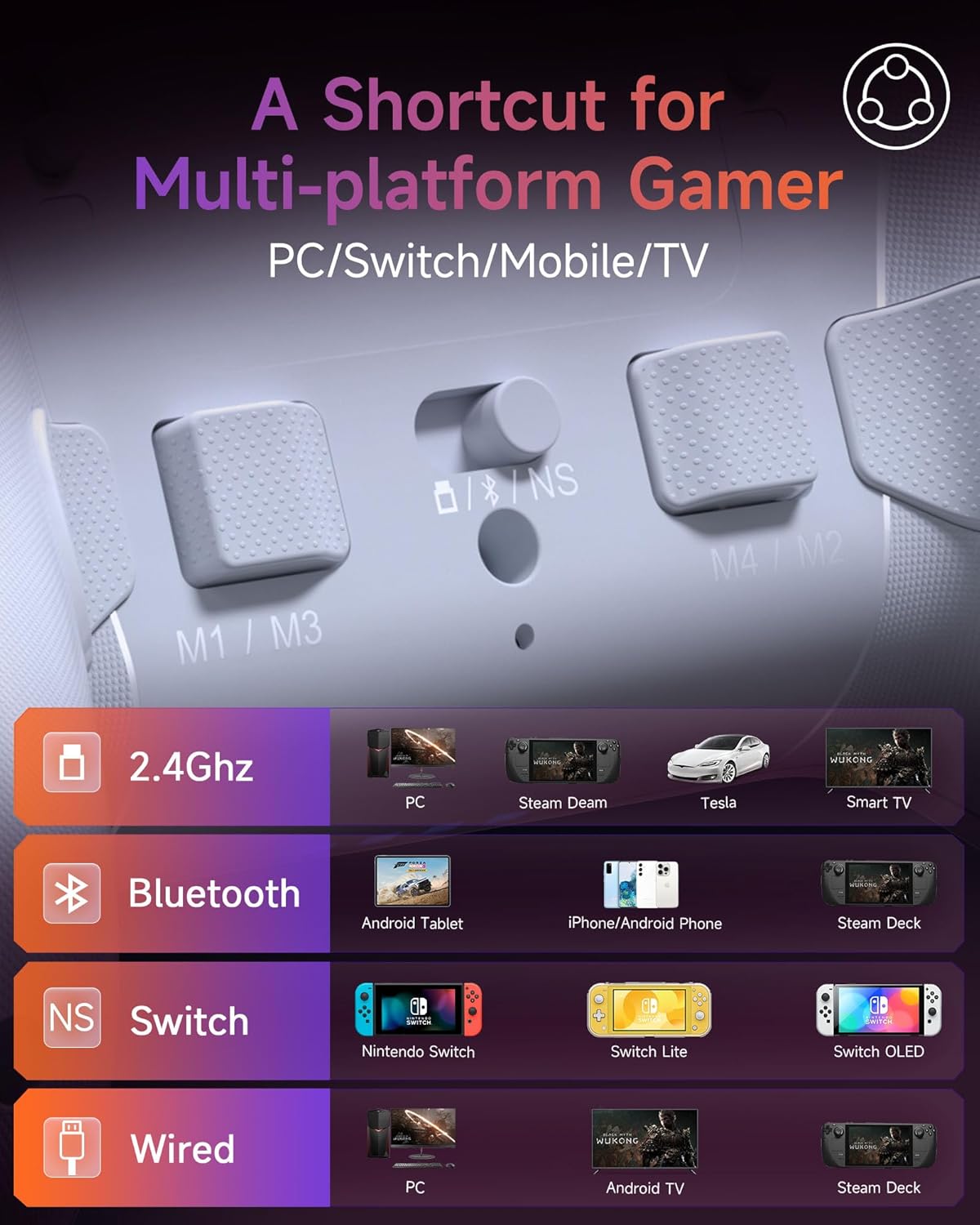
Figure 3: Overview of supported platforms and connection methods for the EasySMX X20 controller.
Note: This controller is NOT compatible with Xbox, Luna, or Nvidia GeForce Now platforms.
Operating the Controller
Hall Effect Joysticks and Detachable Sticks
The X20 features Hall Effect joysticks for precise, drift-free control. The thumbsticks are detachable, allowing you to adjust their height for personalized comfort and control. To change the height, gently pull the existing thumbstick cap off and replace it with a different height cap, ensuring it clicks into place. You can also rotate them 45 degrees for optimal positioning.

Figure 4: Illustration of detachable Hall sticks and height adjustment options (9mm standard, 10mm increased).
2-Way Trigger Lock (Hall Effect Linear & Microswitch)
The triggers feature a 2-way lock mechanism, allowing you to switch between Hall Effect Linear mode (9mm travel for racing games) and Microswitch mode (0.3mm ultra-short travel for FPS games). This provides customizable trigger sensitivity for different game genres.
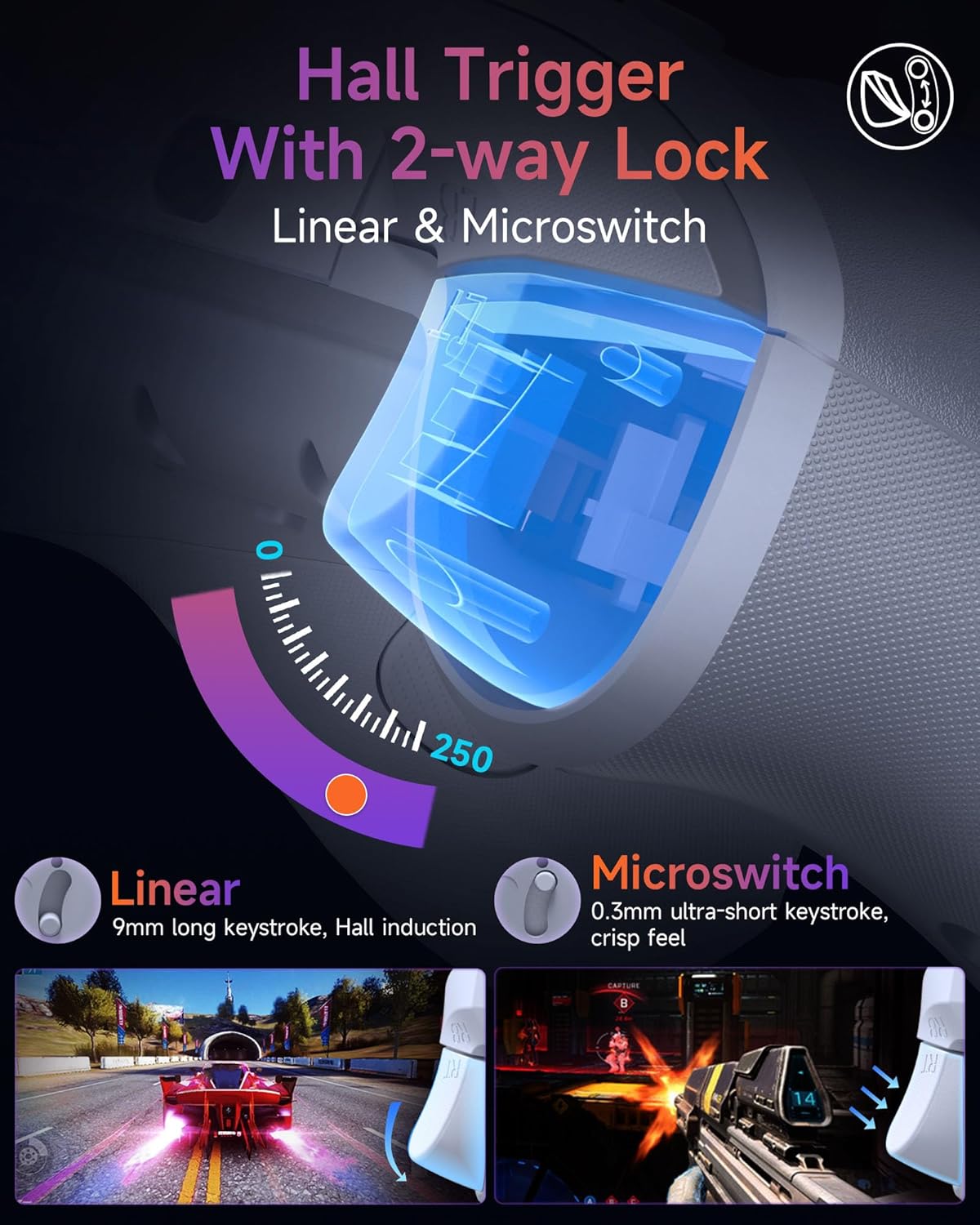
Figure 5: Diagram showing the Hall Trigger with 2-way lock, illustrating Linear and Microswitch modes.
1000Hz Polling Rate
The controller operates at an ultra-fast 1000Hz polling rate in both wired and 2.4G wireless modes, ensuring minimal input lag and precise command registration for competitive gaming.
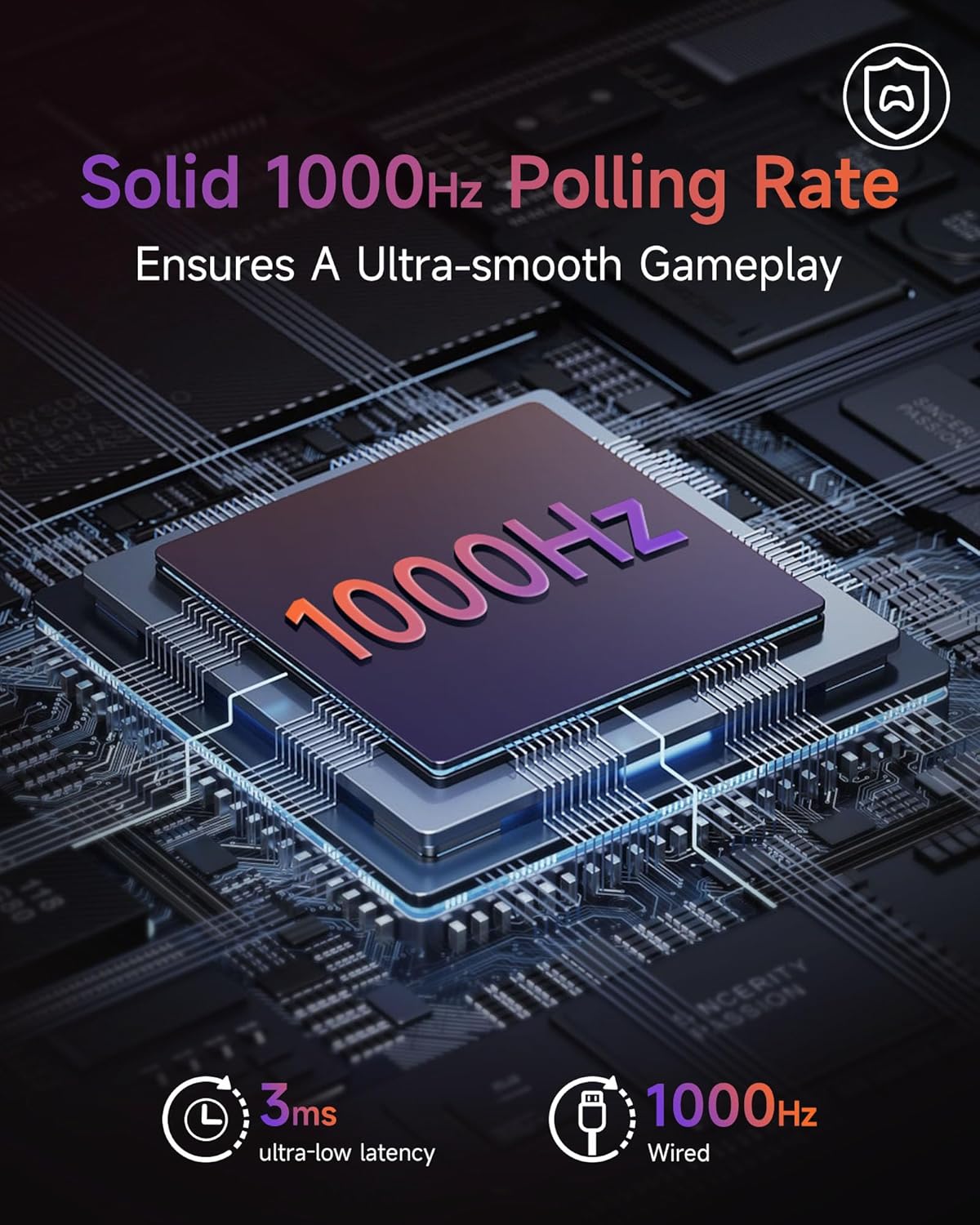
Figure 6: Visual representation of the 1000Hz polling rate and 3ms ultra-low latency.
Full Mecha-tactile Buttons
Experience distinct clicky feedback and quicker responses from the mechanical action buttons (ABXY), shoulder buttons, and D-pad, enhancing your gaming precision.
Motion Control (6-Axis Gyro)
The X20 incorporates 6-Axis Gyro technology, providing precise and immersive motion controls compatible with Switch, PC, and mobile devices. This allows for intuitive gameplay based on controller movement.

Figure 7: Depiction of the controller's gyroscopic movement support across Switch, PC, and mobile platforms.
Dynamic RGB Backlighting
Customize your gaming ambiance with dynamic RGB lighting. The controller offers 3 light modes (Breathing, Colorful, Off) and various RGB color combinations to match your style or game environment.
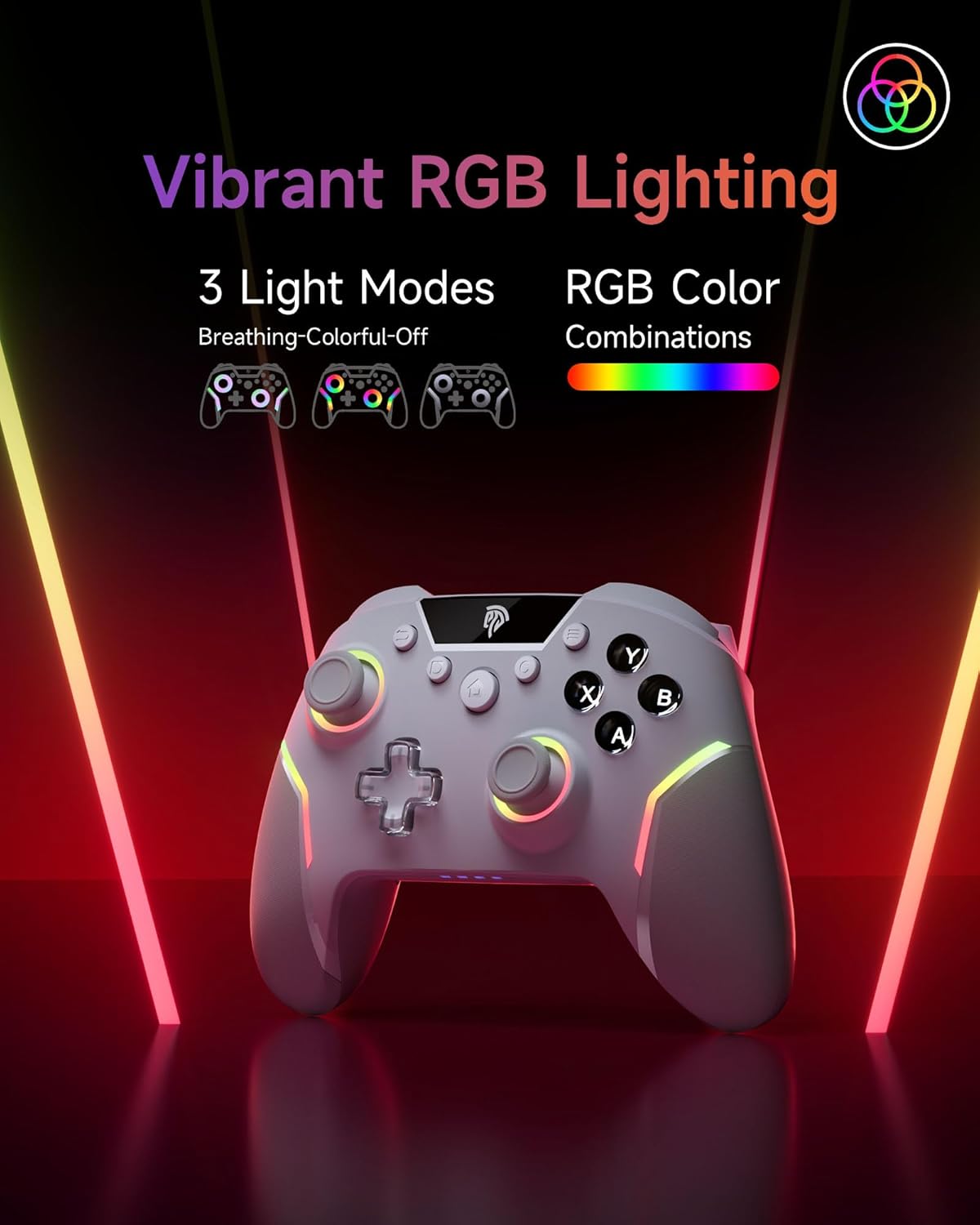
Figure 8: The EasySMX X20 controller showcasing its vibrant RGB lighting with different modes.
Programmable Back Buttons (M1, M2, M3, M4)
The four programmable back buttons (M1, M2, M3, M4) allow you to remap and customize your gameplay. These can be assigned to single button presses or complex macros for quick execution of in-game actions.

Figure 9: Rear view of the controller highlighting the M1, M2, M3, M4 programmable back buttons.
Refer to the full product manual (if available online) or the manufacturer's website for detailed instructions on programming these buttons.
Adjustable Vibration
The controller features adjustable vibration feedback with 5 levels (0%, 30%, 50%, 70%, 100%). This allows you to tailor the intensity of haptic feedback to your preference, enhancing immersion or reducing distraction.
Maintenance
- Cleaning: Use a soft, dry cloth to clean the controller. For stubborn dirt, a slightly damp cloth can be used, but ensure no moisture enters the ports or buttons.
- Storage: Store the controller in a cool, dry place away from direct sunlight and extreme temperatures.
- Battery Care: To prolong battery life, avoid fully discharging the controller frequently. Charge it regularly, even if not in use for extended periods.
Troubleshooting
| Problem | Possible Cause / Solution |
|---|---|
| Controller does not connect. |
|
| Input lag or unresponsiveness. |
|
| Joystick drift. |
|
| Battery drains quickly or doesn't charge. |
|
Specifications
| Feature | Detail |
|---|---|
| Model Number | X20 |
| Dimensions | 6.5 x 4.7 x 2.7 inches |
| Weight | 11.2 ounces |
| Battery Capacity | 1000mAh (Built-in rechargeable) |
| Charging Time | Approx. 2-3 hours |
| Playing Time | Approx. 8-10 hours |
| Polling Rate | 1000Hz (Wired & 2.4G Wireless) |
| Connectivity | 2.4GHz Wireless, Bluetooth, Wired |
| Compatibility | PC, Switch, Steam, Android, Mobile, Smart TV, Tesla, Steam Deck |
Warranty and Support
EasySMX products are designed for reliability and performance. If you encounter any issues or have questions regarding your EasySMX X20 Wireless PC Controller, please contact EasySMX customer support. You can typically find support contact information on the official EasySMX website or through the retailer where you purchased the product. Please retain your proof of purchase for warranty claims.
For common questions or troubleshooting tips not covered in this manual, visit the EasySMX support page or refer to the product listing on the retailer's website.
Related documentsX20


Ask a question about this manual
Ask about setup, troubleshooting, compatibility, parts, safety, or missing instructions. Manuals+ will review the question and use this page’s manual context to help answer it.