
BoxWave AllReader SD Card Reader
BoxWave AllReader SD Card Reader User Manual
Model: AllReader SD Card Reader | Brand: BoxWave
1. Introduction
The BoxWave AllReader SD Card Reader is a versatile and compact device designed for easy transfer of files between various devices and SD/microSD cards. It features multiple interfaces for broad compatibility, allowing you to access and manage your data efficiently across smartphones, tablets, laptops, and desktop PCs.

Image: The BoxWave AllReader SD Card Reader shown alongside a smartphone, illustrating its compact size and intended use with mobile devices.

Image: A detailed close-up of the AllReader SD Card Reader, highlighting its various ports and compact design.
2. Product Features
- Four Interfaces: Equipped with USB-C, USB-A, Micro-USB, and Apple (Lightning) connectors for maximum compatibility with a wide range of devices.
- Easy File Transfer: Facilitates quick and straightforward transfer of photos, videos, music, and other files between memory cards and your devices.
- Plug and Play: No drivers or complex software installation required. Simply plug in and use.
- Compact Design: Small and portable, designed to be easily carried in a bag, purse, or pocket.
- Unlimited Storage: Expand your device's storage capability by using various SD and microSD cards.
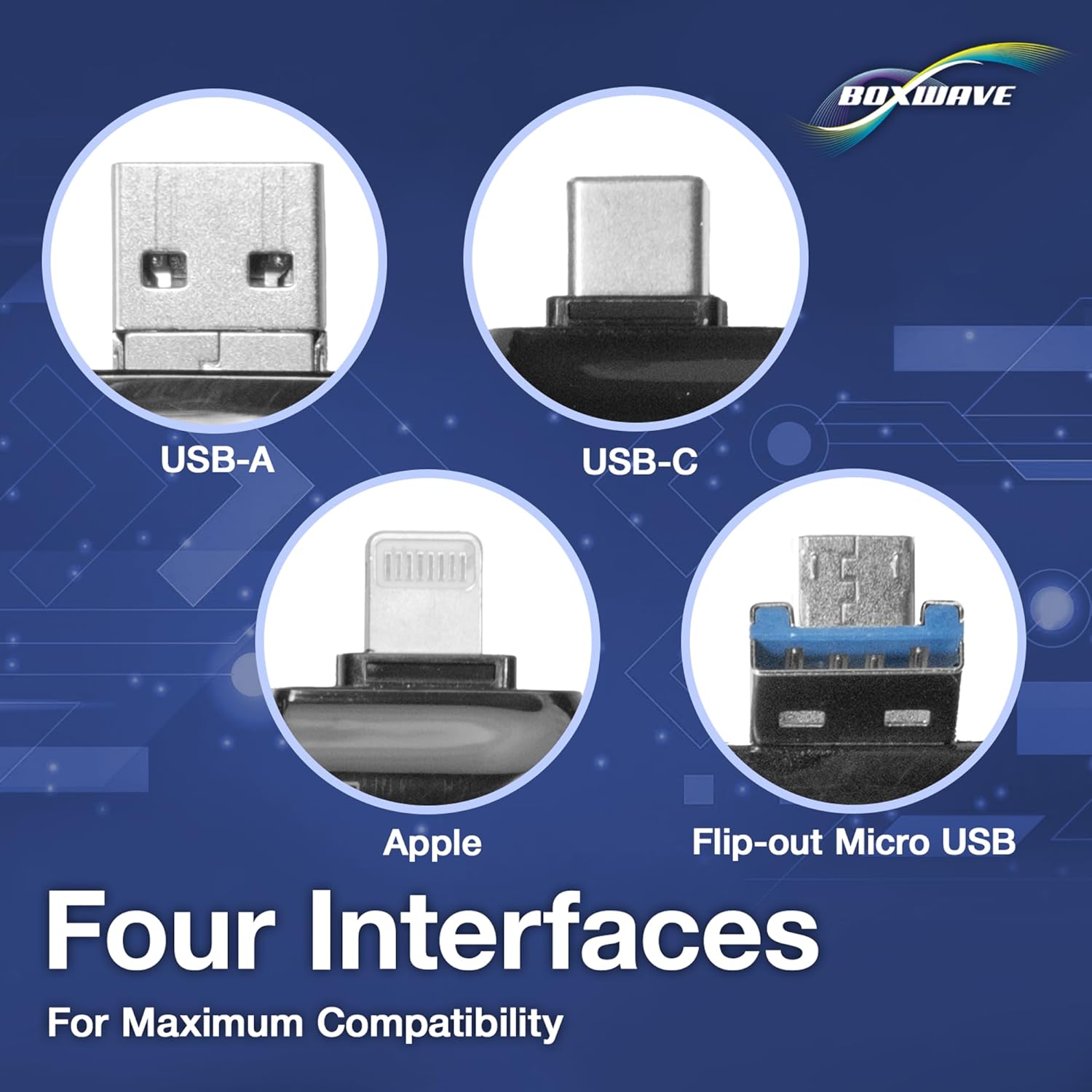
Image: A visual representation of the four distinct interfaces (USB-A, USB-C, Apple, and Flip-out Micro USB) available on the AllReader SD Card Reader, emphasizing its broad compatibility.

Image: A hand holding the AllReader SD Card Reader, demonstrating its ultra-compact size and portability.
3. Setup and Operation
3.1 Inserting a Memory Card
- Identify the correct slot for your memory card. The AllReader supports both standard SD cards and microSD cards.
- Gently insert your SD or microSD card into the corresponding slot until it clicks into place. Ensure the card is inserted in the correct orientation to avoid damage.
3.2 Connecting to Your Device
The AllReader SD Card Reader offers multiple connection options:
- USB-C: For modern smartphones, tablets, and laptops with a USB-C port.
- USB-A: For desktop computers, laptops, and other devices with standard USB ports.
- Micro-USB: For older Android smartphones and tablets.
- Apple (Lightning): For compatible Apple iPhones and iPads.
Select the appropriate connector for your device and plug the AllReader into the device's port. The device should automatically detect the card reader.

Image: The AllReader SD Card Reader with an SD card inserted, connected to a tablet, demonstrating the ease of file transfer.
3.3 Transferring Files
- Once connected, your device's file manager or photo application should recognize the inserted memory card as an external storage device.
- Navigate to the memory card's contents.
- You can now copy, move, or delete files between the memory card and your device's internal storage or other connected storage.
- To safely remove the card reader, always eject the external storage device through your device's operating system before physically unplugging it.

Image: A composite image illustrating the AllReader's capability to transfer files seamlessly across various devices, including smartphones, tablets, laptops, and desktop PCs.
4. Maintenance
- Keep the card reader clean and free from dust and debris. Use a soft, dry cloth for cleaning.
- Avoid exposing the device to extreme temperatures, moisture, or direct sunlight.
- Do not force memory cards or connectors into the slots. This can damage both the card reader and your memory card.
- Store the card reader in a safe place when not in use to prevent physical damage.
5. Troubleshooting
| Problem | Possible Solution |
|---|---|
| Device not recognized. |
|
| Cannot access files on the memory card. |
|
| Slow file transfer speeds. |
|
6. Specifications
- Product Name: BoxWave AllReader SD Card Reader
- Model: AllReader
- Connectivity: USB-C, USB-A, Micro-USB, Apple (Lightning)
- Supported Media: SD Card, microSD Card
- Color: Jet Black
- Special Feature: Plug & Play
- Dimensions: Compact design (specific dimensions not provided, but described as "tiny package")
- Weight: Approximately 6 ounces (product weight, not just reader)
- Manufacturer: BoxWave
- Country of Origin: China
7. Warranty and Support
BoxWave products are designed for quality and reliability. For specific warranty information, please refer to the documentation included with your purchase or visit the official BoxWave website.
For technical support or inquiries, please contact BoxWave customer service. Limited third-party technical support for your device (up to 3 inquiries via messaging) may be available, as noted in the product description. Please note that BoxWave is not affiliated with or endorsed by BLU.
Contact Information: Please refer to the BoxWave official website or your purchase receipt for the most current contact details.
Ask a question about this manual
Ask about setup, troubleshooting, compatibility, parts, safety, or missing instructions. Manuals+ will review the question and use this page’s manual context to help answer it.