1. Introduction
This manual provides essential information for setting up, operating, and maintaining your DELL Vostro 5620 Business Laptop. Please read this guide thoroughly to ensure optimal performance and longevity of your device.

Image: DELL Vostro 5620 Business Laptop with an expense analysis chart on its screen, highlighting its business application.
2. What's in the Box
Verify that all items are present in the package:
- DELL Vostro 5620 Business Laptop
- AC Adapter
- Webcam (integrated)
- Documentation (including this manual)
3. Key Features
The DELL Vostro 5620 is designed for business and productivity, offering a robust set of features:
- Display: 16-inch Full HD (1920x1080) Anti-Glare WVA Display with 250 nits brightness and ComfortView technology.
- Processor: 12th Generation Intel Core i7-1260P.
- Memory: 32GB DDR4 SDRAM.
- Storage: 1TB PCIe NVMe Solid State Drive (SSD).
- Webcam: FHD 1080p Camera with Privacy Shutter.
- Audio: Dual Stereo Speakers by Waves MaxxAudio Pro.
- Keyboard: Backlit Keyboard with Numeric Keypad.
- Security: Integrated Fingerprint Reader.
- Connectivity: Intel Wi-Fi 6 AX 2x2 (Gig+) and Bluetooth 5.
- Operating System: Windows 11 Pro.
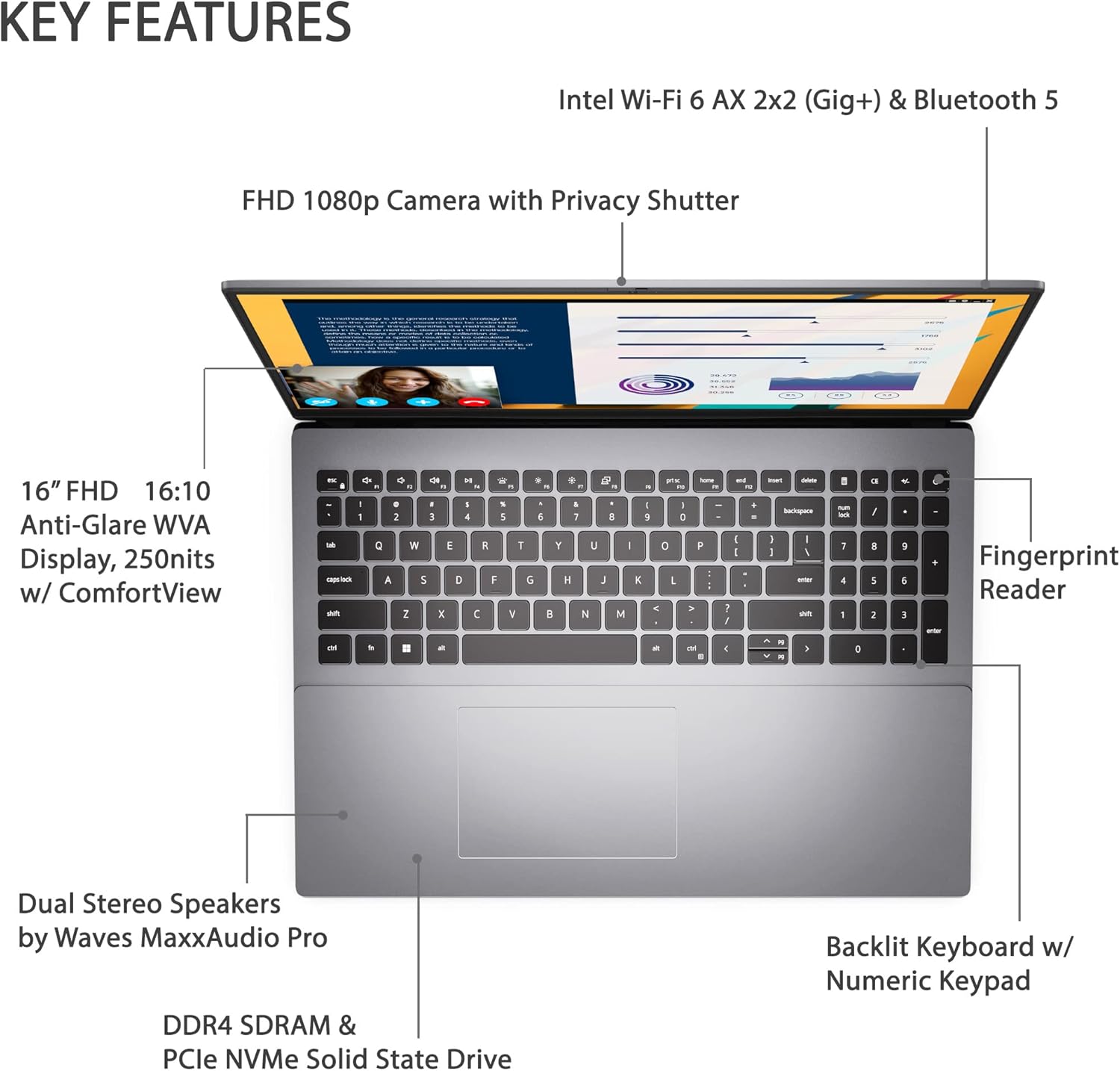
Image: Visual representation of the DELL Vostro 5620's key features, such as the 16-inch FHD display, FHD 1080p camera with privacy shutter, backlit keyboard, fingerprint reader, and dual stereo speakers.

Image: The laptop positioned on a desk, displaying a video call, demonstrating its utility for communication.
4. Initial Setup
- Unpack: Carefully remove the laptop and all accessories from the packaging.
- Connect Power: Plug the AC adapter into the laptop's power jack and then into a wall outlet.
- Power On: Open the laptop lid and press the power button.
- Windows Setup: Follow the on-screen instructions to complete the Windows 11 Pro setup, including language, region, network connection, and user account creation.
- Updates: After initial setup, connect to the internet and check for system updates to ensure your laptop has the latest drivers and security patches.
5. Basic Operation
Power Management
- Power On: Press the power button located on the top-right of the keyboard.
- Sleep Mode: Close the lid or select 'Sleep' from the Start Menu.
- Shut Down: Select 'Shut down' from the Start Menu.
- Restart: Select 'Restart' from the Start Menu.
Keyboard and Touchpad
- The backlit keyboard provides comfortable typing in various lighting conditions.
- The integrated touchpad supports multi-touch gestures for navigation.

Image: Close-up of hands using the backlit keyboard and touchpad of the laptop.
6. Ports and Slots
The DELL Vostro 5620 offers a variety of ports for connectivity:

Image: Detailed view of the laptop's left and right sides, illustrating the location and type of each port.
- SD Card reader
- USB 3.2 Gen 1 Type A port
- RJ-45 (Ethernet) port
- Headset jack
- Wedge shaped lock slot
- Power jack
- HDMI 1.4 port
- USB 3.2 Gen 1 Type A port
- USB 3.2 Gen 2x2 Type-C™ port (supports DisplayPort and Power Delivery)
7. Technical Specifications
| Feature | Specification |
|---|---|
| Model | DELL Vostro 5620 |
| Display Size | 16 Inches |
| Screen Resolution | 1920 x 1080 pixels (FHD) |
| Processor | 12th Gen Intel Core i7-1260P |
| RAM | 32 GB DDR4 |
| Storage | 1 TB SSD |
| Graphics | Integrated Intel Graphics |
| Operating System | Windows 11 Pro |
| Wireless Connectivity | Wi-Fi 6, Bluetooth |
| Webcam | FHD 1080p with Privacy Shutter |
| Special Features | Backlit Keyboard, Fingerprint Reader |
| Item Weight | 4.21 pounds |
| Product Dimensions | 9.92 x 14.05 x 0.72 inches |
8. Maintenance
- Cleaning: Use a soft, lint-free cloth to clean the screen and exterior. Avoid harsh chemicals.
- Software Updates: Regularly check for and install operating system and driver updates to maintain security and performance.
- Battery Care: To prolong battery life, avoid extreme temperatures and fully discharging the battery frequently.
- Storage Management: Periodically clear unnecessary files and applications to optimize storage space and system speed.
9. Troubleshooting
Common Issues and Solutions
- Laptop not powering on: Ensure the AC adapter is securely connected and the power outlet is functional. Try a different outlet if necessary.
- Display issues: If the screen is blank or flickering, try connecting an external monitor to check if the issue is with the laptop's display or graphics. Adjust display settings in Windows.
- Slow performance: Close unnecessary applications, check for malware, ensure sufficient free storage space, and update drivers.
- Wi-Fi connectivity problems: Restart your router and laptop. Check Wi-Fi settings and ensure drivers are up to date.
10. Warranty and Support
Your DELL Vostro 5620 Business Laptop comes with a standard manufacturer's warranty. For detailed warranty terms and conditions, please refer to the documentation included with your product or visit the official Dell support website.
For technical assistance, driver downloads, or service requests, please contact Dell Support:
- Dell Support Website: www.dell.com/support
- Phone Support: Refer to your region-specific Dell support contact information.
Please have your service tag or express service code ready when contacting support.


