
XTREME MLB7-1051-RGB
Monster Smart Illuminessence A19 RGBW LED Bulb User Manual
Model: MLB7-1051-RGB | Brand: XTREME
Introduction
Thank you for choosing the Monster Smart Illuminessence A19 RGBW LED Bulb. This smart bulb offers millions of color possibilities, warm white light, and seamless control through the Monster Smart App, voice assistants like Alexa, Google Assistant, and Siri, and Wi-Fi connectivity. This manual provides essential information for safe installation, operation, and maintenance of your new smart bulb.
Safety Information
- Ensure the power is turned off at the switch before installing or removing the bulb.
- Do not use with standard dimmers. This bulb is dimmable only via the Monster Smart App or compatible voice assistants.
- Suitable for indoor use only.
- Do not disassemble or modify the bulb.
- Avoid exposing the bulb to direct water or excessive humidity.
- Keep out of reach of children.
Package Contents
Verify that all items are present in your package:
- 1x Monster Smart Illuminessence A19 RGBW LED Bulb
- 1x Quick Start Guide (This manual serves as a comprehensive guide)

Product Overview
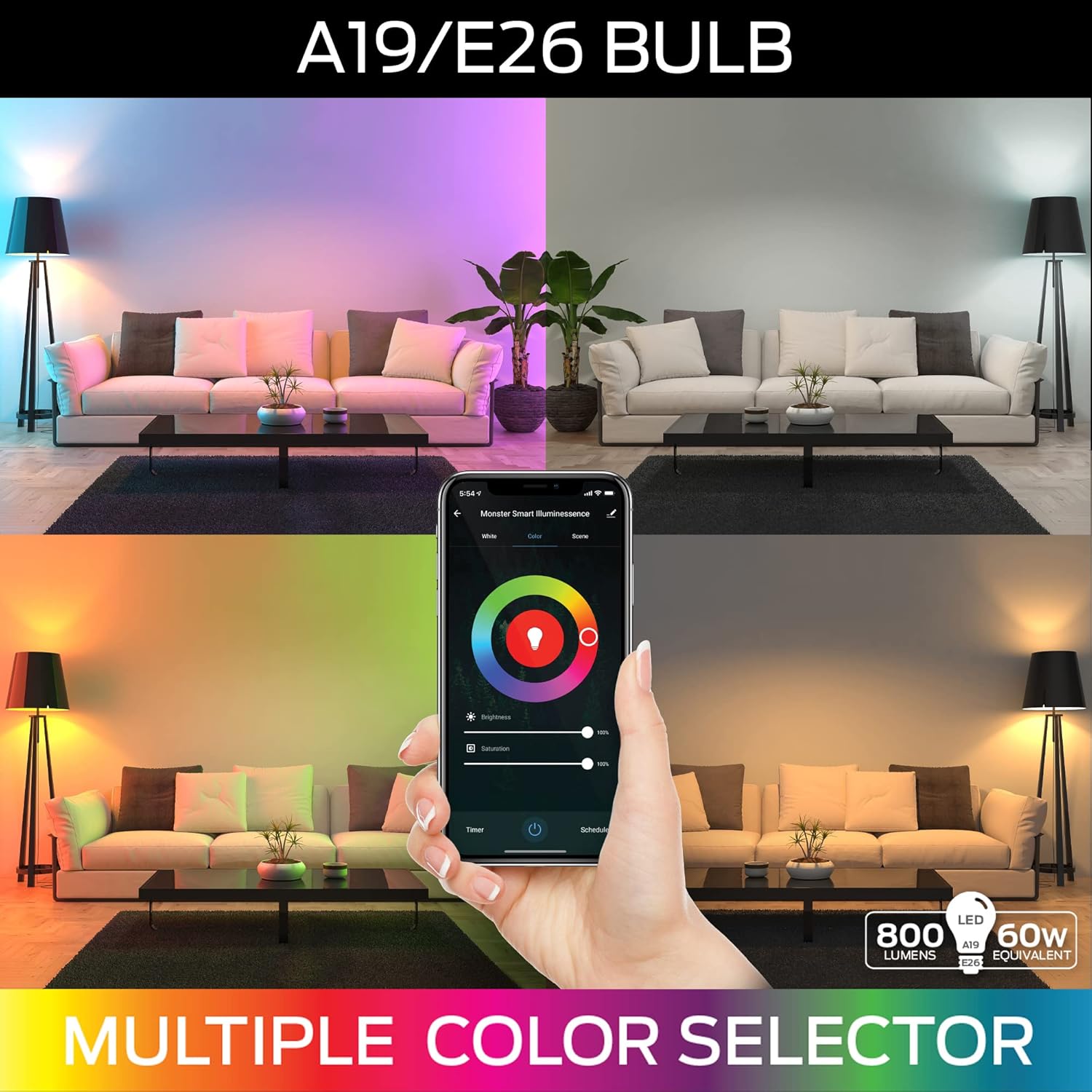
The Monster Smart Illuminessence A19 RGBW LED Bulb is designed to transform your lighting experience. It features a standard A19 shape with an E26 base, making it compatible with most common light fixtures. With 800 lumens of brightness, equivalent to a 60W incandescent bulb, it provides ample illumination. The bulb offers a wide spectrum of colors (RGB) and dedicated warm white light, allowing for versatile ambiance creation.

Setup
1. Physical Installation
- Ensure the power to the light fixture is turned OFF at the wall switch.
- Carefully screw the Monster Smart Illuminessence A19 RGBW LED Bulb into a standard E26 light socket. Do not overtighten.
- Turn the power ON at the wall switch. The bulb should light up.
2. App Installation and Wi-Fi Connection
The Monster Smart App is essential for controlling your bulb's advanced features.
- Download the "Monster Smart" app from the Apple App Store (for iOS) or Google Play Store (for Android).
- Open the app and create an account or log in.
- Ensure your mobile device is connected to a 2.4GHz Wi-Fi network. The bulb requires a 2.4GHz network for initial setup and operation.
- In the app, tap the "+" icon to add a new device.
- Select "Lighting" or "Smart Bulb" from the device list.
- Follow the on-screen instructions to connect your bulb to your Wi-Fi network. This typically involves putting the bulb into pairing mode (often by cycling power 3 times) and entering your Wi-Fi password.

3. Pairing with Voice Assistants (Optional)
Your Monster Smart Bulb is compatible with Google Assistant, Amazon Alexa, and Apple Siri for convenient voice control.
- For Google Assistant: Open the Google Home app, go to "Set up device" > "Works with Google", then search for and link the "Monster Smart" service.
- For Amazon Alexa: Open the Alexa app, go to "Skills & Games", search for and enable the "Monster Smart" skill, then link your account.
- For Apple Siri: Use Siri Shortcuts within the Monster Smart App to create custom voice commands.

Operating Instructions
1. Basic On/Off Control
- Via Wall Switch: You can still use your traditional wall switch to turn the bulb on and off. Note that turning off the bulb via the wall switch will disconnect it from Wi-Fi until it's turned back on.
- Via Monster Smart App: Open the app, select your bulb, and tap the power icon to toggle it on or off.
- Via Voice Assistant: Use commands like "Alexa, turn on the living room light" or "Hey Google, turn off the bedroom light."
2. Changing Colors and Brightness
The Monster Smart App provides full control over the bulb's color and brightness settings.
- Open the Monster Smart App and select your bulb.
- Navigate to the "Color" tab to choose from 16 million colors using the color wheel.
- Switch to the "White" tab to adjust the warm white light.
- Use the brightness slider to adjust the intensity of the light.
- Explore preset "Scenes" or create your own custom lighting effects.
3. Scheduling Your Lights
Automate your lighting to suit your daily routine.
- In the Monster Smart App, select your bulb.
- Tap the "Schedule" icon.
- Add new schedules to turn the bulb ON/OFF at specific times, on specific days, or with specific lighting settings.

4. Razer Chroma RGB Integration
For an enhanced gaming experience, your bulb can sync with Razer Chroma RGB.
- Ensure your Razer Chroma RGB compatible devices and software are up to date.
- Follow the instructions within the Monster Smart App or Razer Synapse software to link your bulb for synchronized lighting effects with games, music, and other peripherals.

Maintenance
The Monster Smart Illuminessence LED Bulb requires minimal maintenance.
- Cleaning: Ensure the bulb is off and cool before cleaning. Wipe with a soft, dry cloth. Do not use liquid cleaners or abrasive materials.
- Storage: If storing the bulb for an extended period, keep it in a cool, dry place away from direct sunlight and extreme temperatures.
Troubleshooting
| Problem | Possible Cause | Solution |
|---|---|---|
| Bulb does not light up. | No power to the fixture; Bulb not screwed in properly; Bulb is faulty. | Check wall switch and circuit breaker. Ensure bulb is securely screwed in. Test bulb in another working fixture. |
| Bulb cannot connect to Wi-Fi. | Incorrect Wi-Fi password; Not on 2.4GHz network; Router too far; Too many devices on network. | Double-check Wi-Fi password. Ensure your phone is on a 2.4GHz network during setup. Move bulb closer to router. Reduce network congestion. Try power cycling the bulb (turn off/on 3 times) to re-enter pairing mode. |
| Voice control not working. | Voice assistant not linked; Incorrect commands; Internet connection issue. | Ensure Monster Smart skill/service is enabled and linked in your voice assistant app. Use precise commands. Check internet connection. |
| App control is delayed or unresponsive. | Weak Wi-Fi signal; App needs refresh; Network congestion. | Improve Wi-Fi signal strength. Close and reopen the Monster Smart App. Restart your router. |
Specifications
| Feature | Detail |
|---|---|
| Model Name | MLB7-1051-RGB |
| Brand | XTREME |
| Light Type | LED |
| Bulb Shape Size | A19 |
| Bulb Base | E26 |
| Wattage (Power Consumption) | 9 Watts |
| Incandescent Equivalent Wattage | 60 Watts |
| Brightness | 800 Lumen |
| Light Color | Multicolor, Warm White |
| Color Temperature | 6000 Kelvin (for white light) |
| Connectivity Technology | Wi-Fi (2.4GHz) |
| Control Method | App Control, Voice Control (Alexa, Google Assistant, Siri) |
| Indoor/Outdoor Usage | Indoor |
| Item Weight | 2.08 ounces |
| UPC | 805106892661 |
Warranty and Support
For warranty information and technical support, please refer to the official XTREME website or contact their customer service. Keep your purchase receipt as proof of purchase for any warranty claims.
Manufacturer: Jem Accessories
Related documentsMLB7-1051-RGB


Ask a question about this manual
Ask about setup, troubleshooting, compatibility, parts, safety, or missing instructions. Manuals+ will review the question and use this page’s manual context to help answer it.