
Draytek V167-K
DrayTek Vigor 167 User Manual
Model: V167-K | Brand: DrayTek
1. Introduction
The DrayTek Vigor 167 is a high-performance VDSL2 35b modem designed to act as an Ethernet bridge. This device seamlessly connects your VDSL internet service to an existing Ethernet-based router or firewall, providing a robust and reliable DSL connection. It is engineered for compatibility with various VDSL2 technologies, ensuring stable and efficient network performance.
This manual provides essential information for setting up, operating, maintaining, and troubleshooting your Vigor 167 modem.
2. Package Contents
Please ensure all items are present in your package:
- DrayTek Vigor 167 Modem
- Power Adapter
- Ethernet Cable
- DSL Cable
- Quick Start Guide (if included)
3. Physical Overview

Figure 3.1: Front view of the DrayTek Vigor 167 modem, showing the indicator LEDs (ACT, P1, P2, DSL) on the top surface.
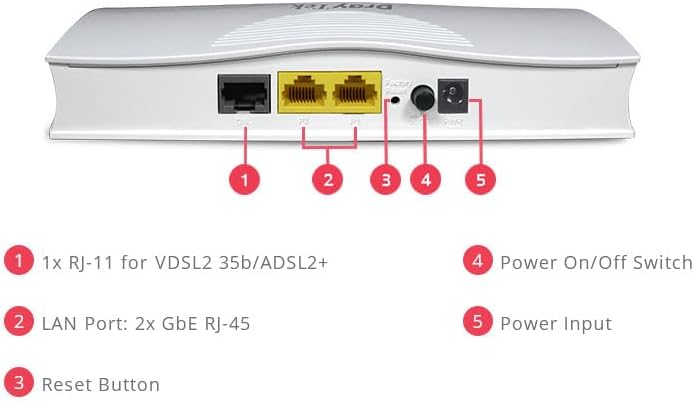
Figure 3.2: Rear view of the DrayTek Vigor 167 modem, highlighting the DSL port, two Gigabit Ethernet LAN ports (P1, P2), Factory Reset button, Power On/Off switch, and Power Input.
LED Indicators:
- ACT: Indicates network activity. Blinks when data is being transmitted or received.
- P1, P2: Indicate status of LAN ports 1 and 2. Lit when a device is connected, blinks with activity.
- DSL: Indicates the status of the DSL connection. Lit when a stable DSL connection is established.
Rear Panel Ports and Buttons:
- DSL Port (RJ-11): Connects to your VDSL/ADSL line from the wall jack.
- LAN Ports (P1, P2 - RJ-45): Two Gigabit Ethernet ports for connecting to your router or other network devices.
- Factory Reset Button: Press and hold for several seconds to restore the modem to its factory default settings.
- Power On/Off Switch: Toggles the power to the device.
- Power Input: Connects to the provided power adapter.
4. Setup Guide
The DrayTek Vigor 167 is designed for plug-and-play operation, acting as a bridge between your DSL line and your router. It does not provide Wi-Fi or routing capabilities itself.
- Connect the DSL Line: Connect one end of the DSL cable to the DSL port (RJ-11) on the rear of the Vigor 167 and the other end to your telephone wall jack or DSL splitter.
- Connect to Your Router: Connect one end of the Ethernet cable to one of the LAN ports (P1 or P2) on the Vigor 167 and the other end to the WAN/Internet port of your existing router or firewall.
- Connect Power: Connect the power adapter to the Power Input port on the Vigor 167 and plug the adapter into a power outlet.
- Power On: Flip the Power On/Off switch to the 'On' position.
- Observe LEDs: Allow a few minutes for the modem to initialize. The DSL LED should eventually light up solid, indicating a stable DSL connection. The P1/P2 LED corresponding to your connected router should also light up.
Once the DSL LED is solid, the Vigor 167 is ready to pass the internet connection to your router. Further configuration, such as PPPoE credentials or IP settings, will typically be handled on your connected router.
5. Operating Instructions
The Vigor 167 operates as a transparent bridge, meaning it converts the DSL signal into an Ethernet signal without performing routing or NAT functions. Your router will then handle the internet connection, IP addressing, and other network services.
Key Features:
- Supports ADSL/ADSL2/ADSL2+/VDSL/VDSL2 technologies.
- IPv4 compatible.
- 1 x RJ-11 VDSL2 35b/ADSL2+ WAN Port.
- 2 x Gigabit Ethernet RJ-45 LAN Ports.
- PPPoA/PPPoE Bridging compatible with ISPs running IPv6.
- Supports download speeds up to 300 Mbps (depending on DSL line and ISP).
For optimal performance, ensure your connected router is properly configured to receive the internet connection from the Vigor 167.
6. Maintenance
To ensure the longevity and optimal performance of your DrayTek Vigor 167 modem, follow these maintenance guidelines:
- Keep Clean: Gently wipe the exterior with a soft, dry cloth. Avoid using liquid cleaners or aerosols.
- Ventilation: Ensure the modem is placed in a well-ventilated area. Do not block the ventilation slots.
- Firmware Updates: Periodically check the DrayTek official website for firmware updates. Keeping the firmware updated can improve performance, stability, and security.
- Power Cycle: If you experience minor connectivity issues, try power cycling the modem by turning it off, waiting 10 seconds, and then turning it back on.
- Factory Reset: In case of persistent issues or if you need to clear all configurations, use the Factory Reset button on the rear panel. Note that this will revert all settings to their default state.
7. Troubleshooting
This section addresses common issues you might encounter with your Vigor 167 modem.
No Internet Connection:
- Check Cables: Ensure all cables (DSL, Ethernet, Power) are securely connected.
- DSL LED Status:
- Off: No DSL signal detected. Check DSL cable connection to wall jack and contact your ISP.
- Blinking: Modem is trying to establish a DSL connection. Wait a few minutes. If it continues to blink, there might be an issue with your DSL line; contact your ISP.
- Solid: DSL connection is established. The issue might be with your router's configuration or ISP service.
- Router Connection: Ensure your router's WAN/Internet port is properly connected to the Vigor 167's LAN port and that the corresponding P1/P2 LED is lit.
- Router Configuration: Remember, the Vigor 167 is a modem, not a router. Your router needs to be configured to obtain an IP address from your ISP (e.g., via PPPoE, DHCP).
Slow Speeds:
- Check DSL Line Quality: Ensure your DSL cable is not too long or damaged. Avoid using phone line splitters unless necessary.
- ISP Service: Verify your subscribed speed with your Internet Service Provider.
- Router Performance: The overall network speed can be limited by your router's capabilities.
Modem Not Responding:
- Power Cycle: Turn off the modem, unplug the power adapter, wait 10 seconds, then plug it back in and power on.
- Factory Reset: If power cycling doesn't help, perform a factory reset by pressing and holding the reset button for about 5-10 seconds until the LEDs flash. Note that this will erase any custom settings (though for a bridge modem, these are usually minimal).
8. Specifications
| Model Number | V167-K |
| Product Dimensions | 7.09 x 12.6 x 3.94 inches (12.6"L x 7.09"W x 3.94"H) |
| Item Weight | 1.78 pounds |
| Connectivity Technology | Ethernet |
| WAN Port | 1 x RJ-11 (VDSL2 35b/ADSL2+) |
| LAN Ports | 2 x Gigabit Ethernet RJ-45 |
| Compatible Devices | Router, Laptop, Personal Computer |
| Internet Service Provider Compatibility | DSL providers (e.g., AT&T, Verizon, BT, Deutsche Telekom) |
| Manufacturer | DrayTek |
9. Warranty and Support
Specific warranty details for the DrayTek Vigor 167 are not provided within this manual. For comprehensive warranty information, including terms, conditions, and duration, please refer to the official DrayTek website or contact your point of purchase.
For technical support, firmware downloads, and additional resources, please visit the official DrayTek support portal or contact their customer service department.
Related documentsV167-K


Ask a question about this manual
Ask about setup, troubleshooting, compatibility, parts, safety, or missing instructions. Manuals+ will review the question and use this page’s manual context to help answer it.