
Vanja 430C
Vanja USB-C SD Card Reader (Model 430C) User Manual
Comprehensive instructions for setup, operation, and maintenance.
1. Introduction
This manual provides detailed instructions for the Vanja USB-C SD Card Reader, Model 430C. This device is designed for high-speed data transfer between various memory cards and USB-C enabled devices. Please read this manual thoroughly to ensure proper usage and optimal performance.
2. Product Overview
The Vanja USB-C SD Card Reader (Model 430C) is a compact and efficient tool for managing data from various memory card formats. It features a USB-C interface for broad compatibility and high-speed data transfer.
Key Features:
- USB 3.2 Gen 1 Interface: Supports data transfer speeds up to 5 Gbps, enabling quick transfer of large files.
- Universal Card Compatibility: Reads SD, MicroSD, SDXC, SDHC, MMC, and UHS-I cards up to 2TB capacity.
- Wide Device Support: Compatible with iPhone 15/16 series, MacBook Pro, iPad, Mac desktops, Windows laptops, and USB-C Android devices.
- Wired Connection: Ensures stable and reliable data transfer without wireless interference or battery concerns.
- Plug & Play: No drivers or complex setup required for most operating systems (iOS, iPadOS, macOS, Windows, Android).
- Compact and Durable Design: Features an aluminum shell for heat dissipation and a nylon cable for enhanced durability.
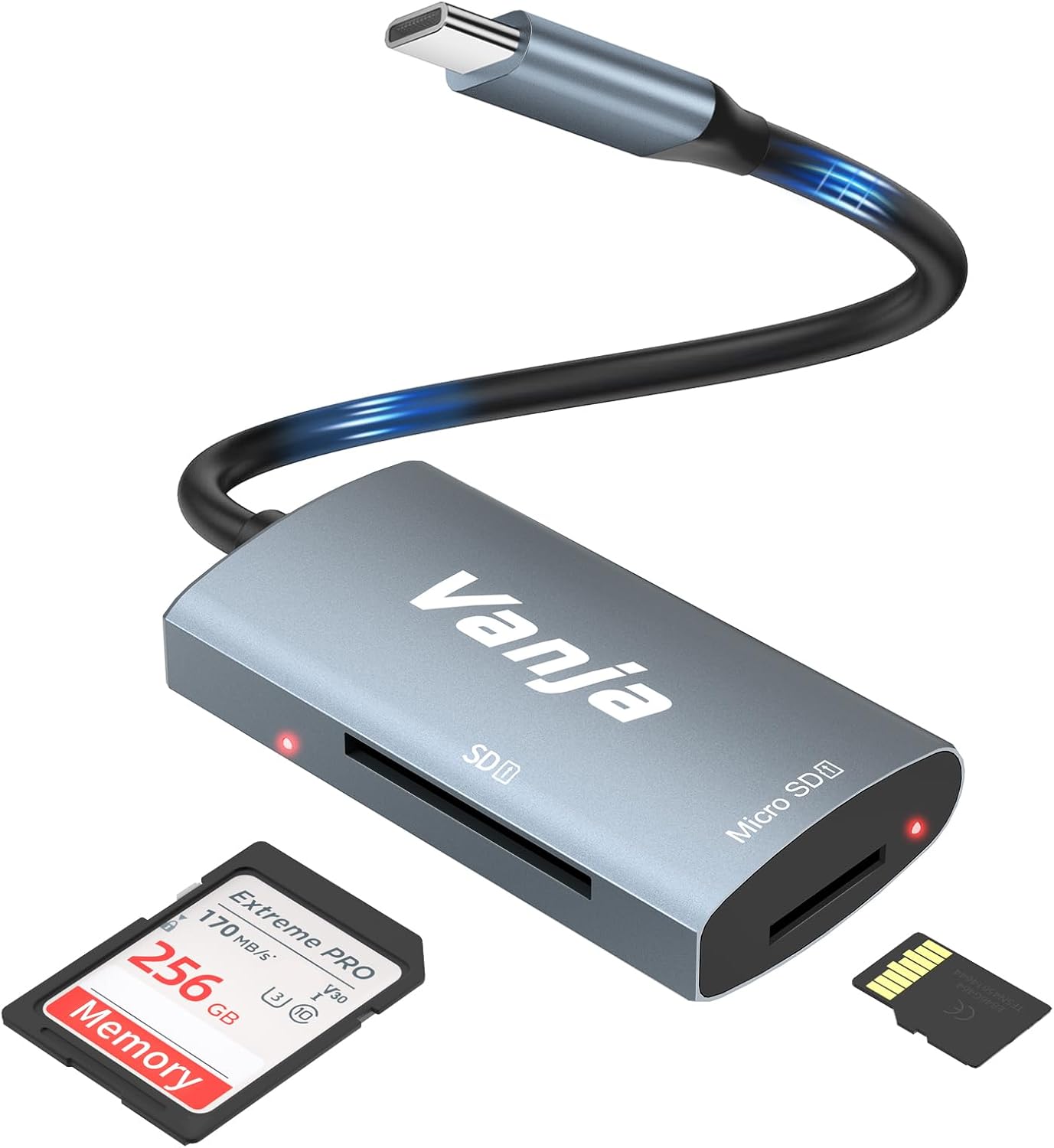
Figure 1: The Vanja USB-C SD Card Reader, showing its USB-C connector, SD card slot, and MicroSD card slot, alongside an SD card and a MicroSD card.
3. Setup Instructions
The Vanja USB-C SD Card Reader is designed for simple plug-and-play operation. No software installation or drivers are typically required.
- Insert Memory Card: Gently insert your SD card into the SD slot or your MicroSD card into the MicroSD slot on the card reader. Ensure the card is inserted correctly with the contacts facing down. A slight click indicates it is securely in place.
- Connect to Device: Plug the USB-C connector of the card reader into an available USB-C port on your compatible device (e.g., iPhone 15/16, MacBook, iPad, Windows laptop, Android phone).
- Access Files: Your device should automatically detect the card reader and the inserted memory card. You can then access the files through your device's file manager or photo application.
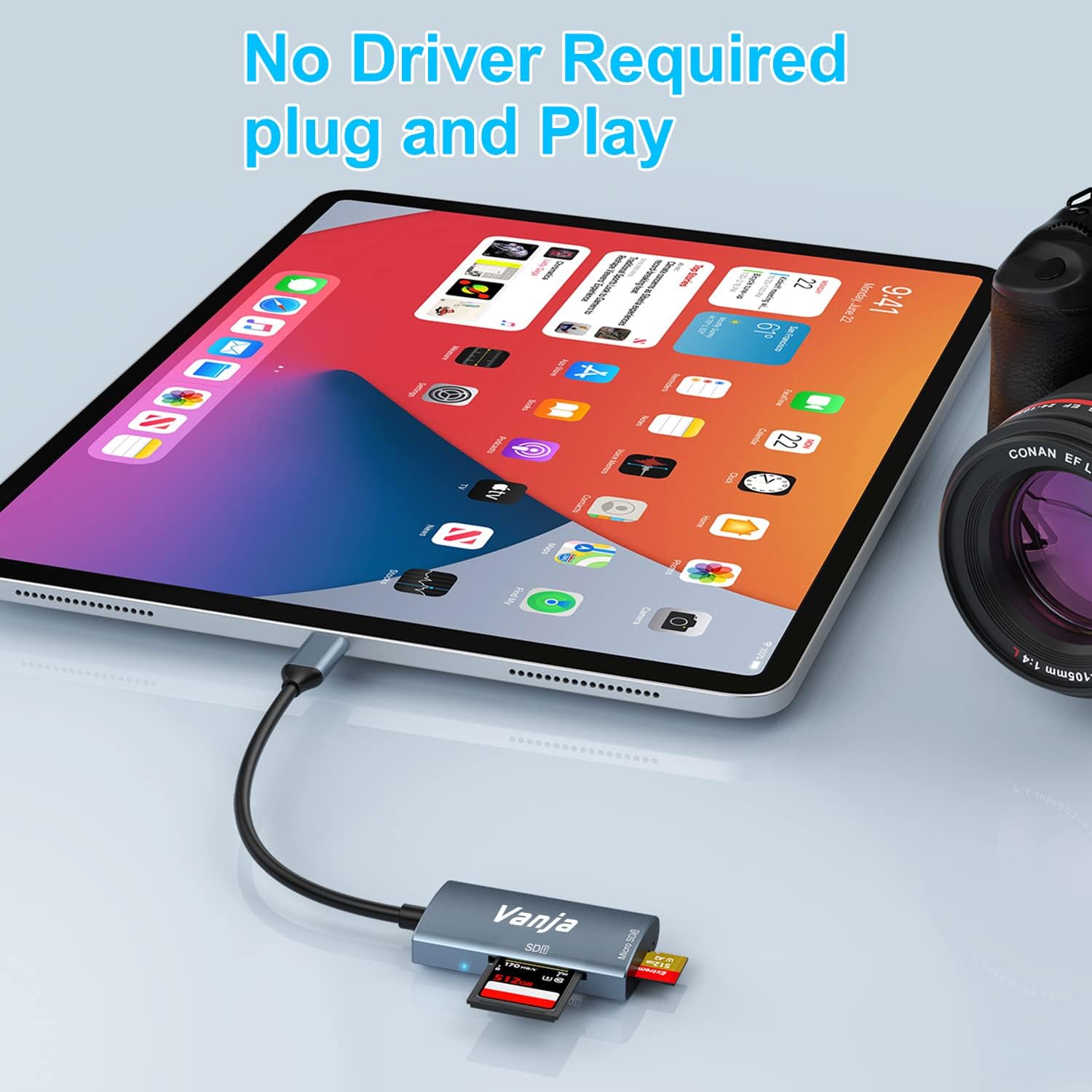
Figure 2: The card reader connected to an iPad Pro, demonstrating the plug-and-play functionality with a MicroSD card inserted.
4. Operating Instructions
Once connected, the card reader functions like any external storage device.
Data Transfer:
- Locate Drive: On Windows, the card will appear as a removable drive under "This PC." On macOS, it will appear on the desktop or in Finder. On iOS/iPadOS, access it via the "Files" app. On Android, use your device's file manager.
- Copy/Move Files: Drag and drop files between the memory card and your device's internal storage, or use the copy/paste functions provided by your operating system.
- Eject Safely: Always safely eject the memory card or card reader from your operating system before physically disconnecting it to prevent data corruption.

Figure 3: The card reader connected to a laptop, illustrating high-speed data transfer (5 Gbps) between a memory card and the computer.
5. Compatibility
Supported Memory Card Types:
- SD Card
- MicroSD Card (TF Card)
- SDHC
- SDXC
- MMC
- UHS-I Cards
- Supports capacities up to 2TB.
Compatible Devices and Operating Systems:
- Apple Devices: iPhone 15/16 series (USB-C models), MacBook Pro, iPad (USB-C models), Mac desktops.
- Windows Devices: Laptops and desktops with USB-C ports.
- Android Devices: Samsung Galaxy smartphones and other USB-C enabled Android phones/tablets.
- Operating Systems: iOS, iPadOS, macOS, Windows, Android, Linux, Chrome OS.

Figure 4: Visual representation of the universal compatibility of the card reader with different memory card formats and USB-C enabled devices.
6. Specifications
| Brand | Vanja |
| Model Number | 430C |
| Connectivity Technology | USB Type C (USB 3.2 Gen 1) |
| Data Transfer Speed | Up to 5 Gbps |
| Supported Media Types | SD Card, SDHC, SDXC, microSD, microSDHC, MMC, UHS-I |
| Max Capacity Supported | 2TB (depending on card type) |
| Operating System Compatibility | Android, iOS, Linux, Mac OS, Windows |
| Item Weight | 1.13 ounces (approx. 32 grams) |
| Package Dimensions | 5.35 x 3.35 x 0.55 inches (approx. 13.6 x 8.5 x 1.4 cm) |
| Color | Blue-Gray |
| Special Features | Compact, Easy Setup, Plug & Play, Aluminum Housing, Nylon Cable |
7. Troubleshooting
If you encounter issues with your Vanja USB-C SD Card Reader, try the following solutions:
- Device Not Recognized:
- Ensure the card reader is firmly plugged into the USB-C port of your device.
- Try a different USB-C port on your device, if available.
- Restart your computer or device.
- Check if the memory card is properly inserted into the card reader.
- Test the card reader with a different memory card to rule out card issues.
- Ensure your device's operating system is up to date.
- Slow Data Transfer:
- Verify that your device's USB-C port supports USB 3.0/3.1/3.2 speeds. Older USB 2.0 ports will result in slower transfers.
- Ensure your memory card is a high-speed card (e.g., UHS-I or faster).
- Avoid transferring many small files simultaneously; compressing them into an archive can sometimes improve speed.
- Close other applications that might be consuming system resources.
- Memory Card Not Reading:
- Check if the memory card is damaged or corrupted. Try it in another device if possible.
- Ensure the memory card is inserted in the correct orientation.
- Clean the contacts on the memory card with a soft, dry cloth.
8. Maintenance
To ensure the longevity and optimal performance of your Vanja USB-C SD Card Reader, follow these maintenance guidelines:
- Keep Clean: Use a soft, dry cloth to clean the exterior of the card reader. Avoid using liquid cleaners or solvents.
- Protect Ports: Keep the card slots and USB-C connector free from dust and debris. Use compressed air if necessary, but gently.
- Store Properly: When not in use, store the card reader in a cool, dry place, away from direct sunlight and extreme temperatures.
- Handle with Care: Avoid dropping the device or subjecting it to strong impacts. Do not force memory cards into the slots.
9. Warranty and Support
For warranty information, technical support, or further assistance with your Vanja USB-C SD Card Reader, please refer to the official Vanja website or contact their customer service directly.
You can visit the official Vanja store for more product information and support resources: Vanja Store on Amazon.
Related documents430C


Ask a question about this manual
Ask about setup, troubleshooting, compatibility, parts, safety, or missing instructions. Manuals+ will review the question and use this page’s manual context to help answer it.