
1. Introduction
This manual provides detailed instructions for the setup, operation, maintenance, and troubleshooting of your Arteck Bluetooth Keyboard (Model: Arteck-BT-UniversalWave). Please read this manual thoroughly to ensure proper use and to maximize the lifespan of your device.
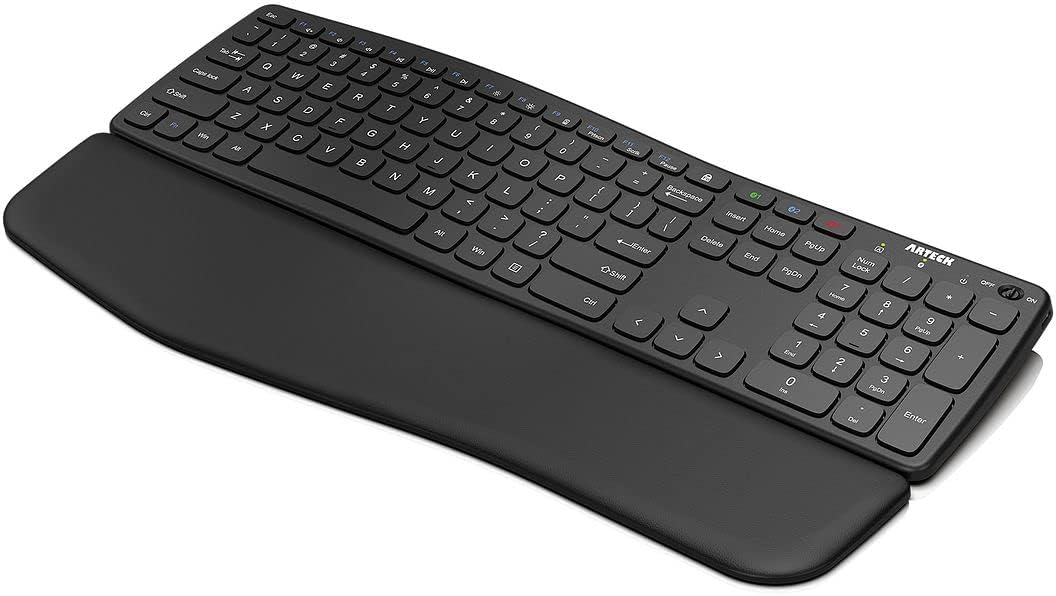
Figure 1: Arteck Bluetooth Keyboard with detachable palm rest.
2. Setup
2.1. Package Contents
Verify that all items are present in your package:
- Arteck Bluetooth Keyboard
- Detachable Palm Rest
- USB-C Charging Cable
- Welcome Guide
2.2. Charging the Keyboard
Before first use, fully charge the keyboard. Connect the supplied USB-C charging cable to the keyboard's charging port and to a USB power source. The charging indicator light will show the charging status. A full charge provides approximately 6 months of use based on 2 hours per day.
2.3. Attaching the Detachable Palm Rest
The keyboard includes a detachable palm rest designed for ergonomic comfort. Align the palm rest with the bottom edge of the keyboard. Magnets will secure it in place. To detach, gently pull the palm rest away from the keyboard.

Figure 2: The detachable palm rest features multiple layers for comfort.
2.4. Adjusting Keyboard Height
The keyboard features foldable legs on the underside, allowing you to adjust the typing angle for personalized comfort. Extend the legs to raise the keyboard's rear, or fold them back for a flatter profile.

Figure 3: The keyboard's wave design and adjustable feet promote a natural typing position.
3. Operating Instructions
3.1. Power On/Off
Locate the power switch on the top right side of the keyboard. Slide the switch to the 'ON' position to power on the keyboard. Slide it to 'OFF' when not in use to conserve battery life.
3.2. Bluetooth Pairing
The Arteck Bluetooth Keyboard can connect to up to three devices simultaneously. Follow these steps to pair your device:
- Turn on the keyboard using the power switch.
- Press and hold one of the Bluetooth channel keys (BT1, BT2, or BT3) for 3-5 seconds until its indicator light flashes rapidly. This indicates the keyboard is in pairing mode.
- On your device (computer, tablet, smartphone), go to Bluetooth settings and search for available devices.
- Select "Arteck-BT-UniversalWave" from the list of found devices.
- If prompted, enter the pairing code displayed on your screen using the Arteck keyboard and press Enter.
- The indicator light for the selected Bluetooth channel will stop flashing and remain solid, indicating a successful connection.

Figure 4: Easily switch between up to three paired devices using the dedicated Bluetooth channel keys.
3.3. Multi-Device Switching
Once paired with multiple devices, you can switch between them by simply pressing the corresponding Bluetooth channel key (BT1, BT2, or BT3). The keyboard will automatically connect to the selected device.
3.4. Compatibility
The Arteck Bluetooth Keyboard is compatible with all four major operating systems that support Bluetooth: Windows, iOS, iPad OS, and Android. This includes various devices such as laptops, desktop PCs, tablets (iPad Pro, iPad Air, iPad, iPad Mini, Samsung Galaxy, Surface), and smartphones (iPhone, Android phones).
3.5. Special Function Keys
The keyboard features system-specific function keys for each operating system, providing quick access to common functions like volume control, playback control, and screen brightness. Refer to your device's operating system documentation for specific key functions.
3.6. Typing Experience
The keyboard's wave design is intended to position wrists and forearms in a natural, relaxed posture. The whisper-quiet, low-profile keys are designed for comfortable and efficient typing.

Figure 5: The palm rest supports a comfortable hand position during typing.
4. Maintenance
4.1. Cleaning
To clean the keyboard, gently wipe the surface with a soft, damp cloth. Avoid using harsh chemicals or abrasive materials that could damage the finish. Ensure the keyboard is powered off before cleaning.
4.2. Battery Care
To prolong battery life, avoid exposing the keyboard to extreme temperatures. Recharge the keyboard when the battery indicator shows low power. It is recommended to fully charge the keyboard at least once every few months if not in regular use.
5. Troubleshooting
If you encounter issues with your Arteck Bluetooth Keyboard, please refer to the following common solutions:
- Keyboard not connecting: Ensure the keyboard is powered on and fully charged. Check that Bluetooth is enabled on your device and that the keyboard is within range. Try re-pairing the keyboard by following the Bluetooth Pairing instructions (Section 3.2).
- Keys not responding: Verify the keyboard is connected to the correct device. If specific keys are unresponsive, try cleaning around the keys to remove any debris. Ensure the keyboard is adequately charged.
- Incorrect characters typing: This may indicate an incorrect language or keyboard layout setting on your operating system. Adjust these settings in your device's system preferences.
- Lag or delay in typing: Ensure there are no strong interference sources nearby (e.g., other wireless devices). Try moving closer to your connected device.
6. Specifications
| Feature | Detail |
|---|---|
| Product Dimensions | 41.9 x 12.8 x 0.4 inches (41.9 cm L x 12.8 cm W x 1.03 cm H) |
| Item Weight | 1.76 pounds (496 g) |
| Manufacturer | Arteck |
| Item Model Number | Arteck-BT-UniversalWave |
| Batteries | 1 AAA batteries required (included, likely internal rechargeable) |
| Connectivity Technology | Bluetooth |
| Compatible Devices | Laptop, PC, Smart TV, Smartphone, Tablet |
| Keyboard Description | Comfortable, Wave Design |
| Special Features | Comfortable, Customizable Display Keys, Hotkeys and Media Keys, Rechargeable, Wrist Rest |
| Color | Black |
| Material | Plastic |

Figure 6: Detailed dimensions and weight of the keyboard and palm rest.
7. Warranty and Support
7.1. Warranty Information
Your Arteck Bluetooth Keyboard comes with a 24-month warranty from the date of purchase. This warranty covers manufacturing defects and ensures the product functions as intended under normal use. Please retain your proof of purchase for warranty claims.
7.2. Customer Service
For technical support, warranty claims, or any questions regarding your Arteck product, please refer to the contact information provided in your Welcome Guide or visit the official Arteck website for assistance.