
PDP 049-023-RB
PDP Gaming REMATCH Advanced Wired Controller User Manual
Model: 049-023-RB
Brand: PDP
Introduction
This manual provides comprehensive instructions for the setup, operation, maintenance, and troubleshooting of your PDP Gaming REMATCH Advanced Wired Controller. Designed for Xbox Series X|S, Xbox One, and PC, this controller offers advanced customization options through the PDP Control Hub App to enhance your gaming experience.
Package Contents
- PDP Gaming REMATCH Advanced Wired Controller
- Detachable 8-foot USB-C Cable
- Instruction Manual
Setup
Connecting the Controller
The PDP Gaming REMATCH Advanced Wired Controller connects directly to your console or PC via its detachable USB-C cable. Ensure the cable is securely connected to both the controller and your device.
- Locate the USB-C port on the top of the controller.
- Insert the smaller end of the detachable USB-C cable into the controller's USB-C port.
- Insert the larger USB-A end of the cable into an available USB port on your Xbox console or PC.
- The controller will automatically power on and connect to your device.

Image: Front view of the PDP Gaming REMATCH Advanced Wired Controller. This image displays the overall design of the controller, including the joysticks, D-pad, face buttons (A, B, X, Y), Xbox button, and other control buttons.

Image: Close-up view of the detachable USB-C cable connected to the top of the controller. This highlights the wired connection feature and the robust design of the cable port.
Installing the PDP Control Hub App
For advanced customization and diagnostics, download the free PDP Control Hub App from the Microsoft Store on your Xbox console or Windows PC.
- Open the Microsoft Store on your Xbox or PC.
- Search for "PDP Control Hub".
- Download and install the application.
- Connect your controller to your device before launching the app to ensure proper recognition.

Image: A screenshot of the PDP Control Hub App interface, showing options for customizing controller settings such as trigger sensitivity and button remapping.
Operating the Controller
Basic Controls
The controller features standard Xbox button layouts, including:
- Analog Sticks: Left and Right analog sticks for movement and camera control.
- D-Pad: Directional Pad for precise directional input.
- Face Buttons: A, B, X, Y buttons for primary actions.
- Shoulder Buttons & Triggers: LB, RB, LT, RT for various in-game functions.
- Xbox Button: Powers on the console, opens the Guide, and returns to the Home screen.
- View Button: Opens the View menu.
- Menu Button: Opens the Menu.
- Share Button: Captures screenshots and game clips.
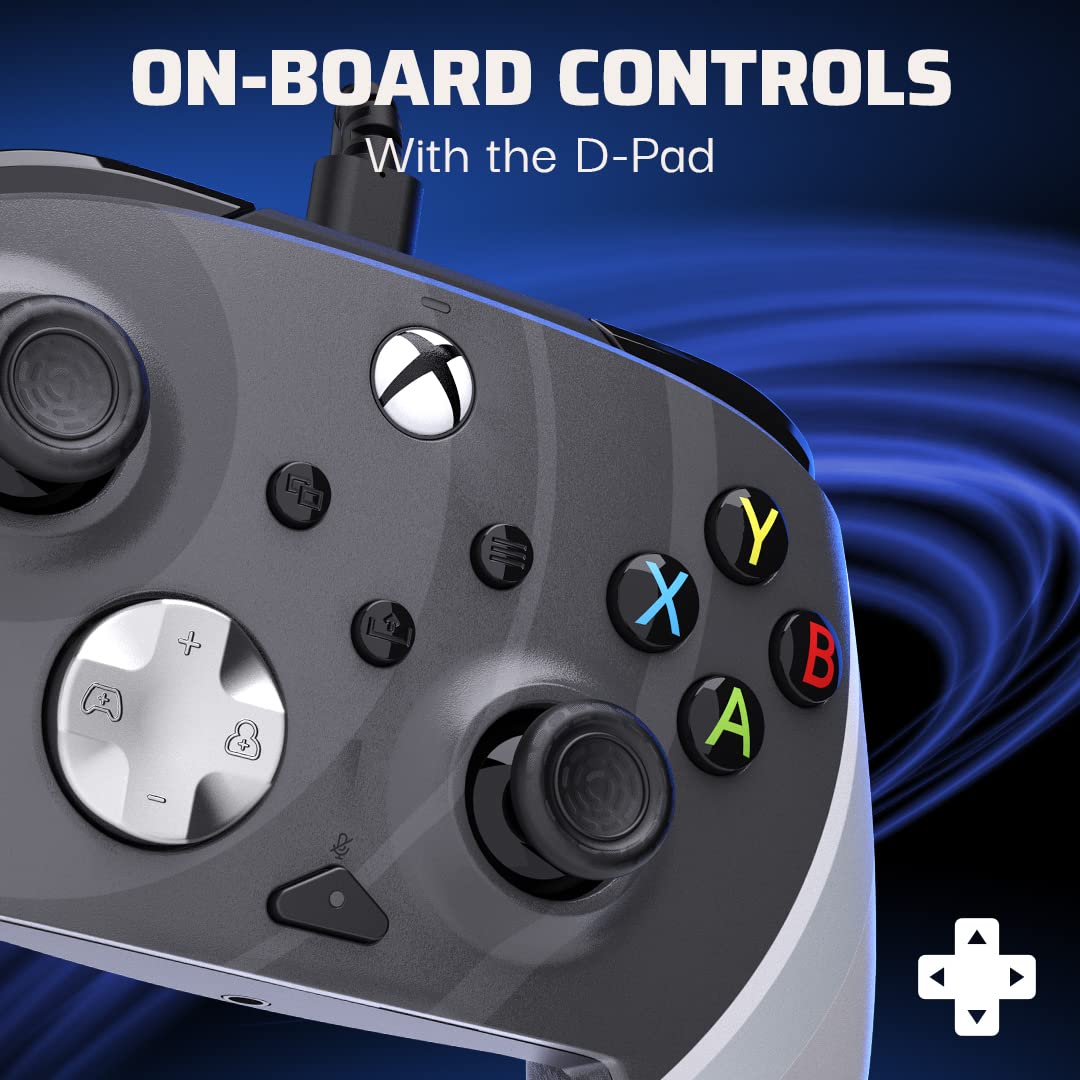
Image: A detailed view of the controller's D-pad and surrounding buttons, illustrating the on-board controls available for gameplay.
Programmable Back Buttons
The controller features two programmable back buttons for quicker responses and custom gameplay. These can be mapped to any standard controller button using the PDP Control Hub App.
- Launch the PDP Control Hub App with your controller connected.
- Navigate to the "Re-Map Buttons" section.
- Select the back button you wish to program.
- Choose the desired button function from the available options.
- Save your changes.

Image: The rear view of the controller, highlighting the two programmable back buttons located on the grips, designed for enhanced control.
Audio Features
The controller includes integrated audio controls for convenience:
- 3.5mm Headset Jack: Connect your gaming headset for audio and chat.
- Mic Mute Button: Quickly mute your microphone directly from the controller.
- D-Pad Volume Control: Use the D-pad in conjunction with the Function button to adjust game and chat audio levels. Refer to the PDP Control Hub App for detailed audio settings.
Maintenance
Cleaning the Controller
To maintain the longevity and appearance of your controller:
- Disconnect the controller from your console or PC before cleaning.
- Use a soft, dry cloth to wipe down the surface of the controller.
- For stubborn dirt, slightly dampen the cloth with water or a mild, non-abrasive cleaner. Avoid excessive moisture.
- Do not use harsh chemicals, solvents, or abrasive materials, as these can damage the controller's finish.
- Use a cotton swab or compressed air to clean around buttons and joysticks if dust or debris accumulates.
Cable Care
The detachable USB-C cable is designed for durability, but proper care will extend its life:
- Always grasp the plug, not the cable, when connecting or disconnecting.
- Avoid sharp bends or kinks in the cable.
- Do not place heavy objects on the cable.
- Store the cable neatly coiled when not in use.
Troubleshooting
| Issue | Possible Cause | Solution |
|---|---|---|
| Controller not responding/connecting. | Loose cable connection, incorrect USB port, driver issue (PC). |
|
| Buttons/Joysticks not working correctly. | Debris, calibration issue, app settings conflict. |
|
| No audio or microphone not working. | Headset not fully plugged in, mic mute active, audio settings. |
|
For further assistance, refer to the PDP Control Hub App's diagnostic tools or visit the official PDP support website.
Specifications
- Model Number: 049-023-RB
- Connectivity: Wired USB-C (detachable 8-foot cable)
- Compatibility: Xbox Series X|S, Xbox One, PC (Windows)
- Dimensions: 3.23 x 6.89 x 6.89 inches
- Weight: 12.7 ounces
- Customization: Via PDP Control Hub App (button remapping, trigger adjustment, audio, vibration)
- Audio: 3.5mm headset jack, mic mute button, D-pad volume control
- Special Features: Programmable back buttons, textured grips
Warranty and Support
PDP products are designed for quality and performance. For information regarding warranty coverage, technical support, or frequently asked questions, please visit the official PDP support website:
Please retain your proof of purchase for warranty claims.
Related documents049-023-RB


Ask a question about this manual
Ask about setup, troubleshooting, compatibility, parts, safety, or missing instructions. Manuals+ will review the question and use this page’s manual context to help answer it.