
1. Introduction
This manual provides comprehensive instructions for the installation, operation, and maintenance of your Hyperkin Mini Wireless USB Adapter N 950M. This device allows you to connect your desktop or laptop computer to a wireless network at speeds up to 950Mbps, utilizing the 802.11n standard on the 2.4 GHz frequency band. Please read this manual carefully before using the product.
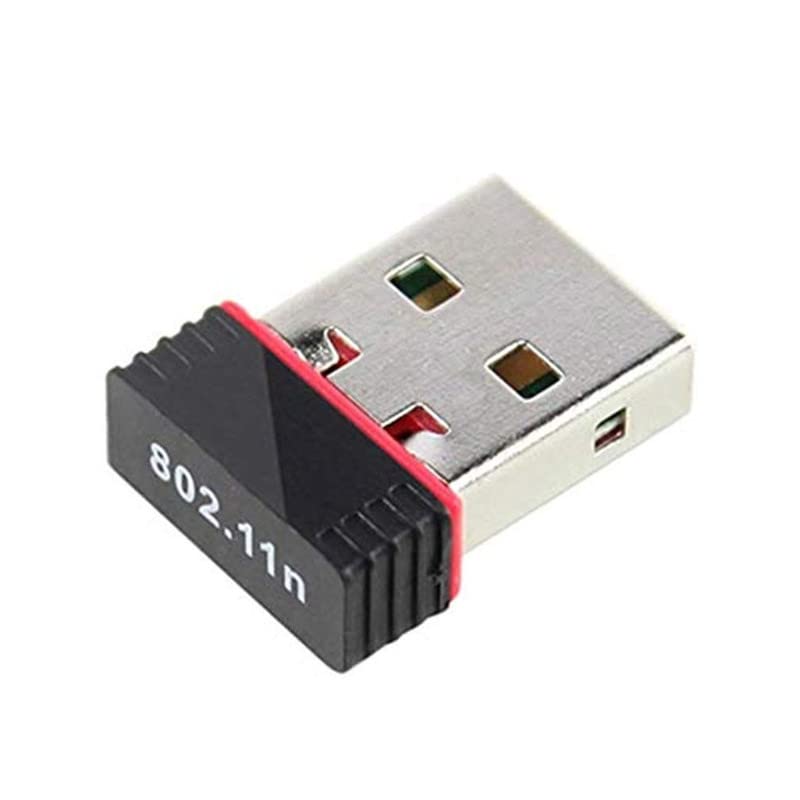
Image 1.1: The Hyperkin Mini Wireless USB Adapter N 950M.
2. Features
- High-Speed Wireless Connectivity: Achieves wireless data transfer rates up to 950Mbps, enhanced by MIMO technology.
- Wide Compatibility: Supports Windows XP, 7, 8, 10, and Mac OS operating systems.
- Soft AP Mode: Functionality to create a Wi-Fi hotspot, allowing other devices to connect to your computer's internet connection.
- Wireless Modes: Operates in Ad-Hoc (peer-to-peer) and Infrastructure (client-to-router) modes.
- Frequency Band: Operates within the 2.4 GHz to 2.4835 GHz frequency range.
- Security Protocols: Supports 64/128-bit WEP, WPA, and WPA2-PSK for secure wireless connections.
- Standard Compliance: Fully compliant with IEEE 802.11n, IEEE 802.11g, and IEEE 802.11b standards.
- Interface: USB 2.0 for high-speed connection to your computer.
- Internal Antenna: Features an integrated antenna for compact design.
- Easy Configuration: Includes a bundled utility for simplified setup and monitoring.

Image 2.1: Product packaging highlighting key features and specifications.
3. Package Contents
Verify that your package contains the following items:
- 1 x Hyperkin Mini Wireless USB Adapter N 950M (OT-WUA950NM)
If any item is missing or damaged, please contact your retailer.
4. System Requirements
Before installing the adapter, ensure your computer meets the following minimum requirements:
- Operating System: Windows XP, Windows 7, Windows 8, Windows 10, or Mac OS.
- Available USB 2.0 port.
- Minimum 1 GHz processor.
- Minimum 256 MB RAM.

Image 4.1: Adapter compatible with various Windows operating systems.
5. Setup
5.1 Driver Installation
- Insert the Driver CD: If your computer has an optical drive, insert the included driver CD. If not, download the latest drivers from the Hyperkin support website.
- Run Setup: Navigate to the CD drive or downloaded folder and run the 'Setup.exe' (for Windows) or 'Install.pkg' (for Mac) file.
- Follow On-Screen Prompts: Follow the instructions provided by the installation wizard. You may need to restart your computer after installation.
5.2 Connecting the Adapter
- Locate an available USB port on your desktop or laptop computer.
- Gently insert the Hyperkin Mini Wireless USB Adapter into the USB port. Ensure it is fully seated.
- The operating system should detect the new hardware and, if drivers are installed, recognize the adapter.

Image 5.1: The compact size of the adapter when connected to a laptop.
6. Operating Instructions
6.1 Client Mode (Connecting to a Wi-Fi Network)
- After successful driver installation and adapter connection, the wireless utility or your operating system's network settings will detect available Wi-Fi networks.
- Click on the network icon in your system tray (Windows) or menu bar (Mac).
- Select your desired Wi-Fi network (SSID) from the list.
- If prompted, enter the network security key (password) and click 'Connect'.
- Once connected, the network icon will indicate a successful connection, and you can access the internet.
6.2 Soft AP Mode (Creating a Wi-Fi Hotspot)
The Soft AP mode allows your computer to act as a wireless access point, sharing its internet connection with other Wi-Fi enabled devices.
- Open the wireless utility software installed with the adapter drivers.
- Locate and select the 'Soft AP' or 'Access Point Mode' option.
- Configure the network name (SSID), security type (e.g., WPA2-PSK), and a strong password for your new hotspot.
- Enable the Soft AP mode. Your computer will now broadcast a Wi-Fi signal.
- Other devices can now search for your created network and connect using the password you set.

Image 6.1: The adapter emitting a Wi-Fi signal.
7. Security Configuration
It is highly recommended to secure your wireless network to prevent unauthorized access. The adapter supports the following security protocols:
- WEP (Wired Equivalent Privacy): An older, less secure protocol (64/128-bit). Not recommended for new setups.
- WPA (Wi-Fi Protected Access): An improved security protocol.
- WPA2-PSK (Wi-Fi Protected Access II - Pre-Shared Key): The most recommended security protocol for home and small office networks, offering robust encryption.
When connecting to a network or setting up Soft AP mode, always choose WPA2-PSK and use a strong, unique password.
8. Specifications
| Model Number | OT-WUA950NM |
| Interface | USB 2.0 |
| Wireless Standards | IEEE 802.11n, IEEE 802.11g, IEEE 802.11b |
| Frequency Range | 2.4 GHz - 2.4835 GHz |
| Data Rate | Up to 950 Mbps |
| Modulation | BKSK, QPSK, CCK, OFDM |
| Spread Spectrum | DSSS |
| Transmit Power | 17 dBm (max) |
| Antenna Type | Internal Antenna |
| Operating Systems | Windows XP/7/8/10, Mac OS |
| Wireless Security | 64/128-bit WEP, WPA, WPA2-PSK |
9. Troubleshooting
- No Wi-Fi Networks Detected:
- Ensure the adapter is properly inserted into a USB port.
- Verify that drivers are correctly installed. Check Device Manager (Windows) or System Information (Mac).
- Make sure your router is powered on and broadcasting a signal.
- Try restarting your computer and the router.
- Cannot Connect to a Network:
- Double-check the Wi-Fi password (security key). Passwords are case-sensitive.
- Ensure you are within range of the Wi-Fi network.
- Temporarily disable any firewall or antivirus software to see if it's interfering.
- Slow Connection Speed:
- Ensure your router supports 802.11n and is configured for optimal performance.
- Reduce interference by moving the adapter or router away from other electronic devices.
- Update the adapter drivers to the latest version.
- Check for other devices consuming bandwidth on your network.
10. Maintenance
To ensure optimal performance and longevity of your Hyperkin Mini Wireless USB Adapter:
- Keep the adapter clean and free from dust. Use a soft, dry cloth for cleaning.
- Avoid exposing the adapter to extreme temperatures, humidity, or direct sunlight.
- Do not attempt to disassemble or repair the adapter yourself. This will void the warranty.
- Always remove the adapter by pulling the body, not the USB connector.
11. Warranty and Support
Hyperkin products are designed for reliability and performance. For warranty information and technical support, please refer to the warranty card included with your product or visit the official Hyperkin website. Please have your model number (OT-WUA950NM) and purchase details ready when contacting support.
