
1. Introduction
Thank you for choosing the Leopold x MK FC660MBT Vapor 65% Double Shot PBT Wireless/Bluetooth Mechanical Keyboard. This compact and versatile keyboard is designed for both wired and wireless use, featuring genuine Cherry MX mechanical switches and durable double-shot PBT keycaps. This manual provides detailed instructions to help you set up, operate, and maintain your new keyboard.
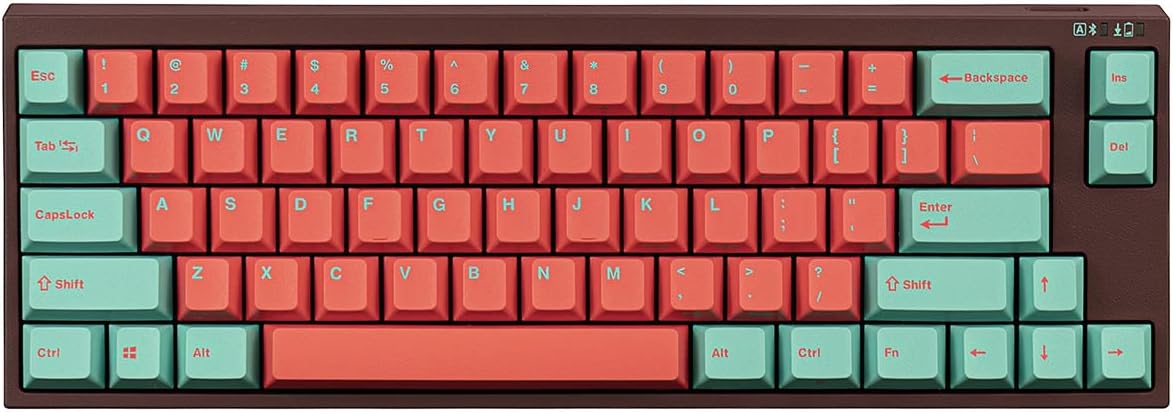
Image: Front view of the Leopold FC660MBT Vapor 65% Mechanical Keyboard, showcasing its compact layout and two-tone keycaps.
Key Features:
- Supports Bluetooth 5.1 connectivity for wireless freedom.
- Equipped with genuine Cherry MX mechanical switches for reliable performance.
- Features durable Cherry profile Double Shot PBT keycaps.
- Compact 65% layout, optimizing desk space while retaining essential keys.
- Includes a USB-C cable for wired connection and charging.
2. What's in the Box
Upon unboxing your Leopold FC660MBT keyboard, please ensure all the following items are present:
- Leopold FC660MBT Vapor 65% Mechanical Keyboard
- USB-C Cable
- Two AAA Batteries (typically included for wireless functionality)
- Keycap Puller
- User Manual (this document)

Image: The Leopold FC660MBT keyboard, its retail box, USB-C cable, two AAA batteries, and a keycap puller, illustrating the complete package contents.
3. Setup
3.1 Battery Installation
- Locate the battery compartment on the underside of the keyboard.
- Open the battery compartment cover.
- Insert two AAA batteries, ensuring correct polarity (+/-).
- Close the battery compartment cover securely.
3.2 Wired Connection
- Connect the smaller end of the included USB-C cable to the USB-C port on the keyboard.
- Connect the larger end of the USB-C cable to an available USB port on your computer.
- The keyboard will be automatically recognized and ready for use.
3.3 Bluetooth Pairing
Before pairing, ensure your computer's Bluetooth is enabled.
- On the keyboard, locate the mode switch (usually on the back or side) and set it to 'Bluetooth' or 'Wireless' mode.
- Press and hold the Fn key + a designated Bluetooth pairing key (e.g., Fn + F1, F2, or F3, refer to keyboard legends if available) for a few seconds until the Bluetooth indicator light on the keyboard starts blinking rapidly. This indicates it's in pairing mode.
- On your computer, go to Bluetooth settings and search for new devices.
- Select 'Leopold FC660MBT' (or similar name) from the list of available devices.
- Follow any on-screen prompts to complete the pairing process. The indicator light on the keyboard will become solid when successfully paired.
4. Operating Instructions
4.1 Switching Between Wired and Wireless Modes
The FC660MBT keyboard allows seamless switching between wired USB-C and wireless Bluetooth connections.
- Wired Mode: Connect the USB-C cable to the keyboard and your computer. Ensure the mode switch on the keyboard is set to 'Wired' or 'USB'.
- Wireless (Bluetooth) Mode: Disconnect the USB-C cable and set the mode switch on the keyboard to 'Bluetooth' or 'Wireless'. The keyboard will automatically connect to the last paired device.
4.2 Function Key Usage (Fn Combinations)
Due to its compact 65% layout, some keys share functions. These secondary functions are typically accessed by holding down the Fn key and pressing the desired key.
Common Fn combinations may include:
- Fn + F1-F12: Multimedia controls (play/pause, volume up/down, mute, etc.)
- Fn + Arrow Keys: Page Up/Down, Home/End (if not dedicated keys)
- Fn + P: Print Screen
- Fn + Scroll Lock: Scroll Lock
- Fn + Pause Break: Pause Break
Refer to the legends printed on your keycaps for specific Fn combinations.

Image: Angled view of the Leopold FC660MBT keyboard, highlighting the keycap legends and the 'VAPOR' branding on the front edge.
5. Maintenance
Proper maintenance will extend the lifespan of your keyboard and ensure optimal performance.
5.1 Cleaning the Keyboard
- General Cleaning: Use a soft, lint-free cloth slightly dampened with water or a mild cleaning solution to wipe down the keycaps and case. Avoid excessive moisture.
- Dust Removal: Use compressed air to blow away dust and debris from between the keycaps.
- Deep Cleaning: For stubborn dirt, you may carefully remove keycaps using the included keycap puller. Clean the keycaps with mild soap and water, then ensure they are completely dry before reattaching. Clean the keyboard plate with a brush or compressed air.
5.2 Keycap Care
The PBT keycaps are highly durable. Avoid using harsh chemicals or abrasive materials that could damage the keycap surface or legends.
6. Troubleshooting
If you encounter issues with your keyboard, try the following troubleshooting steps:
6.1 Keyboard Not Responding (Wired Mode)
- Ensure the USB-C cable is securely connected to both the keyboard and the computer.
- Try connecting the keyboard to a different USB port on your computer.
- Test the keyboard on another computer to rule out a computer-specific issue.
- Ensure the mode switch on the keyboard is set to 'Wired' or 'USB'.
6.2 Bluetooth Connectivity Issues
- Ensure the keyboard's batteries are not depleted. Replace them if necessary.
- Verify that the keyboard's mode switch is set to 'Bluetooth' or 'Wireless'.
- Ensure Bluetooth is enabled on your computer.
- Try re-pairing the keyboard: remove the keyboard from your computer's Bluetooth device list, then follow the Bluetooth pairing steps in Section 3.3.
- Move the keyboard closer to your computer to reduce interference.
- Restart your computer and the keyboard.
6.3 Keys Not Registering or Double-Typing
- Clean the affected key switch area using compressed air.
- If the issue persists, it may indicate a faulty switch. Contact customer support for assistance.
7. Specifications
| Feature | Detail |
|---|---|
| Product Dimensions | 13 x 4 x 2 inches |
| Item Model Number | FC660MBT |
| Connectivity Technology | Bluetooth, USB-C |
| Keyboard Description | Mechanical |
| Special Feature | Wireless/Bluetooth |
| Color | Cherry MX Silent Red (Vapor) |
| Material | Polybutylene Terephthalate (PBT) Keycaps |
| Compatible Devices | PC |
| Manufacturer | Leopold |
| Date First Available | June 10, 2022 |
8. Warranty and Support
Leopold products are manufactured to high standards and undergo rigorous quality control. For information regarding warranty coverage, terms, and conditions, please refer to the official Leopold website or contact your point of purchase.
For further assistance, technical support, or to inquire about replacement parts, please visit the official Leopold store on Amazon or contact their customer service directly.
Leopold Store on Amazon: https://www.amazon.com/stores/Leopold/page/48544341-1F79-4433-8174-3E9AA632FB07