
1. Introduction
The hygger 40W Smart Aquarium Light is an advanced LED lighting system designed for 30"-36" freshwater planted tanks. It offers comprehensive control via a Bluetooth app, allowing for customizable lighting cycles, a wide spectrum of colors, and various preset scenes to enhance the aquatic environment. This manual provides detailed instructions for the proper setup, operation, and maintenance of your new aquarium light.

Figure 1: Hygger 40W Smart Aquarium Light and its accompanying mobile application interface.
2. Product Features
- Bluetooth LED Light with App Control: Seamless control via a dedicated mobile application, eliminating the need for an external controller or Wi-Fi network. Features four physical buttons (power, scene, up, down) for convenient manual operation. Ensure firmware is up to date for optimal performance.
- 1-Click Scene Switching: Includes 4 default scenes (Sunlight, Moonlight, Fishlight, Oceanblue light) for quick selection, ideal for beginners. Also offers 2 user-defined scenes for personalized color and brightness settings.
- 24/7 Lighting Cycle: Features Sunrise/Sunset scene simulation and an 8-time set scene for automated 24-hour/7-day lighting cycles. This allows for consistent lighting without manual intervention, even when away. Includes a power-off memory function that restores the previous scene within one hour of power restoration.
- 300+ Colors Changing: Equipped with high-quality 5054 RGB LED lamp beads, providing a color rendering index (CRI) up to 95, closely mimicking natural light. Offers free dimming of RGB primary colors and over 300 color options, with stepless adjustment of brightness and color temperature (3000-6700K).
- Memory Function and Good Waterproof: Retains the last active scene for up to an hour after a power interruption. The optimized lamp body design and full sealed process ensure protection against humidity and water splashes, making it safe for aquarium use.

Figure 2: Overview of the 4 default and 2 custom scene options available in the app.

Figure 3: Visual representation of the extensive color palette and dimming capabilities.
3. Package Contents
Please check the package carefully to ensure all items are present and undamaged.
- Hygger 40W Smart Aquarium Light Unit
- Power Adapter (DC 24V/2A)
- Extendable Metal Brackets
- Instruction Manual (this document)

Figure 4: Components included in the package and their approximate dimensions.
4. Setup Instructions
4.1 Physical Installation
- Unpack the aquarium light and all components.
- Attach the extendable metal brackets to both ends of the light unit. These brackets allow for flexible mounting on tanks ranging from 30 to 36 inches.
- Place the light securely on top of your aquarium, ensuring the brackets rest firmly on the tank edges.
- Connect the power adapter to the light unit, then plug the adapter into a suitable power outlet.

Figure 5: Key physical features and components of the light, including the extendable brackets.
4.2 App Installation and Bluetooth Pairing
- Download the "TUYA APP" from your device's app store (available on iOS App Store and Google Play Store).
- Open the TUYA APP and register/log in.
- Ensure Bluetooth is enabled on your mobile device.
- Allow "Nearby Devices" Permission: For Android devices, you may need to grant the app permission to access nearby devices. Navigate to your phone's Settings > Apps > TUYA APP > Permissions > Nearby devices, and select "Allow".
- In the TUYA APP, tap "Add Device" or the "+" icon to search for new devices. The app should automatically detect the hygger aquarium light via Bluetooth.
- Select the detected light to pair. Follow any on-screen prompts to complete the pairing process.
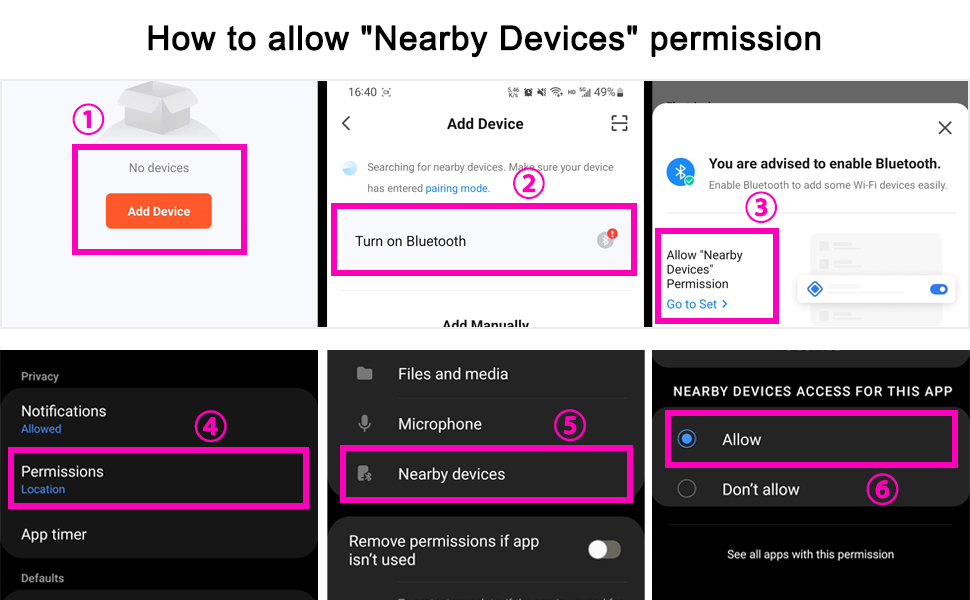
Figure 6: Steps to enable "Nearby Devices" permission for the app.

Figure 7: The Bluetooth app control interface for the aquarium light.
5. Operating Instructions
5.1 App Control Overview
Once connected, the TUYA APP provides comprehensive control over your aquarium light.
- Scene Selection: Choose from preset scenes like Sunlight, Moonlight, Fishlight, and Oceanblue light with a single tap.
- Custom Scenes: Create and save your own lighting configurations by adjusting RGB colors and brightness.
- Dimming & Color Adjustment: Steplessly adjust brightness from 0-100% and fine-tune the color temperature (3000-6700K) or select from over 300 RGB colors.
5.2 24/7 Lighting Cycle Setup
Automate your aquarium lighting with the 24/7 cycle feature.
- Sunrise Sunset Scene: Simulate natural sunrise and sunset. Set the start and end times for the sunrise and sunset phases, and choose the desired light scene for each.
- 8 Times Set Scene: Customize up to 8 different lighting periods throughout the day. For each period, you can set the time, select a scene (or custom color), and adjust brightness.

Figure 8: Configuration options for the 24/7 lighting cycles.
5.3 Physical Button Operation
The light unit features four physical buttons for basic control without the app:
- Power Button: Turns the light On/Off.
- Scene Button: Cycles through the default scenes (Sunlight, Moonlight, Fishlight, Oceanblue light).
- Up Button: Increases brightness or cycles through options.
- Down Button: Decreases brightness or cycles through options.
Video 1: Demonstration of the hygger Smart Aquarium Light changing colors and scenes. This video showcases the light's various modes and effects on an aquarium setup.
6. Maintenance
- Cleaning: Regularly wipe the light unit with a soft, damp cloth to remove dust and water spots. Ensure the light is unplugged before cleaning. Do not use abrasive cleaners or solvents.
- Water Protection: The light is designed to be splash-proof. However, avoid submerging the unit or exposing the power adapter to water.
- LED Longevity: The high-quality 5054 RGB LEDs are designed for long-term use. Avoid direct exposure to extreme temperatures, which can affect LED lifespan.

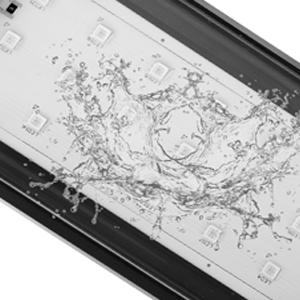
Figure 9: Visual details of the LED quality and the light's waterproof design.
7. Troubleshooting
- Light Not Responding to App:
- Ensure Bluetooth is enabled on your device and the app has "Nearby Devices" permission (refer to Section 4.2).
- Make sure the light is powered on and within Bluetooth range.
- Try restarting the app and your phone's Bluetooth.
- If issues persist, try resetting the light (see below).
- Light Not Turning On:
- Check if the power adapter is securely connected to both the light and the power outlet.
- Verify the power outlet is functional.
- Random Brightness Changes / Unstable Operation:
- Ensure the app firmware is up to date. Check for updates in your app store.
- Perform a light reset.
7.1 How to Reset the Light
If you experience persistent connectivity issues or erratic behavior, resetting the light may resolve the problem.
- Plug in the power adapter to the light unit.
- After 10 seconds, unplug and plug in the connector between the light and the power adapter 3 times consecutively.
- Wait for a few seconds. The light will flash, indicating it has been reset and can now be found by the TUYA APP for re-pairing.
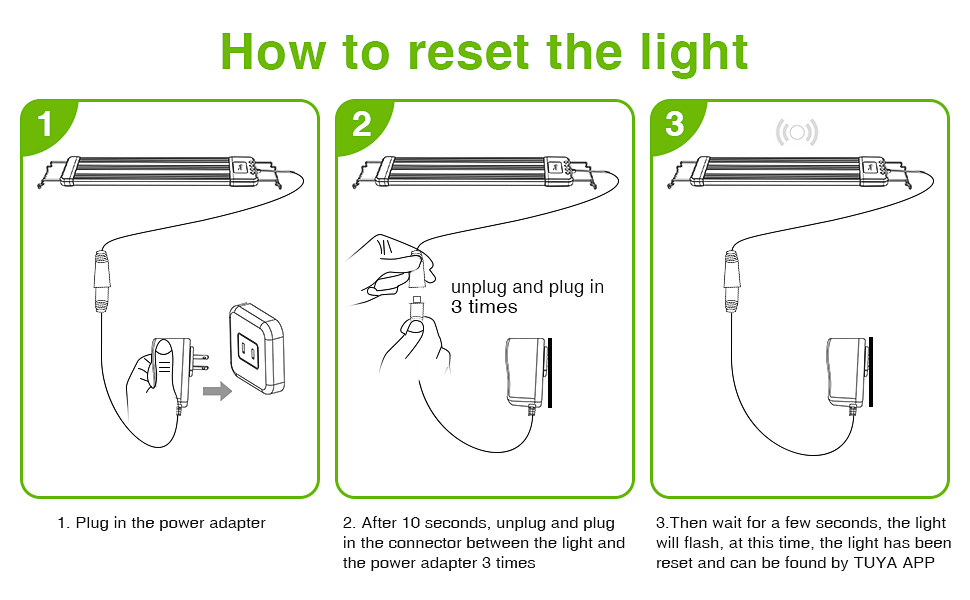
Figure 10: Visual guide for resetting the aquarium light.
8. Specifications
| Attribute | Detail |
|---|---|
| Model Name | HG028-40W |
| Wattage | 40 watts |
| Suitable Tank Size | 30"-36" Freshwater Planted Tank |
| Light Source Type | LED (77 pcs 5054 RGB lamp beads) |
| Brightness | 2600 Lumen |
| Color Temperature | 3000-6700K |
| Color Rendering Index (CRI) | > 90 (up to 95) |
| Control Method | App Control (Bluetooth) & Physical Buttons |
| Material | Aluminum |
| Water Resistance Level | Waterproof (Splash-proof) |
| Product Dimensions | 30 x 36 x 36 inches (Note: Light unit length is approx. 28.74 inches, extendable to 36 inches with brackets) |
| Item Weight | 3.09 pounds |
9. Warranty and Support
Hygger products are designed for quality and reliability. For specific warranty information regarding your 40W Smart Aquarium Light, please refer to the warranty card included with your purchase or visit the official hygger website.
If you encounter any issues or have questions not covered in this manual, please contact hygger customer support for assistance.
- Online Support: Visit the hygger official website for FAQs, troubleshooting guides, and contact information.
- Email Support: Refer to your product packaging or the hygger website for the customer service email address.


