
Shyion MW97-2401000
Shyion WiFi Sprinkler Controller 8 Zone User Manual
Model: MW97-2401000
1. Introduction
Thank you for choosing the Shyion WiFi Sprinkler Controller. This smart irrigation system allows you to manage your garden's watering needs efficiently from anywhere using your smartphone. With features like remote control, flexible scheduling, and rain skip, it helps conserve water and maintain a healthy landscape.
This manual provides detailed instructions for installation, operation, maintenance, and troubleshooting to ensure optimal performance of your device.
2. What's in the Box
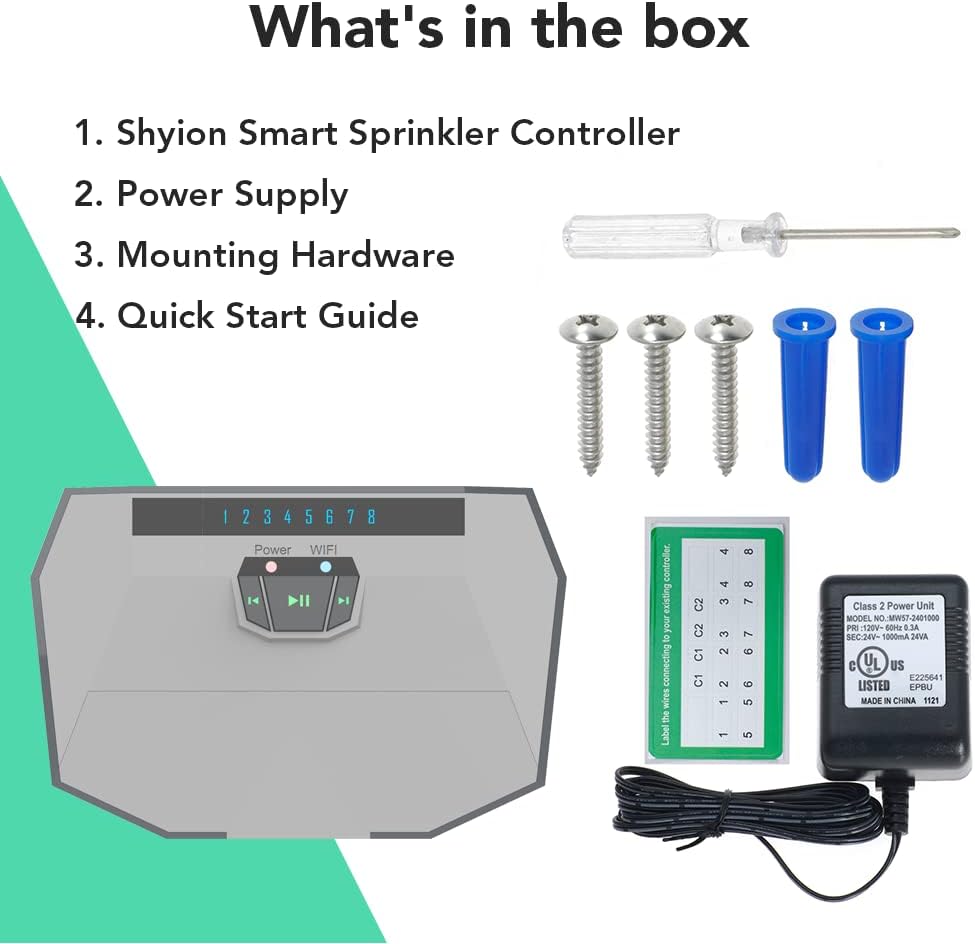
Image: Contents of the Shyion Sprinkler Controller box.
Upon opening the package, please verify that all the following items are included:
- 1 x Shyion Smart Sprinkler Controller
- 1 x Power Supply (110V only)
- 1 x Mounting Hardware (screws and wall anchors)
- 1 x Quick Start Guide
3. Setup and Installation
3.1 Mounting the Controller
The Shyion Sprinkler Controller is designed for indoor use. Choose a suitable location near your existing sprinkler wiring and a 110V power outlet. Ensure the location is protected from direct sunlight, moisture, and extreme temperatures.
- Mark the desired mounting points on the wall using the controller as a template.
- Drill pilot holes at the marked points. Insert the wall anchors if mounting into drywall.
- Secure the controller to the wall using the provided screws.
3.2 Wiring the Sprinkler Zones
Carefully disconnect the wires from your old sprinkler controller, noting which wire corresponds to each zone. The Shyion controller supports up to 8 zones.

Image: Shyion WiFi Sprinkler Controller with zone indicators.
- Connect the common wire from your sprinkler system to the 'C' terminal on the Shyion controller.
- Connect each zone wire to its corresponding numbered terminal (1-8) on the controller.
- Ensure all wire connections are secure.
3.3 Powering On the Controller
Connect the provided 110V power adapter to the controller's power input port, then plug the adapter into a standard 110V electrical outlet. The controller will power on, and the Power indicator light will illuminate.
Important: This device is designed for 110V power supply only. Do not use with other voltage sources.
3.4 Connecting to Wi-Fi and App Setup
The Shyion controller requires a 2.4GHz Wi-Fi network for remote operation. Download the Shyion app from the App Store (iOS) or Google Play Store (Android).

Image: Shyion Sprinkler Controller and app interface for remote control.
- Open the Shyion app and create an account or log in.
- Follow the in-app instructions to add a new device. This typically involves putting the controller into pairing mode (refer to the Quick Start Guide for specific button presses) and connecting your phone to the controller's temporary Wi-Fi network, then selecting your home Wi-Fi network and entering its password.
- Once connected, the Wi-Fi indicator light on the controller will turn solid, and the app will confirm successful pairing.
4. Operating the Controller
4.1 Remote Control via Shyion App
The Shyion app is the primary interface for controlling your sprinkler system. It allows you to:

Image: Shyion app interface for remote customization and record keeping.
- Turn On/Off: Manually start or stop watering for individual zones or all zones.
- Create Irrigation Rules: Set up custom watering schedules based on days of the week, start times, and duration for each zone.
- View Watering Records: Access a history of watering events for monitoring.
- Customize Settings: Adjust various parameters for optimal watering.
4.2 Smart Features: Rain Skip
The Rain Skip feature helps you save water and money by automatically pausing scheduled watering cycles when rain is detected or forecasted. This prevents overwatering and unnecessary water consumption.
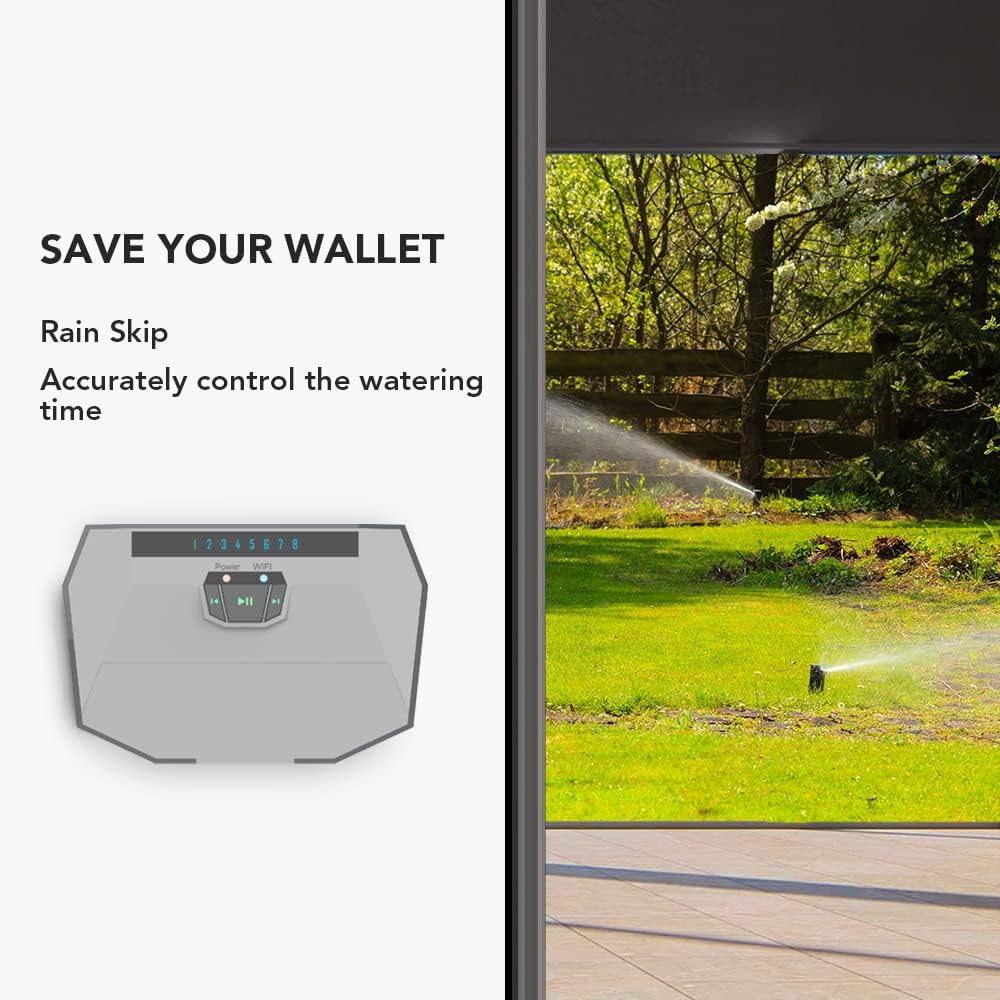
Image: Illustration of the Rain Skip feature saving water.
Ensure your controller is connected to the internet for this feature to function, as it relies on local weather data.
5. Maintenance
The Shyion WiFi Sprinkler Controller requires minimal maintenance. Follow these guidelines to ensure its longevity:
- Keep Clean: Periodically wipe the controller's exterior with a soft, dry cloth to remove dust and debris.
- Avoid Moisture: Ensure the controller remains in a dry environment. Do not expose it to water or excessive humidity.
- Power Supply: Use only the original power adapter provided with the unit.
- Software Updates: Keep the Shyion app updated to the latest version to benefit from new features and bug fixes. The controller's firmware may also update automatically via Wi-Fi.
6. Troubleshooting
If you encounter issues with your Shyion WiFi Sprinkler Controller, refer to the following common problems and solutions:
| Problem | Possible Cause | Solution |
|---|---|---|
| Controller not powering on | No power to outlet; faulty power adapter; incorrect voltage. | Check outlet with another device. Ensure power adapter is securely connected. Verify outlet is 110V. |
| Wi-Fi indicator not solid | Incorrect Wi-Fi password; controller too far from router; 5GHz network used. | Re-enter Wi-Fi password in app. Move controller closer to router. Ensure you are connecting to a 2.4GHz network. |
| Zones not watering | Wiring issue; water supply off; valve issue; schedule not active. | Check zone wiring connections. Ensure main water supply is on. Manually test valves if possible. Verify schedule is enabled in the app. |
| Rain Skip not working | No internet connection; incorrect location set in app; weather data delay. | Ensure controller has stable internet. Verify location settings in the app. Allow time for weather data to update. |
If the problem persists after attempting these solutions, please contact Shyion customer support.
7. Specifications
| Feature | Detail |
|---|---|
| Model Number | MW97-2401000 |
| Brand | Shyion |
| Color | Grey |
| Material | Plastic |
| Voltage | 110 Volts |
| Display Type | LCD or LED |
| Number of Zones | 8 |
| Connectivity | Wi-Fi (2.4GHz) |
8. Warranty and Support
8.1 Warranty Information
The Shyion WiFi Sprinkler Controller comes with a 1-year warranty from the date of purchase. This warranty covers defects in materials and workmanship under normal use. It does not cover damage caused by misuse, accidents, unauthorized modifications, or improper installation.
8.2 Customer Support
For any questions, technical assistance, or warranty claims, please contact Shyion customer support. Our team is dedicated to providing prompt and helpful solutions.
Please refer to the contact information provided in your Quick Start Guide or on the official Shyion website.
Ask a question about this manual
Ask about setup, troubleshooting, compatibility, parts, safety, or missing instructions. Manuals+ will review the question and use this page’s manual context to help answer it.