
Introduction
This manual provides comprehensive instructions for the setup, operation, maintenance, and troubleshooting of your T-WOLF X9 Bluetooth Mouse. Please read this manual carefully before using the product to ensure optimal performance and longevity.
Package Contents
- 1 x T-WOLF X9 Bluetooth Mouse
- 1 x AA Battery
- 1 x User Manual (this document)
Product Overview

Image 1: Top view of the T-WOLF X9 Bluetooth Mouse, showing the left and right click buttons, scroll wheel, and DPI switch button. The T-WOLF logo and Bluetooth icon are visible.
The T-WOLF X9 is a portable Bluetooth mouse designed for convenience and performance. It features a sleek design, Bluetooth 5.2 connectivity, and a 10-meter operating range. The mouse includes four buttons: left-click, right-click, scroll wheel (which also functions as a button), and a dedicated DPI switch button for adjusting cursor sensitivity.
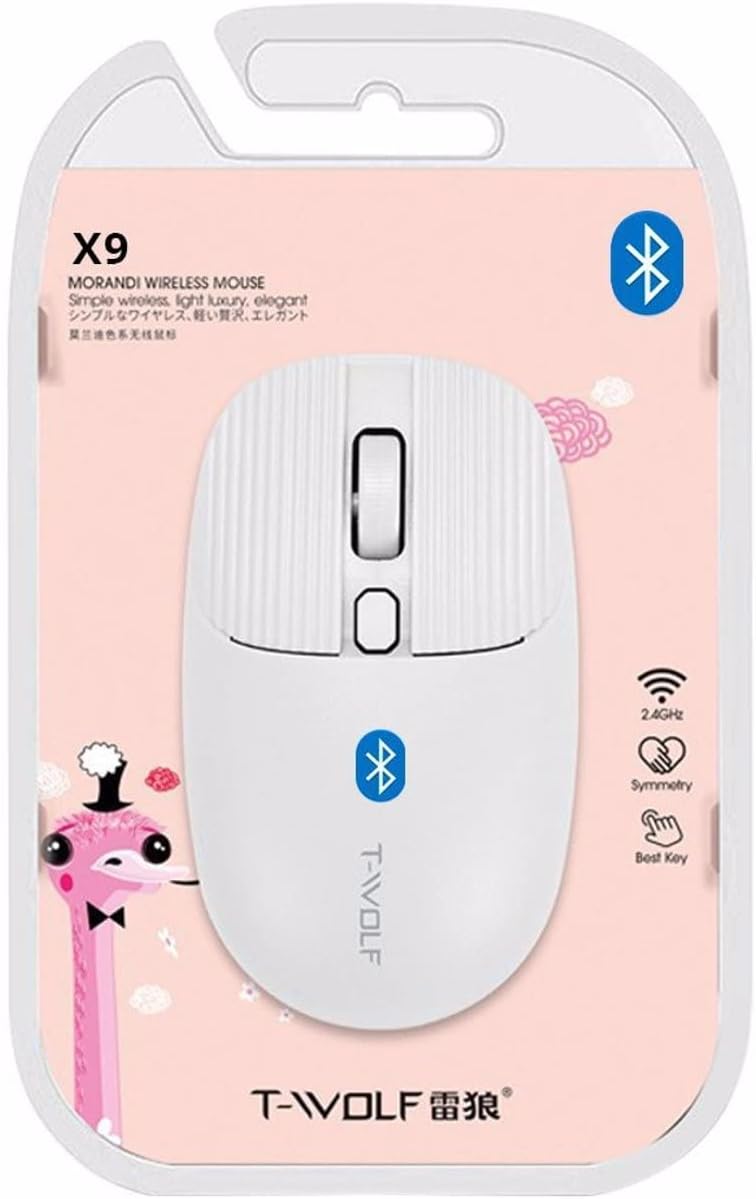
Image 2: Packaging of the T-WOLF X9 Bluetooth Mouse, highlighting key features such as 2.4GHz (though product is Bluetooth, this might be a generic packaging element), symmetry, and "Best Key".

Image 3: Side view of the T-WOLF X9 Bluetooth Mouse, illustrating its ergonomic profile and non-slip roller design.
Setup
1. Battery Installation
- Locate the battery compartment on the underside of the mouse.
- Open the battery compartment cover.
- Insert the provided AA battery, ensuring correct polarity (+/-).
- Close the battery compartment cover securely.
2. Bluetooth Pairing
- Ensure the mouse is powered on. There may be a power switch on the underside.
- On your computer or device, navigate to the Bluetooth settings.
- Enable Bluetooth and search for new devices.
- The mouse should appear as "T-WOLF X9" or similar. Select it to initiate pairing.
- Once paired, the mouse is ready for use.
Operating Instructions
1. DPI Switching
The T-WOLF X9 mouse features 3-gear DPI switching. Press the dedicated DPI button (located behind the scroll wheel) to cycle through the available DPI settings. Each press will change the cursor sensitivity, allowing you to adjust it to your preference for different tasks.
2. Button Functions
- Left-Click Button: Primary selection and interaction.
- Right-Click Button: Opens contextual menus.
- Scroll Wheel: Scrolls content vertically. Can also be pressed for middle-click functionality.
- DPI Switch Button: Adjusts cursor sensitivity (DPI).
Maintenance
- Cleaning: Use a soft, dry cloth to clean the mouse. For stubborn dirt, slightly dampen the cloth with water. Avoid using harsh chemicals or abrasive materials.
- Battery Replacement: Replace the AA battery when the mouse performance degrades or it stops responding.
- Storage: Store the mouse in a cool, dry place when not in use for extended periods.
Troubleshooting
| Problem | Solution |
|---|---|
| Mouse not responding |
|
| Cursor movement is erratic or slow |
|
| Cannot pair the mouse |
|
Specifications
| Feature | Detail |
|---|---|
| Model | X9 |
| Connectivity | Bluetooth 5.2 |
| Operating Range | Up to 10 meters |
| Buttons | 4 (Left, Right, Scroll Wheel/Middle, DPI Switch) |
| DPI Settings | 3-Gear Switching |
| Power Source | 1 x AA Battery |
| Hand Orientation | Ambidextrous |
| Compatible Devices | Laptop, Personal Computer |
| Operating Systems | Linux, Windows 7, Windows XP (and newer OS with Bluetooth support) |
| Dimensions | 20 x 13 x 7.5 cm (Package) |
| Weight | 150 g (Package) |
Warranty and Support
This product is covered by a standard manufacturer's warranty. For specific warranty details, please refer to the documentation provided at the time of purchase or contact your retailer. For technical support or further assistance, please reach out to the seller or manufacturer's customer service.


