
MEIKEE SWL-FL01
MEIKEE LED Work Light User Manual
Model: SWL-FL01 | Brand: MEIKEE
1. Introduction
Thank you for choosing the MEIKEE LED Work Light. This versatile and portable work light is designed for various applications, including garage work, repairs, camping, construction sites, and fishing. It features multiple lighting modes, dimming levels, USB charging, emergency solar charging, and a power bank function. Please read this manual carefully before use to ensure proper operation and maintenance.

Image 1.1: Front view of the MEIKEE LED Work Light, showcasing its yellow and black design with the LED panel and brand logo.
2. Safety Information
- Do not look directly into the LED light when it is on, as it may cause eye strain or damage.
- Keep the device away from water and excessive moisture to prevent electric shock or damage.
- Do not disassemble, repair, or modify the device yourself. Contact qualified personnel for service.
- Ensure the charging voltage and current match the specifications (5V/2A) to avoid damage to the battery or device.
- Keep out of reach of children.
- Avoid exposing the solar panel to extreme temperatures or direct sunlight for prolonged periods when not in use.
3. Product Overview
Familiarize yourself with the components of your MEIKEE LED Work Light:
- LED Panel: Main light source.
- Control Buttons: Power, Mode, Brightness adjustment. Located on the back.
- Battery Indicator: Shows remaining battery level.
- USB Output Port: For charging external devices (e.g., smartphones).
- Type-C Input Port: For charging the work light.
- Silicone Dust Plug: Protects the charging ports.
- Solar Panel: For emergency solar charging.
- Adjustable Handle/Stand: Allows for 180-degree rotation and serves as a carrying handle or stand.
- Built-in Magnets: Located on the handle for attaching to metal surfaces.
- Tripod Screw Hole: Standard 1/4 inch thread for tripod mounting.

Image 3.1: Detailed view of the control panel on the back of the work light, showing the power button, mode button, brightness button, and battery indicator lights.
4. Setup
4.1 Initial Charging
Before first use, fully charge the MEIKEE LED Work Light using the provided USB cable. Connect the Type-C end of the cable to the light's input port and the USB-A end to a 5V/2A USB power adapter (not included) or a computer USB port.
- The battery indicator lights will illuminate during charging, showing the charging progress.
- All indicator lights will be solid when fully charged.
- USB charging is recommended for regular use due to its efficiency.
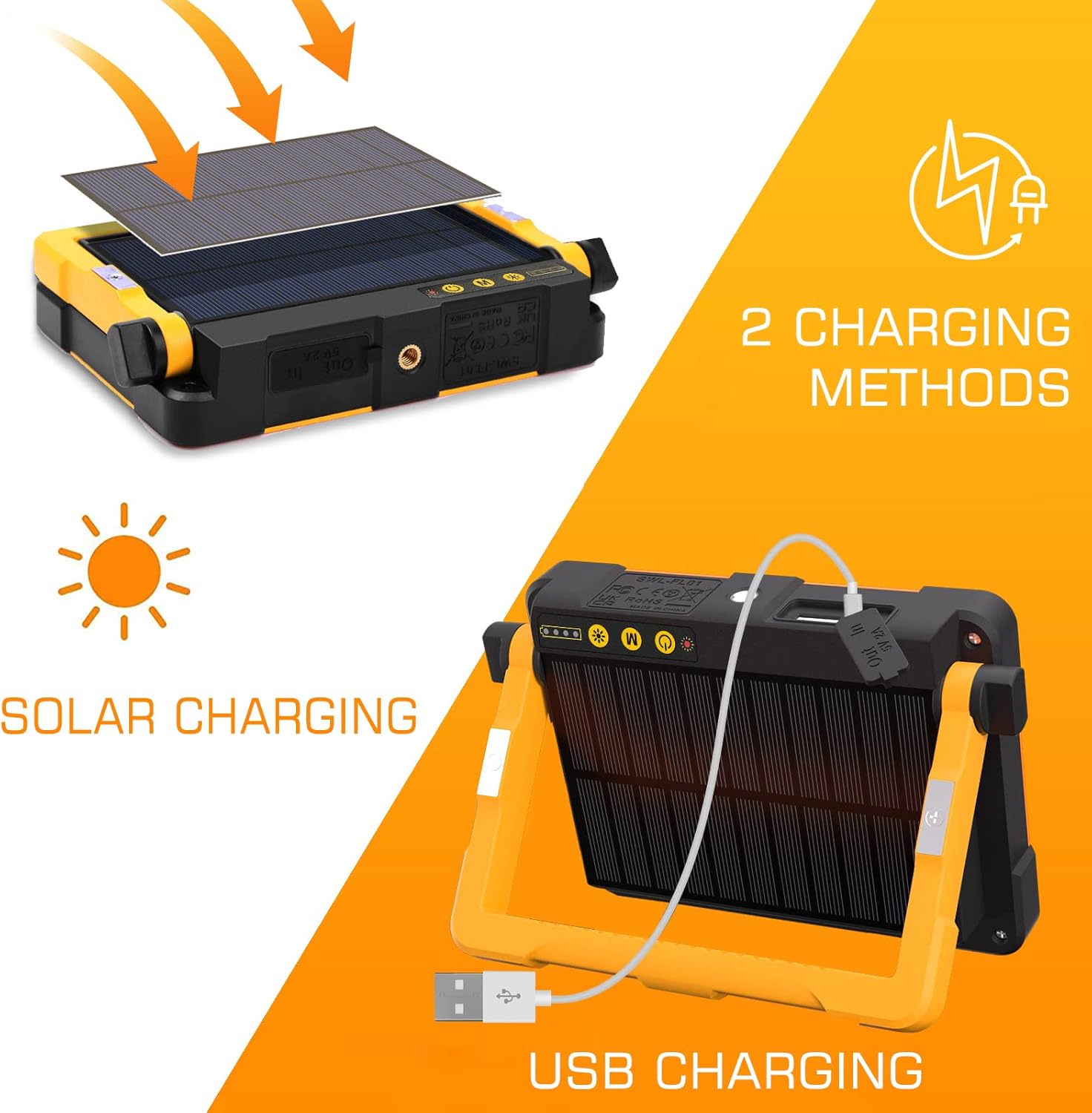
Image 4.1: Illustration of the two charging methods: USB charging via cable and solar charging using the integrated panel.
5. Operation
5.1 Power On/Off
To turn the light on, press and hold the power button (labeled with a circle and vertical line) on the back for approximately 3 seconds. To turn the light off, press and hold the power button again for 3 seconds.
5.2 Changing Lighting Modes
Once the light is on, short press the "M" (Mode) button to cycle through the four lighting modes:
- Cold White Light (6000K)
- Natural White Light (4000K)
- Warm White Light (2700K)
- SOS Mode (Red and Blue flashing light)

Image 5.1: Examples of the different color temperatures available: Cold White, Natural White, and Warm White, suitable for various environments.
5.3 Adjusting Brightness
For the Cold White, Natural White, and Warm White modes, short press the brightness button (labeled with a sun icon) to cycle through five dimming levels:
- 100% Brightness
- 75% Brightness
- 50% Brightness
- 25% Brightness
- 10% Brightness
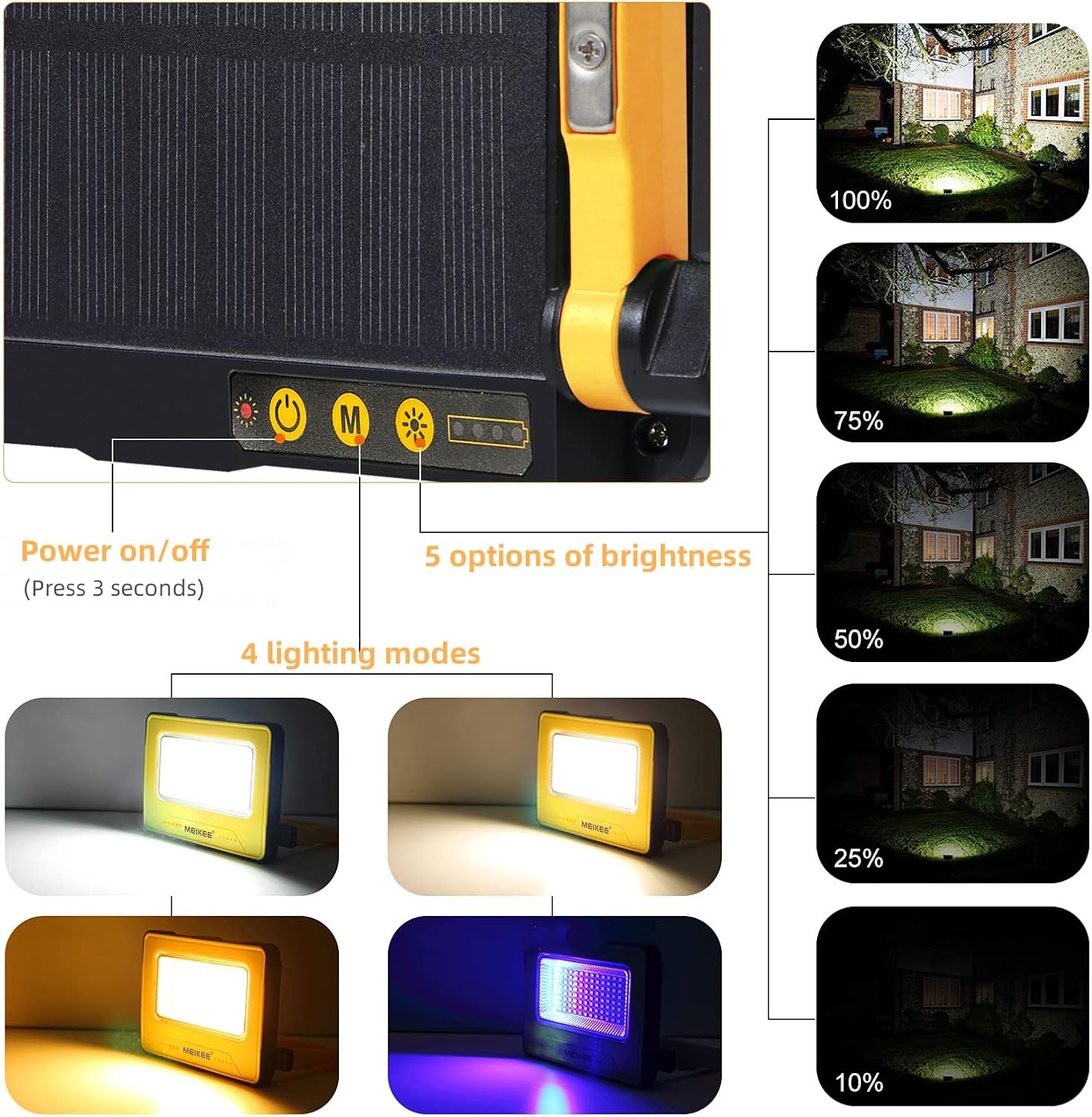
Image 5.2: Visual representation of the five brightness levels (100% down to 10%) and the four lighting modes, including the red and blue SOS flash.
5.4 Using as a Power Bank
The work light can serve as an emergency power bank. Connect your mobile phone or other USB-powered device to the USB output port (5V/2A) on the side of the work light using your device's charging cable. The work light can charge your device even while its own light function is in use.

Image 5.3: A smartphone being charged by the MEIKEE LED Work Light, demonstrating its power bank functionality.
5.5 Emergency Solar Charging
The integrated solar panel provides an emergency charging option. Place the work light with the solar panel facing direct sunlight. A solar charging indicator will light up when charging via solar power. Note that solar charging is significantly slower than USB charging and is intended for emergency situations or maintaining charge, not for primary charging.
5.6 Adjusting the Handle/Stand
The handle can be rotated 180 degrees to function as a carrying handle or a stable stand. Adjust it to the desired angle for optimal illumination or portability.

Image 5.4: Diagram illustrating the 180-degree rotation capability of the work light's handle, allowing for flexible positioning.
5.7 Using Built-in Magnets
The handle features strong built-in magnets, allowing you to securely attach the work light to metal surfaces such as car hoods, metal shelves, or beams. This provides hands-free illumination.

Image 5.5: The work light demonstrating its magnetic attachment to a car hood for hands-free use, and also showing its compatibility with a tripod.
5.8 Tripod Mounting
A 1/4 inch screw hole is located at the bottom of the unit, enabling mounting on a standard tripod (not included) for elevated or stable lighting. This is particularly useful for photography, video, or larger work areas.
6. Maintenance
- Cleaning: Wipe the surface of the work light with a soft, damp cloth. Do not use abrasive cleaners or solvents. Ensure the solar panel is clean for optimal charging efficiency.
- Storage: Store the device in a cool, dry place away from direct sunlight and extreme temperatures when not in use for extended periods.
- Battery Care: To prolong battery life, avoid fully discharging the battery frequently. Recharge the battery at least once every three months if not used regularly.
7. Troubleshooting
| Problem | Possible Cause | Solution |
|---|---|---|
| Light does not turn on. | Battery is depleted. | Charge the work light using the USB-C cable. |
| Light turns off unexpectedly. | Low battery level. | Recharge the work light. |
| Brightness decreases over time. | This model features a constant current solution, so brightness should remain consistent until the battery is very low. If this occurs, recharge the unit. | Ensure the unit is fully charged. If the issue persists, contact customer support. |
| Solar charging is slow or not working. | Insufficient sunlight; solar panel is dirty or obstructed. | Place the solar panel in direct, strong sunlight. Clean the solar panel surface. Remember solar charging is for emergency use. |
| Cannot charge external devices (power bank function). | Work light battery is too low; incorrect cable or device. | Ensure the work light has sufficient charge. Use a compatible USB cable for your device. |
8. Specifications
| Brand | MEIKEE |
| Model Number | SWL-FL01 |
| Dimensions | 20 x 20 x 10 cm |
| Weight | 480 g |
| Battery | 10000mAh Lithium-Polymer (included) |
| Light Output | 1000 lumens |
| Lighting Modes | Cold White (6000K), Natural White (4000K), Warm White (2700K), SOS (Red/Blue flash) |
| Dimming Levels | 5 levels (100%, 75%, 50%, 25%, 10%) for white light modes |
| Charging Input | USB Type-C (5V/2A) or Solar Panel |
| Power Bank Output | USB-A (5V/2A) |
| Material | ABS, Metal |
| Special Features | 180° adjustable handle/stand, built-in magnets, 1/4" tripod screw hole, constant brightness technology |
9. Warranty and Support
MEIKEE products are manufactured to high-quality standards. For any questions, issues, or warranty claims, please contact MEIKEE customer support through the retailer where you purchased the product or visit the official MEIKEE website for contact information. Please retain your proof of purchase for warranty purposes.
For recycling information regarding lamps and disposal of broken or damaged lamps, please refer to local regulations and guidelines.
Related Documents - SWL-FL01
 |
MEIKEE Rechargeable Work Light User Manual (SWL-FL01-A / SWL-FL01-B) User manual for MEIKEE rechargeable work lights models SWL-FL01-A and SWL-FL01-B. Includes specifications, charging instructions, and operation guides. |
 |
MEIKEE SWL-01 LED Multifunctional Portable Work Light User Manual Comprehensive user manual for the MEIKEE SWL-01 LED Multifunctional Portable Work Light. This rechargeable lamp features 3000 lumens, 5000mAh battery, 6 lighting modes, 3 brightness levels, and a magnetic base. Ideal for automotive repair, construction, camping, and emergency use. Provides detailed specifications, operating instructions, and safety guidelines. |
 |
Rechargeable Work Light User Manual User manual for the MEIKEE Rechargeable Work Light, detailing its features, specifications, and usage instructions for various applications like garage work, camping, and construction. |
 |
MEIKEE 42W LED Security Lights User Manual Comprehensive user manual for MEIKEE 42W LED Security Lights with Motion Sensor, covering installation, operation, and specifications. Features IP66 waterproofing and adjustable 180° angle. |
 |
MEIKEE LED Garden Light User Manual and Specifications This document provides instructions, specifications, and maintenance guidelines for the MEIKEE LED Garden Light, including details on installation, features, and safety precautions. Available in multiple languages. |
 |
MEIKEE MK24 Solar Spotlight User Manual This document provides instructions and specifications for the MEIKEE MK24 Solar Spotlight, a dimmable, warm white outdoor garden light with various modes and IP66 waterproofing. |
Ask a question about this manual
Ask about setup, troubleshooting, compatibility, parts, safety, or missing instructions. Manuals+ will review the question and use this page’s manual context to help answer it.