
UBOTIE B0DCG71ZW9
UBOTIE Colorful Bluetooth 100-Key Keyboard User Manual
Model: B0DCG71ZW9
1. Product Overview
The UBOTIE Colorful Bluetooth 100-Key Keyboard is a versatile wireless input device designed for various operating systems. It features a 100-key layout with retro-inspired round keycaps and supports both Bluetooth and 2.4G USB connectivity. This manual provides essential information for setting up, operating, maintaining, and troubleshooting your keyboard.
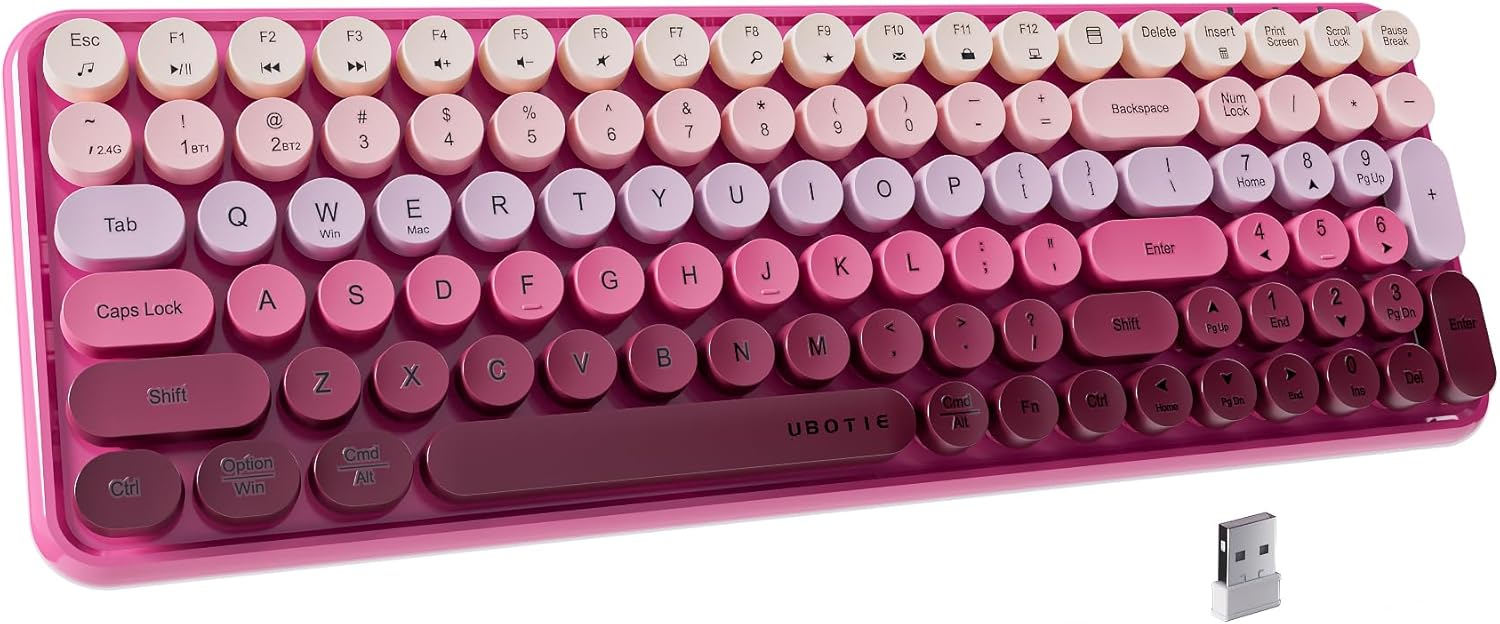
Image 1.1: The UBOTIE Colorful Bluetooth 100-Key Keyboard, showcasing its rosy gradient design and compact layout on a desk setup.
2. Setup Instructions
2.1 Package Contents
- UBOTIE Colorful Bluetooth 100-Key Keyboard
- USB Cable (for 2.4G USB connection)
- Cleaning Brush
- Instruction Manual (this document)
2.2 Battery Installation
The keyboard requires two AAA batteries (not included). Locate the battery compartment on the underside of the keyboard. Insert the batteries, ensuring correct polarity (+/-), then close the compartment cover.

Image 2.1: View of the keyboard's underside, highlighting the USB receiver storage slot and the battery compartment for AA batteries.
2.3 Connectivity Modes
The keyboard supports two connection methods: Bluetooth and 2.4G USB wireless.
2.3.1 Bluetooth Connection
- Ensure the keyboard has fresh batteries installed.
- Locate the power switch on the side of the keyboard and slide it to the "ON" position.
- Press and hold the Fn + 1 or Fn + 2 keys for 3-5 seconds to enter Bluetooth pairing mode. The indicator light will blink, signifying it is ready to pair.
- On your device (computer, tablet, smartphone), open Bluetooth settings and search for available devices.
- Select "UBOTIE Keyboard" or a similar name from the list to connect. The indicator light will stop blinking once successfully paired.
- You can pair up to two Bluetooth devices using Fn + 1 and Fn + 2.

Image 2.2: Detail of the keyboard's function keys, indicating the Bluetooth channel selection for pairing with multiple devices.
2.3.2 2.4G USB Connection
- Locate the USB receiver (dongle) stored in the battery compartment on the underside of the keyboard.
- Plug the USB receiver into an available USB port on your computer.
- Press and hold the Fn + 3 keys for 3-5 seconds to switch to 2.4G USB mode. The keyboard should connect automatically.
- The keyboard is plug-and-play; no additional drivers are typically required.
Video 2.1: A demonstration of the keyboard's setup process, including battery installation and connection methods. This video highlights the ease of getting started with the UBOTIE keyboard.
3. Operating Instructions
3.1 Basic Typing
The UBOTIE keyboard features a standard QWERTY layout with 100 keys, including a numeric keypad. The round keycaps provide a distinct tactile typing experience.

Image 3.1: A detailed view of the keyboard's keys, emphasizing the unique round shape and the smooth color transition of the rosy gradient.
3.2 Function Keys and Multimedia Controls
The keyboard includes function keys (F1-F12) that can be combined with the Fn key for additional multimedia and system controls. Refer to the key legends for specific functions such as volume control, media playback, and screen brightness.
- Fn + F1-F12: Access various multimedia and system functions.
- Fn + Q/W/E: Switch between operating system modes (e.g., Fn+Q for Android, Fn+W for Windows, Fn+E for iOS/macOS). This optimizes key functions for the selected OS.
3.3 Switching Between Connected Devices
If you have paired multiple devices, you can switch between them using the following key combinations:
- Fn + 1: Switch to Bluetooth Device 1.
- Fn + 2: Switch to Bluetooth Device 2.
- Fn + 3: Switch to 2.4G USB Device.
3.4 Auto-Sleep Feature
To conserve battery life, the keyboard will automatically enter a sleep mode after a period of inactivity. To wake the keyboard, simply press any key. It will quickly reconnect to the last active device.
Video 3.1: A demonstration of the keyboard's tactile feedback and general operation, providing a visual and auditory experience of typing on the UBOTIE keyboard.
4. Maintenance
Proper maintenance ensures the longevity and optimal performance of your keyboard.
- Cleaning: Use the provided cleaning brush or a soft, dry cloth to remove dust and debris from between the keys. For stubborn dirt, a slightly damp cloth with mild cleaner can be used, ensuring no liquid enters the keyboard. Always turn off the keyboard before cleaning.
- Battery Replacement: Replace batteries when the keyboard's performance degrades or the connection becomes unstable. Refer to Section 2.2 for battery installation.
- Storage: When not in use for extended periods, store the keyboard in a dry, cool place. Consider removing the batteries if storing for several months to prevent leakage.
5. Troubleshooting
If you encounter issues with your UBOTIE keyboard, refer to the following common solutions:
| Problem | Solution |
|---|---|
| Keyboard does not connect via Bluetooth. |
|
| Keyboard does not connect via 2.4G USB. |
|
| Keys are not responding or feel sticky. |
|
| No Caps Lock or Num Lock indicator lights. | This model of keyboard does not feature dedicated indicator lights for Caps Lock or Num Lock. This is a design characteristic of the product. |
| Keyboard enters sleep mode too quickly. | The auto-sleep feature is designed to conserve battery. Press any key to wake the keyboard. There is no manual adjustment for the sleep timer. |
6. Product Specifications
| Feature | Detail |
|---|---|
| Brand | UBOTIE |
| Model Number | B0DCG71ZW9 |
| Connectivity Technology | Bluetooth, RF (2.4G USB) |
| Number of Keys | 100 |
| Keyboard Layout | QWERTY |
| Keycap Style | Round, Retro |
| Switch Type | Clicky (Membrane) |
| Compatible Operating Systems | Android, Linux, macOS, Windows, iOS, iPadOS |
| Power Source | Battery Powered (2x AAA, not included) |
| Material | Acrylonitrile Butadiene Styrene (ABS) |
| Color | Rosy Gradient |
| Included Components | USB Cable |
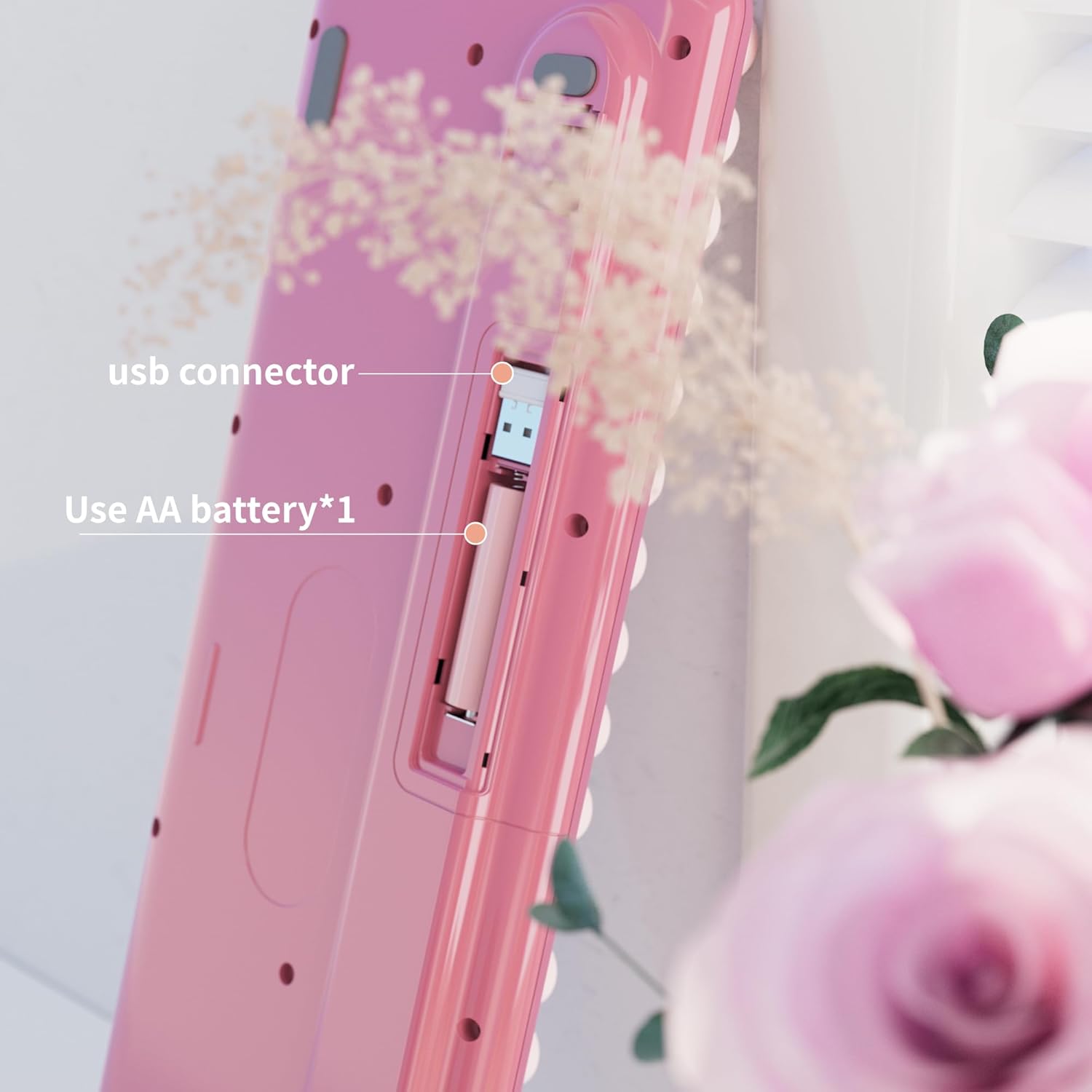
Image 6.1: An illustration detailing the physical dimensions of the keyboard and its multi-device connectivity capabilities via Bluetooth channels and USB.
7. Warranty and Support
7.1 Warranty Information
This UBOTIE keyboard comes with a 1-Year Warranty from the date of purchase. This warranty covers manufacturing defects and issues arising from normal use. It does not cover damage caused by misuse, accidents, unauthorized modifications, or improper maintenance.
7.2 Customer Support
For any questions, technical assistance, or warranty claims, please contact UBOTIE customer support. Our support team is available to provide assistance and satisfactory solutions.
Please refer to the contact information provided on the UBOTIE official website or your purchase documentation for the most up-to-date support channels.
Ask a question about this manual
Ask about setup, troubleshooting, compatibility, parts, safety, or missing instructions. Manuals+ will review the question and use this page’s manual context to help answer it.