
TOPDON Phoenix Plus
TOPDON Phoenix Plus 2 Bidirectional Scan Tool User Manual
Model: TOPDON Phoenix Plus 2 | Brand: TOPDON
1. Introduction
The TOPDON Phoenix Plus 2 is an advanced bidirectional scan tool designed for comprehensive automotive diagnostics. It integrates OE-level full diagnosis, topology mapping, and over 40 reset services, making it suitable for professional technicians and advanced DIY enthusiasts. This manual provides detailed instructions for setting up, operating, maintaining, and troubleshooting your device.
Key features include:
- ECU Coding: Writes adaptive data into components and allows for vehicle customization.
- Bi-Directional Control (Active Test): Enables direct control and testing of car functions from the tablet.
- Full Systems Diagnostic: Provides one-touch AutoVIN acquisition and AutoScan for quick diagnostics across all vehicle systems.
- OE-Level Topology Module Tree: Visually displays DTCs and communication status between vehicle modules.
- 40+ Reset Services: Covers a wide range of maintenance and reset functions including Oil Reset, DPF Regeneration, EPB Reset, and more.
- CAN-FD Protocol Support: Ensures compatibility with newer vehicle models.
- AutoAuth for FCA SGW: Bypasses the Security Gateway Module in FCA vehicles for advanced diagnostics.
- Wide Vehicle Coverage: Supports over 150 car brands and 10,000+ models worldwide.
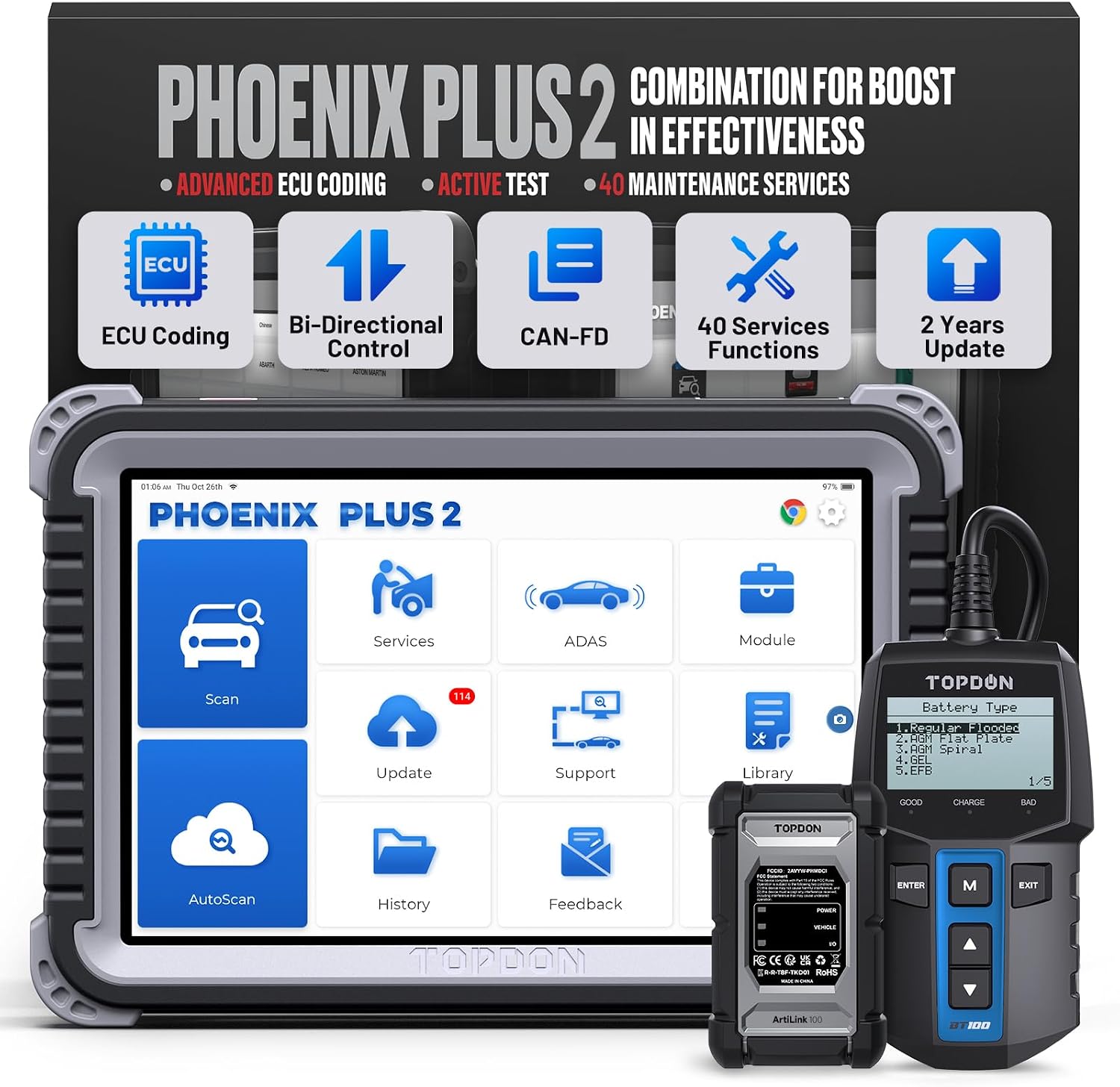
Figure 1.1: TOPDON Phoenix Plus 2 Bidirectional Scan Tool with Battery Tester.
2. Setup and Initial Use
2.1 What's in the Box
Upon unboxing your TOPDON Phoenix Plus 2, verify that all components are present:
- OBD2 Scanner (Main Unit)
- User Manual
- USB Cable (Type-A to Type-C)
- Power Adaptor
- VCI Dongle (Vehicle Communication Interface)
- OBDI Adapter BOX Transfer Line
- OBDII Extension Cable
- Cigarette Lighter Cable
- Battery Clamps/Cable Set
- Fuses (φ5x20mm)*4, (φ6x30mm)*2
- Non-16pin Adaptor Cable Kit: HONDA-3, TOYOTA-17, TOYOTA-22, BENZ-38, FIAT-3, NISSAN-14+16, CHRYSLER-6, GM/VAZ-12
- Password Envelope

Figure 2.1: All components included in the TOPDON Phoenix Plus 2 package.
Video 2.1: An unboxing video demonstrating the contents of the TOPDON Phoenix Plus 2 scan tool package.
2.2 Device Registration and Activation
To fully utilize your Phoenix Plus 2, you must register and activate the device. Ensure you have a stable Wi-Fi connection.
- After Wi-Fi connection, select "User Info" -> "Settings" -> "Login".
- Enter the "New Registration" page.
- Follow the steps to create your account. Input your username, password, and email address.
- Tap "CAPTCHA" to send the verification code to your email box.
- Input the verification code received in your email.
- Input the Serial Number and Activation Code which can be found in the password envelope.
- Tap "Activate" to finish your registration.
Video 2.2: A step-by-step guide on how to register and activate your TOPDON Phoenix Plus 2 device.
3. Operating Instructions
3.1 Connecting to the Vehicle
Connect the VCI dongle to the vehicle's OBD-II port. For older vehicles, use the appropriate non-16pin adapter from the kit. The Phoenix Plus 2 supports wireless diagnostics via Bluetooth, allowing you to operate the tablet away from the vehicle's OBD-II port.
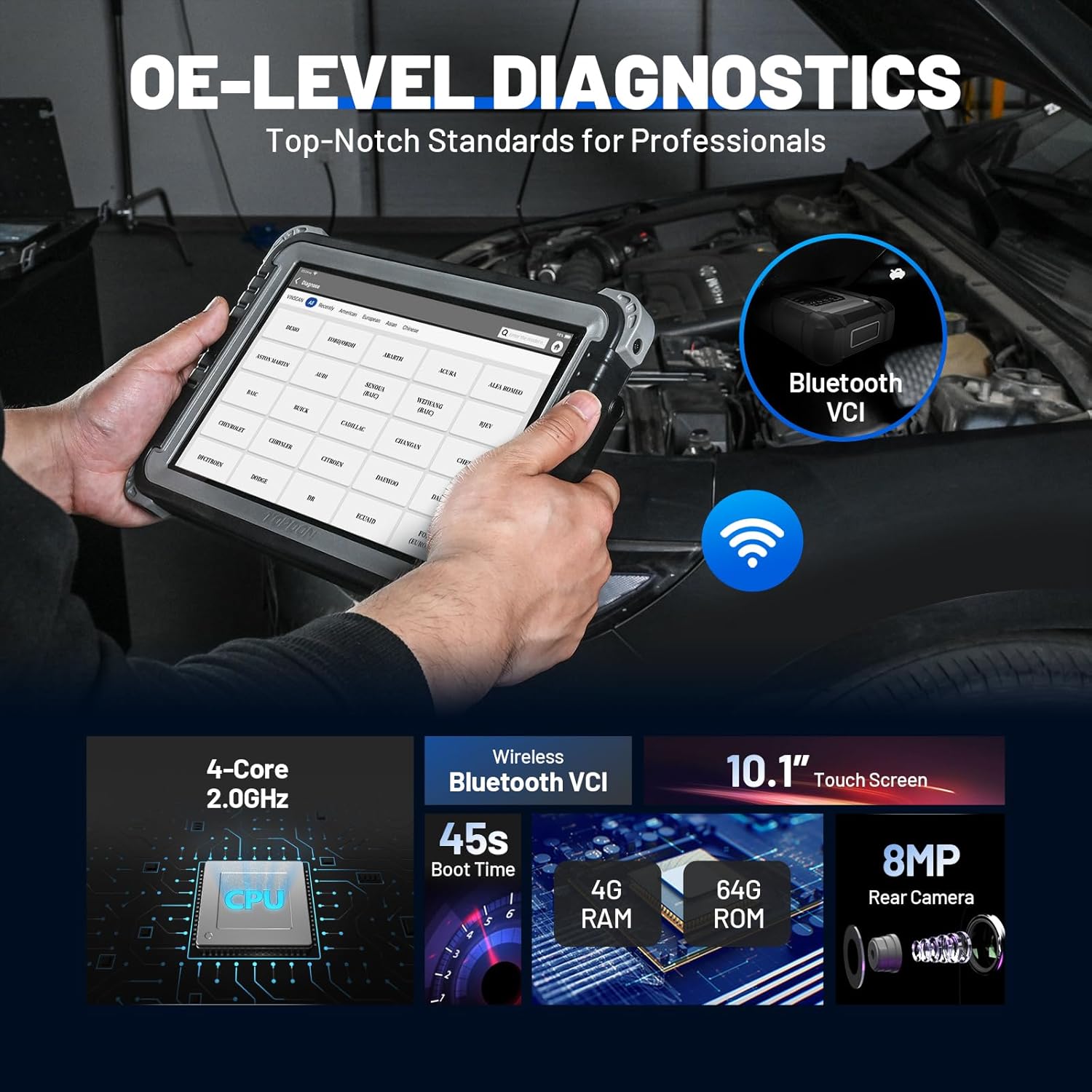
Figure 3.1: The Phoenix Plus 2 performing OE-level diagnostics with wireless Bluetooth VCI connectivity.
3.2 Full System Diagnostics
The device performs OE-level diagnostics across all accessible electronic control units (ECUs). It can read and clear fault codes, read data streams, and retrieve vehicle information.

Figure 3.2: Visual representation of OE-Level All System Diagnostics, highlighting various vehicle systems.
3.3 Topology Module Mapping
The Topology Module Mapping feature provides an intuitive visual display of all structures and communication statuses between vehicle modules. This allows technicians to quickly identify problematic areas and streamline diagnosis.

Figure 3.3: The OE-Level Topology Module Tree interface, showing system status and fault codes.
3.4 ECU Coding and Online Coding
ECU Coding allows for writing adaptive data to components, improving efficiency. Online ECU Coding helps restore functional status after ECU replacement, ensuring new actuators are recognized by vehicle systems. This function also enables customization of vehicle features.

Figure 3.4: Illustration of ECU Coding capabilities, including customization and restoration of functional status.

Figure 3.5: Examples of ECU Coding and Online Coding applications, such as automatic side mirror folding and customized daytime running lights.
3.5 Active Test (Bi-Directional Control)
The active test function allows direct control and testing of various car components on demand. This helps in quickly pinpointing actuator faults and verifying system functionality.

Figure 3.6: Demonstrates the Active Test feature, showing command and receive actions for components like sunroof, headlight, and air conditioning.
3.6 40+ Maintenance Services
The Phoenix Plus 2 offers a comprehensive suite of over 40 maintenance and reset services to address common vehicle issues. These services include, but are not limited to:
- Oil Reset
- Injector Coding
- EPB Reset (Electronic Parking Brake)
- ABS Bleeding
- Throttle Matching
- BMS Reset (Battery Management System)
- DPF Regeneration (Diesel Particulate Filter)
- SAS Service (Steering Angle Sensor)
- TPMS Reset (Tire Pressure Monitoring System)
- Gearbox Matching
- Tooth Learning
- Headlight Matching
- Suspension Level Calibration
- EGR Adaption
- ODO Reset
- Airbag Reset
- Transport Mode
- A/F Reset
- Stop/Start Reset
- NOx Sensor Reset
- AdBlue Reset (Diesel Engine Exhaust Gas Filter)
- Seat Calibration
- Coolant Bleeding
- Tire Reset
- Windows Calibration
- Language Change
- ECU Reset
- AC System Relearn/Initialization
- Intelligent Cruise Control System
- Engine Power Balance Monitoring
- Gas Particulate Filter Regeneration
- Motor Angle Calibration
- High Voltage Battery Diagnostics
- FRM Matching
- Clutch Matching
- Gateway Module Data Calibration
- Rainfall Light Sensor
- Turbocharging Matching

Figure 3.7: Overview of various maintenance services available on the scan tool, including Oil Reset, Injector Coding, and EPB Reset.

Figure 3.8: A comprehensive list of the 40+ maintenance services provided by the Phoenix Plus 2.
4. Maintenance
4.1 Software Updates
The TOPDON Phoenix Plus 2 comes with 2 years of free software updates. Regular updates ensure your device has the latest vehicle coverage, bug fixes, and new features. Connect to Wi-Fi and navigate to the "Update" section on the main interface to check for and install available updates.

Figure 4.1: The "One-Touch Update" feature, showing the update progress on the device screen.
4.2 General Care
- Keep the device clean and free from dust and debris.
- Avoid exposing the device to extreme temperatures or direct sunlight for prolonged periods.
- Store the device in its durable carrying case when not in use to prevent damage.
- Ensure all cables and connectors are properly stored and not kinked or damaged.
5. Troubleshooting
This section addresses common issues you might encounter with your TOPDON Phoenix Plus 2.
| Problem | Possible Cause | Solution |
|---|---|---|
| Device does not power on. | Low battery or power adapter issue. | Charge the device using the provided power adapter. Ensure the adapter is properly connected to a power source and the device. |
| Unable to connect to vehicle. | Incorrect VCI connection, vehicle ignition off, or VCI dongle not paired. | Ensure the VCI dongle is securely plugged into the vehicle's OBD-II port. Turn the vehicle ignition to ON. Check Bluetooth pairing between the tablet and VCI dongle. |
| Software update failure. | Unstable Wi-Fi connection or insufficient storage. | Ensure a strong and stable Wi-Fi connection. Check available storage space on the device and clear unnecessary files if needed. Retry the update. |
| Device is slow or unresponsive. | Too many applications running in the background or low memory. | Close unused applications. Restart the device. Consider performing a factory reset if the issue persists (backup data first). |
For further assistance, please refer to the official TOPDON support channels.

Figure 5.1: TOPDON offers 24/7 online service for customer support.
6. Specifications
| Feature | Detail |
|---|---|
| Brand | TOPDON |
| Model | Phoenix Plus 2 |
| Operating System | Android 10.0 |
| Processor | 2.0GHz Quad-Core |
| RAM | 4GB |
| ROM | 64GB |
| Display | 10.1" 1280x800 Touchscreen |
| Camera | 8MP Rear Camera |
| Battery | 1 Lithium Ion battery (included) |
| Product Dimensions | 10.92"L x 1.75"W x 7.51"H |
| Item Weight | 3.43 pounds |
| Language | English |
7. Warranty and Support
The TOPDON Phoenix Plus 2 comes with a 1-year product support and a 30-day free return or replacement policy. For any inquiries or technical assistance, TOPDON provides 24/7 online customer service.
Important Notes:
- The diagnostic feature menus and service availability may vary by vehicle's make, model, and year.
- Some services like ECU Online Coding, ECU Coding, Oil Reset, ABS Bleeding, DPF Regeneration, etc., may not be available for all vehicle models.
- AutoAuth access may require yearly subscription fees.
For detailed information regarding specific functions for your vehicle, please contact TOPDON customer support with your vehicle's make, model, and year.
Related documentsPhoenix Plus


Ask a question about this manual
Ask about setup, troubleshooting, compatibility, parts, safety, or missing instructions. Manuals+ will review the question and use this page’s manual context to help answer it.