
Amazon 4K50N400A
Amazon Fire TV 4-Series 4K UHD Smart TV User Manual
Model: 4K50N400A
1. Introduction
This manual provides comprehensive instructions for setting up, operating, maintaining, and troubleshooting your Amazon Fire TV 4-Series 4K UHD Smart TV. This television integrates advanced 4K Ultra HD resolution with HDR 10 and HLG support, delivering a vibrant and clear picture. It features the Fire TV OS, providing seamless access to streaming services and smart home capabilities through Alexa Voice Remote.

Image: Front view of the Amazon Fire TV 4-Series, highlighting its 4K UHD and HDR 10 capabilities.
2. What's Included
Before beginning the setup process, please ensure all components listed below are present in your package:
- Fire TV 4-Series 50" Television
- Fire TV Alexa Voice Remote
- Power Cord
- 2 AAA Batteries (for remote)
- 4 Screws (for stand assembly)
- TV Stand (2 legs)
- Quick Start Guide (PDF / Accessible HTML)

Image: All components included in the Fire TV 4-Series package.
3. Setup
3.1 Attaching the TV Stand
- Carefully place the TV screen-down on a soft, clean surface to prevent scratches.
- Align each TV leg with the corresponding slots on the bottom of the TV.
- Secure each leg with the provided screws using a screwdriver (not included).

Image: The Fire TV 4-Series with its stand assembled.
3.2 Connecting External Devices
The Fire TV 4-Series offers multiple ports for connecting your devices. Refer to the diagram below for port locations and types.
- HDMI Ports: Connect gaming consoles, cable boxes, Blu-ray players, etc. (3 HDMI 2.0 + 1 HDMI 2.1 with eARC).
- USB Port: For connecting USB storage devices.
- Ethernet Port: For a wired internet connection.
- Digital Optical Audio Port: For connecting to soundbars or audio receivers.
- Cable/Antenna Input: For connecting an antenna for over-the-air broadcasts.

Image: Detailed view of the input/output ports on the Fire TV 4-Series.
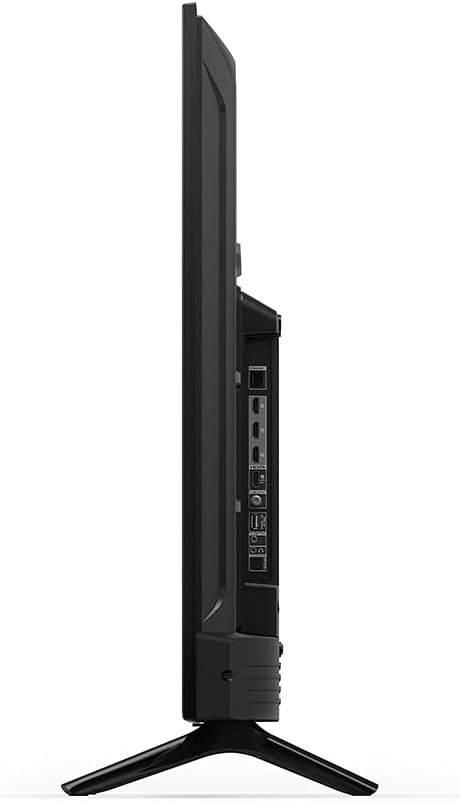
Image: Side view of the Fire TV 4-Series, illustrating its slim profile and port access.

Image: Rear view of the Fire TV 4-Series, showing the VESA mount compatibility.
3.3 Initial Power On and Network Connection
- Plug the power cord into the TV and then into a wall outlet.
- Insert the two AAA batteries into the Fire TV Alexa Voice Remote.
- Follow the on-screen instructions to pair your remote, connect to your Wi-Fi network, and sign in to your Amazon account.
4. Operating Your Fire TV
4.1 Using the Alexa Voice Remote
The included Alexa Voice Remote allows for intuitive navigation and voice control. Use the directional pad to navigate menus, the select button to confirm, and the dedicated app buttons for quick access to popular streaming services.
- Press the Voice button (microphone icon) and speak your commands to Alexa.
- Use the Home button to return to the Fire TV home screen.
- The Volume buttons control the TV's audio output.
4.2 Streaming Content
Your Fire TV provides access to a vast library of movies, TV shows, and live content. Subscription fees may apply for certain services.
- Navigate to the Apps section on the home screen to browse and download applications like Netflix, Prime Video, Disney+, Hulu, and more.
- Use the Search function or Alexa voice commands to find specific titles or genres.

Image: The Fire TV interface displaying a selection of available streaming services.
4.3 Alexa Voice Commands
Alexa is integrated into your Fire TV for hands-free control and information retrieval.
- "Alexa, open Netflix."
- "Alexa, play [movie title]."
- "Alexa, switch to HDMI 1."
- "Alexa, what's the weather?"
5. Maintenance
5.1 Cleaning Your TV
- Always unplug the TV before cleaning.
- Use a soft, dry, lint-free cloth to gently wipe the screen and frame.
- For stubborn marks, lightly dampen the cloth with water or a screen-cleaning solution specifically designed for electronics. Do not spray liquid directly onto the screen.
- Avoid using abrasive cleaners, waxes, or solvents.
5.2 Software Updates
Your Fire TV automatically receives software updates to improve performance and add new features. Ensure your TV is connected to the internet for these updates.
- To manually check for updates, go to Settings > My Fire TV > About > Check for Updates.
6. Troubleshooting
| Problem | Possible Solution |
|---|---|
| No Power / TV Not Turning On |
|
| No Picture / Black Screen |
|
| Remote Not Responding |
|
| No Internet Connection |
|
7. Specifications
| Feature | Detail |
|---|---|
| Resolution | 3840 x 2160 (4K UHD) |
| High Dynamic Range (HDR) format | HDR 10, HLG |
| Backlight type | Direct LED |
| Refresh rate | 60 Hz |
| Screen size | 50" (Viewable: 49.5") |
| HDMI ports | 3 HDMI 2.0 + 1 HDMI 2.1 with eARC |
| Ethernet | 1 Ethernet port |
| USB | 1 USB port |
| Audio support | Dolby Digital Plus with passthrough of Dolby-encoded audio |
| OS | Fire TV OS |
| Product size without stand | 44.2" x 25.6" x 3.5" |
| Weight (without stand) | 20.6 lb |
| VESA Wall Mount Standard | 300 mm x 300 mm |
| SKU number | 4K50N400A |
| Remote Technology | Bluetooth 5.0 |
8. Warranty and Support
8.1 Warranty Information
Your Amazon Fire TV 4-Series comes with a 1-year limited warranty and service. Optional 3-Year and 4-Year Extended Warranty plans are available for U.S. customers and are sold separately. Use of Fire TV is subject to the terms found on the official Amazon website.
8.2 Software Security Updates
This device receives guaranteed software security updates until at least four years after the device is last available for purchase as a new unit on Amazon websites. For more information specific to your device, visit the "Manage Your Content and Devices" section on Amazon.
8.3 Customer Support
For additional support or to explore more information about your Fire TV 4-Series, please refer to the official Amazon support resources or visit the product's support page on Amazon.com.
Related documents4K50N400A


Ask a question about this manual
Ask about setup, troubleshooting, compatibility, parts, safety, or missing instructions. Manuals+ will review the question and use this page’s manual context to help answer it.