
1. Introduction
Thank you for choosing the YCCTEAM Wired Controller. This controller is designed to provide a reliable and responsive gaming experience on Xbox One, Xbox Series X/S, and PC (Windows 7/8/10). It features dual vibration motors for immersive feedback, a precise joystick, and an audio jack for headset connectivity. Please read this manual carefully to ensure proper setup and operation of your controller.
2. Package Contents
- 1 x YCCTEAM Wired Controller (Model: YCC-9002W)
- 1 x User Manual
3. Controller Layout
Familiarize yourself with the various buttons and components of your YCCTEAM Wired Controller.
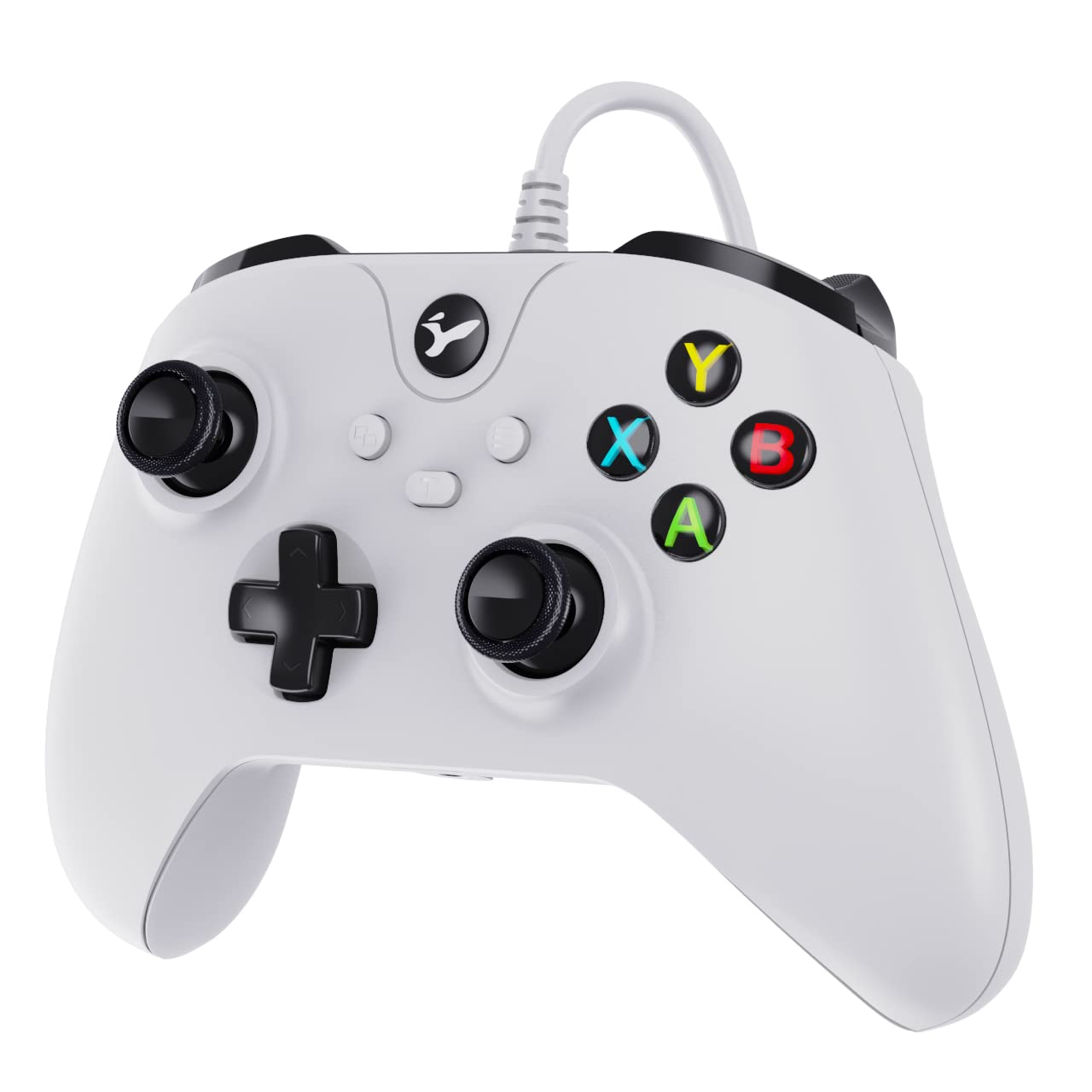
Figure 1: YCCTEAM Wired Controller Front View
This image displays the front of the YCCTEAM Wired Controller, highlighting its ergonomic design, dual analog sticks, D-pad, ABXY buttons, shoulder buttons, triggers, and central system buttons.
- Left Analog Stick: For movement and camera control.
- Right Analog Stick: For camera control and aiming.
- D-Pad: Directional input for menus and specific game actions.
- ABXY Buttons: Action buttons (A, B, X, Y).
- Left/Right Bumper (LB/RB): Shoulder buttons for various in-game actions.
- Left/Right Trigger (LT/RT): Analog triggers for precise input, such as acceleration or firing.
- View Button: Access in-game maps or menus.
- Menu Button: Access game menus or system options.
- Xbox Button: Power on/off console, access guide.
- 3.5mm Audio Jack: For connecting compatible headsets.
4. Setup
4.1 Connecting to Xbox One / Xbox Series X/S
- Ensure your Xbox console is powered on.
- Locate an available USB port on your Xbox console.
- Plug the USB connector of the YCCTEAM Wired Controller into the USB port.
- The controller should be automatically recognized by the console. The Xbox button on the controller will illuminate to indicate a successful connection.
4.2 Connecting to PC (Windows 7/8/10)
- Ensure your PC is powered on.
- Locate an available USB port on your PC.
- Plug the USB connector of the YCCTEAM Wired Controller into the USB port.
- Windows will automatically detect and install the necessary drivers. This may take a few moments.
- Once the drivers are installed, the controller will be ready for use. You can verify its status in your PC's Device Manager or Game Controllers settings.

Figure 5: Compatibility Overview
This image illustrates the wide compatibility of the YCCTEAM Wired Controller, showing its connection to Xbox One, Xbox Series X/S, and PC setups.
5. Operating Instructions
5.1 Basic Functionality
Once connected, the controller functions as a standard Xbox-compatible gamepad. All buttons, analog sticks, and triggers will respond to your inputs in supported games and applications.
5.2 Dual Vibration
The controller features dual vibration motors that provide haptic feedback during gameplay, enhancing immersion. The intensity and patterns of vibration are determined by the game you are playing.

Figure 4: Dual Motor Vibration System
This image visually represents the dual motor vibration system within the controller, indicating how it provides immersive feedback during gameplay.
5.3 Turbo Function
The Turbo function allows for rapid, continuous input of a designated button with a single press. This can be useful for certain game mechanics.
- To Activate Turbo: Press and hold the "Turbo" button (if present, or a designated button combination) and then press the button you wish to apply Turbo to (e.g., A, B, X, Y, LB, RB, LT, RT).
- To Deactivate Turbo: Repeat the activation process for the same button, or press the "Clear" button (if present) to clear all Turbo settings.

Figure 2: Turbo Function Indicator
This image highlights the Turbo function, illustrating its rapid-fire capability for a designated button.
5.4 Audio Jack Usage
The integrated 3.5mm audio jack allows you to connect a compatible gaming headset directly to the controller for in-game audio and chat. Ensure your headset is fully plugged in for proper functionality.

Figure 3: Controller Components: Joysticks, Triggers, and D-Pad
This image provides a detailed view of the controller's sensitive high-precision joysticks, 360-degree action triggers, and easily operable D-pad.
6. Maintenance
- Cleaning: Use a soft, dry cloth to wipe the surface of the controller. For stubborn dirt, slightly dampen the cloth with water. Do not use harsh chemicals or abrasive cleaners.
- Storage: Store the controller in a cool, dry place away from direct sunlight and extreme temperatures. Avoid placing heavy objects on the controller.
- Cable Care: Do not bend or crimp the controller cable excessively. Always unplug the controller by gripping the connector, not the cable itself.
7. Troubleshooting
- Controller Not Responding:
- Ensure the USB cable is securely plugged into both the controller and the console/PC.
- Try plugging the controller into a different USB port.
- Restart your console or PC.
- If on PC, check Device Manager to see if the controller is recognized and if there are any driver issues.
- Vibration Not Working:
- Verify that the game you are playing supports vibration feedback.
- Check in-game settings to ensure vibration is enabled.
- Ensure the controller is properly connected.
- Audio Jack Issues:
- Ensure your headset is fully plugged into the 3.5mm audio jack.
- Test your headset with another device to confirm it is working correctly.
- Check audio settings on your console or PC to ensure the controller's audio output is selected.
- Controller Not Recognized by Xbox Series X/S:
- While the controller is designed for compatibility, some console updates or specific console configurations may affect recognition.
- Ensure your console's operating system is up to date.
- Try a hard reset of your console (hold power button for 10 seconds).
- If issues persist, contact YCCTEAM customer support for further assistance.
8. Specifications
| Model Number | YCC-9002W |
| ASIN | B0B3CN7183 |
| Connectivity | Wired USB |
| Compatibility | Xbox One, Xbox Series X/S, PC (Windows 7/8/10) |
| Features | Dual Vibration, 3.5mm Audio Jack, Turbo Function |
| Dimensions (L x W x H) | 16.41 x 12.4 x 7.59 cm (approx. 6.46 x 4.88 x 2.99 inches) |
| Weight | 322 grams (approx. 0.71 lbs) |
9. Warranty and Support
YCCTEAM products are designed for reliability and performance. For information regarding warranty coverage, technical support, or frequently asked questions, please refer to the warranty card included with your product or visit the official YCCTEAM website. Please retain your proof of purchase for warranty claims.
For direct support, you may contact YCCTEAM customer service through the contact information provided on their official website.