
Introduction
This manual provides detailed instructions for the Redragon G815 PLUTO Bluetooth Gamepad. It covers setup, operation, maintenance, and troubleshooting to ensure optimal performance and an enhanced gaming experience across various platforms including Nintendo Switch, PC, and Android devices.

Front view of the Redragon G815 PLUTO Bluetooth Gamepad, showcasing its ergonomic design and button layout.
Package Contents
Please verify that all items are present:
- Redragon G815 PLUTO Bluetooth Gamepad
- USB Charging Cable
- User Manual (this document)
Controller Layout

Detailed diagram illustrating the various buttons and their labels on the Redragon G815 PLUTO Gamepad, including Left Stick, D-Pad, Turbo Button, LED Voyant, Capture Button, HOME Button, + Button, Y Button, X Button, A Button, B Button, Right Stick, R Button, ZR Button, L Button, ZL Button, and Type-C charging port.
Familiarize yourself with the controller's buttons and ports:
- Left/Right Analog Sticks: For precise movement and camera control.
- D-Pad: Directional input.
- Action Buttons (A, B, X, Y): Primary game actions.
- Shoulder Buttons (L, R, ZL, ZR): Additional game actions and triggers.
- HOME Button: Returns to system menu.
- + / - Buttons: Menu navigation, start/select functions.
- Capture Button: Takes screenshots or records video clips (platform dependent).
- Turbo Button: Activates turbo function for rapid button presses.
- Type-C Charging Port: For charging the controller.
- LED Indicators: Display connection status and battery level.
Setup and Connection
Charging the Controller
Before first use, fully charge the gamepad. Connect the supplied USB charging cable to the Type-C port on the controller and the other end to a USB power source (e.g., console, PC, USB wall adapter). The LED indicators will show charging status and turn off or change color when fully charged.
Connecting via Bluetooth (Wireless)
- For Nintendo Switch/Switch Lite:
- Go to the HOME Menu, select "Controllers" > "Change Grip/Order".
- Press and hold the HOME button on the G815 PLUTO gamepad for 3-5 seconds until the LED indicators start flashing rapidly.
- The controller will pair with the Switch. Once connected, the corresponding player LED(s) will light up solid.
- The controller supports console wake-up function.
- For Android Devices:
- Enable Bluetooth on your Android device.
- Press and hold the HOME button on the G815 PLUTO gamepad for 3-5 seconds until the LED indicators start flashing rapidly.
- On your Android device, search for new Bluetooth devices and select "Redragon G815" (or similar) from the list.
- Once paired, the LED indicators will show a solid light.
- For PC (Bluetooth):
- Ensure your PC has Bluetooth capability.
- Go to Bluetooth settings on your PC.
- Press and hold the HOME button on the G815 PLUTO gamepad for 3-5 seconds until the LED indicators start flashing rapidly.
- Add a new Bluetooth device and select "Redragon G815" (or similar).
- Follow any on-screen prompts to complete pairing.
Connecting via Wired Connection (PC)
The G815 PLUTO gamepad can also be used as a wired controller for PC. Simply connect the USB charging cable from the controller's Type-C port to an available USB port on your PC. The PC should automatically detect and install the necessary drivers. This mode also supports PC Steam games.
Operating Instructions
Basic Controls
The gamepad features standard controls for gaming:
- Movement: Left Analog Stick or D-Pad.
- Camera/View: Right Analog Stick.
- Actions: A, B, X, Y buttons.
- Triggers/Shoulders: L, R, ZL, ZR buttons.
- System Menu: HOME button.
Special Features
- Double Vibration Function: The controller includes dual motors for haptic feedback, enhancing immersion in compatible games.

Illustration demonstrating the double vibration function of the Redragon G815 PLUTO Gamepad, showing haptic feedback motors.
- 6-Axis Gyroscope: Built-in six-axis sensors provide precise motion control, allowing for fine-tuned aiming and body sense in games that support it.
- Turbo and Auto Turbo Function:
- To activate Turbo: Press the Turbo button and then the desired action button (A/B/X/Y/L/R/ZL/ZR). The button will now rapidly repeat its input when held down.
- To activate Auto Turbo: Press the Turbo button twice and then the desired action button. The button will continuously repeat its input without being held down.
- To clear Turbo/Auto Turbo: Press the Turbo button and then the action button again.
- NFC Function (Amiibo Support): The controller features an NFC chip, allowing for interaction with Amiibo figures in compatible games on the Nintendo Switch.
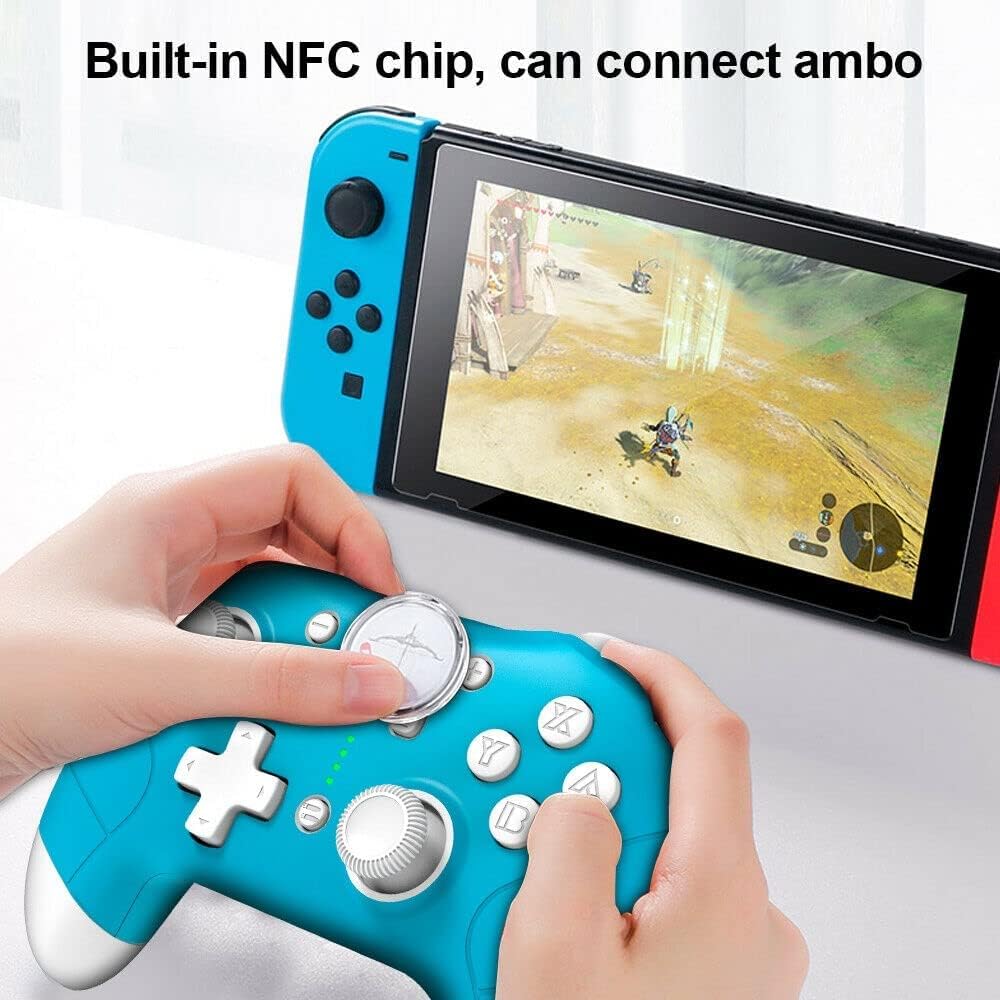
Image showing the Redragon G815 PLUTO Gamepad being used to scan an Amiibo figure on a Nintendo Switch console, demonstrating the NFC functionality.
Maintenance and Care
- Cleaning: Use a soft, dry cloth to clean the controller. Avoid using harsh chemicals or abrasive materials.
- Storage: Store the controller in a cool, dry place away from direct sunlight and extreme temperatures.
- Battery: The controller contains a built-in 600mAh polymer battery. Do not attempt to replace the battery yourself. If the battery life significantly decreases, contact customer support.
- Avoid Drops: Protect the controller from drops and impacts, which can damage internal components.
Troubleshooting
| Problem | Possible Solution |
|---|---|
| Controller does not turn on. | Ensure the controller is fully charged. Connect it to a power source using the USB cable. |
| Cannot connect via Bluetooth. |
|
| Buttons or analog sticks are unresponsive. |
|
| Vibration function is not working. |
|
Specifications
| Feature | Detail |
|---|---|
| Model Number | RED-G815P |
| Connectivity | Bluetooth, Wired (USB Type-C) |
| Battery | 600mAh Lithium Ion (included) |
| Compatibility | Nintendo Switch, Switch Lite, Android, PC (Steam games) |
| Special Features | Double Vibration, 6-Axis Gyroscope, Turbo/Auto Turbo, NFC (Amiibo support), Console Wake-up |
| Dimensions | 23.4 x 20.2 x 10.7 cm |
| Weight | 350 g |
Warranty and Support
For warranty information and technical support, please refer to the official Redragon website or contact your local retailer. Keep your proof of purchase for warranty claims.


