Introduction
The Cooler Master MasterBox 520 Mesh is a mid-tower ATX chassis designed for optimal airflow and component compatibility. It features a full-mesh front panel, three pre-installed ARGB fans, and a tempered glass side panel to showcase your build. This manual provides essential information for setting up, operating, maintaining, and troubleshooting your PC case.
Component Overview
The MasterBox 520 Mesh is engineered for ease of use and versatility. Key features include:
- Mesh Front Panel: Designed for unrestricted airflow, featuring 3 x CF120 ARGB fans.
- Tempered Glass Side Panel: Provides a clear view of internal components and is easily removable.
- Spacious Interior: Accommodates E-ATX, ATX, micro-ATX, and mini-ITX motherboards, large CPU coolers, and graphics cards.
- Versatile Cooling Options: Supports multiple fan and radiator configurations on the front, top, and rear panels.
- Rich Connectivity I/O Panel: Includes USB 3.2 Gen 1 Type-A, USB 3.2 Gen 2 Type-C, audio jack, and ARGB button.

Figure 1: Front view of the Cooler Master MasterBox 520 Mesh PC Case, highlighting the mesh panel and three illuminated ARGB fans.
Setup
Follow these steps to set up your Cooler Master MasterBox 520 Mesh PC Case:
- Prepare the Case:
- Place the case on a stable, flat surface.
- Carefully remove the tempered glass side panel by pulling it upwards after loosening the rear screw (if installed).
- Remove the top panel by sliding it backward and lifting.
- The front mesh panel can be easily detached by pulling from the bottom for access to front fans/radiator mounts.
- Motherboard Installation:
- Install the necessary standoffs onto the motherboard tray according to your motherboard's form factor (E-ATX, ATX, Micro-ATX, Mini-ITX).
- Carefully place your motherboard onto the standoffs and secure it with screws.
- Graphics Card (GPU) Installation:
- Remove the appropriate PCIe slot covers from the rear of the case.
- Insert your graphics card into the PCIe slot on the motherboard and secure it with screws.
- The case supports vertical GPU mounting with an optional riser cable (sold separately).
- Storage Drive Installation (HDD/SSD):
- For 3.5" HDDs, use the removable HDD cage located in the PSU shroud area.
- For 2.5" SSDs, mounts are available on the rear of the motherboard tray.
- Power Supply Unit (PSU) Installation:
- Mount your ATX PSU into the dedicated compartment at the bottom rear of the case.
- Secure the PSU with screws from the rear of the case.
- Cable Management:
- Utilize the cable routing cutouts and tie-down points behind the motherboard tray to organize cables.
- Connect all necessary power and data cables to your components.

Figure 2: Angled view of the MasterBox 520 Mesh, showcasing the tempered glass side panel and overall chassis design.
Operating
Once your system is assembled, operating the MasterBox 520 Mesh is straightforward:
- Power On: Press the large power button on the top I/O panel to start your system.
- Front I/O Panel:
- Connect USB devices to the 1 x USB 3.2 Gen 1 Type-A port or 1 x USB 3.2 Gen 2 Type-C port.
- Plug in your headphones or microphone into the 1 x audio jack.
- ARGB Lighting Control:
- The pre-installed ARGB fans are connected to an included ARGB controller.
- Use the dedicated Reset/ARGB button on the I/O panel to cycle through various lighting effects and colors.
- Alternatively, connect the ARGB controller to a compatible motherboard header for software control.
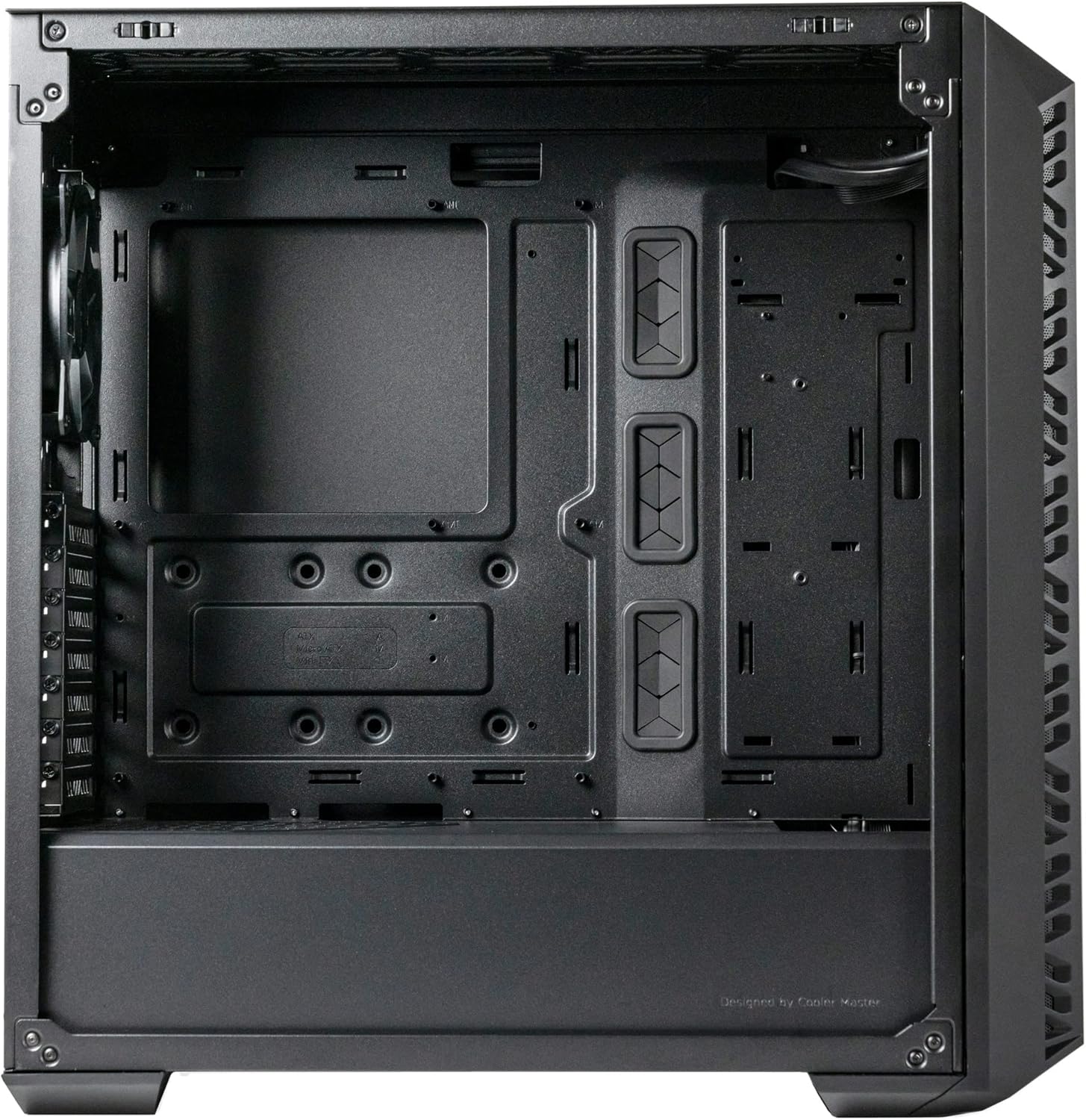
Figure 3: Top-front view of the MasterBox 520 Mesh, showing the accessible I/O panel with USB ports, audio jack, and ARGB control button.
Maintenance
Regular maintenance ensures optimal performance and longevity of your PC case:
- Dust Filter Cleaning:
- The front mesh panel acts as a dust filter and can be easily removed for cleaning.
- The top panel also features a magnetic dust filter that can be lifted off.
- Clean dust filters regularly with compressed air or by rinsing with water (ensure completely dry before reinstallation).
- Interior Cleaning:
- Use compressed air to remove dust from internal components and fan blades.
- Wipe down interior surfaces with a microfiber cloth.
- Panel Reinstallation:
- Ensure all cables are neatly managed before reinstalling side and top panels.
- Carefully align and reattach the tempered glass side panel, securing it with the thumb screw.
- Reattach the top panel by aligning and sliding it forward until it clicks into place.

Figure 4: Top-front view of the MasterBox 520 Mesh with the mesh panel removed, showing access to the front fan mounts.
Troubleshooting
If you encounter issues with your MasterBox 520 Mesh PC case, consider the following:
- Fans Not Spinning/RGB Not Working:
- Check all fan and ARGB connections to the controller and motherboard.
- Ensure the ARGB controller is receiving power (usually via SATA power).
- If using motherboard software control, verify the software is installed and configured correctly.
- Poor Airflow/High Temperatures:
- Clean all dust filters and internal components.
- Verify fan orientation for optimal intake and exhaust.
- Ensure no cables are obstructing airflow paths.
- Loose Panels:
- Ensure all screws and latches are properly secured after accessing internal components.
Specifications
| Feature | Detail |
|---|---|
| Model Name | MasterBox 520 Mesh |
| Item Model Number | MB520-KGNN-S00 |
| Case Type | Mid Tower |
| Motherboard Compatibility | Extended ATX, ATX, Micro-ATX, Mini-ITX |
| Dimensions (L x W x H) | 19.76 x 8.27 x 19.61 inches |
| Item Weight | 15.62 pounds |
| Color | Black |
| Material | Tempered Glass |
| Pre-installed Fans | 3 x CF120 ARGB (Front) |
| Fan Support (Front) | 3 x 120mm / 2 x 140mm |
| Fan Support (Top) | 3 x 120mm / 2 x 140mm |
| Fan Support (Rear) | 1 x 120mm |
| Radiator Support (Front) | Up to 360mm |
| Radiator Support (Top) | Up to 360mm |
| Radiator Support (Rear) | 1 x 120mm |
| CPU Cooler Clearance | Up to 165mm |
| Graphics Card Clearance | Up to 410mm |
| PSU Clearance | Up to 200mm |
| I/O Ports | 1 x USB 3.2 Gen 1 Type-A, 1 x USB 3.2 Gen 2 Type-C, 1 x Audio Jack, 1 x Reset/ARGB Button |
Warranty Information
Cooler Master products come with a limited warranty. Please refer to the official Cooler Master website or your product's packaging for specific warranty terms and conditions, including duration and coverage details. Keep your proof of purchase for warranty claims.
Support
For further assistance, technical support, or to download the latest drivers and manuals, please visit the official Cooler Master support website:
You may also contact Cooler Master customer service directly through the contact information provided on their website.


