
1. Introduction
Thank you for choosing the WONSDAR 4K PTZ WiFi Outdoor Security Camera. This manual provides detailed instructions for the installation, operation, and maintenance of your security camera. Please read this manual thoroughly before use to ensure proper functionality and safety.
2. Product Features
- 4K UHD Resolution: Equipped with a Sony CMOS image sensor, the camera delivers ultra-high-definition 4K video.
- Pan/Tilt Control: Offers 355° horizontal pan and 90° vertical tilt for comprehensive area coverage, controllable via mobile app.
- Automatic Tracking & Human Detection: Advanced motion detection with human recognition and automatic tracking capabilities, sending real-time alerts.
- Enhanced Night Vision: Features 10 infrared and white LEDs for up to 60 meters of clear night vision, including color night vision.
- Two-Way Audio: Built-in microphone and speaker allow for clear two-way communication.
- IP66 Weatherproof: Durable metal casing and antenna design ensure reliable operation in various weather conditions (rain, snow, heat, cold).
- Preset Points & Cruise Function: Supports setting multiple preset monitoring points and automatic cruising paths.
- Stable Wi-Fi Connection: High-gain antennas provide stable network connectivity, and H.265X technology ensures smooth video streaming.
- Local Storage: Supports Micro-SD card storage (8-128GB) for recorded videos.
- Multi-User & Multi-Platform Access: Allows multiple users to access the camera feed across various devices (smartphones, tablets, PCs).
3. Package Contents
Before installation, please verify that all components are present and in good condition.

Image: The camera package includes the 4K PTZ camera, power adapter, mounting screws, and user manual.
- WONSDAR 4K PTZ WiFi Outdoor Security Camera
- Power Adapter
- Mounting Screws and Wall Plugs
- User Manual
4. Setup Guide
4.1 Physical Installation
Choose a suitable outdoor location for mounting the camera. Ensure the location provides a clear view of the area you wish to monitor and is within range of your Wi-Fi network and a power source.
- Mark the drilling points on the wall using the camera's mounting bracket as a template.
- Drill holes and insert the wall plugs.
- Secure the mounting bracket to the wall with the provided screws.
- Attach the camera to the mounting bracket.

Image: The WONSDAR 4K PTZ camera securely mounted on an exterior wall, ready for operation.
4.2 Power Connection
Connect the power adapter to the camera's power input port and then plug it into a power outlet. Ensure the connection is secure and protected from moisture.
4.3 App Installation and Pairing
- Download the official WONSDAR app from your smartphone's app store (iOS or Android).
- Register an account and log in.
- Follow the in-app instructions to add your camera. This typically involves scanning a QR code on the camera or manually entering its ID, and then connecting it to your 2.4GHz Wi-Fi network.
5. Operating Instructions
5.1 Live View and Pan/Tilt Control
Once connected, open the app to view the live feed. Use the on-screen controls to pan the camera 355° horizontally and tilt it 90° vertically to adjust your viewing angle.

Image: The mobile application displaying the camera's live feed with intuitive pan and tilt controls.
5.2 4K Resolution and Image Quality
The camera captures video in stunning 4K resolution, providing clear and detailed images for effective surveillance.

Image: A visual comparison demonstrating the superior detail captured by the 4K HD camera compared to lower resolutions.
5.3 Motion Detection and Automatic Tracking
Enable motion detection and human detection in the app settings. The camera will automatically track detected human movement and send alerts to your phone.

Image: The camera actively detecting a person, initiating automatic tracking, and activating light and sound alarms.
5.4 Night Vision Modes
The camera offers both infrared (IR) night vision and color night vision. When motion is detected in dark environments, the camera can activate its white LEDs for full-color night vision and an audible alarm.

Image: The camera's powerful night vision capabilities, providing clear visibility up to 60 meters in low-light conditions.

Image: Demonstrating the difference between color night vision (spotlight on) and infrared night vision (spotlight off).
5.5 Two-Way Audio
Use the microphone and speaker functions in the app to communicate with people near the camera, such as delivery personnel or visitors, or to deter intruders.
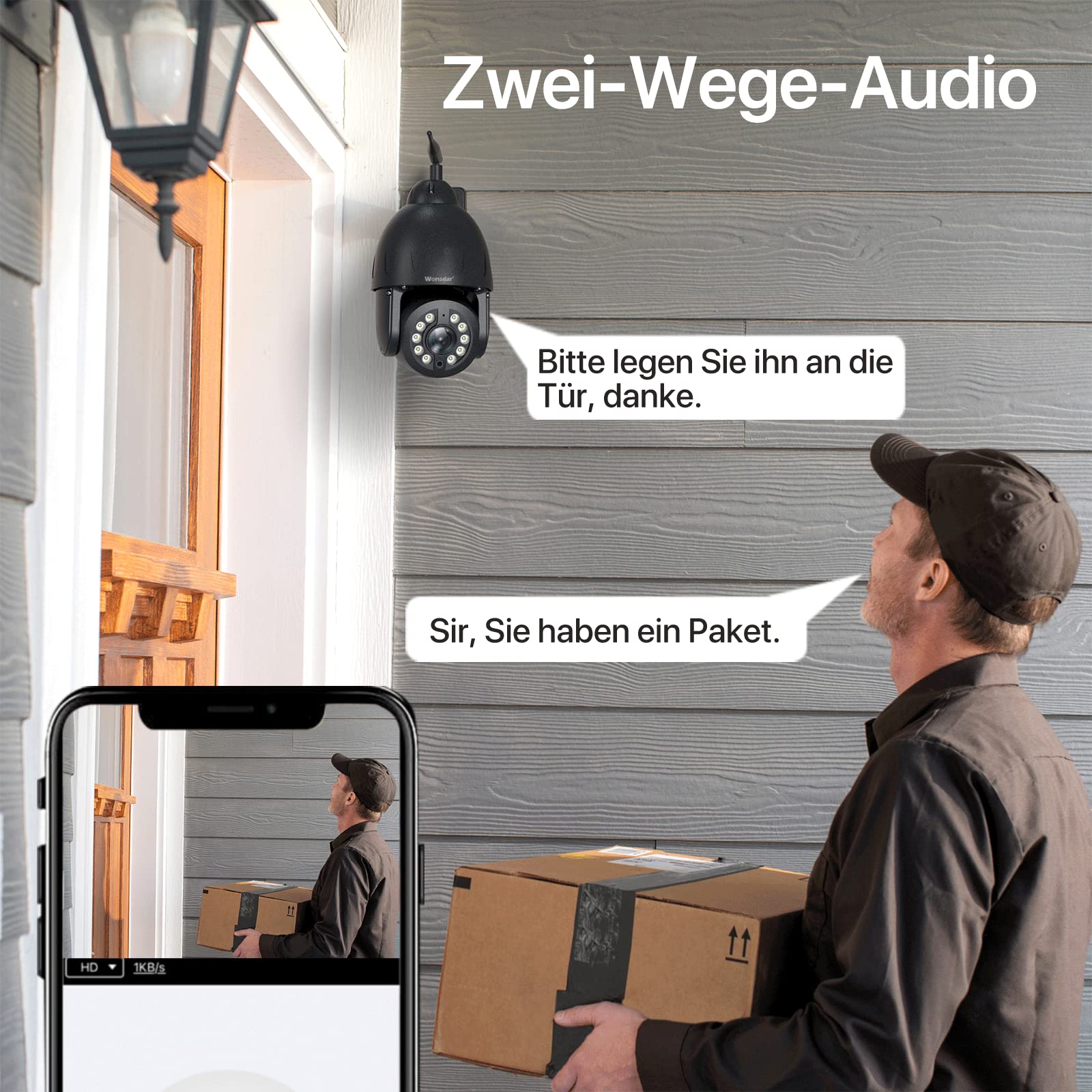
Image: A user engaging in two-way audio communication with a delivery person at their doorstep via the camera.
5.6 Preset Points and Cruise Function
Set up specific monitoring points within the app. The camera can automatically cycle through these preset points, ensuring continuous surveillance of critical areas.

Image: The camera's ability to secure property by monitoring multiple preset points around a building and pool area.

Image: The mobile app interface illustrating how to set custom preset points and activate cruise functions for automated surveillance.
5.7 Local Storage
Insert a Micro-SD card (8-128GB, not included) into the designated slot on the camera for local video recording. You can view recorded videos directly through the app.

Image: The camera highlighting its local storage capability via a Micro-SD card, allowing users to view stored videos.
5.8 Multi-User and Multi-Platform Access
Share camera access with family members or colleagues. The camera supports multiple users and can be accessed from various devices, including smartphones, tablets, and computers.

Image: Illustration of multiple users simultaneously accessing the camera's live feed from different devices.

Image: The camera feed accessible across various platforms including mobile phones, tablets, and desktop computers.
6. Maintenance
6.1 Cleaning
Regularly clean the camera lens with a soft, dry cloth to ensure clear image quality. Do not use harsh chemicals or abrasive materials.
6.2 Environmental Protection
The camera features an IP66 weatherproof rating and a full metal casing for durability. While designed to withstand harsh conditions, ensure proper installation to prevent water ingress to power connections.
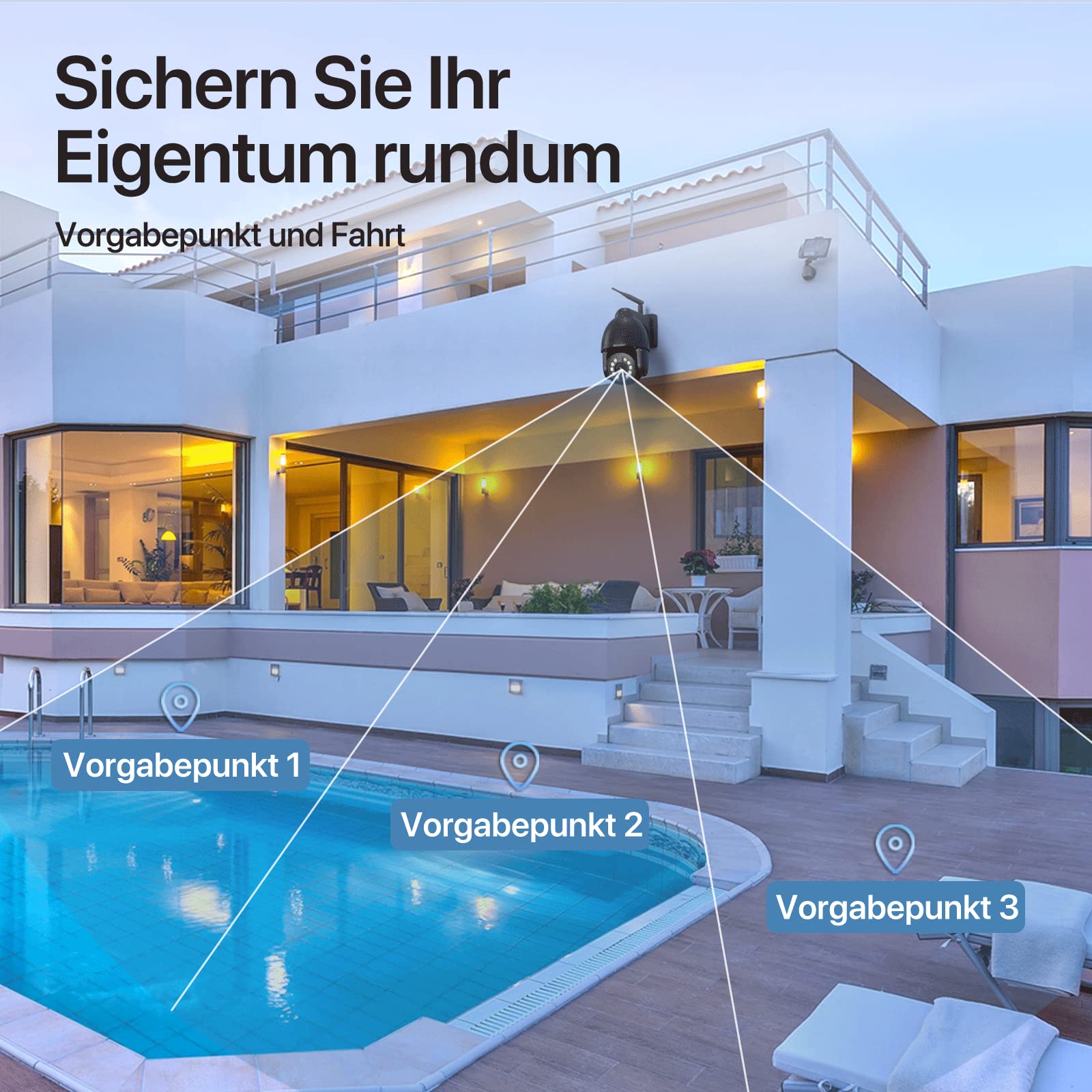
Image: The camera's robust aluminum housing and IP66 water resistance, demonstrating its ability to withstand rain, heat, and cold.
6.3 Firmware Updates
Check the app periodically for available firmware updates. Keeping your camera's firmware up-to-date ensures optimal performance and security.
7. Troubleshooting
- Camera Offline:
- Check Wi-Fi signal strength at the camera's location.
- Ensure the camera is powered on and the power adapter is securely connected.
- Restart the camera by unplugging and re-plugging the power.
- If issues persist, try resetting the camera to factory settings (locate the reset button, usually a small pinhole, and press for 5-10 seconds).
- Poor Image Quality:
- Clean the camera lens.
- Ensure adequate lighting, especially for night vision.
- Check your internet connection speed.
- Motion Detection Not Working:
- Verify motion detection settings are enabled in the app.
- Adjust sensitivity levels.
- Ensure there are no obstructions in the camera's field of view.
- No Two-Way Audio:
- Check microphone and speaker permissions for the app on your phone.
- Ensure volume settings are appropriate.
8. Specifications
| Feature | Specification |
|---|---|
| Model | 4K PTZ WiFi Outdoor Security Camera |
| Resolution | 8 MP (4K Video Recording) |
| Pan Angle | 355 Degrees |
| Tilt Angle | 90 Degrees |
| Connectivity | Wireless (Wi-Fi) |
| Weather Resistance | IP66 |
| Material | Metal |
| Night Vision Range | Up to 60 meters |
| Storage | Micro-SD Card (8-128GB) |
| Power Source | Electric Cable |
| Recommended Use | Outdoor Surveillance, Motion Detection, Night Vision |
| Color | Black |
9. Warranty and Support
WONSDAR products come with a standard manufacturer's warranty. For specific warranty details, please refer to the documentation included with your purchase or visit the official WONSDAR website. For technical support, troubleshooting assistance, or any inquiries, please contact WONSDAR customer service through the contact information provided on their official website or within the mobile application.


