Introduction
This manual provides comprehensive instructions for the setup, operation, maintenance, and troubleshooting of your Redragon K606 LAKSHMI 60% Mechanical Gaming Keyboard. Please read this manual thoroughly to ensure proper use and to maximize your product experience.

An overhead view of the Redragon K606 LAKSHMI 60% mechanical gaming keyboard, showcasing its compact layout and two-tone keycaps.
Setup Instructions
- Unpacking: Carefully remove the keyboard and all accessories from the packaging. Verify that all components are present: Redragon K606 LAKSHMI keyboard, detachable USB cable, keycap puller, and switch puller.
- Connecting the Keyboard:
Locate the USB-C port on the left side of the keyboard. Connect the smaller end of the provided detachable USB cable to this port. Connect the standard USB-A end of the cable to an available USB port on your computer.

A close-up view of the Redragon K606 keyboard's left side, showing the USB-C port and the L-shaped detachable USB cable connector.
- Initial Power-On: The keyboard should automatically be recognized by your operating system (Windows 10 or later is supported). The white LED backlighting will illuminate upon successful connection.
- Adjusting Keyboard Angle: Flip out the two adjustable feet located on the underside of the keyboard to achieve a preferred typing angle.
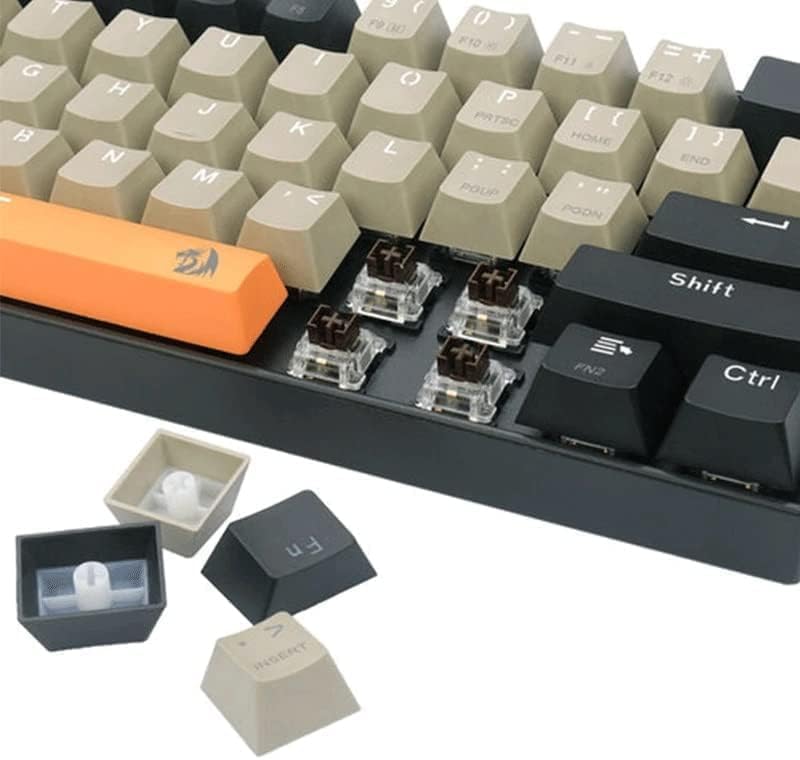
A side view of the Redragon K606 keyboard, highlighting its compact design and the adjustable feet extended for ergonomic typing.
Operating Instructions
Key Layout and Function (Fn) Combinations
The Redragon K606 LAKSHMI is a 60% keyboard, meaning it omits the number pad, function row, navigation cluster, and arrow keys to achieve a compact form factor. These functions are accessed via the Fn key in combination with other keys.
- Fn + [1-0, -, =]: Corresponds to F1-F12 keys. For example, Fn + 1 activates F1.
- Fn + [P, L, ;, ', /, .]: Corresponds to navigation keys like Print Screen, Scroll Lock, Pause Break, Insert, Home, End.
- Fn + [W, A, S, D]: Toggles arrow key functionality on W, A, S, D keys. Press again to revert.
- Fn + [Q, E, R, T, Y, U, I, O, P]: Multimedia controls (e.g., Play/Pause, Stop, Volume Up/Down, Mute). Specific functions may vary; refer to keycap legends.
Backlighting Control
The keyboard features white LED backlighting. Use the following combinations to control the lighting:
- Fn + [\|]: Cycles through different backlighting modes.
- Fn + [Up Arrow]: Increases backlighting brightness.
- Fn + [Down Arrow]: Decreases backlighting brightness.
- Fn + [Left Arrow]: Decreases backlighting speed (for dynamic modes).
- Fn + [Right Arrow]: Increases backlighting speed (for dynamic modes).
Maintenance
Cleaning the Keyboard
To maintain optimal performance and appearance, regular cleaning is recommended:
- Disconnect the keyboard from your computer before cleaning.
- Use a soft, lint-free cloth slightly dampened with water or a mild cleaning solution to wipe the keycaps and chassis. Avoid excessive moisture.
- For dust and debris between keycaps, use compressed air.
Keycap and Switch Removal/Replacement
The Redragon K606 LAKSHMI features hot-swappable mechanical switches, allowing for easy replacement without soldering. Use the provided tools for this process.
- Keycap Removal: Use the keycap puller to gently grip the keycap and pull upwards. Apply even pressure to avoid damaging the keycap or switch.
- Switch Removal: After removing the keycap, use the switch puller to grasp the two clips on the top and bottom of the switch. Gently pull the switch upwards until it detaches from the PCB.
- Switch Replacement: Align the pins of the new switch with the holes on the PCB. Press down firmly until the switch clicks into place. Ensure the switch is seated correctly and not bent.
- Keycap Replacement: Align the keycap over the switch stem and press down gently until it is securely seated.
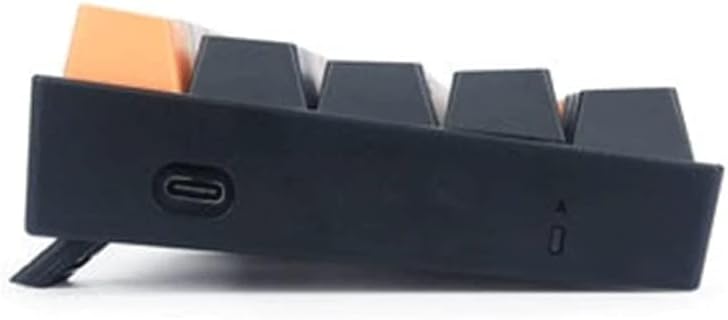
A detailed view of the Redragon K606 keyboard with several keycaps and mechanical switches removed, illustrating the hot-swappable design.
Troubleshooting
- Keyboard Not Responding:
- Ensure the USB cable is securely connected to both the keyboard and the computer.
- Try connecting the keyboard to a different USB port on your computer.
- Test the keyboard on another computer to rule out system-specific issues.
- Restart your computer.
- Backlighting Not Working or Flickering:
- Check backlighting brightness settings using Fn + Up/Down Arrow.
- Cycle through backlighting modes using Fn + [\|].
- Ensure the keyboard is receiving sufficient power from the USB port.
- Specific Keys Not Registering:
- Remove the keycap and switch for the problematic key (refer to Maintenance section).
- Inspect the switch for any visible damage or debris.
- Try replacing the switch with a known working switch from another less-used key, or a spare switch if available.
- Ensure the switch is properly seated in the PCB.
Specifications
| Feature | Detail |
|---|---|
| Brand | Redragon |
| Model | K606 LAKSHMI |
| Product Dimensions | 29 x 10 x 3.5 cm |
| Item Weight | 1.52 Kilograms |
| Power Source | Wired |
| Operating System | Windows 10 (and compatible) |
| Connectivity Technology | USB |
| Keyboard Description | Mechanical |
| Special Features | Backlit |
| Keyboard Backlighting Color Support | Single Color (White LED) |
| Included Components | USB Cable |
Warranty and Support
Warranty Information
The Redragon K606 LAKSHMI keyboard comes with a 12-month warranty from the dealer. Please retain your proof of purchase for warranty claims.
Customer Support
For further assistance, technical support, or warranty inquiries, please contact your product dealer or visit the official Redragon website for support resources.


